
Dropdown lists are a simple but powerful feature in Microsoft Excel. They make entering data easier, faster, and more accurate. But sometimes, dropdowns in Excel stop working. Maybe the arrow disappears, the list won’t show, or you can’t select any value. If you depend on dropdowns for your spreadsheets, these problems can slow you down or even break your workflow.
This article will help you fully understand why Excel dropdowns fail and how to fix every common issue. Whether you’re new to data validation or an advanced user, you’ll learn practical troubleshooting steps, hidden causes, and expert tips. We’ll also compare Excel versions and settings, show where to find key options, and answer tricky questions users often face. Let’s solve your dropdown problem for good.
Why Dropdowns Are Important In Excel
Dropdown lists (also known as data validation lists) are more than just a convenience. They:
- Reduce errors by allowing only specific values.
- Save time by avoiding repeated typing.
- Standardize data for easier analysis.
- Guide users with clear choices.
For example, in a sales sheet, you might have a dropdown for “Product Category” so users can only pick valid options. If the dropdown doesn’t work, wrong data can sneak in, making reports unreliable.
Common Symptoms When Excel Dropdowns Fail
Before fixing, you need to notice what’s wrong. These are the most frequent signs:
- No arrow appears in the cell, so you can’t open the list.
- Dropdown works but list is empty or missing items.
- Can’t select or change value from the dropdown.
- Dropdown is missing on some cells but works on others.
- Dropdown works in one file, not another.
- Error message pops up when you try to use the dropdown.
- Dropdown resets or disappears after editing or copying cells.
Each symptom points to a different cause. Let’s explore all possible reasons and solutions.
Credit: www.extendoffice.com
Main Reasons Dropdowns In Excel Are Not Working
Several things can make Excel dropdowns stop working. Understanding these will help you fix the issue faster.
1. Data Validation Was Removed
If someone deleted or changed the data validation rule, the dropdown disappears. This often happens when:
- You copy and paste over the cell with values only (not validation).
- A macro or script clears validation.
- Someone edits the rules in the Data Validation dialog.
Pro Tip: Copy-pasting values over a cell with a dropdown will remove the dropdown. Always use “Paste Special > Validation” if you want to copy only the dropdown rule.
2. Source List Was Deleted Or Changed
Dropdowns depend on a source list. If you delete, move, or rename the source range, the dropdown may stop working or show an empty list.
- If the source is on another sheet, and that sheet is deleted, the dropdown fails.
- If you change a named range, but the validation still points to the old name, it breaks.
Non-obvious Insight: If your dropdown uses a dynamic list (like an Excel Table), converting it back to a normal range can break all dependent dropdowns.
3. Worksheet Protection Blocks Dropdowns
Protecting a worksheet can disable dropdowns if you haven’t allowed users to select or edit cells with validation.
- By default, locked cells can’t be edited when the sheet is protected.
- If the dropdown is in a locked cell, it won’t work.
Solution: Unlock the cell before protecting, or adjust protection settings.
4. Merged Cells And Dropdowns Don’t Mix
Excel doesn’t allow data validation on merged cells. If you try, you’ll get a warning, and the dropdown won’t appear.
- Even if you unmerge later, you may need to re-apply the validation.
Example: You merge A1:A2, then set a dropdown. Excel blocks it.
5. The List Is On Another Workbook
If your dropdown’s source list is in a different file (workbook), it won’t work if:
- The other workbook is closed.
- The file path changes or access is blocked.
Excel only supports dropdowns using source lists in the same open workbook.
6. Compatibility Issues With Excel Versions
Different versions of Excel handle data validation differently. For example:
- Some features (like dynamic arrays) only work in newer Excel.
- Older files (.xls) have limits on range size or features.
- Web versions of Excel may not show all dropdowns.
Comparison Table: Excel Versions and Dropdown Behavior
| Excel Version | Dropdown Support | Limits & Issues |
|---|---|---|
| Excel 2010/2013 | Full | No dynamic arrays, smaller lists |
| Excel 2016/2019 | Full | Improved, but no dynamic arrays |
| Excel 365 | Full + Dynamic Arrays | Best compatibility |
| Excel Online | Partial | Some dropdowns, no advanced features |
| Excel for Mac | Full (recent) | Old versions may miss features |
7. Range Name Errors
If your dropdown uses a named range and that range is misspelled, deleted, or refers to the wrong place, the dropdown fails.
- Check Formulas > Name Manager to see if the name is valid.
8. Hidden Rows Or Columns
If the source list is in a hidden row or column, the dropdown may work, but users can’t see or edit the list.
9. Filters Hide Source Data
Using filters can temporarily hide rows that are part of the source list. If the dropdown depends on those rows, the list may appear incomplete.
10. Wrong Data Validation Settings
Sometimes the problem is in the validation settings themselves:
- The source range is wrong (e.g., “A1: A100” instead of “A1:A10”).
- The list is set as a formula but the syntax is invalid.
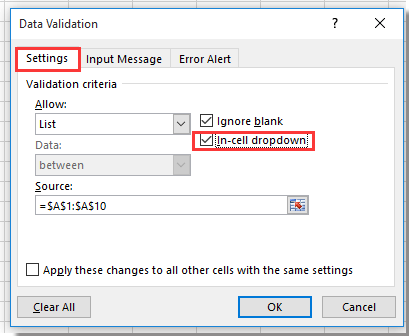
- The “In-cell dropdown” box is unchecked.
11. Corrupted Excel File
File corruption can break dropdowns. This is rare but possible, especially in files with lots of formatting, macros, or after a crash.
12. Add-ins Or Macros Interfering
Some Excel add-ins or VBA macros might change, delete, or block dropdowns without warning.
Non-obvious Insight: Macros can silently clear data validation rules if they are poorly written or not meant for your version of Excel.
13. Shared Workbooks And Collaboration Conflicts
If you’re using a shared workbook (for example, with multiple users in Excel Online or on OneDrive/SharePoint), changes by other users can:
- Overwrite validation rules.
- Delete or move source lists.
- Cause sync problems where dropdowns don’t update.
14. Cell Format Conflicts
Formatting cells as “Text” before creating a dropdown can cause issues. Sometimes, Excel won’t allow selection, or the value won’t validate correctly.
How To Diagnose Why A Dropdown Is Not Working
Quick diagnosis saves time. Here’s how to pinpoint the problem:
- Check if the dropdown arrow appears in the cell. If not, the validation rule is likely missing.
- Select the cell and go to Data > Data Validation. Does the dialog show a rule, or is it blank?
- Look at the source list. Is it visible, correct, and not deleted?
- Check for merged cells. Select the cell and see if “Merge & Center” is highlighted.
- Try the dropdown in another cell. If it works elsewhere, the problem is local.
- Open Name Manager (Formulas > Name Manager) if you use named ranges.
- Unprotect the sheet temporarily to see if protection is blocking the dropdown.
- Check if the workbook is shared or synced. Other users may have edited it.
- Review recent changes or macros that could affect the validation.
Step-by-step Solutions For Each Dropdown Problem
Let’s fix each issue in detail.
1. Restore Or Reapply Data Validation
If the validation rule is gone, you need to set it up again:
- Select the cell (or range).
- Go to Data > Data Validation.
- Under “Allow,” choose “List.”
- In “Source,” enter your list (like `=$A$1: $A$10` or a named range).
- Check “In-cell dropdown.”
- Click OK.
Tip: To copy a dropdown to other cells without losing the rule, use “Paste Special > Validation” (Ctrl+Alt+V, then N).
2. Fix Or Rebuild The Source List
If the source list was deleted, moved, or filtered:
- Restore the list to its original place.
- Update the validation rule to point to the correct range.
- If using a named range, fix its reference in Name Manager.
- If you want to use a dynamic list, convert it into an Excel Table (Insert > Table) so the range updates automatically.
Example: If your validation used `=Products`, make sure the named range “Products” still exists and covers your items.
3. Unprotect Sheet Or Unlock Cells
To allow dropdowns on a protected sheet:
- Select the cell(s) with dropdowns.
- Right-click > Format Cells > Protection. Uncheck “Locked.”
- Protect the sheet again (Review > Protect Sheet), but allow “Select unlocked cells.”
- Now, users can use dropdowns even on a protected sheet.
4. Remove Merged Cells
Dropdowns only work on unmerged cells. To fix:
- Select merged cells.
- Go to Home > Merge & Center, and click to unmerge.
- Reapply the data validation rule.
Note: After unmerging, you may need to set up the dropdowns again.
5. Bring Source List Into The Same Workbook
If your dropdown depends on another workbook:
- Copy the source list into a sheet in the same file.
- Update the validation rule to point to the new range.
- Save and test with only one workbook open.
Excel can’t use external workbooks as a source for data validation lists.
6. Check Excel Version And Save In Compatible Format
If you use advanced features (like dynamic arrays) but others use older Excel:
- Save in the latest .xlsx format.
- Avoid features that older Excel can’t read.
- Test dropdowns in the version your team uses most.
Pro Tip: If using Excel Online, remember that some dropdowns (especially with formulas or indirect references) may not work.
7. Fix Named Range Errors
To repair a broken named range:
- Go to Formulas > Name Manager.
- Find the name used in your validation.
- Make sure it refers to the correct range.
- Edit or recreate the name if needed.
8. Unhide Source List Rows/columns
Make sure the data for your dropdown is not in hidden rows or columns:
- Select the rows or columns around the hidden area.
- Right-click > Unhide.
- Double-check your validation source.
9. Avoid Filters On Source Data
Remove filters on your source list:
- Go to Data > Clear (in the Sort & Filter group).
- Make sure all rows are visible.
10. Correct Data Validation Settings
Open Data Validation for the cell:
- Confirm “Allow” is set to “List.”
- Check the “Source” field for typos or wrong ranges.
- Make sure “In-cell dropdown” is checked.
Common mistake: Entering a formula with wrong syntax or forgetting the “=” sign.
11. Repair Corrupted Files
If dropdowns won’t work in any sheet or cell, the file may be corrupted:
- Try opening the file on another computer.
- Save a copy as a new file.
- Use File > Open > Repair in Excel to fix minor corruptions.
12. Disable Add-ins Or Review Macros
If you suspect add-ins or macros:
- Go to File > Options > Add-Ins. Disable all non-essential add-ins.
- Press Alt+F11 to open the VBA editor. Check for macros that affect validation.
- Test after disabling to see if dropdowns return.
13. Resolve Shared Workbook Conflicts
If dropdowns disappear after syncing or editing with others:
- Communicate with team members about changes.
- Avoid editing validation rules at the same time.
- Use Excel’s “Track Changes” or “Version History” to spot when dropdowns were lost.
14. Change Cell Format To General
If the cell is formatted as “Text”:
- Select the cell.
- Go to Home > Number Format, choose “General.”
- Reapply your data validation rule.
Tip: Always format cells before adding dropdowns, not after.
Advanced Troubleshooting: Tricky Dropdown Issues
Some dropdown issues are rare but important to know:
Indirect Function Limitations
If your dropdown uses the INDIRECT function to reference a list (for example, for dependent dropdowns), it won’t work in Excel Online or if the referenced sheet is hidden.
Example: `=INDIRECT(“List_”&A1)` won’t work if “List_Something” is on a hidden sheet.
List With Blank Or Duplicate Values
Blank values in your source list will show as empty lines in the dropdown. Duplicate values will appear multiple times.
- Clean up your source list for best user experience.
Data Validation And Conditional Formatting Clash
If conditional formatting uses the same cells as your dropdown, it might slow down or confuse users, especially in large files.
- Try to separate formatting ranges from validation ranges.
Very Large Lists
Excel has a limit for dropdowns: the source list can be up to 32,767 characters (not rows). If your list is too long, it may be cut off or not work.
Data Validation Doesn’t Work In Tables For Structured References
If you use structured references (like “=Table1[Column1]”) in data validation, older Excel versions may not accept it.
Credit: www.youtube.com
How To Prevent Dropdown Problems In The Future
Prevention saves headaches. Here’s how to keep dropdowns working:
- Keep source lists close: Always store your source lists in the same workbook, ideally on a dedicated sheet.
- Avoid merging cells where dropdowns are needed.
- Limit sharing and simultaneous editing of validation rules.
- Use named ranges for source lists so you can move them without breaking validation.
- Train users not to copy-paste over dropdown cells with values only.
- Protect sheets carefully, unlocking only the necessary cells.
- Test in all Excel versions your users need.
- Back up important files before making big changes.
Comparison Table: Best Practices for Reliable Dropdowns
| Best Practice | Why It Matters | Common Mistake |
|---|---|---|
| Use named ranges | Easy to update lists | Hard-coded cell references |
| Don’t merge cells | Dropdowns don’t work in merged cells | Merge, then try to add validation |
| Store source in same workbook | Ensures dropdown is always available | Linking to another workbook |
| Protect sheet after unlocking dropdown cells | Users can edit dropdowns safely | Locking all cells by mistake |
Real-world Example: Fixing A Broken Dropdown
Let’s walk through a real example:
You have a sales tracker. Column A is “Salesperson” with a dropdown. Suddenly, the dropdown stops working.
Steps:
- Select a cell in Column A. No arrow appears.
- Go to Data > Data Validation. The dialog is blank.
- Check with a teammate: They copied and pasted values from another sheet over Column A.
- Solution: Re-apply data validation for Column A, using the source list on Sheet2.
- Educate your team: Use “Paste Special > Values and Validation” next time.
After these steps, the dropdown works again. This kind of issue is very common in busy teams.
When To Use Dependent Dropdowns And Their Pitfalls
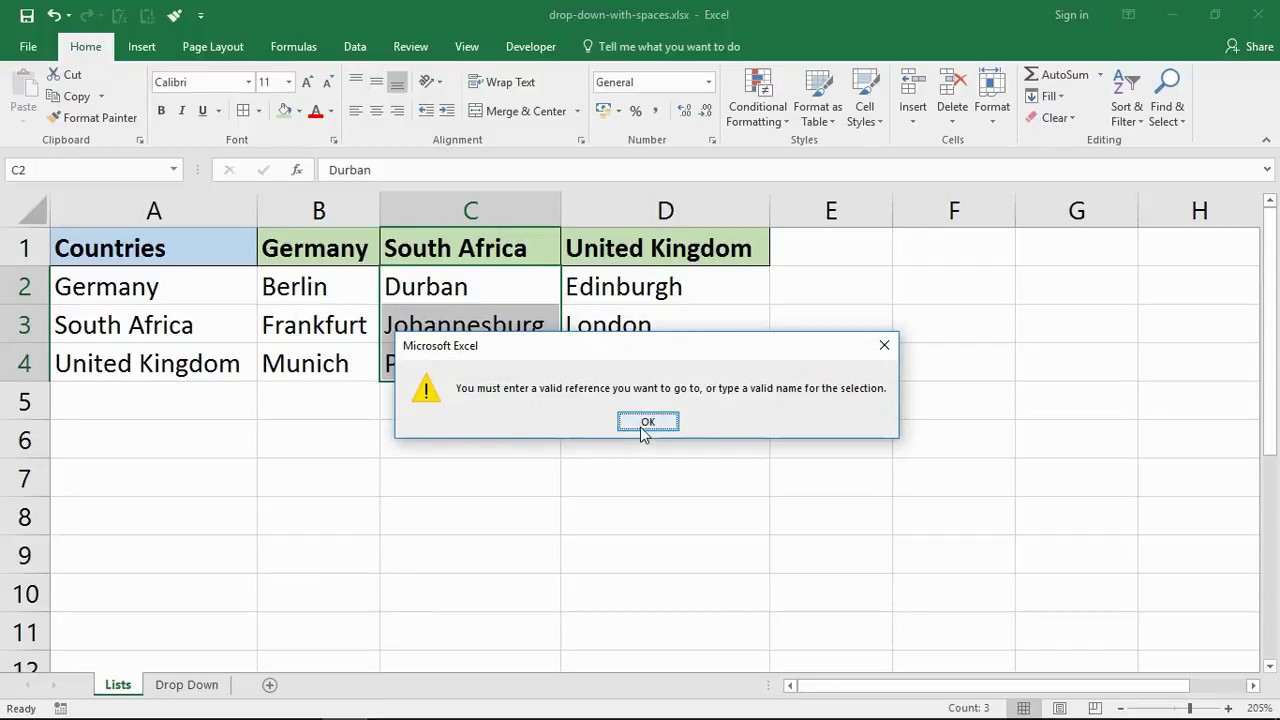
Sometimes you need a dependent dropdown (one list changes based on another cell). For example, “Country” and “City.” These are powerful but fragile.
- If a formula or INDIRECT reference is broken, the second dropdown fails.
- Make sure all lists exist and are spelled exactly as needed.
- Don’t use dependent dropdowns if users open the file in Excel Online, as support is limited.
Pro Tip: Test dependent dropdowns after moving or renaming sheets.
When To Rebuild Instead Of Repair
If you try all fixes and dropdowns still fail:
- Create a new sheet and rebuild the validation from scratch.
- Copy your data over.
- Sometimes, files are too corrupted, or validation rules too mixed up to fix.
This can save time compared to endless troubleshooting.
Useful Resources
For deeper technical details, see Microsoft’s official documentation: Microsoft Support.
Frequently Asked Questions
Why Does My Excel Dropdown Not Show The Arrow?
The arrow is missing if the data validation rule was removed, the cell is merged, or the sheet is protected and the cell is locked. Unmerge the cell, unlock it, and reapply validation to fix.
Can I Use A Dropdown In A Merged Cell?
No. Excel does not support data validation in merged cells. Unmerge cells first, then add your dropdown.
Why Does My Dropdown Work In One File But Not Another?
Files may have different source lists, protection settings, or Excel versions. Check the source, cell formatting, and whether the list is in the same file.
How Do I Create A Dynamic Dropdown That Updates Automatically?
Use an Excel Table for your source list. When you add items, the dropdown updates. Set your validation source to the table column (e.g., `=Table1[Column1]`).
Why Does My Dropdown Show Blank Or Duplicate Items?
Your source list has blank rows or duplicate values. Clean the source list to remove extras. Only unique, filled cells should be in the list.
Conclusion
Dropdown issues in Excel can feel confusing, but with careful checking and these proven fixes, you can restore dropdowns quickly. Stay organized, use best practices, and your data validation will stay reliable for all users.