
When your Zosi DVR stops recording, it’s easy to feel worried or even frustrated. You depend on your security system to keep your home, office, or shop safe. When it fails, you lose peace of mind—and potentially, important video evidence. But before you panic or call a technician, know this: most Zosi DVR recording problems are solvable without deep technical skills. In this article, you’ll learn the real reasons your Zosi DVR isn’t recording, how to fix each one, and how to avoid them in the future. You’ll also see how to spot less obvious issues that even experienced users sometimes miss.
Common Reasons Why Zosi Dvr Fails To Record
Many users believe a DVR should “just work,” but several things can disrupt recording. Understanding these can save you time and money.
1. Storage Problems
Your DVR needs a healthy hard drive with enough space. Full or faulty drives are the top reason for recording failures.
2. Incorrect Recording Settings
If the recording schedule or mode isn’t set properly, your DVR might never start recording.
3. Motion Detection Issues
For motion-activated recording, wrong settings or poor camera placement can cause missed footage.
4. Camera Or Cable Faults
A disconnected or faulty camera means nothing to record.
5. Firmware Or Software Bugs
Outdated or buggy firmware can interrupt normal function.
6. Power Supply Problems
Unstable or insufficient power can cause the DVR to reboot or stop working.
7. User Account Or Permission Errors
Some settings require admin permissions to enable recording.
Let’s go deeper into each one, how to check for them, and exactly what you should do next.
How To Diagnose Zosi Dvr Recording Problems
Before you start changing settings, gather some basic information:
- What exact model is your Zosi DVR?
- When did the recording problem start?
- Are all cameras affected, or just some?
- Are there error messages on the screen?
- Has anything changed recently (power cuts, updates, rewiring)?
Write down your answers. This helps you troubleshoot more efficiently.
Step-by-step Diagnostic Checklist
1. Check Live View
If you can see live video but no recordings, the problem is likely with the settings or storage.
2. Review Dvr Log
Most Zosi DVRs keep a log. Find and check for warnings or errors about storage, permissions, or hardware.
3. Test Playback
Try playing back footage from several days. Does it stop at a certain date? This points to when the issue began.
4. Observe Led Indicators
Some models have hard drive or recording LEDs. Are they blinking or off?
Storage And Hard Drive Issues
The most common reason for “no recording” is a problem with the DVR hard drive.
Signs Of Hard Drive Problems
- DVR says “No HDD” or “No hard disk detected.”
- Recordings stop after a certain date and no new footage appears.
- Playback skips or freezes.
Causes
- Hard drive is full and overwriting is disabled.
- Hard drive is physically damaged.
- Loose or faulty SATA/power cable.
- Incompatible or unsupported hard drive.
How To Fix
1. Check Storage Status
Go to the DVR menu and find “HDD Management” or similar. You’ll see free/used space and drive status.
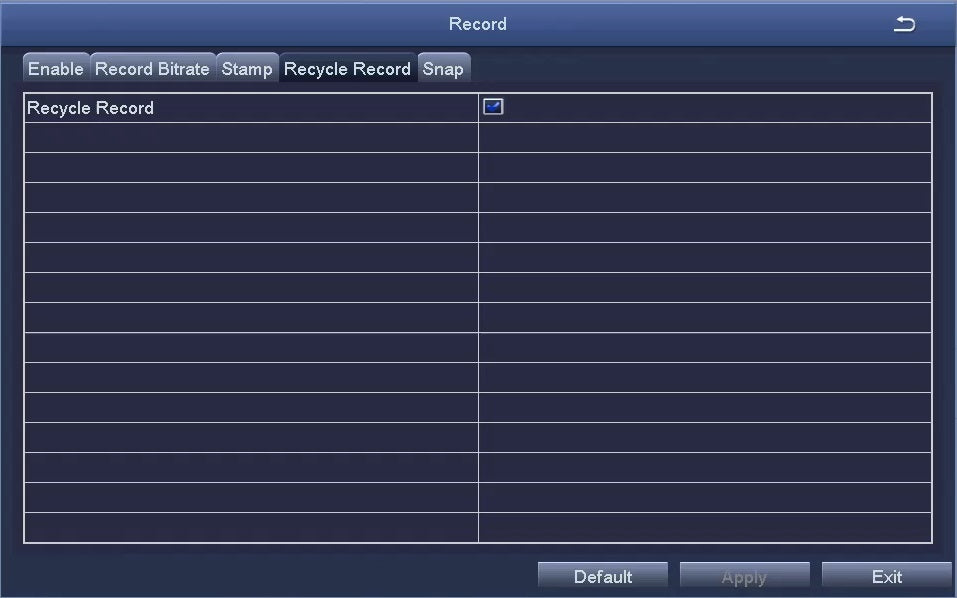
2. Enable Overwrite
If overwrite is off, turn it on. This allows new footage to replace old files when the disk is full.
3. Reformat The Hard Drive
Back up important footage, then format the drive from the DVR menu. This often fixes file system errors.
4. Reseat Or Replace The Drive
Turn off the DVR, unplug it, and check that the hard drive cables are secure. Try a different drive if needed.
Comparison: Healthy Vs. Faulty Hard Drive
| Healthy Hard Drive | Faulty Hard Drive |
|---|---|
| Shows in HDD menu, status “Normal” | Missing from menu or “Error” status |
| Records and overwrites old footage | Stops recording, playback fails |
| Silent operation | Clicking, beeping, or no noise at all |
Non-obvious tip: Always use a surveillance-rated hard drive (not a regular PC drive). Regular drives fail faster in DVRs, causing silent recording problems.
Incorrect Recording Settings
Many new users expect their Zosi DVR to record everything by default. But most systems require you to set a recording schedule or mode.
Common Setting Mistakes
- Schedule is set to “No Record” or only certain hours.
- Recording mode is set to “Manual” but never started.
- Channels are disabled for recording.
- Motion detection is set, but sensitivity is too low.
How To Check And Fix
1. Open The Recording Menu
This is usually found as “Record” or “Schedule” in settings.
2. Set To 24/7 Or Motion
Decide if you want constant recording (24/7), motion-activated, or on a schedule.
3. Apply To All Channels
Check that all cameras are set to record, not just one.
4. Save Settings
Many people forget to save after changes.
Example: Setting A 24/7 Recording Schedule
- Open DVR main menu.
- Go to “Record Setup.”
- Set each channel to “Regular” for all days/hours.
- Click “Save” or “Apply.”
Hidden insight: After a power outage, some settings may revert to default. Always double-check after power events.
Motion Detection Recording Issues
If your Zosi DVR uses motion detection, recording depends on both the camera’s view and sensitivity settings.
Common Triggers For Missed Recordings
- Sensitivity is too low, so motion is not detected.
- The camera faces a wall or static area.
- Motion detection is not enabled for all cameras.
- Masking/area settings are incorrect.
How To Improve Motion Recording
1. Increase Sensitivity
In the motion detection menu, raise the sensitivity slider.
2. Adjust Masking Area
Only mark the area you want to trigger recording. Avoid including trees, roads, or lights that cause false alerts.
3. Test With Real Movement
Walk in front of each camera and check if the DVR records.
4. Enable Alerts
Set up notifications for motion events. This helps you confirm it’s working.
Example Motion Detection Settings
| Setting | Recommended Value | Effect |
|---|---|---|
| Sensitivity | 60-80% | Captures normal movement, fewer false alarms |
| Area Masking | Include doors, windows | Records only when important areas are active |
| Alert Type | Email or push notification | Confirms motion events are detected |
Pro tip: Clean your camera lens regularly—dirt or spider webs can block or confuse motion sensors.
Camera Or Cable Faults
If a camera is disconnected or has a bad cable, your DVR will not record from that channel.
Signs Of Camera Problems
- Black or blue screen for a channel.
- “No signal” message.
- Recording is missing for one camera, but others are fine.
How To Troubleshoot
1. Check Camera Power
Make sure the camera power adapter is plugged in and working.
2. Swap Ports
Plug the camera into a different DVR channel. If it works, the issue is with the port, not the camera.
3. Test With A Spare Cable
Use a known good cable to rule out wiring problems.
4. Inspect Connectors
Look for bent pins, corrosion, or loose BNC connectors.
Example: Diagnosing A Dead Channel
| Test Step | Result | Conclusion |
|---|---|---|
| Live view on Channel 1 | No image | Possible camera/cable/DVR issue |
| Move camera to Channel 2 | Image appears | Channel 1 port issue |
| Try new camera on Channel 1 | No image | DVR port is faulty |
Insider tip: Zosi cables are often lower quality than the cameras. Upgrading to better shielded cables can fix random signal dropouts.
Firmware And Software Bugs
Zosi often releases firmware updates to fix bugs, add features, or improve stability. Outdated firmware can cause recording failures, glitches, or missing features.
How To Check Firmware
- Go to the “System Info” menu.
- Write down your firmware version and date.
- Visit the official Zosi website and compare with the latest version.
How To Safely Update
1. Back Up Settings
Before updating, save your settings to a USB drive.
2. Download Firmware
Get the correct file for your model from the official site.
3. Install Carefully
Follow instructions exactly—interrupting a firmware update can permanently damage your DVR.
Software Bugs To Watch For
- Schedule not saving or reverting after reboot.
- Playback glitches or missing days.
- Cameras not showing on some apps but present on others.
Non-obvious insight: Some software bugs only appear with certain hard drive brands or sizes—always check compatibility lists before upgrading storage.
Power Supply And Hardware Issues
A Zosi DVR needs stable power. If the adapter is weak or failing, you’ll see random reboots, missing recordings, or total failure.
Signs Of Power Problems
- DVR restarts randomly.
- Recording stops during power dips.
- Red or orange power LED (not green).
How To Troubleshoot
1. Test With A New Adapter
Use a replacement with the same voltage and equal or higher amperage.
2. Check For Extension Cord Issues
Plug directly into a wall outlet to rule out cord or surge protector faults.
3. Inspect For Overheating
Make sure the DVR isn’t covered or in a hot area.
Practical tip: DVRs placed in poorly ventilated cabinets overheat faster, leading to more recording errors.

User Account Or Permission Problems
Modern Zosi DVRs let you set up multiple user accounts. Only users with admin rights can change recording settings.
Common Permission Mistakes
- Trying to change settings from a guest account.
- Remote app permissions not synced with main DVR.
- Parental or time limits blocking schedule changes.
How To Fix
- Always log in as “admin” for setup.
- Check user permissions under “Account Management.”
- Sync settings on all devices (DVR, app, web).
Hidden problem: Some mobile apps don’t update settings immediately. Always check the main DVR for final confirmation.
Other Causes: Less Obvious But Important
Sometimes, the reason your Zosi DVR is not recording is less obvious:
- Time/Date Errors: If the clock is wrong, scheduled recordings won’t start at the right time.
- Network Sync Issues: For cloud or app recording, poor Wi-Fi can block uploads.
- Firmware Glitches after Power Outages: Sudden shutdowns can corrupt the DVR’s system files.
What to do:
Always set your DVR to auto-sync time via NTP (internet time servers). Check network strength for remote viewing.
Preventing Future Zosi Dvr Recording Issues
Once you fix the problem, a few simple steps help keep your Zosi DVR recording reliably.
1. Check Storage Weekly
Make it a habit to review storage and playback at least once a week.
2. Update Firmware Quarterly
Stay on top of updates for bug fixes.
3. Review Camera Feeds Regularly
A quick daily glance can spot camera failures early.
4. Keep A Backup Power Source
A small UPS (battery backup) stops sudden shutdowns.
5. Label All Cables
If you ever move or upgrade your system, labels help you reconnect everything correctly.
Advanced tip: Set email alerts for recording errors (if your model supports it). This gives instant notice if something goes wrong.
When To Call A Professional
You can solve most Zosi DVR recording problems yourself. But call for help if:
- Hard drive errors persist after replacing the drive.
- Multiple cameras fail at once (suggests main board failure).
- Firmware update fails or DVR won’t boot.
Professional repair is sometimes cheaper than replacing the whole system, especially for valuable footage.

Useful Online Resources
For up-to-date troubleshooting and firmware, use the official Zosi support site. For general CCTV advice, CCTV Forum has many user guides and expert answers.
Frequently Asked Questions
Why Does My Zosi Dvr Say “no Hdd” Even After Installing A New Hard Drive?
This usually means the DVR can’t detect the hard drive. Possible reasons include an unsupported drive type, a loose cable, or a need to format the drive from the DVR menu. Make sure you use a surveillance-class hard drive and check both power and data connections.
Can I Use A Regular Computer Hard Drive In My Zosi Dvr?
While some regular drives may work, it’s not recommended. Surveillance drives are built for constant recording and longer life in DVRs. PC drives often fail early or cause skipped recordings.
My Motion Detection Is Too Sensitive—how Do I Reduce False Alarms?
Lower the motion sensitivity in your DVR settings. Also, adjust the masking area so only important zones (like doors) trigger recordings. Remove moving objects like trees or flags from the camera’s view if possible.
Will A Firmware Update Erase My Recordings?
No, firmware updates should not delete stored footage. But always back up important recordings before major changes, just in case of update errors.
Why Are Recordings Missing After A Power Outage?
Sudden loss of power can corrupt the file system or reset recording schedules to default. Check your settings, reformat the drive if needed, and consider using a UPS to prevent future data loss.
A Zosi DVR that’s not recording is a real concern—but almost always fixable with patience and the right steps. By understanding how storage, settings, and hardware work together, you can solve most issues yourself and keep your property safe. Regular checks and careful setup mean you’ll never be caught off guard again.
If you ever feel stuck, don’t hesitate to reach out to Zosi’s support or online communities for extra help.