
If you’re playing your favorite game on Xbox One and you can hear your friends but they can’t hear you, it’s frustrating. This is a common problem that stops you from enjoying online gaming and team communication. Luckily, there are proven ways to solve it. This guide will help you understand why your Xbox One mic is not working (you can hear but can’t talk), what causes it, and how to fix it step by step.
Many gamers face this issue at some point, and often it’s not about a broken headset. The problem might be with your console settings, your controller, the headset’s plug, or even your privacy settings. Sometimes, the issue is simple. Other times, it needs more attention.
If you want to get back to playing and talking with your friends, read on for clear solutions and practical advice.
Understanding The Problem: Why You Can Hear But Can’t Talk
When your Xbox One mic lets you hear others but doesn’t pick up your voice, it means part of the headset is working. This is important because it tells us the headset speakers and the connection to the console are mostly fine. The trouble is with the microphone or how your Xbox handles your voice input.
Here are the most common reasons for this issue:
- Muted microphone or controller
- Incorrect audio settings
- Controller firmware is outdated
- Loose or damaged headset cable
- Headset not fully compatible
- Privacy or communication settings block voice
- Network or NAT type issues
- Xbox Live service problems
- Software glitches or profile bugs
Understanding these causes helps you fix the problem faster. Before trying advanced fixes, check the basics.
Basic Checks Before Troubleshooting
Before you change settings or reset anything, check these simple things:
- Is your mic muted? Sometimes the mute button is pressed by accident. Check the headset cable and the controller for a mute switch.
- Plug is connected fully. Pull out the headset plug and push it back in firmly.
- Volume is up. Turn up the mic and headset volume using the controls on your headset or controller.
- Try another headset. If you have another headset, try it. This helps know if your headset is the problem.
- Check batteries. Weak controller batteries can cause audio problems.
Most of the time, one of these basic checks can solve the issue.
Troubleshooting Steps: How To Fix Xbox One Mic Not Working
If the basic checks don’t work, follow these steps to fix your Xbox One mic.
1. Unmute Your Microphone And Controller
Look closely at your headset cable and controller. Most headsets have a mute button on the cable or on the earcup. If it’s red or shows a crossed-out mic symbol, it’s muted.
On the Xbox One controller, press the Xbox button, go to “Audio,” and make sure the mic is not muted in the settings.
2. Check Xbox Audio Settings
Sometimes, the console’s settings block your voice. To check:
- Press the Xbox button
- Go to Profile & system > Settings
- Choose Devices & connections > Accessories
- Select your controller, then go to Audio
Make sure Mic monitoring is up and Mute is off. Also, check Volume settings.
3. Update Controller Firmware
Old firmware can cause headset problems. To update:
- Connect the controller to your Xbox with a USB cable.
- Press the Xbox button, go to Profile & system > Settings > Devices & connections > Accessories.
- Select your controller, then “Device info.”
- If an update is available, choose Update.
This simple update often restores mic function.
4. Test The Headset On Another Device
Plug your headset into a phone, tablet, or another Xbox controller. Record your voice or make a call. If the mic doesn’t work, your headset may be broken.
5. Inspect And Clean The Headset Jack
Dust or dirt in the 3.5mm jack can block the mic signal. Blow gently into the port or use a cotton swab to clean it. Make sure the plug is straight and goes in fully.
6. Check Privacy & Online Safety Settings
If you’re a child account or your privacy settings are strict, voice chat may be blocked.
- Go to Settings > Account > Privacy & online safety
- Select your profile, then Xbox privacy
- Go to View details & customize > Communication & multiplayer
- Set “Others can communicate with voice, text, or invites” to Everybody or Friends
This setting is a common cause for young gamers.
7. Restart Your Console
Restarting the Xbox can fix temporary glitches.
- Press and hold the Xbox button on the console for 10 seconds to turn it off.
- Unplug the power cable for 30 seconds.
- Plug in and turn the console back on.
This clears the cache and resets the audio system.
8. Adjust Nat Type And Network Settings
A Strict NAT type can block voice chat. To check:
- Go to Settings > Network > Network settings
- Look for NAT Type (should be Open or Moderate)
If it’s Strict, you might have trouble talking in party chat. Restart your router, use a wired connection, or check your router’s UPnP settings.
9. Test In Different Games And Party Chat
Try using your mic in another game or in Xbox party chat. Sometimes, the issue is with a single game’s servers or settings.
- Press the Xbox button, go to Parties & chats
- Start a party and see if your mic icon lights up when you speak
This helps you know if the problem is with your hardware or a specific game.
10. Sign Out And Back In
Profile bugs can block your mic. Sign out of your Xbox profile and sign in again. This refreshes your account permissions.
11. Check Xbox Live Status
Sometimes, the problem is on Microsoft’s side. Visit the official Xbox Live Status page to see if there are any known issues with chat or party services.
If there’s a service outage, you may need to wait until it’s fixed.
12. Try A Wired Connection
Wireless controllers or headsets can have more issues. If you’re using a wireless headset, try switching to a wired one.
Comparing Common Causes And Solutions
To help you quickly understand the most likely reasons and their fixes, see this comparison:
| Problem | How to Check | Best Fix |
|---|---|---|
| Muted mic or controller | Look for mute buttons or icons | Unmute mic and check settings |
| Loose headset connection | Wiggle headset plug gently | Reconnect firmly, clean jack |
| Firmware outdated | Check for controller updates | Update firmware |
| Privacy settings block chat | Go to privacy settings menu | Allow voice communication |
| Broken headset mic | Test on another device | Replace headset if needed |
Advanced Fixes: For Persistent Mic Issues
If nothing above works, you may need to try more advanced fixes. These are less common, but important for a complete solution.
1. Reset Console Settings
If a software bug is blocking your mic, resetting the console’s settings can help. This does not delete your games or data.
- Go to Settings > System > Console info
- Select Reset console
- Choose Reset and keep my games & apps
After resetting, sign in and test your mic.
2. Power Cycle The Controller
Sometimes, the controller firmware needs a full refresh.
- Remove the batteries from the controller
- Wait 30 seconds
- Put the batteries back in and reconnect
Try your headset again.
3. Try A Different Xbox Profile
Create a new user profile on your Xbox. Sign in with it and test the mic. If it works, your main profile may have a permission or account issue.
4. Use Xbox Accessories App On Windows
If you have a PC, connect your controller with the headset to the computer and open the Xbox Accessories app (free from Microsoft Store). Update the controller and test the mic.
5. Replace Damaged Cables Or Accessories
If your headset or controller cable is bent, worn, or loose, it may only let audio through but not your voice. Try a different cable or adapter if possible.
Mic Not Working: Different Headset Types
There are different types of headsets for Xbox One:
- 3.5mm wired headsets (plug into the controller)
- Headsets with stereo adapters
- USB headsets (with Xbox wireless adapter)
- Wireless headsets
Each type has its own issues. For example:
- For 3.5mm headsets, a dirty jack is common.
- For stereo adapters, update their firmware.
- For USB or wireless headsets, check for interference or update the headset firmware.
See this quick comparison:
| Headset Type | Common Problem | Fix |
|---|---|---|
| 3.5mm Wired | Poor connection, dust | Clean jack, reconnect |
| Stereo Adapter | Firmware outdated | Update adapter |
| USB/Wireless | Interference, battery low | Charge, check for updates |

Credit: www.reddit.com
Common Mistakes To Avoid
It’s easy to make simple mistakes that waste time or make things worse. Watch out for these:
- Pulling the cable too hard. This can damage the headset plug or jack.
- Skipping controller updates. Always keep your controller firmware current.
- Using non-Xbox headsets. Not all PC or phone headsets work with Xbox controllers.
- Ignoring privacy settings. Many people miss this, especially on child accounts.
- Overlooking NAT type. Many network problems block voice chat, even if the headset is fine.
Real-world Example: Fixing A Mic In 10 Minutes
Imagine you join a party on Xbox One. You hear your friends, but they can’t hear you. Here’s what a fast fix might look like:
- You check the mute button on your headset—it’s off.
- You unplug and plug back the headset—still not working.
- You go to Settings > Audio, see the mic is muted in software. You unmute it.
- Now, the mic works! If not, you check privacy settings and allow voice chat.
This shows how a few small steps can solve the problem, without needing new hardware.
When To Replace Your Headset
If you’ve tried every fix and the mic still won’t work (but the speakers do), the microphone or cable may be broken. Signs of a broken headset mic:
- Others never hear you in any game or app
- The mic doesn’t work on your phone or PC either
- The headset shows visible damage
In that case, it’s time to buy a new headset. Choose a model made for Xbox One, and look for good reviews.
Tips For Better Voice Chat On Xbox One
Once your mic is working, you can improve your experience with these tips:
- Use a pop filter or foam cover on your mic to reduce noise.
- Adjust mic monitoring so you hear yourself at a comfortable level.
- Don’t shout—normal voice works best for game chat.
- Mute yourself when not talking to avoid background noise.
- Keep the headset clean to avoid sound problems.
How Xbox One Handles Audio: A Brief Look
The Xbox One processes audio separately for chat and game sound. The mic sends your voice to the controller, which sends it to the console. The console then sends your voice over Xbox Live to your friends.
If any link in this chain is broken—hardware, software, network—your mic may stop working.
- Xbox One Controllers use different chipsets. Some older controllers have more audio problems.
- Xbox Live uses your NAT type and privacy settings to manage voice chat.
Understanding this process helps you know where things might go wrong.
How To Prevent Future Mic Issues
Prevention is easier than fixing. Here’s how to avoid mic problems:
- Update firmware regularly for your controller and headset.
- Store your headset carefully—don’t wrap the cable tightly.
- Clean the headset jack every few months.
- Check privacy settings after new updates or changes.
- Restart your console every few days to clear bugs.
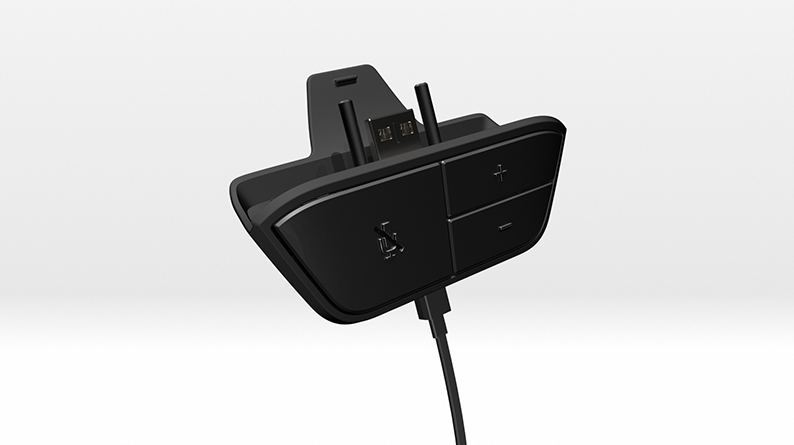
Credit: support.xbox.com
Comparing Xbox One With Other Consoles
Is this problem unique to Xbox One? Not really. All major gaming consoles have mic issues, but the fixes are a bit different.
Here’s a quick comparison:
| Console | Common Mic Issue | Main Fix |
|---|---|---|
| Xbox One | Mic works, can’t talk | Unmute, update firmware, check privacy |
| PlayStation 4/5 | Wrong input device | Change mic settings, update controller |
| Nintendo Switch | No party chat, app issues | Use companion app, check cable |
Xbox One makes it easier to manage privacy, but you must check it often. PlayStation often needs you to set the correct input device. Nintendo requires a phone app for party chat.
Non-obvious Insights Most Gamers Miss
- Profile and privacy conflicts: If you change your privacy settings online (from a web browser), sometimes your Xbox does not update them right away. Signing out and back in can force a refresh.
- Mic monitoring setting: If “mic monitoring” is set to zero, you may think your mic is broken because you can’t hear yourself. But others may still hear you.
- Bluetooth interference: If you have many wireless devices nearby, they can cause interference with wireless headsets, blocking the mic.
- Old controller models: Very old Xbox One controllers (before 2015) have known audio issues. Upgrading your controller can help.
When To Contact Xbox Support
If your mic still won’t work after all these steps, it’s time to contact Xbox Support. They can help with:
- Hardware warranty claims
- Account or privacy problems you can’t fix
- Advanced troubleshooting
Go to the official Xbox support website and follow their steps.
Frequently Asked Questions
Why Does My Xbox One Mic Work For Hearing But Not For Speaking?
Usually, your headset speakers and connection are fine, but the mic is muted, broken, or blocked by privacy settings. Check mute switches, audio settings, and try the headset on another device to confirm.
How Do I Know If My Xbox One Headset Mic Is Broken?
Try using your headset on a phone or PC. If the mic doesn’t work there, it’s likely broken. Also, look for physical damage on the cable or mic boom.
Can A Firmware Update Fix My Xbox One Mic Problem?
Yes. Updating your controller firmware often solves mic issues, especially if your controller is older or recently had a system update.
Why Can’t My Child Talk In Xbox One Party Chat?
Child or teen accounts have strict privacy settings by default. You must allow voice communication in Account > Privacy & online safety for their profile.
Is There A Way To Test My Xbox One Mic Directly On The Console?
Yes. Start a party in the Xbox dashboard. If your mic icon lights up when you speak, it’s working. If not, try other troubleshooting steps listed above.
Conclusion
Getting your Xbox One mic working again should not feel impossible. With the right steps, you’ll be talking with your friends in no time—enjoy your gaming!