
Many Xbox gamers love sharing their best moments with friends or on social media. The Xbox clip recording feature lets you capture short videos of your gameplay with just a button press. But sometimes, this feature suddenly stops working. You press the button, but nothing happens—or you get an error message. It can be very frustrating, especially if you just pulled off a great move or want to save a funny moment.
This problem is more common than you might think. Many users face issues where their Xbox is not recording clips as expected. The causes can range from simple settings to more complex hardware or software problems. If you’re struggling with this, don’t worry. This guide will help you understand why it happens, how to fix it, and how to prevent it in the future.
Why Xbox Clip Recording Matters
For many players, recording clips is more than just a technical feature. It’s a way to relive memories, prove achievements, or share useful tips with others. Content creators often rely on these clips to make tutorials or highlight reels. Even casual gamers love to keep personal collections of their favorite moments.
When the record clip function fails, you lose more than just a video. You may miss out on competitions, lose evidence of a rare achievement, or simply feel let down by your console. That’s why it’s so important to understand the root causes and solutions.
Common Reasons Xbox Is Not Recording Clips
Understanding the possible causes is the first step. Xbox clip recording can fail for many reasons. Here are the main ones:
- Insufficient storage space – Xbox needs enough free space to save clips.
- Background apps – Other running apps may interfere.
- Wrong settings – Game capture settings may be disabled.
- Account restrictions – Parental controls or profile issues may block recording.
- Software glitches – Temporary errors or outdated firmware.
- External storage problems – Issues with USB drives or external disks.
- Network connection – Sometimes, online features affect recording.
- Game-specific limitations – Some games block recording on purpose.
- Hardware issues – Rare, but possible.
- Recording limits – Maximum clip length or number reached.
Each of these has its own signs and solutions. Let’s look at them in detail.
Insufficient Storage Space
One of the most common reasons for failed clip recording is low storage space. Xbox needs room to save your clips. If your hard drive or external storage is almost full, new clips won’t save.
How to check and fix:
- Go to Settings > System > Storage.
- Look at the available space. If it’s low (less than 10 GB), you may have problems.
- Delete old games, clips, or apps you don’t need.
- Move games or clips to an external drive if available.
Pro Tip: Always keep at least 10-20 GB free on your main drive to avoid recording errors.
Background Apps Interfering
Xbox allows you to run multiple apps at once, but some apps can interfere with game capture. For example, if you’re streaming music or using certain social apps, clip recording might not work.
How to check:
- Press the Xbox button, then go to My games & apps > See all > Apps.
- Close all background apps before recording.
- Try recording again after closing apps.
Non-obvious insight: Even apps you don’t see can run in the background. Always check the app switcher to be sure.
Wrong Settings Or Disabled Game Capture
Sometimes, recording is turned off in the settings—often by accident or after a system update. If you recently updated your Xbox or changed settings, your recording options might have changed.
How to check and fix:
- Go to Settings > Preferences > Capture & share.
- Make sure Allow game captures is set to “Allow.”
- Check the Capture location (internal or external).
- Adjust the clip length as needed.
If Allow game captures is off, you won’t be able to record any clips.
Account Restrictions And Parental Controls
If you’re using a child account or your profile has restrictions, you may not be able to record clips. Parental controls can block this feature.
To check:
- Sign in with your main account.
- Go to Settings > Account > Family settings.
- Make sure recording is allowed for your profile.
Example: Many parents block sharing features for young users. If you’re under 18 or using a family account, ask the main account holder to adjust the settings.
Software Glitches Or Outdated System
Software bugs can sometimes break the recording feature. This usually happens after an update or if your console is running for a long time without restarting.
Steps to fix:
- Restart your Xbox.
- Check for updates: Settings > System > Updates.
- Install the latest firmware if available.
If the problem started after an update, check the Xbox support forums for known bugs.
External Storage Problems
If you save clips to an external USB drive, that drive must be formatted correctly and working well. Sometimes, the drive is full, disconnected, or has errors.
How to check:
- Go to Settings > System > Storage.
- See if your external drive is detected.
- Try unplugging and re-plugging the drive.
- Test by recording to internal storage instead.
Practical tip: Use USB 3.0 drives for best results. Slow or old drives can cause issues.
Network Connection Issues
While most recording happens offline, uploading or sharing clips needs a good internet connection. Sometimes, network problems can block or delay recordings.
How to check:
- Test your connection: Settings > Network > Network settings > Test network connection.
- If you’re offline, save clips locally and upload when online.
Non-obvious insight: Some online games use anti-cheat systems that disable recording if your network is unstable or you’re flagged for suspicious behavior.
Game-specific Limitations
Not all games allow recording. Some publishers block this feature to protect copyrighted content or prevent cheating.
Signs of this:
- The recording button does nothing in certain games.
- You see a message like “Recording disabled for this game.”
Examples:
- Some music or video games (like Just Dance or Netflix apps) block capture.
- Certain cutscenes in games are protected and can’t be recorded.
If this happens, it’s not a bug—it’s by design.
Hardware Issues
In rare cases, hardware problems can cause recording failures. Overheating, failing hard drives, or controller issues may prevent clips from saving.
How to check:
- Listen for strange noises from your Xbox.
- See if other features (like screenshots) work.
- Test with a different controller.
If hardware is failing, contact Xbox support for help.
Recording Limits
Xbox consoles have limits on clip length and the number of saved clips. If you reach these limits, new clips won’t save.
Limits vary by console and settings, but common limits are:
- 2 minutes at 1080p for most games.
- Fewer clips if you use higher quality.
Check your saved clips and delete unwanted ones to free up space.
Comparing Xbox Clip Recording By Console Model
Different Xbox models have different recording capabilities. Here’s a quick comparison:
| Console Model | Max Clip Length (1080p) | Storage Options | Recording Quality |
|---|---|---|---|
| Xbox One | 2 minutes | Internal & External | Up to 1080p |
| Xbox One S | 2 minutes | Internal & External | Up to 1080p |
| Xbox One X | 5 minutes | Internal & External | Up to 4K |
| Xbox Series S | 1 minute | Internal & External | Up to 1080p |
| Xbox Series X | 1 minute (4K) | Internal & External | Up to 4K |
Note: Recording longer clips or higher quality may require an external USB 3.0 drive.
How To Fix Xbox Not Recording Clips: Step-by-step
Let’s walk through a practical troubleshooting guide. Follow these steps in order. You’ll often find the problem before finishing the list.
1. Check Storage
- Go to Settings > System > Storage.
- Make sure you have at least 10 GB free.
- Delete or move old clips if needed.
2. Restart Your Console
- Hold the Xbox button on your console for 10 seconds.
- Wait for it to fully power off.
- Restart and try recording again.
3. Check Capture Settings
- Settings > Preferences > Capture & share.
- Make sure Allow game captures is ON.
- Set your preferred clip length and quality.
4. Close Background Apps
- Open the app switcher and close everything except your game.
- Try recording again.
5. Try A Different Game
- Some games block recording. Test with another game to check if the issue is game-specific.
6. Test With Internal And External Storage
- Change your capture location in settings.
- Record to both internal and external drives to see if the problem is with storage.
7. Update Your System
- Settings > System > Updates.
- Install any available updates.
8. Check Account Settings
- Make sure your account or family settings do not block recording.
- Sign in with a different profile if possible.
9. Test Network Connection
- Go to Settings > Network > Network settings.
- Test your network and reconnect if needed.
10. Factory Reset (last Resort)
If nothing works, you can reset your console (make sure to back up your data first):
- Settings > System > Console info > Reset console.
- Choose Reset and keep my games & apps.

Advanced Fixes And When To Contact Support
If you’ve tried everything and still can’t record clips, the issue may be deeper. Here are some advanced steps:
Clear Persistent Storage
- Settings > Devices & connections > Blu-ray > Persistent storage.
- Clear persistent storage.
- This is useful if you watch a lot of Blu-ray or DVD content.
Check For Known Issues
- Visit the official Xbox Support page for updates.
- Sometimes, outages or bugs are already known and being fixed.
Try A Different Usb Drive
- If you use external storage, test with a different USB 3.0 drive.
- Format it on your Xbox before use.
Test Hardware
- Try your account on a different Xbox, or a friend’s account on yours.
- If the problem stays with your console, it may be a hardware issue.
If you suspect hardware failure, contact Xbox support for repair or replacement.
Practical Tips For Reliable Clip Recording
- Use high-quality, fast USB 3.0 drives for external storage.
- Regularly clean up old clips to avoid hitting storage limits.
- Restart your Xbox at least once a week to avoid software glitches.
- Use the Xbox mobile app to manage and share clips easily.
- Keep your console updated—new features and bug fixes come often.
Beginners often miss: The importance of closing all background apps and keeping storage free. Even a nearly full drive or one open app can block recording.
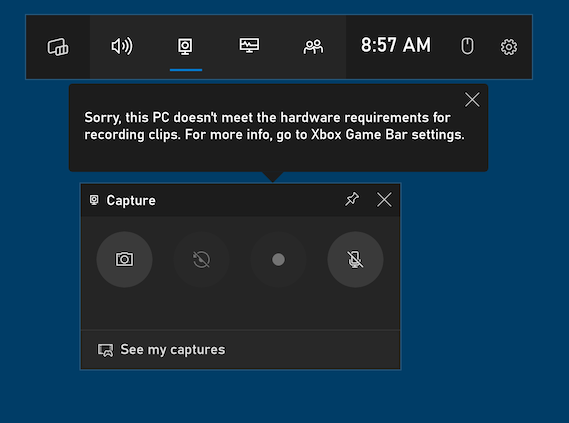
How To Set Up The Best Capture Settings
To get the best results, adjust your settings for your needs.
Steps:
- Go to Settings > Preferences > Capture & share.
- Set “Record what happened” to your desired length (e.g., 30 seconds, 1 minute).
- Choose the best quality your console supports (e.g., 1080p or 4K).
- Pick the right storage—internal for speed, external for space.
- Enable auto-upload to Xbox network if you want easy sharing.
Tip: Higher quality and longer clips use more space and may fill up fast.
Comparing Internal Vs. External Storage For Clips
Here’s a side-by-side look at saving clips internally or on a USB drive:
| Feature | Internal Storage | External USB Drive |
|---|---|---|
| Speed | Faster | Varies (Fast if USB 3.0) |
| Capacity | Limited by console size | Up to 2TB+ |
| Reliability | Very reliable | Depends on drive quality |
| Portability | Stays in console | Can move to PC |
| Best for | Quick clips, low volume | Long clips, archives |
Practical advice: If you plan to record many clips or long videos, invest in a good USB 3.0 drive.
Common Mistakes When Recording Xbox Clips
Many users make simple mistakes that block recording. Here’s what to avoid:
- Not checking storage space.
- Forgetting to enable recording in settings.
- Leaving apps open in the background.
- Using slow or old USB drives.
- Ignoring parental controls or account limits.
- Trying to record in games that block the feature.
- Not updating the system firmware.
Non-obvious insight: Sometimes a simple system restart fixes most issues—don’t skip this step.
How To Manage And Share Your Xbox Clips
After recording, you can view, edit, and share your clips:
- Go to My games & apps > See all > Captures.
- Select your clip to watch, trim, or delete.
- Use the Share button to post on Xbox Live, Twitter, or OneDrive.
- For more editing, move the clip to a PC using an external drive.
Tip: The Xbox mobile app is the easiest way to share clips quickly.

Troubleshooting: Xbox Not Recording Specific Moments
Sometimes, you can record clips, but not the exact moment you want. This can happen if:
- You wait too long to press the button (Xbox saves the last 30 seconds to 2 minutes, depending on settings).
- The game disables recording during cutscenes or certain events.
- There’s a delay due to a busy system.
Advice: Press the Xbox button and then the X button as soon as the moment happens. Adjust your default clip length to avoid missing key moments.
When To Use External Tools
If you need advanced recording (like longer sessions or higher quality), consider using a capture card or external recording device. These tools offer more control and reliability but require extra hardware and setup.
Capture cards connect your Xbox to a PC and let you record or stream without any console limitations.
Data Table: Maximum Clip Length By Quality
Here’s a quick reference for how clip quality affects length:
| Resolution | Max Length (Internal) | Max Length (External) |
|---|---|---|
| 720p | 2 minutes | 10 minutes |
| 1080p | 2 minutes | 5 minutes |
| 4K | 30 seconds | 1 minute |
Note: These numbers may vary by console model and system updates.
Preventing Xbox Clip Recording Issues
To avoid problems in the future:
- Keep your system updated.
- Regularly free up storage space.
- Close unused apps before gaming.
- Check settings after major updates.
- Use good quality storage devices.
Extra tip: If you share your console, remind others not to change capture settings without telling you.
Frequently Asked Questions
Why Do Some Games Not Allow Recording On Xbox?
Some games or apps block recording to protect copyrighted content or prevent cheating. This is decided by the game publisher—not by Xbox itself. You’ll usually see a message if recording is blocked.
Can I Recover Lost Xbox Clips?
If a clip wasn’t saved due to storage or system errors, it can’t be recovered. However, if you accidentally deleted a clip that was uploaded to Xbox Live, you might find it in your Xbox network captures.
How Can I Record Longer Clips On Xbox?
To record longer clips, use an external USB 3. 0 drive and set your capture location to external. Lower video quality (like 720p) also allows for longer clips. For unlimited recording, use a capture card with a PC.
Does Xbox Automatically Upload Clips To The Cloud?
If you enable auto-upload, Xbox can send clips to your Xbox network account. You can access these from other devices using the Xbox mobile app or at xbox. com.
What Should I Do If My Usb Drive Is Not Recognized For Recording?
Make sure your USB drive is USB 3. 0 and formatted by the Xbox. If it still doesn’t work, try another drive or format it again using the console settings.
Xbox clip recording is a powerful feature for gamers. When it stops working, it can be annoying, but most problems are easy to fix with the right steps. By following this guide, you’ll be able to record, manage, and share your gaming moments with confidence. If you ever need more help, check out the official Xbox Support resources for the latest updates and solutions.