
Vudu is a popular streaming platform that allows users to watch movies and TV shows on-demand. Many people use their PlayStation 4 (PS4) to enjoy Vudu on a bigger screen and with a comfortable controller. But sometimes, Vudu does not work properly on PS4.
This can be frustrating, especially when you want to relax and watch your favorite show.
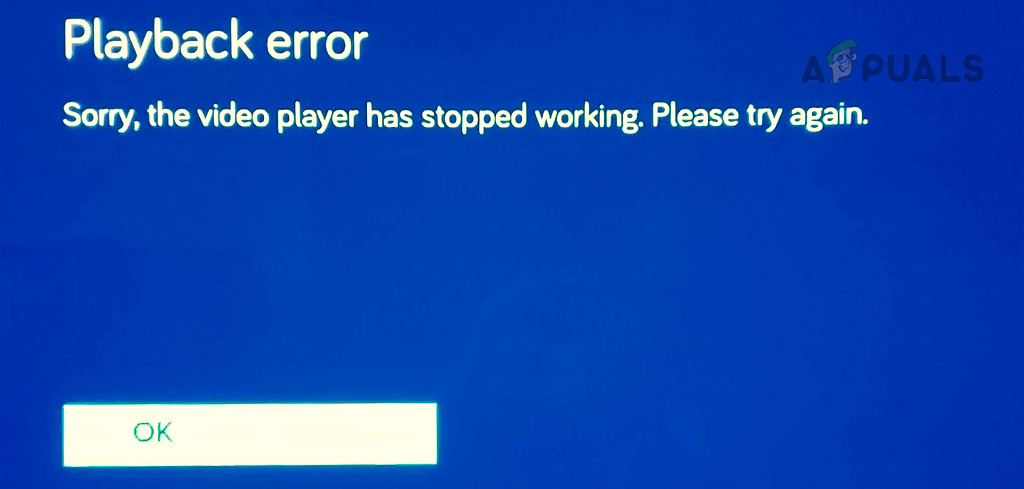
If you are facing this problem, you are not alone. Many PS4 users have reported issues with Vudu, ranging from the app not launching, buffering problems, playback errors, to login failures. In this guide, you will learn why Vudu might not be working on your PS4 and how to fix it with clear, step-by-step solutions.
You’ll also discover some expert tips and common mistakes to avoid, so you can get back to streaming without stress.
Why Vudu Might Not Work On Ps4
Before diving into solutions, it’s important to understand the possible reasons behind Vudu not working on your PS4. Sometimes, the problem is simple, like a weak internet connection. Other times, it could be more complex, such as system software issues or account problems.
Here are the most common causes:
- Internet connection issues – Slow or unstable internet can interrupt streaming.
- Vudu app glitches – The app may have bugs or need an update.
- PS4 system software problems – Outdated software can cause compatibility issues.
- Vudu server outages – Sometimes, the problem is on Vudu’s side.
- Account or region restrictions – Certain content or the entire service may not be available in your country.
- Corrupted app data – Damaged files can prevent the app from working.
- Cache overload – Too much cached data can slow down or crash apps.
- Device compatibility – Rarely, your PS4 model may not support certain Vudu features.
- HDCP errors – High-bandwidth Digital Content Protection can block playback in some setups.
- Network configuration problems – DNS or router settings may interfere with streaming.
Understanding these causes can save you time and help you choose the right solution.
Quick Checks Before You Start
Before making big changes, try these quick steps. These simple actions fix most Vudu issues on PS4:
- Restart your PS4.
- Close the Vudu app completely and reopen it.
- Make sure your internet is working on other devices.
- Test another streaming app (like YouTube or Netflix) to see if the problem is only with Vudu.
- Check if Vudu is down for everyone at DownDetector.
If Vudu still doesn’t work, follow the in-depth solutions below.

Credit: www.reddit.com
How To Fix Vudu Not Working On Ps4
You will find detailed troubleshooting steps here. Follow each step, and check if Vudu works after each one. If one solution does not help, move to the next.
1. Check Your Internet Connection
Streaming needs a stable, fast internet connection. Vudu recommends at least 4. 5 Mbps for HD content.
- Go to Settings > Network > Test Internet Connection on your PS4.
- Check download and upload speeds.
- If speeds are low, restart your router and modem.
- Try using a wired connection (Ethernet) for more stability.
- Move your PS4 closer to the Wi-Fi router if you use wireless.
Non-obvious tip: Other devices downloading large files (like software updates or games) can slow down streaming. Pause downloads on those devices while using Vudu.
2. Update The Vudu App
An outdated app can have bugs or may not work with the latest PS4 system.
- Go to TV & Video on the PS4 home screen.
- Highlight Vudu.
- Press Options on your controller.
- Select Check for Update.
- If an update is available, install it.
Always keep your streaming apps updated for best performance.
3. Update Ps4 System Software
Software updates fix bugs and improve compatibility.
- Go to Settings > System Software Update.
- Install any available updates.
- Restart your PS4 after updating.
Pro insight: Sometimes, a system update is needed before certain apps (like Vudu) will launch after being updated.
4. Clear Vudu App Cache And Data
Over time, cached files can slow down or break apps. Clearing cache and data gives you a fresh start.
- Go to Settings > Storage > System Storage > Applications.
- Highlight Vudu.
- Press Options and choose Delete to remove the app.
- Reinstall Vudu from the PlayStation Store.
This removes corrupted data and often fixes persistent errors.
5. Sign Out And Sign Back Into Vudu
Authentication errors or account sync problems can stop Vudu from working. Signing out and back in refreshes your session.
- Open Vudu on PS4.
- Go to account settings.
- Choose Sign Out.
- Restart the app and sign in again with your credentials.
If you can’t log in, check your username and password on the Vudu website.
6. Check Vudu Server Status
Sometimes, the problem is not your fault. Vudu’s servers may be down for maintenance or experiencing issues.
- Visit the official Vudu Twitter account or a service status website.
- If servers are down, wait for Vudu to fix the problem.
Trying more solutions during a server outage will not help.
7. Adjust Ps4 Video Output Settings
Vudu may not play videos if your PS4 video output is not set correctly, especially for HD or 4K content.
- Go to Settings > Sound and Screen > Video Output Settings.
- Set the resolution to match your TV (usually 1080p).
- Set RGB Range and HDR to Automatic for compatibility.
Some TVs and AV receivers have problems with certain settings. Try changing them if you see a black screen or get HDCP errors.
8. Disable Hdcp (if Possible)
HDCP (High-bandwidth Digital Content Protection) can sometimes cause playback errors on Vudu. Try disabling it:
- Go to Settings > System on your PS4.
- Uncheck Enable HDCP.
Important: Disabling HDCP may stop other streaming services or Blu-ray playback. Turn it back on after testing Vudu.
9. Reinstall The Vudu App
If all else fails, a full reinstall can remove hidden bugs.
- Delete the Vudu app as described above.
- Restart your PS4.
- Download and install Vudu again.
This process also ensures you have the latest version.
10. Check For Region Or Account Restrictions
Vudu is only available in the United States and some US territories. If you are traveling or using a non-US account, Vudu may not work.
- Confirm your PSN account region matches the US.
- Use a US-based internet connection.
- If outside the US, consider using a legal alternative.
Trying to bypass region restrictions is not recommended and can cause more issues.
11. Change Dns Settings
Sometimes, DNS issues can block streaming services.
- Go to Settings > Network > Set Up Internet Connection.
- Choose Custom setup.
- For DNS, enter:
- Primary DNS: 8.8.8.8
- Secondary DNS: 8.8.4.4 (Google DNS)
Restart your PS4 and try Vudu again.
12. Test Another Ps4 User Profile
Corrupted user profiles can cause app issues.
- Create a new user on your PS4.
- Download and open Vudu under the new profile.
- If it works, your main profile may have a problem.
If only one profile is affected, back up your data and consider recreating your main profile.
13. Check Hdmi Cable And Tv Input
A faulty HDMI cable or wrong TV input can cause a black screen or no sound.
- Use the original HDMI cable provided with your PS4.
- Try another HDMI port on your TV.
- Test the cable with another device.
HDMI issues are a common but overlooked cause of streaming problems.
14. Reset Your Ps4’s Network Settings
Network glitches can block apps.
- Go to Settings > Network > Set Up Internet Connection.
- Re-enter your Wi-Fi password or Ethernet setup.
- Test the connection.
If your PS4 was connected for a long time, a reset can help.
15. Check For Parental Controls Or Restrictions
Parental control settings may block Vudu or certain types of content.
- Go to Settings > Parental Controls/Family Management.
- Ensure Vudu is not blocked.
- Adjust age restrictions if necessary.
This is especially important if you share your PS4 with family.
16. Free Up Storage Space
Low storage can prevent apps from running smoothly.
- Go to Settings > Storage.
- Delete unused games, apps, or screenshots.
- Keep at least 10-20 GB free for best performance.
Lack of space is a hidden cause of app crashes and slowdowns.
17. Check For App-specific Error Codes
If Vudu shows an error code, search for it on the Vudu help site or forums. Each code has its own solution.
Non-obvious tip: Write down the exact code. Generic error messages often point to different problems.
18. Factory Reset (last Resort)
If nothing works, you can factory reset your PS4. This erases everything, so back up your data first.
- Go to Settings > Initialization > Initialize PS4.
- Choose Full reset.
- Reinstall Vudu and test.
Only use this step if all other solutions fail.
Comparison: Vudu Vs Other Streaming Apps On Ps4
How does Vudu’s performance on PS4 compare to other popular streaming apps? Here is a quick comparison:
| Feature | Vudu | Netflix | Hulu |
|---|---|---|---|
| 4K Support | Yes (select titles) | Yes | Limited |
| Offline Viewing | No | Yes | Yes |
| Rental/Purchase | Yes | No | No |
| Ad-Supported Content | Yes | No | Yes |
| Region Locked | US only | Most countries | US, Japan |
Vudu is unique for its rental and purchase options, but its region lock can be a disadvantage compared to Netflix or Hulu.
Credit: appuals.com
Common Mistakes When Troubleshooting Vudu On Ps4
Many users repeat the same errors when Vudu does not work. Avoid these mistakes to save time:
- Restarting the app repeatedly without checking network status.
- Ignoring system and app updates – These are often required for apps to function.
- Not testing other streaming apps – If all apps fail, the problem is with your PS4 or network, not Vudu.
- Skipping cache and data clearing – Old cache can cause new problems.
- Overlooking parental controls – This is a frequent issue in family setups.
- Trying to use Vudu outside the US – This will almost always fail due to region locks.
Advanced Troubleshooting: Networking And Software
If you are comfortable with advanced settings, try these steps:
Static Ip Address
Sometimes, assigning a static IP to your PS4 can fix connection drops.
- Go to Settings > Network > Set Up Internet Connection.
- Choose Manual for IP.
- Assign an IP outside your router’s DHCP range.
Port Forwarding
For best streaming performance, open these ports for PS4:
- TCP: 80, 443, 3478, 3479, 3480
- UDP: 3478, 3479
Set this up in your router’s settings.
Rebuild Ps4 Database
A corrupted database can cause app crashes.
- Turn off PS4 completely.
- Hold the power button until you hear two beeps (Safe Mode).
- Connect your controller via USB.
- Select Rebuild Database.
This process can take time but does not delete your data.
Example Scenario: Fixing A Real Vudu Issue On Ps4
Let’s look at a real example. Jane lives in Texas and uses Vudu on her PS4. One day, Vudu stops working. She sees a black screen after launching the app.
Here’s how Jane solves the problem:
- She tests Netflix, which works fine, so the PS4 and internet are okay.
- She checks for Vudu updates – none available.
- She deletes and reinstalls the Vudu app.
- Vudu still fails, so she checks the PS4 video output settings and finds the resolution set to 720p instead of 1080p.
- After correcting the resolution, Vudu works again.
Lesson: Sometimes, a small setting like video resolution can cause major issues.
The Importance Of Keeping Everything Updated
Many streaming problems are fixed by regular updates. Always keep your PS4 system software, Vudu app, and even your TV firmware up to date. Companies release bug fixes and compatibility improvements often. Set your PS4 to update automatically if possible.
How Different Ps4 Models Affect Vudu
There are several PS4 models: original PS4, PS4 Slim, and PS4 Pro. All support Vudu, but the PS4 Pro can handle higher resolutions (up to 4K on supported titles and TVs). If you use an older PS4, you might notice slower app performance, but Vudu should still work if your system is updated.
| PS4 Model | Max Video Output | Vudu Compatibility |
|---|---|---|
| PS4 (Original) | 1080p | Full |
| PS4 Slim | 1080p | Full |
| PS4 Pro | 2160p (4K) | Full (4K supported) |
When To Contact Support
If you have tried every solution and Vudu still does not work on your PS4, it may be time to contact support:
- Vudu Customer Support: Use their official help center for app-specific questions.
- PlayStation Support: If your PS4 has system or hardware issues.
- Internet Service Provider: For persistent network problems.
Expert tip: When contacting support, provide details like error codes, steps you have tried, and your PS4 model. This helps them find a solution faster.
Vudu Alternatives On Ps4
If you cannot get Vudu to work, consider other streaming services available on PS4:
- Netflix – Large library, global availability.
- Hulu – Great for US TV shows.
- Disney+ – Family-friendly, Disney/Pixar/Marvel content.
- Amazon Prime Video – Movies, TV, and originals.
- YouTube – Free videos, rentals, and live content.
Most of these apps install easily from the PlayStation Store.
Useful Resources
- Vudu official help: Vudu Help Center
- PlayStation system updates: PlayStation System Software
- General outage info: DownDetector
Frequently Asked Questions
Why Won’t Vudu Open On My Ps4?
This is usually caused by outdated software, a bad internet connection, or corrupted app data. Try updating both the Vudu app and PS4 system software, then reinstall the app.
Does Vudu Work Outside The United States On Ps4?
No, Vudu is region-locked to the US and a few territories. If you try to use it outside these regions, it will not work, even with a US PSN account.
What Internet Speed Do I Need For Vudu On Ps4?
Vudu recommends at least 4.5 Mbps for HD streaming and 11 Mbps for 4K. Slower speeds can cause buffering or playback errors.
Why Do I See A Black Screen When Starting Vudu?
A black screen often means a problem with video output settings, HDCP, or a corrupted app. Check your resolution, try another HDMI cable, and reinstall Vudu.
Is Vudu Free To Use On Ps4?
Vudu is free to download and offers ad-supported content. Some movies and TV shows require rental or purchase.
If you follow these steps and tips, you should be able to fix most Vudu problems on your PS4. Stay patient, test each solution, and remember that streaming services sometimes have their own outages. For official updates and help, check the Vudu Help Center. Happy streaming!