
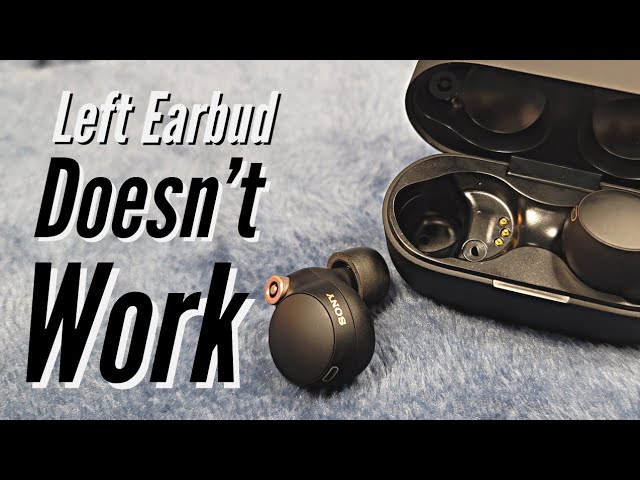
If you’re reading this, you probably own a pair of Sony Wfc500 true wireless earbuds. These earbuds are well-known for their comfort, compact size, and good sound. But like any electronic device, they can have problems. One common issue is when the left earbud stops working.
This problem can be very frustrating, especially if you use your earbuds every day for music, calls, or work. The good news is that most of the time, this problem can be fixed at home with the right steps.
This guide will walk you through every possible reason why your Sony Wfc500 left earbud is not working. You’ll learn how to check for simple mistakes, reset your earbuds, update firmware, and even contact Sony support if needed. Whether your left earbud is silent, not charging, or won’t connect, you’ll find clear answers here.
Understanding The Problem
Let’s begin by understanding what “not working” means. Different people experience different symptoms:
- The left earbud has no sound, but the right one works.
- The left earbud does not turn on at all.
- The left earbud is not charging.
- The left earbud disconnects quickly.
- The left earbud cannot pair with your phone or computer.
Each of these symptoms can have different causes. It’s important to notice exactly what is happening with your left earbud. This will help you find the right solution faster.
Common Causes Of The Left Earbud Not Working
Before we start fixing, let’s look at the most common reasons for this problem:
1. Bluetooth Connection Issues
Sometimes, only one earbud connects to your phone or computer. This can be because of Bluetooth problems or because the earbuds are not paired correctly.
2. Battery Or Charging Problems
If the left earbud doesn’t charge well, it might run out of power quickly or not turn on at all. Sometimes, dirt or lint in the charging case can stop the earbud from charging.
3. Audio Balance Settings
Sometimes, your device’s audio settings are set to send sound only to one ear.
4. Earbud Not Properly Reset
Like all electronics, the earbuds’ software can get stuck or confused. A reset can often fix this.
5. Firmware Out Of Date
Old firmware can cause bugs, including connection or audio problems.
6. Physical Damage
If you dropped your earbuds or they got wet, the inside parts may not work anymore.
7. Dirt Or Earwax Build-up
Sometimes, earwax or dust blocks the speaker grill, making the sound very quiet or silent.
8. Pairing Mode Confusion
Sometimes, the earbuds are not in the correct pairing mode, so only one connects.
Understanding these reasons can help you avoid wasting time on steps that don’t match your problem.

Credit: www.youtube.com
Step-by-step Troubleshooting Guide
Let’s go through each possible cause and see how to fix it.
1. Basic Checks
Before you try more advanced steps, start with the easiest checks. You’d be surprised how often the problem is something simple.
A. Check The Battery Level
- Place both earbuds in the charging case.
- Make sure the charging case has enough battery. If needed, plug it in for 10–15 minutes.
- Take the earbuds out and see if both light up.
- If the left earbud doesn’t light up, it might not be charging.
*Tip:* Sometimes, the charging contacts on the earbud or inside the case are dirty. Use a dry, soft cloth or cotton swab to clean them gently.
B. Check Bluetooth Connection
- Open the Bluetooth menu on your phone or computer.
- “Forget” or “remove” the Sony Wfc500 from the list.
- Put the earbuds in the case, close the lid, and wait 10 seconds.
- Open the lid, remove both earbuds, and try pairing again.
*Tip:* Make sure you are not too far from your device (keep within 1–2 meters for pairing).
C. Check Audio Balance Settings
- On iPhone: Go to Settings > Accessibility > Audio/Visual > Balance. Make sure the slider is in the middle.
- On Android: Go to Settings > Accessibility > Hearing > Audio balance.
- On Windows: Right-click the speaker icon > Sounds > Playback tab > Properties > Levels > Balance.
- On Mac: Go to System Preferences > Sound > Output > Balance.
If the balance is set all the way to the right, you won’t hear anything from the left earbud.
D. Try Another Device
Connect your earbuds to a different phone or computer. If the left earbud works on another device, the problem is with the original device’s settings.
2. Cleaning The Earbud And Charging Case
Sometimes, the problem is simple: dirt, earwax, or lint can block sound or charging contacts.
A. Cleaning Steps
- Remove the earbud tip (the soft silicone part) from the left earbud.
- Use a dry cotton swab to gently clean the speaker grill. Never use water!
- Check the gold charging contacts on both the earbud and inside the case. Clean with a dry cloth or a little isopropyl alcohol on a cotton swab.
- Reattach the earbud tip.
*Non-obvious insight:* Even tiny bits of dirt can stop the earbud from charging or playing sound. Many people overlook this step.
3. Resetting The Sony Wfc500 Earbuds
If the left earbud still does not work, try resetting the earbuds. This can fix software glitches.
A. How To Reset
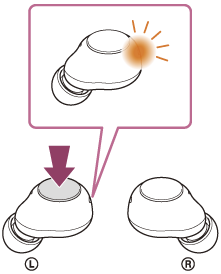
- Place both earbuds into the charging case.
- Press and hold the buttons on both earbuds for about 10 seconds.
- The indicator lights will flash (check your user manual for the exact pattern).
- Release the buttons. The earbuds are now reset.
Take out both earbuds and try pairing again.
*Non-obvious insight:* After a reset, you must re-pair the earbuds with your phone or computer. Forget the old Bluetooth entry and start fresh.
4. Update Earbud Firmware
Sony sometimes releases firmware updates to fix bugs or improve performance.
A. How To Check For Updates
- Download the “Sony Headphones Connect” app from the App Store or Google Play.
- Open the app and connect your Wfc500 earbuds.
- If there is a new firmware version, the app will show an update option. Follow the instructions to update.
*Why this matters:* Outdated firmware can cause random bugs, including only one earbud working.
5. Try Mono And Stereo Modes
Some true wireless earbuds can be used in mono (one earbud) or stereo (both earbuds) modes. If you often use only one earbud, the other may not connect properly.
- Place both earbuds in your ears.
- Make sure both are turned on and paired.
- Play music and see if both work.
If only the right earbud works, put the left one in the case, then take it out and try again.
*Tip:* Always pair both earbuds at the same time for stereo sound.
6. Check For Physical Damage
If your earbuds got wet, were dropped, or squashed, the hardware might be damaged.
- Look for cracks, dents, or water inside the earbud or case.
- Smell the earbud; if you notice a burnt smell, internal parts may be damaged.
If you see or smell anything unusual, contact Sony support for repair or replacement.
7. Advanced Troubleshooting
If none of the basic steps work, try these advanced solutions.
A. Unpair And Re-pair From Scratch
- Remove the Wfc500 from your device’s Bluetooth list.
- Put both earbuds in the case and close the lid for 30 seconds.
- Open the case, take both earbuds out, and hold their buttons to enter pairing mode.
- Pair again with your device.
B. Use The Earbuds As A Pair
Some users accidentally pair only the right earbud. Make sure to pair both:
- Start with both earbuds in the case.
- Remove both at the same time.
- Hold the buttons on both to enter pairing mode together.
C. Test Each Earbud Alone
Try using just the left earbud by itself. Does it power on? Does it play sound if used alone? If it doesn’t work at all, it may be a hardware issue.
D. Check For Interference
Bluetooth signals can be blocked by walls, other electronics, or even your own body.
- Try pairing in a different room.
- Turn off other Bluetooth devices nearby.
8. When To Contact Sony Support
If you have tried all the above steps and your left earbud still doesn’t work, it’s time to get professional help.
A. Warranty Check
- Sony Wfc500 usually comes with a 1-year warranty.
- Check your purchase receipt or the Sony website.
B. How To Contact Sony
- Visit the official [Sony Support site](https: //www.sony.com/electronics/support).
- Search for your product (Wfc500).
- Follow the instructions for repair, replacement, or further troubleshooting.
C. What To Prepare
- Your proof of purchase (receipt).
- The serial number on your charging case or earbuds.
- A list of troubleshooting steps you already tried.
*Tip:* Be ready to explain exactly what’s wrong. The more details you give, the faster support can help.
Preventing Future Problems
It’s always better to prevent problems than to fix them. Here are some tips to keep your Sony Wfc500 earbuds working well:
1. Clean Regularly
Wipe your earbuds and charging case with a dry, soft cloth every few days.
2. Charge Correctly
Don’t let the battery go to zero too often. Try to charge when the case is at 20–30%.
3. Store Safely
Keep your earbuds in the case when not in use. Avoid drops, strong impacts, or getting them wet.
4. Update Firmware
Use the Sony app to check for updates every few months.
5. Avoid Extreme Temperatures
Don’t leave your earbuds in hot cars or freezing rooms.
6. Pair Properly
Always pair both earbuds together to avoid connection confusion.
Credit: www.youtube.com
Frequently Asked Questions
Why Does Only My Left (or Right) Earbud Work?
Most often, this is due to a pairing issue or a battery problem. Try resetting the earbuds and pairing both at the same time. Also, check the balance settings on your device.
Can I Use Only One Earbud At A Time?
Yes, the Sony Wfc500 supports mono mode. However, always use both for pairing and updates to avoid connection issues.
My Left Earbud Is Quiet. What Should I Do?
Clean the speaker grill gently. If sound is still low, check the audio balance and try a reset.
My Left Earbud Will Not Charge. What Now?
Clean the charging contacts and make sure the case is charged. If the problem continues, try resetting the earbuds or contact Sony support.
What If My Earbuds Got Wet?
If your earbuds got wet, dry them with a soft cloth and let them air dry for 24–48 hours. Do not use them or charge them while wet. Water damage is not covered by warranty in most cases.
Real-world Example
Let’s look at a real-life example:
Sarah uses her Sony Wfc500 every day for phone calls. One day, her left earbud stopped making any sound. She tried charging them, but it didn’t help. She followed these steps:
- Cleaned the earbud and case contacts.
- Checked the balance setting on her phone (it was set to the right side by accident).
- Reset the earbuds and paired again.
After doing these, the left earbud worked again. The problem was a simple audio balance setting.
Credit: helpguide.sony.net
What To Do If Nothing Works
If your left earbud is still not working, and you have tried everything:
- Double-check for firmware updates.
- Try pairing with a different phone or computer.
- Make sure your device’s Bluetooth is not faulty by connecting another set of earbuds or headphones.
- If all else fails, reach out to Sony support for a repair or replacement.
Final Tips
- Always keep your earbuds and case clean.
- Don’t ignore small problems; fix them early.
- Keep your receipts and warranty information safe.
- Download the Sony Headphones Connect app for easier troubleshooting and updates.
- Be patient. Many problems can be fixed with careful steps.
Conclusion
Fixing your Sony Wfc500 left earbud may seem hard at first, but most problems have simple solutions. By following the steps in this guide, you can solve most issues yourself without having to buy a new pair. If you’re unsure, don’t be afraid to ask for help from Sony’s official support.
Good luck, and enjoy your music again!