
You’re ready to unwind and catch up on your favorite shows, but there’s one problem—your Sony TV won’t connect to the WiFi. Frustrating, isn’t it?
You’re not alone; many Sony TV owners face this issue. But don’t worry, we’ve got you covered. This article will guide you through simple steps to get your TV back online, ensuring you can stream effortlessly. Imagine the relief of solving this problem quickly, without the hassle of lengthy tech support calls.
Dive in to discover the solutions and reclaim your relaxing TV time. Your favorite shows are just a few clicks away!
Credit: www.alphr.com
Troubleshooting Basics
Sony TVs offer a great viewing experience, but sometimes they face Wi-Fi issues. Troubleshooting these problems can seem daunting. Yet, with a few simple steps, you can resolve them and enjoy uninterrupted streaming. Below are some basics to address your Sony TV’s Wi-Fi connectivity issues.
Check Network Settings
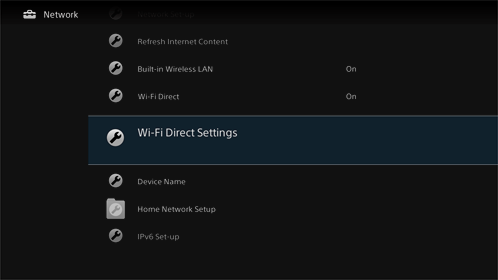
First, ensure your TV is connected to the right Wi-Fi network. Access the network settings in the menu. Verify the network name matches your home Wi-Fi. Double-check the password for accuracy. Ensure no typos or incorrect characters. These simple checks often solve the issue.
Restart The Tv And Router
Restarting devices can fix many connectivity issues. Start by turning off your TV. Unplug it from the power source. Wait for about 30 seconds, then plug it back in. Turn the TV on. Next, restart your router. Unplug it, wait a moment, then plug it back in. This refreshes the connection. Often, this resolves any temporary glitches.
Common Connectivity Issues
Experiencing connectivity issues with your Sony TV can be frustrating, especially when you’re eager to stream your favorite shows. Understanding common problems can help you troubleshoot effectively and get back to enjoying seamless entertainment. Let’s dive into some typical challenges you might face when connecting your Sony TV to WiFi.
Incorrect Password Entry
It’s surprisingly easy to mistype your WiFi password. A single wrong letter or number can prevent your TV from connecting. Double-check the password on your router or ask your family member who’s always changing it. It’s worth noting that passwords are case-sensitive, so pay attention to uppercase and lowercase letters.
If you’re unsure whether you’ve entered the correct password, try connecting another device, like your phone or tablet, using the same credentials. This can confirm if the password is accurate or needs correction.
Weak Signal Strength
A weak WiFi signal can be a major hurdle. Your TV might struggle to connect if it’s located far from the router or obstructed by walls or large furniture. Consider moving your router closer to the TV or using a WiFi extender to boost the signal.
Observe how other devices perform in the same room. Is your smartphone also slow to load webpages? This might indicate poor signal strength affecting all devices. Assessing the placement of your router can often make a significant difference in connectivity.
Have you ever moved your router to find the perfect spot? Share your experiences in the comments. How did you solve your weak signal issues?
Remember, tackling these connectivity problems doesn’t require tech expertise. With a few simple adjustments, you can enhance your TV’s WiFi connection, making your viewing experience much smoother.
Advanced Configuration
Sometimes, basic troubleshooting fails to connect your Sony TV to WiFi. Advanced configuration steps can help solve persistent issues. This section covers updating firmware and manual IP settings.
Update Firmware
Firmware updates fix bugs and improve connectivity. Check if your Sony TV has the latest firmware. Go to the settings menu and find the software update option. Follow the prompts to update if needed. Keeping firmware up-to-date ensures better performance.
Manual Ip Configuration
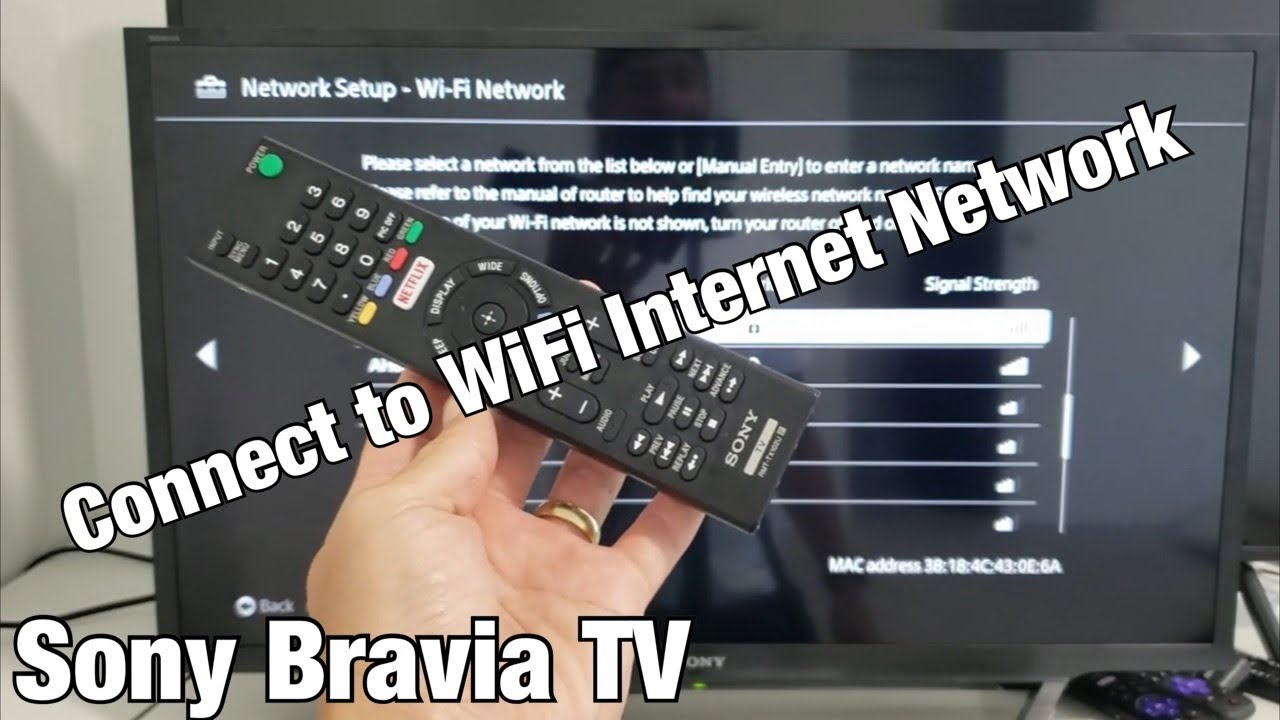
Automatic IP settings may not always work. Entering IP settings manually can resolve WiFi problems. Access the network settings on your TV. Switch from automatic to manual IP configuration. Enter the IP address, subnet mask, and gateway. Use your router’s settings for accurate information. Save changes and test the connection.
Credit: www.youtube.com
Network Interference
Experiencing issues with your Sony TV not connecting to WiFi can be frustrating. Network interference often plays a significant role in these connectivity problems. Understanding the common causes of network interference can help resolve these issues. Two major causes include disruptions from nearby devices and channel overlap.
Nearby Devices Disruptions
Electronic devices around your home can disrupt your WiFi signal. Microwaves, cordless phones, and Bluetooth devices are common culprits. These devices operate on similar frequencies as your WiFi. Their signals can interfere with your Sony TV’s WiFi connection. Try moving these devices away from your WiFi router. This simple step can improve your TV’s connectivity.
Channel Overlap
WiFi routers use channels to send signals. Nearby routers may use the same channel, causing overlap. This overlap can lead to interference and poor connectivity for your Sony TV. Change your router’s channel to a less crowded one. Most routers have an option to switch channels in their settings. This can enhance your TV’s WiFi performance significantly.
Resetting Network Settings
Having trouble connecting your Sony TV to WiFi? Resetting network settings can help. This process can resolve connectivity issues. It’s straightforward and often effective. Follow these steps for a smooth experience.
Factory Reset
A factory reset restores original settings. It erases all custom configurations. Use this only if other methods fail. Begin by pressing the Home button on your remote. Navigate to the Settings menu. Select System Settings. Choose Customer Support or Product Support. Select Factory Settings. Confirm your choice to start the reset. Your TV will restart. Set up your network again.
Network Reset Procedure
A network reset focuses only on network settings. It doesn’t erase other data. Start by pressing the Home button. Go to Settings. Select Network. Choose Network Setup. Find and select Reset Network. Confirm your choice. Your TV will clear network settings. Reconnect to your WiFi network.
Contacting Support
Experiencing issues with your Sony TV not connecting to WiFi? Contact support for quick help. They guide you through simple steps to fix the problem and restore your connection.
Experiencing issues with your Sony TV not connecting to WiFi can be frustrating. But don’t worry, there’s a solid path to resolution: contacting support. Whether you prefer reaching out to Sony’s customer service or enlisting the help of a professional technician, each option offers a way to get your TV back online. Let’s explore these options to help you decide your next steps.
Sony Customer Service
Sony’s customer service is a go-to resource when your TV refuses to connect to WiFi. They offer a wealth of knowledge on troubleshooting and resolving technical issues. Have you visited their website? It’s packed with step-by-step guides and FAQs that address common connectivity problems. If that doesn’t solve the issue, you can contact them directly through phone, email, or live chat for personalized assistance. Another tip is checking Sony’s support forums where users share solutions for similar WiFi issues. Often, fellow Sony TV owners have faced the same problem, and their insights could lead you to a quick fix.
Professional Technician Help
Sometimes, the problem might be more complex than it appears. This is where a professional technician can be invaluable. They possess the expertise to diagnose and fix intricate issues that might be beyond your DIY attempts. Have you ever thought about how a professional can not only solve the problem but also provide tips to prevent future issues? It’s worth considering if repeated connectivity problems occur. Hiring a technician can seem daunting, but it’s often more affordable than you think. Look for certified professionals who have experience with Sony products. This ensures you get the best service and peace of mind. So, how do you decide between contacting Sony support or a technician? It often depends on your comfort level with technology and the severity of the issue. Whatever you choose, rest assured that help is available to get your Sony TV connected to WiFi and back in action.

Credit: www.sony-asia.com
Frequently Asked Questions
Why Won’t My Sony Tv Connect To Wifi?
Check WiFi signal strength. Restart router and TV. Ensure correct password. Update TV software. Check network settings.
How Do I Reset Network Settings On Sony Tv?
Navigate to ‘Settings’ > ‘Network’ > ‘Reset’. Follow prompts to reset. This may resolve connection issues.
Can Outdated Software Affect Wifi Connection?
Yes, outdated software can cause issues. Update your Sony TV’s software for better connectivity and performance.
What To Do If Wifi Signal Is Weak?
Move your router closer to the TV. Remove obstacles. Consider a WiFi extender for better signal coverage.
Is A Factory Reset Helpful For Wifi Issues?
Factory reset can solve persistent issues. It erases all settings, so try this if other methods fail.
Conclusion
Resolving Sony TV WiFi issues can improve your viewing experience. Troubleshoot by checking the WiFi settings first. Ensure your network is functioning well. Restart your TV and router if needed. Resetting network settings might help too. Consult the TV manual for specific instructions.
Persistent issues may require professional assistance. Keeping your software updated ensures better connectivity. Enjoy seamless streaming with a stable connection. Remember, a little patience goes a long way. Stay informed and keep exploring solutions. Your entertainment should be uninterrupted and enjoyable.