
Slack is a powerful tool for team communication, but nothing disrupts your workflow like missing a message because the notification sound failed to play. If you’re using a Mac and the Slack notification sound isn’t working, you might worry you’ll miss important updates or time-sensitive questions. You’re not alone—many Mac users face this issue, and the causes can range from simple settings to more complex system glitches. The good news is, you can fix it. This guide will walk you through every possible reason your Slack notification sound isn’t working on your Mac, and provide detailed, step-by-step solutions that really work.
Whether you’re new to Slack or rely on it daily for remote work, understanding how to restore your notification sound can save you stress and help you stay connected. We’ll cover everything: notification settings, Mac sound preferences, app permissions, software bugs, and even advanced troubleshooting steps. By the end, you’ll have a complete understanding of the issue and how to solve it, so you never miss a Slack ping again.
Understanding Slack Notification Sound Issues On Mac
Notification sounds are a key part of how Slack alerts you to new messages, mentions, or reminders. If these sounds stop working, it can be frustrating and even impact your productivity. On Mac, the problem can be caused by:
- Incorrect notification settings in Slack or MacOS
- Sound output issues or muted speakers
- Conflicts with Focus or Do Not Disturb modes
- App permission problems
- Outdated Slack or MacOS versions
- Software bugs or corrupted files
Each of these causes requires a different fix. Let’s break down how to identify the cause and restore your Slack notification sounds.
Checking Slack Notification Settings
The first step is to look at your Slack notification settings. Sometimes, sounds are simply turned off inside the app.
How To Check And Adjust Slack Notification Preferences
- Open the Slack app on your Mac.
- Click your profile picture in the top right corner.
- Select Preferences from the dropdown menu.
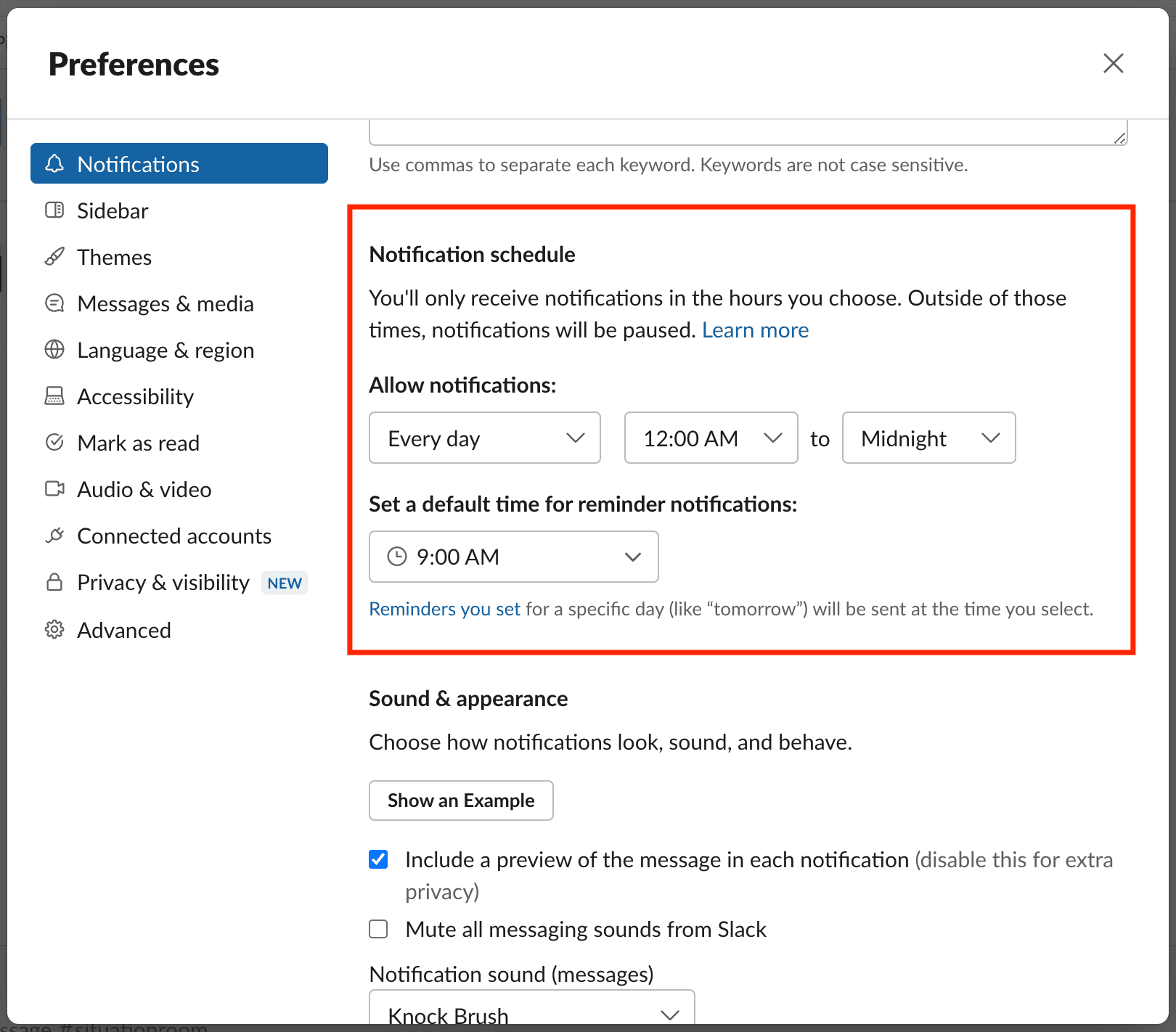
- Go to the Notifications section.
- Look for the Sound & appearance section.
- Make sure “Play a sound when a notification arrives” is checked.
- Choose a sound from the dropdown menu.
If the sound is set to “None,” you won’t hear notifications. Try selecting a different sound and test it by sending yourself a direct message or asking a colleague to mention you.
Tip: Test Notification Sounds
After making changes, test the notification sound:
- Send yourself a direct message.
- Mention yourself in a channel using @yourusername.
- See if the sound plays.
If you hear the sound, the issue is fixed. If not, continue to the next steps.
Verifying Macos System Sound Settings
Even if Slack is set up correctly, your Mac’s sound settings might block notification sounds.
Check Output Device
- Click the Apple menu () in the top left corner.
- Select System Settings (or System Preferences on older MacOS).
- Click Sound.
- Under Output, make sure the correct device (e.g., Internal Speakers) is selected.
- Adjust the output volume slider to a level you can hear.
Mute And Volume Checks
- Make sure your Mac isn’t muted (press the Mute key to toggle).
- Increase your volume using the F12 key or the menu bar slider.
Testing System Sound
Play a song or a YouTube video to verify that your Mac’s speakers are working. If you don’t hear anything, the issue is likely with your Mac’s sound settings—not Slack.
Managing Do Not Disturb And Focus Modes
MacOS has features like Do Not Disturb and Focus modes that can silence notifications—including sounds from Slack.
How To Check Do Not Disturb/focus
- Click the Control Center icon in the top right menu bar.
- Look for Focus or Do Not Disturb.
- If enabled, click to turn it off.
When these modes are on, Slack notifications may not make a sound—even if all other settings are correct.
Advanced Focus Mode Settings
Open System Settings > Focus to see if Slack is allowed to send notifications during Focus sessions. Add Slack to the “Allowed Apps” list if necessary.
Reviewing Mac Notification Settings For Slack
MacOS lets you control which apps can send notifications and play sounds.
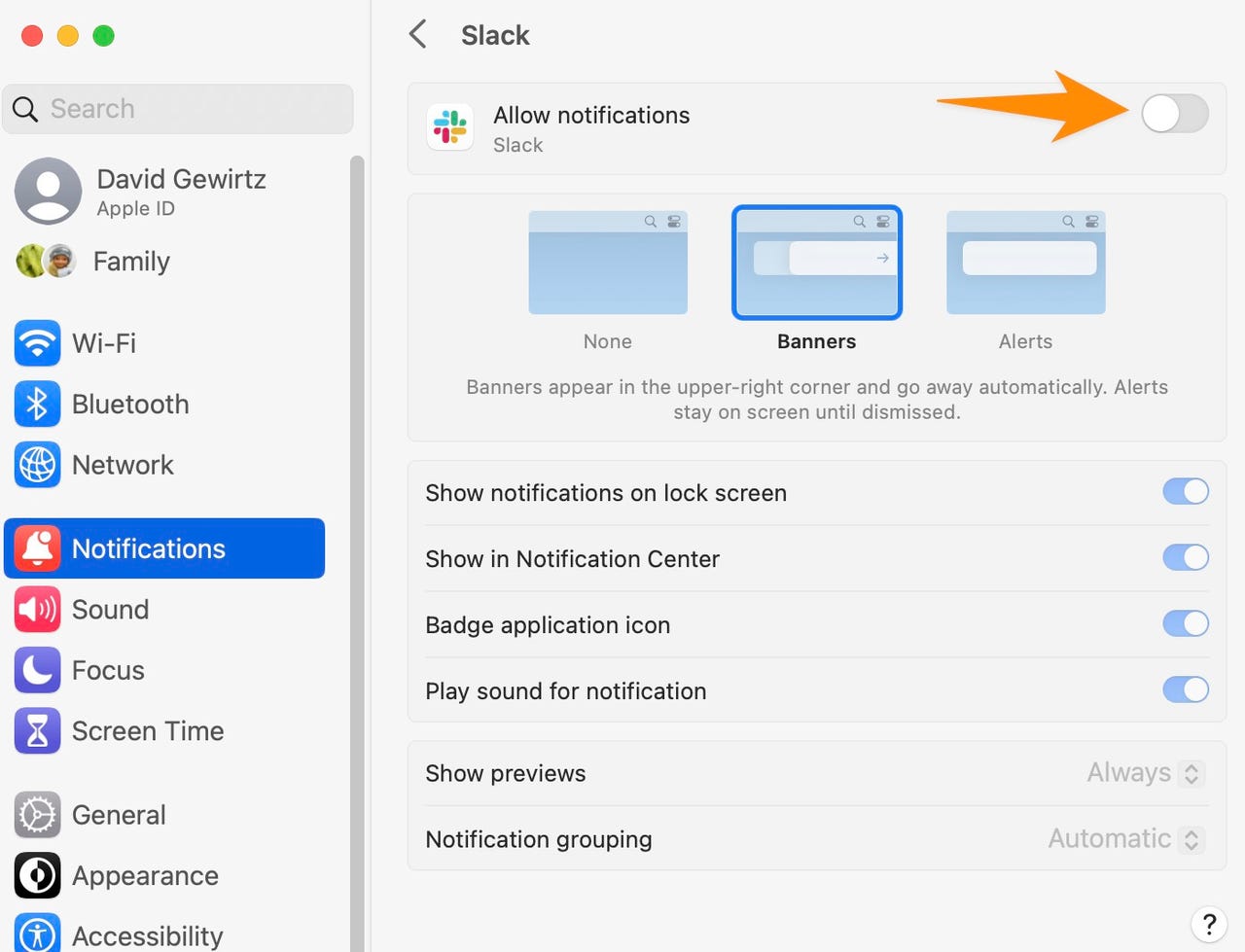
How To Adjust Notification Permissions For Slack
- Open System Settings.
- Go to Notifications.
- Find Slack in the list of apps.
- Ensure Allow Notifications is toggled on.
- Under Alert style, choose either Banners or Alerts.
- Make sure Play sound for notifications is checked.
If Slack is missing from the list, you may need to restart your Mac or reinstall Slack.
Checking App Permissions
Slack needs certain permissions to send notifications with sound. Missing permissions can block alerts.
Granting Notification Permissions To Slack
- If prompted by MacOS to allow Slack notifications, always click Allow.
- Open System Settings > Privacy & Security > Notifications to confirm Slack is enabled.
If permissions are missing, notification sounds will not play—even if other settings seem correct.
Credit: www.zdnet.com
Comparing Slack Desktop And Web App Notification Sound
Some users try the Slack web app (in a browser) as a workaround. Notification behavior can differ between the two.
| Slack Version | Notification Sound Support | System Integration |
|---|---|---|
| Desktop App | Full (customizable) | Deeper (uses MacOS notification center) |
| Web App (Safari/Chrome/Firefox) | Limited (browser-dependent) | Browser-level only |
If notification sounds work in the web app but not the desktop app, the problem is likely with the desktop app or its permissions.
Reinstalling Or Updating Slack
Sometimes, notification sounds break due to outdated or corrupted Slack files. Updating or reinstalling can fix these problems.
How To Update Slack
- Open Slack.
- Click Slack in the menu bar.
- Choose Check for Updates.
- If an update is available, install it and restart Slack.
How To Reinstall Slack
- Close Slack completely (right-click Slack in the Dock and select Quit).
- Drag the Slack app from Applications to the Trash.
- Empty the Trash.
- Download the latest version from the official Slack Download Page.
- Install Slack and log in.
After reinstalling, re-check your notification and sound settings.
Testing With Another User Account
MacOS issues can sometimes be user-specific. Creating a new user account can help you diagnose if the problem is with your user profile.
Steps To Create A Test Account
- Open System Settings > Users & Groups.
- Click the + button to add a new user.
- Set up a temporary standard user.
- Log out of your current account and log in to the new one.
- Install Slack and test notification sounds.
If it works in the new account, your main user profile may have a corrupted configuration.
Checking For Conflicting Applications
Some apps, like audio managers or other messaging tools, can interfere with notification sounds.
Common Conflicting Apps
- Audio hijacking software (e.g., Loopback, Soundflower)
- Other messaging apps (e.g., Microsoft Teams, Zoom)
- Third-party notification managers
Try quitting these apps and testing Slack again.
Resetting Slack App Data
If settings or cache files are corrupted, resetting Slack’s data can help.
How To Reset Slack App Data
- Quit Slack.
- Open Finder.
- Press Command + Shift + G to open Go to Folder.
- Enter `~/Library/Application Support/Slack/`
- Move the Cache and Code Cache folders to the Trash.
- Reopen Slack.
This will reset Slack’s cache but won’t delete your chats or channels.
Comparing Notification Delivery: Mac Vs. Mobile
If you use Slack on both your Mac and your phone, you might notice that notification sounds only play on one device at a time.
| Device | When Notification Sound Plays | Common Issues |
|---|---|---|
| Mac | When active, unless muted or DND enabled | Focus/DND, Output device, App settings |
| iPhone/Android | When Mac is inactive or app is closed | App permissions, Battery saver, Silent mode |
Slack is designed to avoid double-notifying you. If you’re active on your Mac, notifications may not make sounds on your phone and vice versa. Understanding this can prevent confusion.
Advanced Macos Troubleshooting
If you’ve tried all basic steps and still have no notification sounds, these advanced fixes may help.
Resetting Macos Nvram/pram
NVRAM/PRAM stores sound and volume settings. Sometimes, resetting it resolves audio issues.
- Shut down your Mac.
- Turn it on and immediately press and hold Option + Command + P + R.
- Hold for about 20 seconds, then release.
- Log in and test Slack notification sounds.
Resetting Core Audio
If your Mac’s Core Audio system is unresponsive, restart it:
- Open Terminal (find in Applications > Utilities).
- Type: `sudo killall coreaudiod`
- Press Return and enter your password.
- Core Audio will restart (your sound may briefly stop, then return).
When Notification Sounds Work, But You Don’t Hear Them
Sometimes, the sound plays but is too quiet or gets lost among other noises.
Tips To Make Notification Sounds More Noticeable
- Choose a distinct, loud notification sound in Slack settings.
- Turn up your system volume.
- Use external speakers or headphones for clearer sound.
- Test different sounds to find one that stands out.
Common Mistakes When Troubleshooting
Even experienced users sometimes miss simple fixes.
- Not checking Focus/Do Not Disturb: These modes silence notification sounds.
- Wrong output device: AirPods or Bluetooth speakers may still be connected but not in use.
- Overlooking app permissions: Slack needs explicit permission to play sounds.
- Assuming updates will fix all problems: Sometimes, manual fixes are needed after an update.
Rare But Possible Causes
If nothing helps, consider these less common issues:
- Operating system bugs: Sometimes, MacOS or Slack updates create new issues. Check Slack’s status page or Apple forums for reports.
- Hardware issues: Damaged speakers or headphone jacks can block sound.
- Corrupted user profiles: As discussed, try a new user account.
If you suspect a hardware problem, test other sound apps (like Music or Safari). If they’re silent too, get your Mac checked by a professional.
Real-world Example
Samantha, a graphic designer, suddenly stopped hearing Slack notification sounds on her MacBook Air. She checked Slack settings—everything looked fine. She restarted her Mac, no luck. Then she noticed the Focus mode was enabled for her “Work” schedule, muting all notifications.
After turning off Focus, the sounds returned instantly.
This shows that even simple settings can be easy to miss, especially if you use multiple devices or profiles.
Preventing Future Notification Sound Issues
To avoid notification sound issues in the future:
- Update Slack and MacOS regularly to get bug fixes.
- Double-check notification and sound settings after major updates.
- Restart your Mac occasionally to clear system glitches.
- Test notification sounds every few weeks, especially if you rely on Slack for urgent messages.

Credit: www.reddit.com
Expert Insights: What Most Users Overlook
- Browser extensions: If you use Slack in a web browser, extensions like ad blockers or privacy tools can block notification sounds.
- Custom sound profiles: Some users set up custom sound profiles for different apps. This can cause Slack notifications to be silent while others are not.
If you use these tools, try disabling them or testing Slack in a different browser.
Comparing Slack Notification Sounds With Other Apps
How does Slack compare with other popular apps for notification management on Mac?
| App | Notification Sound Customization | Integration with MacOS | Common Issues |
|---|---|---|---|
| Slack | Yes, multiple sounds | Strong, uses system notification center | Permissions, Focus mode |
| Microsoft Teams | Limited | Moderate | Silent notifications, update bugs |
| WhatsApp Desktop | Few options | Limited | Browser conflicts |
| Apple Mail | Full (system sounds) | Deep integration | System audio issues |
Slack offers more customization than many competitors, but also relies more on system-level settings.
Credit: www.idownloadblog.com
When To Contact Support
If you’ve tried every solution and Slack notification sounds still won’t work on your Mac, it may be time to contact Slack support or visit the Apple Genius Bar. Gather details like:
- Your MacOS and Slack version numbers
- Steps you’ve already tried
- When the issue started
This information will help support teams diagnose and solve your problem faster.
For more advanced troubleshooting tips, you can also visit the official Apple Support site.
Frequently Asked Questions
Why Did My Slack Notification Sound Stop Working After A Macos Update?
MacOS updates can reset or change notification and sound settings. After updating, always double-check your Slack notification preferences and MacOS notification permissions. Sometimes, you need to re-enable Slack under System Settings > Notifications.
Can Focus Or Do Not Disturb Affect Only Slack Notification Sounds?
Yes. If Focus or Do Not Disturb is enabled, it can silence Slack sounds while allowing other app sounds. Check the Focus settings and make sure Slack is allowed as an exception if you want to keep other notifications quiet but not Slack.
Why Do I Get Notification Sounds On My Phone But Not My Mac?
Slack tries to avoid double-notifying you. If you’re active on your Mac, Slack sends notifications there and not to your phone. If your Mac is asleep or Slack is closed, notifications will go to your phone instead.
Does Slack Web App Support Notification Sounds?
Yes, but sound support depends on your browser. Chrome and Firefox handle notification sounds best. Make sure browser notifications are allowed, and check for any extensions that might block sounds.
What Should I Do If None Of These Fixes Work?
If you’ve tried all the solutions above—checking settings, permissions, reinstalling Slack, resetting audio, and testing with another user account—but still have no notification sounds, contact Slack support. Provide details about your MacOS version, Slack version, and all steps you’ve tried.
Conclusion
Restoring Slack notification sounds on your Mac can be straightforward or require deeper investigation, but with the right approach, you’ll ensure you never miss an important message again. Staying alert to notifications keeps your communication smooth and your team connected.