
If you depend on a Skybell doorbell for security and convenience, a sudden malfunction can be frustrating and worrying. Whether you’re missing important visitors, concerned about your home’s safety, or just annoyed by a device that won’t do its job, you’re not alone. Many users face issues with smart doorbells, and Skybell is no exception. The good news: most problems have clear solutions, and with a bit of guidance, you can get your Skybell working again—without waiting for a technician or spending money on a new device.
Skybell doorbells are popular for their easy installation, live video streaming, and smart home integration. But like any tech, they’re not perfect. Connection failures, power issues, app problems, and hardware glitches can all stop your device from working as expected.
Some users even miss out on simple fixes that could save hours of stress. Let’s go step by step, exploring common Skybell problems, practical troubleshooting, and expert tips to restore your doorbell’s full functionality.
Common Skybell Doorbell Issues
When a Skybell doorbell stops working, the symptoms can be obvious or subtle. Recognizing the specific problem helps you choose the right fix.
1. No Power Or Not Turning On
Sometimes, the Skybell shows no lights or signs of activity. This can be due to wiring, transformer issues, or even weather-related damage.
2. Frequent Disconnections
The device keeps dropping from Wi-Fi, or the live feed is interrupted.
3. Delayed Notifications
Alerts arrive much later than the actual doorbell press or motion detection.
4. Poor Video Quality
The video stream is blurry, pixelated, or fails to load.
5. App Not Connecting
The Skybell app won’t connect, crashes, or shows error messages.
6. Two-way Audio Not Working
You can’t hear visitors, or they can’t hear you.
7. Night Vision Failure
Video is too dark, or infrared mode doesn’t activate.
8. Button Not Responding
Pressing the Skybell button doesn’t trigger any sound, light, or notification.
9. Device Freezing Or Restarting
Skybell seems stuck or reboots often without warning.
10. Incorrect Motion Detection
Too many false alerts or missed visitors.
Understanding these problems is the first step in getting your Skybell back on track.
Quick Checks Before Deep Troubleshooting
Before you dive into complex solutions, start with these simple checks. Many users skip them, but they solve a surprising number of problems.
- Check Power Supply: Make sure your Skybell is getting enough power. A weak or faulty transformer is often the hidden cause.
- Inspect Wi-Fi Connection: Confirm your home Wi-Fi is stable and strong at the doorbell location.
- Restart the App and Device: Sometimes, a quick restart solves temporary glitches.
- Check for Firmware Updates: Outdated firmware can cause many issues. Update through the Skybell app if possible.
- Clean the Camera Lens: Dirt or cobwebs can block sensors and affect video quality.
- Review App Permissions: The Skybell app needs proper permissions to send notifications and use your phone’s network.
If these steps don’t work, move on to more detailed troubleshooting.

Credit: www.youtube.com
Power Problems: Diagnosing And Fixing
A Skybell doorbell that won’t power up is often the result of wiring or transformer issues. Here’s how you can check and fix them.
1. Confirm Power At The Doorbell
Remove the Skybell from its mounting plate (if safe and possible). Use a multimeter to measure voltage at the wires. For most Skybell models, the voltage should be between 10–36 VAC. Anything outside this range can cause failure.
2. Inspect The Transformer
Old or incompatible transformers are a common problem. If your transformer is rated below 10VA or 10V, Skybell may not work.
| Transformer Rating | Skybell Status | Recommendation |
|---|---|---|
| Below 10V | Will not power up | Upgrade transformer |
| 10–16V, 10VA | Works for most models | Acceptable |
| 16–24V, 30VA | Best performance | Recommended |
If your transformer is weak or old, consider replacing it with a 16–24V, 30VA model for reliable power.
3. Check Wiring Connections
Loose or corroded wires can interrupt power. Remove the doorbell and inspect the wires for fraying or corrosion. Tighten the screws and clean any rust before remounting.
4. Extreme Weather Effects
Very cold or hot weather can affect the Skybell’s internal battery. If temperatures drop below -5°F (-20°C) or rise above 120°F (49°C), the device may shut off temporarily. Wait for normal temperatures, then check if it powers up again.
5. Bypass Mechanical Chime
Sometimes, the old chime box draws too much power. If your Skybell works when the chime is bypassed, consider installing a compatible digital chime or using the Skybell without a mechanical chime.
Wi-fi And Connectivity Problems
Skybell doorbells rely on a strong Wi-Fi connection. If the device keeps disconnecting or shows as offline, try these steps.
1. Check Wi-fi Signal Strength
Use your phone to test the Wi-Fi at your door. If the signal is weak, move your router closer or install a Wi-Fi extender.
2. Network Compatibility
Skybell supports 2.4GHz Wi-Fi networks. If your router is set to 5GHz only, the doorbell won’t connect. Enable 2.4GHz and reconnect.
3. Bandwidth And Interference
Too many devices on your Wi-Fi can slow down the connection. Disconnect unused devices, or schedule heavy downloads for later. Also, avoid placing the router near microwaves or large metal objects.
4. Change Wi-fi Channel
Some routers let you choose the Wi-Fi channel. If your neighbor uses the same channel, interference increases. Try channels 1, 6, or 11 for 2.4GHz Wi-Fi.
5. Router Settings And Firewalls
Advanced users should check if the router blocks ports used by Skybell. The device typically uses ports 80, 443, and 8883. Unblock these if needed.
6. Reconnect Skybell To Wi-fi
Open the Skybell app, go to settings, and select “Change Wi-Fi Network. ” Follow prompts to reconnect. Sometimes, resetting the device helps.
| Wi-Fi Problem | Possible Cause | Fix |
|---|---|---|
| Not connecting | Wrong frequency | Switch to 2.4GHz |
| Frequent drops | Weak signal | Use Wi-Fi extender |
| Offline in app | Router firewall | Unblock ports |
App And Notification Issues
If your Skybell is powered and connected but notifications don’t arrive, the problem often lies in the app or phone settings.
1. Update The Skybell App
An outdated app can cause connection issues or slow notifications. Go to the App Store or Google Play, search for Skybell, and update to the latest version.
2. App Permissions
Skybell needs access to your phone’s notifications, camera, and microphone. Go to your phone’s settings, find Skybell, and check permissions.
3. Enable Notifications
Make sure notifications are allowed in both the app and your phone’s main settings. Double-check “Do Not Disturb” mode is off.
4. Log Out And Back In
Sometimes, logging out of the app and logging back in refreshes the connection.
5. Reinstall The App
If all else fails, uninstall Skybell, restart your phone, and reinstall the app. This removes old bugs and settings.
6. Check For Background Data Restrictions
Some phones limit app activity in the background. Allow Skybell to use data even when not open.
Video And Audio Quality Fixes
A blurry, choppy, or silent video stream can ruin the purpose of a smart doorbell. Here’s how to improve it.
1. Optimize Wi-fi
A strong Wi-Fi signal is essential for high-quality video. Use a speed test near your doorbell. For smooth video, you need at least 2 Mbps upload speed.
2. Clean The Lens
Dust, rain, or cobwebs can blur the image. Gently wipe the lens with a soft, dry cloth every few weeks.
3. Adjust Camera Angle
Sunlight or headlights at night can cause glare. Reposition the Skybell if possible so the camera faces away from direct light.
4. Update Firmware
Outdated firmware can cause video glitches. Check the app for firmware updates.
5. Reduce Network Traffic
Streaming video or large downloads at home can slow down your Skybell feed. Pause these when expecting visitors.
6. Audio Settings
If two-way audio isn’t working, check your phone’s microphone and speaker. Also, make sure Skybell has audio permissions.
7. Reset Device
If problems persist, perform a factory reset. Hold the main button for 60 seconds until the LED flashes. Note: This will erase settings.
Solving Night Vision And Motion Detection Problems
Skybell’s night vision and motion sensors are important for 24/7 security. If they’re not working, try these steps.
1. Check Infrared (ir) Lights
At night, the Skybell uses IR LEDs for vision. Look for faint red lights around the lens in darkness. If none are visible, the IR LEDs may be faulty.
2. Clean Sensor Area
Dust or spider webs can block IR sensors, causing dark video or missed motion. Wipe the area gently.
3. Adjust Motion Sensitivity
In the app, you can set the motion detection level. If you get too many false alerts, lower the sensitivity. If you miss real visitors, increase it.
4. Avoid Reflective Surfaces
Glass doors or shiny walls can confuse the sensors. If possible, move or angle the Skybell to avoid reflections.
5. Firmware Updates
Updates often improve motion detection and night vision algorithms. Keep your device updated.
6. Restart After Power Fluctuations
Power outages or surges can disable IR sensors. Restart the Skybell or reset if needed.
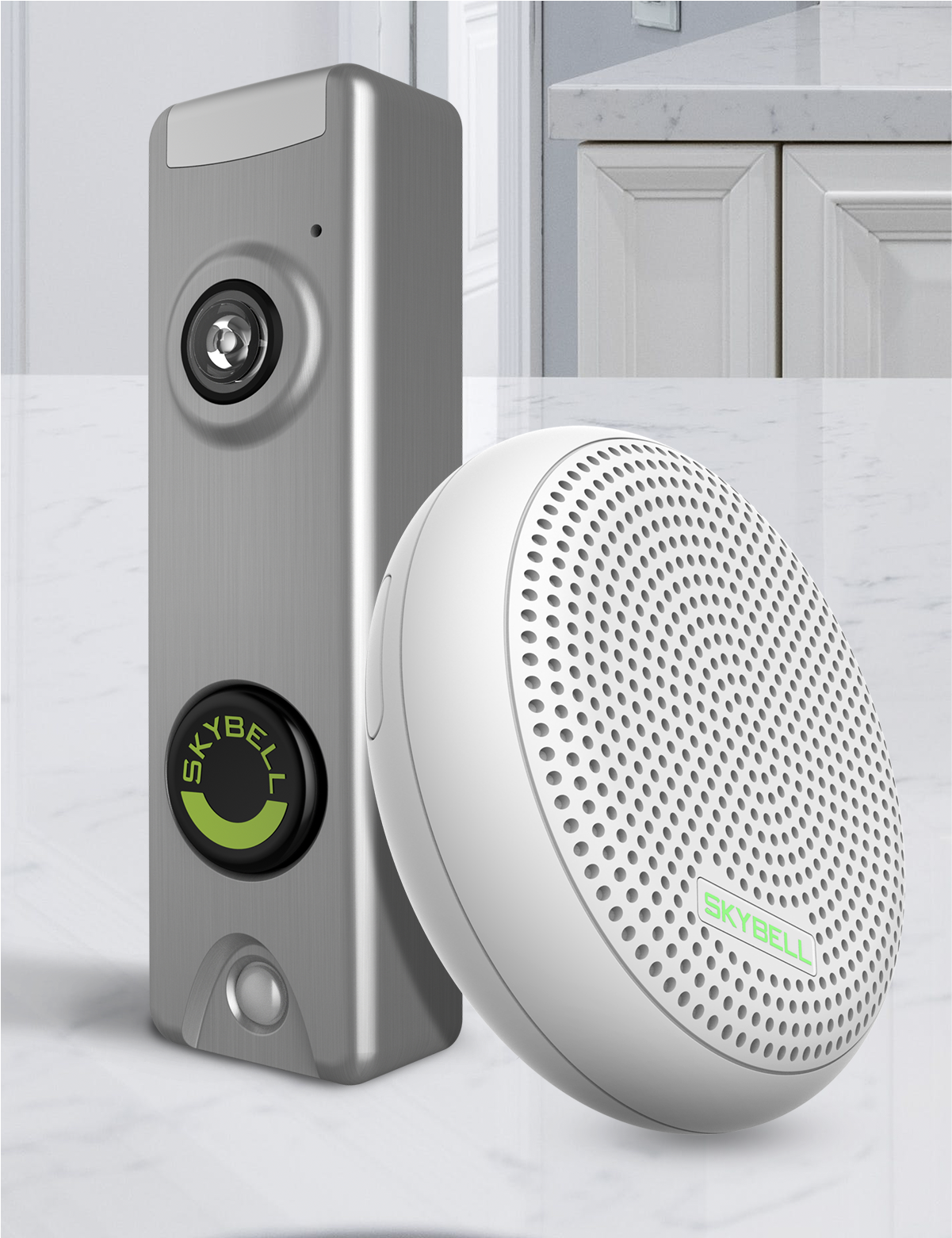
Button And Chime Issues
If pressing the Skybell button doesn’t trigger a chime or notification, or if your existing chime doesn’t sound, here’s what to do.
1. Test The Button
Press the button firmly. If the LED doesn’t light up, power may be off or the button itself is broken.
2. Check Chime Compatibility
Older mechanical chimes may not work with Skybell. Digital chimes or no chime at all are better options.
3. Bypass Or Rewire The Chime
If your chime is old or buzzing, disconnect it and wire the Skybell directly. Use a resistor if required by your model.
4. Enable Chime In App
Some Skybell models let you turn the chime on or off in settings. Double-check this if your chime is silent.
5. Inspect For Short Circuits
Loose wires or metal touching inside the chime box can cause shorts. Carefully check wiring for contact or burns.
Credit: skybell.com
Factory Reset And Reinstallation
If all else fails, a factory reset often solves deep, hidden issues. This erases all settings and returns the Skybell to original condition.
How To Factory Reset Skybell
- Remove the device from your app.
- Hold the main button for 60 seconds until the LED flashes red and green.
- Release the button. Wait for the LED to return to normal.
- Re-add the Skybell in the app and follow setup instructions.
Note: You will need to reconnect Wi-Fi and customize settings from scratch.
Common Mistakes To Avoid
Many users make simple errors that cause hours of frustration. Watch out for these:
- Installing Skybell on a 5GHz-only network (it needs 2.4GHz).
- Using an old transformer (below 10V or 10VA).
- Forgetting to update the app or firmware.
- Placing the router too far from the doorbell.
- Ignoring permissions or data restrictions on the phone.
- Mounting the camera in direct sunlight or behind glass.
- Over-tightening the mounting screws, cracking the housing.

Credit: unifi.com
When To Call For Professional Help
If you’ve tried all troubleshooting steps and your Skybell still doesn’t work, it may be time to contact support or a local electrician. Here’s when to seek help:
- No power even after replacing transformer and checking wiring.
- Wi-Fi connection is fine, but device won’t connect or reset.
- The camera lens is cracked or the housing is damaged.
- The button is physically stuck or broken.
- Firmware update fails repeatedly.
Skybell offers support through their app and website. Professional electricians can also diagnose wiring or transformer problems quickly.
Comparing Skybell With Other Video Doorbells
If you’re considering a replacement, it’s helpful to see how Skybell stacks up against other popular brands.
| Feature | Skybell | Ring | Nest Hello |
|---|---|---|---|
| Video Resolution | 720p/1080p (model dependent) | 1080p | 1600×1200 |
| Power Source | Wired | Wired/Battery | Wired |
| Monthly Fees | No (basic features) | Yes (for recording) | Yes (for recording) |
| Chime Compatibility | Limited | Wide | Wide |
| Smart Home Integration | Alexa, Google | Alexa, Google |
Skybell’s advantage is no required subscription for basic use, but it may not match the reliability or features of newer models. If you want advanced AI detection, wider compatibility, or battery options, other brands may suit your needs.
Maintenance Tips For Long-term Reliability
To avoid future problems, regular maintenance helps keep your Skybell doorbell in top condition.
- Check power and wiring every 6 months for corrosion or looseness.
- Clean the lens and sensors monthly to prevent blurry video.
- Update firmware and app as soon as new versions are available.
- Test Wi-Fi speed at your doorbell location regularly.
- Review app permissions after major phone updates.
- Inspect mounting hardware for cracks or weather damage.
These small actions save you from bigger problems down the line.
Two Non-obvious Insights For Skybell Owners
1. Transformer Upgrades Can Unlock Features
Many Skybell issues are solved by a transformer upgrade. What most people miss: using a stronger transformer (like 24V, 30VA) not only fixes power loss, but can also improve video stability and reduce device restarts—especially if your home has long wiring runs or a big mechanical chime.
2. Wi-fi Extender Placement Is Key
Simply adding a Wi-Fi extender isn’t enough. Position it halfway between your router and doorbell, not next to either. This maximizes signal strength at the door and avoids “double hop” delays that can cause video lag or dropouts.
Frequently Asked Questions
Why Does My Skybell Doorbell Keep Disconnecting From Wi-fi?
Frequent disconnections are often due to weak Wi-Fi signal at your door, interference from nearby electronics, or too many devices on your network. Make sure your router broadcasts a 2.4GHz signal, try moving it closer, or install a Wi-Fi extender in an optimal location.
Can I Use Skybell With A Battery Instead Of Wired Power?
No, Skybell doorbells require a wired power source with the correct voltage (typically 10–24V AC). They do not support battery operation, unlike some competitors. If you need a battery-powered unit, consider other brands.
How Do I Know If My Transformer Is Compatible?
Check the voltage and VA rating of your transformer. Most Skybell models need at least 10–16V AC, 10VA. For best results, use a 16–24V, 30VA transformer. If your transformer is too weak, your Skybell may not turn on or will function unreliably.
Why Are My Skybell Notifications Delayed?
Delayed notifications are usually caused by slow internet upload speeds, network congestion, or app background restrictions on your phone. Make sure your Wi-Fi upload speed is at least 2 Mbps, and allow the Skybell app to run freely in the background.
Where Can I Find Official Skybell Troubleshooting Resources?
For the most up-to-date support, visit the official Skybell support page. They offer setup guides, FAQs, and direct help for persistent issues.
Conclusion
Taking care of your Skybell doorbell doesn’t have to be difficult. With a clear understanding of common problems and practical solutions, you can keep your smart home secure and your visitors connected. When in doubt, don’t hesitate to reach out to professionals or check official resources for expert help.