
Are your Sennheiser wireless headphones acting up right when you need them most? Whether they won’t connect, the sound cuts out, or one earbud is silent, these frustrating issues can quickly ruin your listening experience.
But don’t worry—you’re not alone, and most problems are easier to fix than you might think. In this guide, you’ll find simple, clear steps to troubleshoot your Sennheiser headphones and get them working perfectly again. Keep reading to discover quick solutions that will save you time and frustration, so you can enjoy your music, calls, and entertainment without interruption.
Battery Issues
Battery issues are common with Sennheiser wireless headphones. A weak or dead battery stops the headphones from working properly. Understanding how to care for the battery helps keep your headphones running longer. Simple steps can improve battery life and fix charging problems quickly.
Charging Tips
Always use the original charger that came with your headphones. Charge the headphones fully before using them for the first time. Avoid overcharging by unplugging once the battery is full. Keep the charging port clean and dry to ensure good contact. Charge the headphones regularly, even if you do not use them daily.
Battery Replacement
If the battery no longer holds a charge, it may need replacement. Check your model’s manual for instructions on battery replacement. Use only official Sennheiser batteries or those recommended by the manufacturer. Replace the battery carefully to avoid damaging internal parts. If unsure, seek help from a professional service center.
Battery Contact Cleaning
Dirty or corroded battery contacts can cause charging problems. Use a soft cloth or cotton swab lightly dampened with rubbing alcohol to clean the contacts. Gently rub the battery contacts inside the headphones and on the battery itself. Let the contacts dry completely before reinserting the battery. Clean contacts improve power flow and charging efficiency.
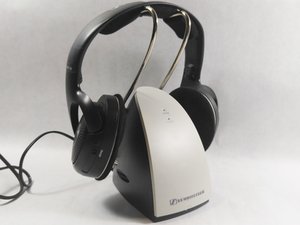
Credit: www.ifixit.com
Power And Connections
Power and connections are key to your Sennheiser wireless headphones working properly. Without power, headphones cannot function. Without good connections, sound may cut out or not play at all.
Checking power and connections often solves many common issues. Start by making sure the headphones are charged and switched on. Next, look at cables and jacks for any damage or dirt. Finally, restarting your devices can clear temporary glitches.
Power Button Usage
Press and hold the power button to turn on the headphones. A quick press may not work. Watch for lights or sounds that show the headphones are on. If they do not turn on, charge the battery fully.
Some models require holding the power button for a few seconds. Check your user manual for exact instructions. Using the power button correctly helps avoid false shutdowns.
Cable And Jack Inspection
Look closely at the audio cable and jack for signs of wear. Bent or frayed cables can stop sound from passing through. Dirt or lint inside the jack can block connections.
Clean the jack gently with a dry cloth or a soft brush. Avoid using liquids that can damage the electronics. Replace damaged cables to restore full sound quality.
Restarting Devices
Turn off the headphones and your source device like a phone or computer. Wait for a few seconds, then turn both back on. This simple step can fix many connection issues.
For wireless headphones, try unpairing and re-pairing them with your device. This resets the Bluetooth connection and often improves stability. Restarting clears temporary bugs and refreshes device settings.
Bluetooth Pairing
Bluetooth pairing is the first step to use your Sennheiser wireless headphones. This connection lets your headphones receive audio from a phone, tablet, or computer without wires. Sometimes, pairing problems stop the headphones from connecting properly. Fixing these issues improves your listening experience and keeps your devices working smoothly.
Unpairing And Re-pairing
Start by unpairing your headphones from the device. This removes old connection data that may cause problems. On your phone or computer, go to Bluetooth settings and remove the Sennheiser headphones from the list. Then, turn off your headphones and turn them back on to reset the Bluetooth mode.
Next, put the headphones in pairing mode. Usually, this means holding the power button for a few seconds until a light flashes. On your device, scan for new Bluetooth devices and select your Sennheiser headphones. Wait for confirmation that pairing is complete. This process often fixes simple connection errors.
Device Compatibility
Check if your device supports the Bluetooth version of your headphones. Older phones or computers may not work well with new Bluetooth standards. Also, some devices limit the number of connections they can remember. Clear old paired devices if your device cannot find the headphones.
Make sure your device’s Bluetooth is turned on and working correctly. Restart the device if Bluetooth is not responding. Using updated software on your phone or computer helps avoid compatibility issues.
Signal Range
Bluetooth works best within 10 meters (about 33 feet). Walls and other objects reduce this range. Keep your headphones and device close for a stable connection. Moving too far away causes the sound to cut out or disconnect.
Avoid placing your device in pockets or bags that block signals. Interference from other wireless devices can also cause problems. Turn off nearby gadgets or move to a less crowded area if you face constant dropouts.
Factory Reset
Factory reset is a key step to fix many problems with Sennheiser wireless headphones. It clears all settings and restores the device to its original state. This process can fix connection errors, audio glitches, and pairing issues. The reset method changes depending on the headphone model. Follow the right steps to avoid damage and ensure success.
Reset Methods By Model
Sennheiser offers many headphone models, each with a different reset process. Some use button combinations, while others use the charging case or a dedicated reset button. Always check your model’s user guide before starting. Using the wrong method might not reset the device or could cause further issues.
Resetting Wireless Earbuds
Wireless earbuds often reset by placing them in the charging case and pressing a button. Hold the button for 10 to 15 seconds until the LED flashes. This action clears all paired devices and settings. After the reset, pair your earbuds again with your phone or other devices. This method works well for models like the Sennheiser Momentum True Wireless series.
Resetting Headphones With Transmitter
Headphones with a transmitter, like the RS series, need a different reset approach. Start by turning off both the headphones and the transmitter. Then, press and hold the power button on the headphones for 10 seconds until the LED blinks. Next, turn on the transmitter and pair it with the headphones. This step clears channel conflicts and connection problems.
Firmware Updates
Firmware updates keep your Sennheiser wireless headphones running smoothly. They fix bugs, improve sound quality, and add new features. Regular updates prevent many common issues and enhance performance.
Updating firmware is simple with the right tools. The Sennheiser Smart Control app guides you through the process. This app connects your headphones to your device and manages updates easily.
Using Sennheiser Smart Control App
Download the Sennheiser Smart Control app from your app store. Open the app and pair it with your headphones. The app shows your headphone model and current firmware version. It acts as a control center for settings and updates.
Checking For Updates
Inside the app, look for the update section. It checks if new firmware is available for your headphones. The app will notify you if an update is ready. This step ensures your device runs the latest software.
Installing Updates
Follow the app instructions to install the update. Keep your headphones close to your device during installation. Do not turn off the headphones or the app. Once done, your headphones restart with the new firmware installed.
App Settings
The Sennheiser Smart Control app is a key tool for managing your wireless headphones. It lets you customize sound, manage connections, and fix common problems. Using the app makes troubleshooting faster and easier. Explore how app settings improve your headphone experience below.
Adjusting Sound Profiles
The app offers various sound profiles to fit your listening style. Choose presets like Bass Boost or Speech Clarity. You can also create custom equalizer settings. Adjusting sound profiles helps improve audio quality for music, calls, or movies. Changes take effect instantly, so test different settings quickly.
Managing Connections
Connection issues often cause audio dropouts or no sound. The app shows all paired devices and their status. You can disconnect or reconnect devices easily. It also helps switch between multiple devices smoothly. Keeping connections updated in the app avoids pairing conflicts.
Troubleshooting Via App
The app provides tools to fix common headphone problems. Run diagnostics to check for hardware or software issues. It guides you through steps like resetting or updating firmware. Firmware updates improve performance and add new features. Following app prompts solves many issues without extra help.
Transmitter Issues
Transmitter issues can cause disruptions in your Sennheiser wireless headphones. These problems often result in poor sound quality or complete signal loss. Understanding how to fix transmitter problems helps restore clear audio quickly.
Channel Matching
Both the transmitter and headphones must use the same channel. Mismatched channels block the audio signal. Check the channel settings on the transmitter. Then, match the headphone’s channel to the transmitter. This step often resolves signal dropouts instantly.
Reducing Interference
Interference can weaken your wireless connection. Other wireless devices or walls may cause signal problems. Move the transmitter away from routers, microwaves, or cordless phones. Keep a clear line of sight between the transmitter and headphones. These actions reduce interference and improve sound quality.
Resetting Transmitter Connection
Resetting the transmitter can fix many connection errors. Turn off both the headphones and transmitter. Unplug the transmitter from power for 30 seconds. Plug it back in and turn on both devices. This process refreshes the connection and clears minor glitches.
Persistent Problems
Persistent problems with Sennheiser wireless headphones can be frustrating. Sometimes, basic troubleshooting does not fix the issue. In such cases, further steps are necessary to resolve the problem effectively. Knowing where to get help and what options exist is important for users facing ongoing trouble.
Customer Support Contact
Sennheiser offers customer support to help with persistent headphone problems. You can reach them by phone, email, or live chat on their official website. Provide your headphone model and a clear description of the issue. Support agents can guide you through advanced troubleshooting or recommend next steps.
Keep your purchase details handy. It helps speed up the support process. Customer service is trained to handle common and complex problems quickly.
Warranty And Repairs
Check if your headphones are still under warranty. Sennheiser usually offers a limited warranty covering manufacturing defects. If your device qualifies, repairs may be free or low-cost. Avoid opening the headphones yourself, as it can void the warranty.
Authorized repair centers handle warranty repairs. They use genuine parts to maintain product quality. If the issue is hardware-related, repairs can restore your headphones to full function.
Replacement Options
If repairs are not possible or cost-effective, consider replacement options. Sennheiser sometimes offers exchange programs for defective units. Retailers may also provide return or exchange policies depending on purchase terms.
When choosing replacements, compare features and compatibility with your original model. This ensures you get a product that fits your needs and works well with your devices.

Credit: support.avantree.com
Frequently Asked Questions
Why Are My Sennheiser Headphones Not Working?
Your Sennheiser headphones might not work due to low battery, connection issues, or software glitches. Charge fully, restart devices, check Bluetooth or cables, and reset if needed. Update firmware using the Sennheiser app. Contact support if problems persist.
How Do I Reset My Sennheiser Wireless Headphones?
To reset Sennheiser wireless headphones, turn them off. Then, press and hold the power button for about 10 seconds until the LED flashes. Release the button to complete the reset. For model-specific steps, consult your user manual or the Sennheiser Smart Control app.
How To Fix Sennheiser Headphones If Only One Side Is Working?
Charge your Sennheiser headphones fully and check for cable or connection damage. Restart and re-pair devices. Perform a factory reset and update firmware via the Sennheiser app. Ensure transmitter and headphones share the same channel. Contact Sennheiser support if issues persist.
How To Fix Your Wireless Headphones If One Side Doesn’t Work?
Charge your wireless headphones fully and restart them. Ensure Bluetooth or transmitter channels match. Perform a factory reset if needed. Update firmware via the Sennheiser app. Clean battery contacts and minimize interference. Contact customer support if the issue persists.
Why Won’t My Sennheiser Wireless Headphones Connect?
Check if headphones and device Bluetooth are on. Restart both and try pairing again.
Conclusion
Troubleshooting Sennheiser wireless headphones can be simple with the right steps. Always start by charging the battery fully and checking connections. Restarting devices often fixes many common issues. Using the Sennheiser Smart Control app helps keep your firmware updated. For persistent problems, try a factory reset.
Adjust settings carefully to avoid interference, especially with transmitters. If problems still occur, contacting customer support is the best choice. These tips will help you enjoy clear sound and smooth wireless use again. Keep your headphones working well with regular care and checks.