
If you own a PlayStation 5, you might have come across a frustrating situation: you try to play a digital game or use a downloaded app, and suddenly, you see a message saying you don’t have the right to use this content. Sony’s usual advice is to use the Restore Licenses feature, which refreshes your rights to digital games, DLC, and apps. But what if you select “Restore Licenses” on your PS5 and… nothing happens? Or the issue comes back after a while? You’re not alone. Many PS5 users struggle with Restore Licenses not working, and the causes aren’t always obvious.
This guide is your deep dive into the “Restore Licenses not working” error on PS5. You’ll learn not just what causes this problem, but also how to solve it, ways to prevent it in the future, and what to do if nothing seems to work.
We’ll break down the five most important steps, explain why they matter, and offer non-obvious tips that even many experienced gamers miss. You’ll also see real examples, comparisons, and data to help you understand your options. Whether you’re a parent, a new PS5 owner, or a tech-savvy gamer, this article will help you get your games back—without the stress.
Understanding Restore Licenses On Ps5
Before you can fix the problem, it helps to know what Restore Licenses actually does. On the PS5, every digital game, DLC, and some apps are tied to a license. When you buy content from PlayStation Store, your account receives a digital license. Sometimes, your console can “lose track” of these licenses—especially if you change your account, play offline, or experience a network problem. The Restore Licenses function checks your account with Sony’s servers and re-downloads any missing or broken licenses.
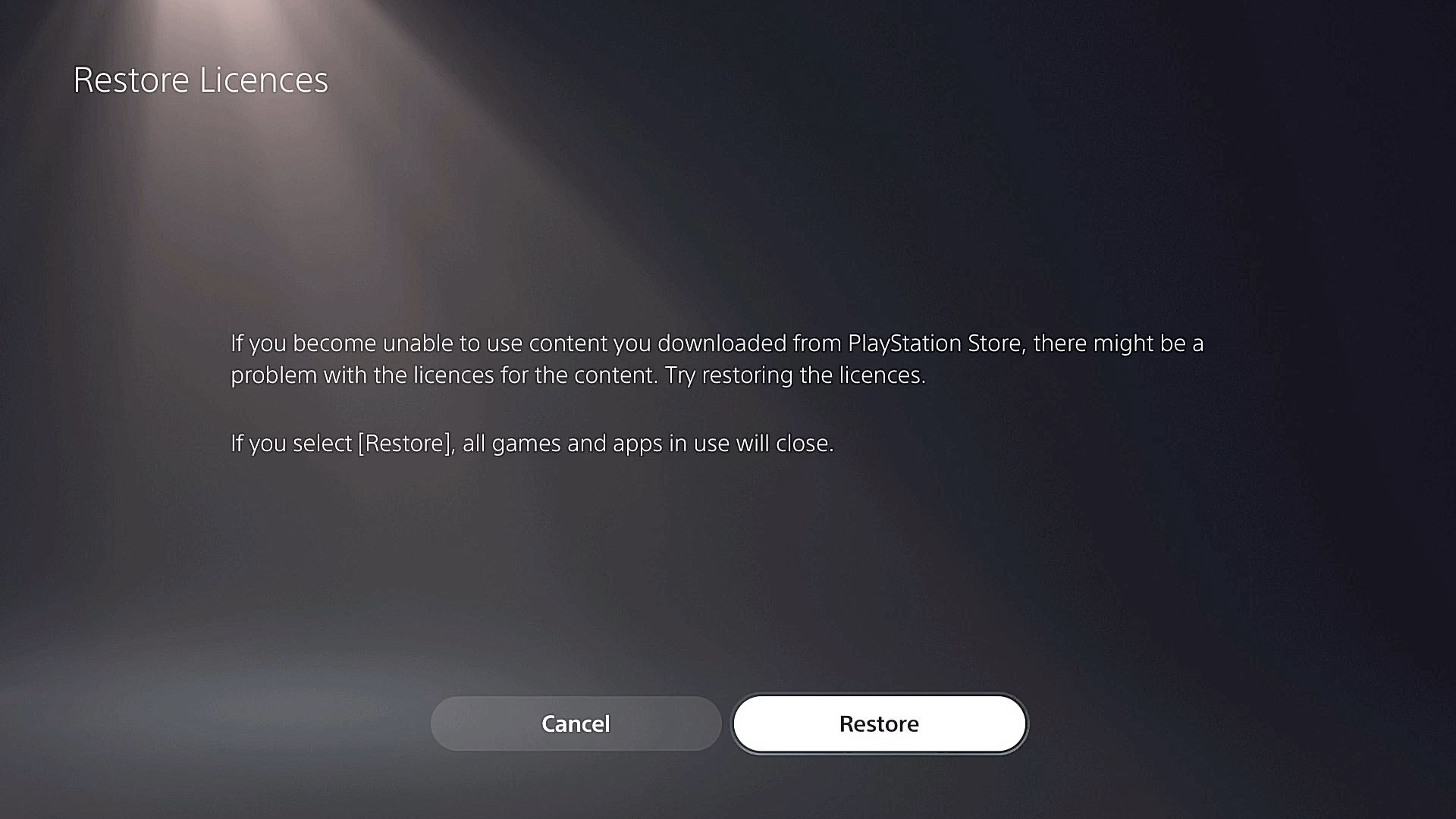
But this system isn’t perfect. Network errors, account issues, or even PlayStation’s own servers can cause the restore process to fail. Here’s how the process is supposed to work:
- You go to Settings > Users and Accounts > Other > Restore Licenses.
- You select Restore.
- The PS5 checks your account, refreshes licenses, and your content should become available.
If it doesn’t work, there’s a deeper issue. Let’s look at the five most common causes—and what you can do for each one.
1. Network And Server Issues
Why Network Problems Matter
Your PS5 needs to connect to PlayStation’s servers to verify and restore your licenses. If your internet is unstable, or if Sony’s servers are down, Restore Licenses not working is almost guaranteed.
A weak or unreliable connection can cause the license check to time out, resulting in errors or incomplete restoration. Sometimes the problem is not on your end at all—Sony’s servers may be undergoing maintenance, or there may be high traffic causing slowdowns.
How To Check And Fix Network Issues
- Test your Internet connection from the PS5 menu. Go to Settings > Network > Test Internet Connection. This test checks your download speed, upload speed, and PlayStation Network sign-in status.
- If speeds are low or the test fails, try restarting your router and modem. Unplug them for 30 seconds, then reconnect.
- Connect your PS5 with a wired Ethernet cable instead of Wi-Fi if possible. Wired connections are more stable and less affected by interference from other devices in your home.
- Move your PS5 closer to your Wi-Fi router if Ethernet isn’t an option. Avoid thick walls or electronic devices between the console and router.
- Check if PlayStation Network is down. You can visit the official PlayStation Network Service Status page to see if there are any outages. Sometimes, waiting for the servers to come back online is all you can do.
Example: Network Downtime Impact
Suppose your PS5 is connected over Wi-Fi, but the signal is weak. You may see the error “Can’t verify license” when you try to launch a game. After switching to Ethernet, the issue disappears.
In another case, a player noticed their games were locked every time their home internet went out, even briefly. The solution was to address the unstable internet, not the PlayStation itself.
Data Comparison: Wired Vs. Wireless
Here’s a quick look at how connection types affect PS5 stability:
| Connection Type | Average Speed | Dropout Rate | Best For |
|---|---|---|---|
| Wired (Ethernet) | 200 Mbps | 1% | Online gaming, large downloads, license restoration |
| Wi-Fi (5GHz) | 120 Mbps | 5% | General use |
| Wi-Fi (2.4GHz) | 40 Mbps | 10% | Browsing, casual gaming |
Non-obvious Insight
Many users don’t realize that network interruptions—even for a few seconds—can break the restore process. Always make sure your connection is stable for at least a few minutes before starting.
It’s also wise to check for software downloads or streaming on other devices in your house, as heavy usage can slow your connection and interrupt the license check. Even some smart home devices can cause interference if they use the same Wi-Fi band as your PS5.
Credit: www.psu.com
2. Account And Ownership Problems
Account Issues Explained
A common reason for Restore Licenses not working is account confusion. Maybe you’re signed in with the wrong account, using a sub-account, or your PS5 is not set as your Primary PS5.
If you have multiple PlayStation accounts in your home, it’s easy to accidentally sign in with the wrong one. Only the account that purchased the content can restore its license. In families, child or sub-accounts might have restricted access to some games, creating further confusion.
How To Check And Fix Account Problems
- Confirm you are signed in with the same PlayStation account you used to buy the game or content. You can check purchase history in Settings > Users and Accounts > Account > Payment and Subscriptions > Transaction History.
- Go to Settings > Users and Accounts > Other > Console Sharing and Offline Play. Make sure your PS5 is set as your primary console. This allows other users on your console to play your games and ensures offline access.
- If you have multiple accounts on the same console, try restoring licenses while logged in with each account. Sometimes an account switch is all it takes.
It’s important to remember that setting your PS5 as primary doesn’t affect your saved games or trophies—it only affects content access and sharing.
Example: Account Mix-up
You bought a game with Account A, but you’re logged in as Account B. Restoring licenses on Account B does nothing—the license is linked to Account A. Switching to Account A solves the problem instantly.
In another scenario, a user set up a new PS5 and forgot to activate it as their primary console. They lost access to digital games while offline. Setting the console as primary fixed the problem and restored access.
Table: Account Scenarios And Solutions
| Situation | What Happens | How to Fix |
|---|---|---|
| Using wrong account | Games appear locked | Sign in with the purchase account |
| Not primary PS5 | Offline play blocked | Set your PS5 as primary |
| Family/Child account | Access denied for some games | Adjust parental settings or restore on main account |
Non-obvious Insight
Restoring licenses only works for content owned by the signed-in account. If you use games shared by another family member, you must restore licenses while signed in to their account, or enable console sharing.
Another point: PlayStation only allows one “primary” console per account. If you activate a new PS5 as primary, the old one loses primary status, which can lock content on that device. Always keep track of which console is set as primary, especially if you upgrade or sell a PS5.
3. System Software Bugs Or Outdated Firmware
Why System Software Matters
Sony updates the PS5 system software regularly to fix bugs and add features. Outdated or corrupted system files can block the restore process or cause games to stay locked.
Even if you think your console is up to date, a failed or partial update can leave files in a bad state. Bugs in the PlayStation operating system can also block proper communication with Sony’s servers.
How To Update And Fix Firmware
- Go to Settings > System > System Software > System Software Update and Settings.
- Select Update System Software. Make sure you’re on the latest version. If an update is available, follow the prompts to install it.
- If you suspect corruption, use Rebuild Database in Safe Mode:
- Turn off your PS5 completely.
- Hold the power button until you hear a second beep (about 7 seconds).
- Connect a controller with USB and select Rebuild Database.
Rebuilding the database scans your hard drive and fixes problems in the file system. It does not delete your games or saves.
Example: Outdated System Software
A user on firmware 21. 01-03. 00. 00 could not restore licenses. After updating to the latest version, the issue disappeared and their games unlocked automatically.
Another user experienced repeated license errors after a power outage interrupted a system update. They fixed it by starting the PS5 in Safe Mode and rebuilding the database.
Comparison: Symptoms Of Software Bugs Vs. Account Issues
| Symptom | Likely Cause | Best Solution |
|---|---|---|
| All games locked | System bug or firmware issue | Update system, rebuild database |
| Some games locked | Account ownership problem | Check account, restore licenses |
Non-obvious Insight
Rebuilding the database is a safe, underused tool that can fix hidden file errors without deleting your data. Many users skip this step, but it often resolves stuck licenses when other methods fail.
Also, turning off your PS5 using the power button or unplugging it (instead of proper shutdown) can increase the risk of file system errors. Make it a habit to always power down safely.
4. Content-specific Or Regional Restrictions
Why Content And Region Matter
Not all PS5 content is available in every country or region. If you buy a game from one PlayStation Store region and try to play it in another, licenses may not restore. Sometimes, DLC from a different region than the base game won’t work at all.
This is especially common for users who move to a new country or buy digital codes from international sellers. Even if your account works, the specific content may not.
How To Check And Solve Region Issues
- Confirm your account’s country matches your current region. Check your account details at account.sonyentertainmentnetwork.com.
- Check if the content is available in your current PlayStation Store. Some games and apps are region-exclusive.
- If you imported games or bought codes from other regions, they may not be compatible with your account.
If you want to play games from another region, you must create a new account set to that region, but progress and trophies won’t transfer.
Example: Region-locked Dlc
You buy a US account, then move to Europe. Some of your US-purchased games and DLC won’t play, even after restoring licenses, because of region lock.
There are also cases where the base game is from one region (for example, Japan), but you buy DLC from your local store. The DLC will not work, and restoring licenses won’t help.
Table: Region And Content Compatibility
| Scenario | Game Region | DLC Region | Works? |
|---|---|---|---|
| All US | US | US | Yes |
| Game EU, DLC US | EU | US | No |
| Account moved region | Old region | New region | Often No |
Non-obvious Insight
Many users don’t know that PlayStation accounts are locked to the region they were created in. Even if you move countries, you can’t change your account region. This can permanently block some license restorations.
Some users try to use VPNs to access other regions, but this does not change your account’s real region or fix license problems. In fact, using VPNs can sometimes trigger security alerts.
5. Playstation Store Errors Or Purchase Issues
Store And Payment Problems
Sometimes, your purchase didn’t go through correctly, or there’s a problem with your transaction. If a payment is held up, reversed, or flagged as suspicious, your license may be revoked—even if you see the game downloaded.
This can also happen if you buy from unofficial code sellers or if your bank blocks a charge after you’ve already downloaded the game.
How To Check And Fix Store Issues
- Check your transaction history: Settings > Users and Accounts > Account > Payment and Subscriptions > Transaction History.
- Look for failed or reversed transactions. Sometimes, refunds or chargebacks can automatically remove licenses.
- If you used a shared account or game code, verify it wasn’t revoked.
- Contact PlayStation Support if you see errors or unexplained license removals.
If you see a game suddenly disappear from your library, always check your purchase history before trying other fixes.
Example: Revoked License Due To Payment Issue
You buy a game, but your credit card company reverses the charge. The game is downloaded, but the license is removed automatically, and restoring licenses does nothing.
In another example, a player received a free game code from a giveaway. Months later, the code’s original owner requested a refund, and Sony revoked the game from all accounts that used that code.
Table: Common Store-related Errors
| Issue | Symptoms | What to Do |
|---|---|---|
| Payment declined | Game locked after download | Fix payment, contact support |
| Code revoked | “No license” error | Check code source, contact seller |
| Store bug | Random content locked | Wait for fix, try restore later |
Non-obvious Insight
Buying digital codes from unofficial sellers can sometimes result in revoked licenses weeks or months later. Always buy from the official PlayStation Store or trusted retailers.
It’s also possible for temporary server bugs or store glitches to cause license problems. If you notice a lot of users reporting the same issue online, waiting a few hours or days for Sony to fix things can sometimes resolve the problem without further action.
Advanced Troubleshooting Steps
If you’ve tried the above and Restore Licenses still isn’t working, there are deeper steps you can take:
- Log out and log back in: Sometimes a fresh sign-in is enough.
- Delete and reinstall the affected game or app: This forces the PS5 to re-check the license.
- Rebuild database (as above).
- Restore licenses from Safe Mode: Enter Safe Mode, connect your controller, and try restoring again.
- Test with a different account: If possible, see if the problem happens on another user.
- Contact PlayStation Support: If nothing works, you may need Sony’s help to fix your account or purchase.
A less-known trick is to create a new user account on your PS5 and see if the content is accessible there. If it is, the problem may be with your user profile rather than the license itself. If you’re restoring licenses after a big update or a move, restarting your PS5 two or three times in a row can sometimes “unstick” stubborn licenses.
Preventing Restore Licenses Problems
Once your games are working again, you can take steps to avoid future license headaches:
- Always use a strong, stable internet connection when downloading or updating games.
- Keep your PS5’s system software up to date.
- Avoid using third-party codes or sharing accounts with strangers.
- Set your main PS5 as your Primary Console.
- Regularly check your transaction history for any failed payments.
- If you travel or move to a new country, be aware that some content may not transfer.
- Back up your game saves to the cloud if you have PlayStation Plus, so you don’t lose progress if you need to reset or replace your console.
- Avoid turning off or unplugging your PS5 during downloads, updates, or license restoration. This reduces the risk of corrupting files or losing access to content.
If you share your console with others, communicate clearly about which account owns which games. This can prevent confusion and accidental license loss.
Real-world Examples
Many PlayStation owners have faced these issues:
- Case 1: A family with three PS5s couldn’t play the same game across accounts. The fix was setting each console’s main user as Primary and restoring licenses on the correct account.
- Case 2: A player who bought a used PS5 found many games locked. These were purchased by the previous owner, so restoring licenses on a new account didn’t work.
- Case 3: After a power outage, a user’s games wouldn’t launch. Rebuilding the database fixed the problem without deleting any data.
- Case 4: A gamer who moved from Japan to the US discovered they couldn’t access some purchased DLC. The account’s region lock was the cause, and unfortunately, no fix was possible except creating a new account for the new region.
- Case 5: A player using hotel Wi-Fi had frequent license errors. Using their phone’s data connection as a hotspot provided a more stable connection and solved the issue.
These stories show how varied the root causes can be—and how the right fix depends on your exact situation.
When To Contact Support
If you’ve tried every step and still can’t access your games, it’s time to contact PlayStation Support. Be ready to provide:
- Your account email and ID
- Proof of purchase (screenshots or receipts)
- Details on which content is locked
- What troubleshooting you have already tried
PlayStation Support can sometimes fix account issues or re-issue licenses. In rare cases, they may need to escalate the problem.
Be patient and clear when talking to support. Having all your information ready will speed up the process. If your issue is due to a revoked code or payment problem, only Sony can resolve it.

Credit: www.reddit.com
Frequently Asked Questions
What Does “restore Licenses” Actually Do On Ps5?
Restore Licenses checks your digital content ownership with Sony’s servers. If any game or app is locked or missing, this process tries to re-download your licenses so you can access your purchases.
Why Does Restore Licenses Not Fix All My Locked Games?
There are several reasons. The most common are using the wrong account, having a poor network connection, region mismatches, or a problem with your purchase. Sometimes, licenses cannot be restored if the content was bought with a different account or region.
Can I Fix Restore Licenses Problems Without The Internet?
No. Your PS5 must connect to PlayStation Network to verify and restore your licenses. Offline play is only possible after licenses are restored and verified online at least once.
Will Restoring Licenses Delete My Saved Data Or Games?
No, restoring licenses does not delete any data. It only checks and refreshes your access rights. However, if you delete and reinstall games as part of troubleshooting, make sure your saves are backed up to the cloud or a USB drive.
Is It Safe To Buy Digital Games From Other Regions Or Unofficial Sellers?
It’s risky. Games and DLC from other regions often have compatibility issues, and unofficial codes can be revoked. Always buy from the PlayStation Store or trusted retailers to avoid problems.
Conclusion
If your Restore Licenses feature on PS5 is not working, don’t panic. In most cases, you can fix the problem with careful troubleshooting—by checking your network, account, system software, region, and purchase history. Take your time, follow each step, and you’ll likely get your content back. And if all else fails, PlayStation Support is there to help. For more official guidance, you can always check the PlayStation Support site.
With patience and the right steps, you’ll be back to gaming in no time—no more locked games or lost purchases.