
If you use RealPlayer Video Downloader, you may know how easy it is to grab videos from the web. But sometimes, it simply stops working. Maybe the download button disappears, videos do not save, or you see error messages. These problems frustrate users everywhere. Why does it happen? Is there a fix? Can you trust alternative methods? Many guides only scratch the surface, but here, you’ll find clear answers and step-by-step solutions. Whether you use RealPlayer on Windows 10, Windows 11, or an older version, you’ll learn what causes the issue and how to solve it—fast.
Why Realplayer Video Downloader Stops Working
RealPlayer Video Downloader is popular because it lets you save online videos with one click. But the web is always changing, and so are the platforms that host videos. Here are the main reasons you may find RealPlayer Video Downloader not working.
Browser Updates Break Compatibility
Web browsers like Google Chrome, Firefox, and Edge update often—sometimes every few weeks. These updates improve speed and security, but they also change how browsers interact with plugins and extensions. RealPlayer’s downloader relies on connecting with your browser, and when browsers change their inner workings, RealPlayer’s old code can’t keep up. Suddenly, the download button disappears, or nothing happens when you click it.
Website Changes Block Downloaders
Major video sites such as YouTube, Facebook, and Vimeo frequently update their code to stop third-party downloaders. They do this to protect copyright and advertising revenue. When the site’s video player changes, RealPlayer may no longer detect the video stream, so the download option vanishes.
Outdated Realplayer Version
If you use an old version of RealPlayer, it may not support new website formats or the latest browser changes. Developers update RealPlayer to fix bugs and add new features, but many users skip these updates. As a result, the downloader fails to work with modern sites.
Conflicts With Security Software
Antivirus or firewall programs sometimes block RealPlayer’s connection to the web or prevent it from saving files. This can cause failed downloads, missing buttons, or even crashes.
Internet Connection Problems
A weak or unstable internet connection can interrupt the download process. Sometimes, RealPlayer will not show the download button because it cannot detect the video stream due to poor connectivity.
Operating System Issues
RealPlayer may not work well with the latest Windows updates. Major Windows 10 or 11 updates can change how programs interact with system files, and RealPlayer’s downloader may lose access to necessary resources.
Video Format Limitations
RealPlayer does not support every video format on the internet. If a website uses a new or unusual streaming technology, RealPlayer may fail to recognize and download the video.
Permissions And Administrative Rights
On some computers, users do not have administrator rights. This can block RealPlayer from making changes or saving files to certain locations.
Common Error Messages And What They Mean
When RealPlayer Video Downloader fails, you may see different error messages. Understanding these can help you fix the problem faster.
- “No videos to download on this page”: RealPlayer cannot detect any video streams. This often happens on updated websites or pages that use encrypted streaming.
- “Download incomplete”: The video started to download but stopped midway. This could be due to lost internet connection or file conflicts.
- “Cannot start RealPlayer Downloader”: The downloader process is blocked, possibly by antivirus, or RealPlayer is not installed correctly.
- “Download This Video” button missing: The browser extension is not working or is incompatible with your browser version.
How To Fix Realplayer Video Downloader Not Working
Let’s walk through practical solutions that solve most RealPlayer Video Downloader problems. Start with the easiest fixes and move to more advanced steps as needed.
1. Update Realplayer To The Latest Version
Many issues disappear after an update. RealPlayer’s developers regularly fix bugs and improve compatibility with browsers and video sites.
- Open RealPlayer.
- Click on the Menu (top left corner).
- Choose Check for Updates.
- Follow the prompts to install the latest version.
If you use an old version, download the newest release directly from the official site.
2. Update Your Web Browser
Sometimes the problem is with your browser, not RealPlayer. Using an outdated browser can cause conflicts.
- In Chrome: Click the three dots, go to Help > About Google Chrome. Update if needed.
- In Firefox: Click the menu, go to Help > About Firefox.
- In Edge: Click the three dots, go to Help and feedback > About Microsoft Edge.
After updating, restart your computer and check if the downloader works.
3. Reinstall The Realplayer Browser Extension
RealPlayer Video Downloader relies on a browser add-on. If the extension is missing or outdated, the download button won’t appear.
- Open your browser.
- Go to the extensions or add-ons page.
- Remove the RealPlayer Downloader extension.
- Reinstall it from the RealPlayer website or extension store.
Restart your browser after reinstalling.
4. Allow Realplayer Through Firewall And Antivirus
Security software sometimes blocks RealPlayer’s internet access.
- Open your antivirus or firewall settings.
- Find the allowed apps or exceptions list.
- Add RealPlayer and RealPlayer Downloader to the list.
- Save changes and restart your computer.
Some antivirus programs are more aggressive than others. If you suspect a conflict, try temporarily disabling your antivirus to test if RealPlayer works.
5. Check Internet Connection
A slow or unstable connection can break downloads.
- Test your internet speed using a site like Speedtest.net.
- Restart your router or modem.
- Try connecting using an Ethernet cable instead of Wi-Fi.
If your speed is less than 5 Mbps, downloads may fail.
6. Run Realplayer As Administrator
Running RealPlayer with admin rights can fix permission problems.
- Right-click on the RealPlayer icon.
- Choose Run as administrator.
- Try downloading a video again.
7. Clear Browser Cache And Cookies
Browser cache or cookies may interfere with RealPlayer’s extension.
- In Chrome: Go to Settings > Privacy and security > Clear browsing data.
- In Firefox: Go to Options > Privacy & Security > Cookies and Site Data > Clear Data.
- In Edge: Go to Settings > Privacy, search, and services > Clear browsing data.
After clearing, restart the browser.
8. Check For Windows Updates
Outdated Windows components can conflict with RealPlayer.
- Open Settings > Update & Security > Windows Update.
- Click Check for updates.
- Install all available updates.
- Restart your computer.
9. Try Another Video Website
Some sites block downloaders more aggressively. If RealPlayer can’t grab videos from YouTube, try another site like Dailymotion or Vimeo to see if the problem is site-specific.
10. Use A Different Browser
RealPlayer works better with some browsers than others. If you use Chrome and it doesn’t work, try Firefox or Edge.
Here is a quick comparison of browser compatibility with RealPlayer Video Downloader:
| Browser | RealPlayer Support | Common Issues |
|---|---|---|
| Google Chrome | Partial | Extension blocks, missing button |
| Mozilla Firefox | Good | Occasional compatibility updates needed |
| Microsoft Edge | Good | Rare extension issues |
| Opera | Limited | Extension often not supported |
11. Change Video Quality Or Format
Some videos only allow downloads in certain formats or qualities. Try playing the video at a lower quality before clicking the download button.
12. Reinstall Realplayer Completely
If nothing else works, uninstall RealPlayer and reinstall it.
- Go to Control Panel > Programs and Features.
- Find RealPlayer and uninstall it.
- Download the latest version from the official site.
- Install and restart your computer.
This can fix broken files or settings.
13. Check Storage Space
If your computer’s hard drive is almost full, downloads may fail. Free up space and try again.
14. Disable Other Downloaders Or Extensions
Other video downloaders or browser extensions can conflict with RealPlayer. Disable or remove them to see if RealPlayer works.
15. Scan For Malware
Malware can block or interfere with RealPlayer. Run a full scan with your antivirus and remove any threats found.
Realplayer Video Downloader And Youtube: A Special Case
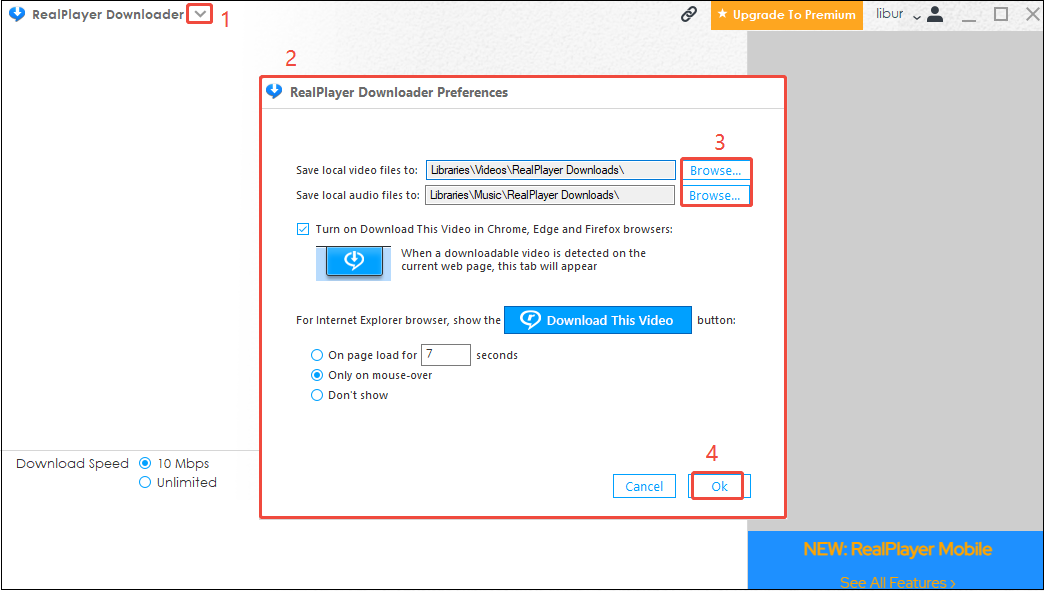
Many users find RealPlayer works for most sites but not YouTube. This is not a bug—YouTube uses advanced technology to protect its videos. They often change their code to block downloaders.
RealPlayer sometimes updates to keep up, but there may be delays. If you need to download from YouTube, look for legal options or try alternative tools, but always respect copyright laws. In some countries, downloading YouTube videos may be illegal.
Credit: youtubedownload.minitool.com
Alternatives To Realplayer Video Downloader
If RealPlayer still doesn’t work, you may want to try another tool. Here are some trusted alternatives.
1. 4k Video Downloader
- Supports many sites, including YouTube, Facebook, and Vimeo
- Allows downloads in different formats and qualities
- Works on Windows, macOS, and Linux
2. Ytd Video Downloader
- Simple interface
- Supports batch downloads
- Offers video conversion tools
3. Jdownloader
- Open-source and free
- Handles large downloads and playlists
- Works with many video sites
4. Clipgrab
- Easy to use
- Supports YouTube, Vimeo, and more
- Converts videos to different formats
5. Online Video Downloaders
- No installation needed
- Paste the video URL into the website
- Examples: SaveFrom.net, KeepVid (check for safety and legality)
A quick comparison of features:
| Tool | Supported Platforms | Key Features | Cost |
|---|---|---|---|
| RealPlayer | Windows | Integrated player, browser extension | Free / Paid |
| 4K Video Downloader | Windows, macOS, Linux | 4K support, playlist download | Free / Paid |
| YTD Video Downloader | Windows, macOS | Easy to use, format conversion | Free / Paid |
| JDownloader | Windows, macOS, Linux | Open-source, automation | Free |
| ClipGrab | Windows, macOS, Linux | Simple UI, format conversion | Free |
Important Tip: Some online tools may have ads or malware. Always use official websites and scan downloads before opening.
Pro Tips For Reliable Video Downloading
To avoid future problems, keep these tips in mind:
- Update regularly: Always use the latest version of RealPlayer and your browser.
- Use trusted sites: Download videos only from safe and legal sources.
- Check for legal issues: Some sites do not allow downloading. Always respect copyright.
- Backup downloads: Save important videos in more than one place.
- Monitor storage: Make sure you have enough disk space before downloading large files.
- Limit simultaneous downloads: Too many downloads at once can cause failures.
- Use a reliable internet connection: Wired connections are usually more stable than Wi-Fi.

Credit: customer.real.com
Non-obvious Insights Most Users Miss
Many beginners overlook these details:
- RealPlayer’s downloader is browser-dependent: If your browser does not support the RealPlayer extension, it will never show the download button, no matter how many times you reinstall.
- Some websites use dynamic video URLs: On sites like Facebook or Twitter, the actual video file may not appear until you click to play it. Make sure the video is playing before you try to download.
- VPNs can affect downloads: If you use a VPN, some sites may block your connection or deliver video in a format RealPlayer cannot detect.
How Realplayer’s Video Downloader Works
It helps to understand what’s happening behind the scenes. When you play a video in your browser, RealPlayer’s extension scans the page for video streams. If it finds a standard video file (like MP4 or FLV), it shows the Download This Video button. Click it, and RealPlayer saves the stream to your hard drive.
But if the site uses advanced technologies, like encrypted streaming (HLS, DASH), the downloader may not recognize the stream. Some websites split videos into hundreds of small files, making downloading much harder.
Credit: youtubedownload.minitool.com
Realplayer Video Downloader: Pros And Cons
Let’s look at what RealPlayer does well, and where it falls short.
| Strengths | Limitations |
|---|---|
| Easy to use | Limited browser support |
| Integrates with video player | Cannot download from all sites |
| Free version available | Frequent updates needed |
| Can convert videos | May conflict with antivirus |
What To Do When All Else Fails
If you have tried every solution and RealPlayer Video Downloader still does not work, consider these final steps:
- Contact RealPlayer support: They may know about current issues or offer a patch.
- Search user forums: Others may have found a workaround for your exact problem.
- Wait for updates: Sometimes, only a new version will fix a broken downloader.
- Switch to another tool: If you need to download videos urgently, try a different downloader.
RealPlayer is still updated, but sometimes changes on major video sites create problems that take weeks to resolve. For breaking news on RealPlayer’s status, check the official forum or the RealPlayer Official Website.
Frequently Asked Questions
Why Did The “download This Video” Button Disappear?
This usually means your browser extension is disabled, outdated, or not compatible. Update both RealPlayer and your browser, then reinstall the extension.
Can Realplayer Download Videos From Youtube In 2024?
Sometimes, but not always. YouTube often blocks downloaders with new code. RealPlayer works after updates, but there can be delays. Try again after updating or use a legal alternative.
Does Realplayer Video Downloader Work On Mac?
No, RealPlayer Video Downloader is only available for Windows. Mac users should try other tools like 4K Video Downloader or ClipGrab.
Is It Legal To Download Videos With Realplayer?
It depends on the website and your country’s laws. Downloading copyrighted videos without permission may be illegal. Always check the site’s terms and local rules.
What Video Formats Does Realplayer Support?
RealPlayer supports common formats like MP4, FLV, WMV, and AVI. However, it cannot download videos that use newer or encrypted streaming formats.
Conclusion
Dealing with RealPlayer Video Downloader not working can be frustrating, but most problems have a solution. With regular updates, careful troubleshooting, and a few smart tips, you can keep downloading your favorite videos smoothly. If not, many reliable alternatives are ready to help you out.