
Many small businesses and freelancers rely on QuickBooks and American Express (Amex) to keep their finances in order. QuickBooks helps you track expenses, manage invoices, and get a clear picture of your cash flow. American Express is known for its business-friendly cards and rewards. But what happens when these two tools stop working together? If your QuickBooks American Express not syncing problem is holding up your accounting, you’re not alone. This issue can waste hours, cause stress, and even lead to missed payments or inaccurate reports.
This guide will explain why syncing fails, how to fix it, and what you can do to prevent future problems. You’ll get practical solutions, tips that most guides miss, and a clear path to get your accounts connected again—without jargon or complicated steps.
Whether you’re new to QuickBooks or a seasoned user, you’ll find answers here.
Why Quickbooks And American Express Sync Matters
When QuickBooks and Amex sync correctly, every transaction made with your Amex card appears automatically in QuickBooks. This lets you:
- Track expenses in real-time
- Reconcile accounts easily
- Save hours on manual entry
- Get accurate tax reports
But when the sync fails, you might miss important expenses, double-enter transactions, or lose track of cash flow. Even one missed sync can lead to a bookkeeping mess.
Common Causes Of Syncing Problems
Understanding why QuickBooks and Amex stop syncing is the first step to fixing the problem. Here are the main reasons:
- Bank connection updates: Amex often updates its security or login process. QuickBooks may need to update too, but sometimes there’s a delay.
- Outdated login credentials: If you’ve changed your Amex password or user ID, QuickBooks needs the new details.
- Multi-factor authentication (MFA): Amex might ask for a code sent to your phone or email, which can block automatic syncs.
- QuickBooks service outages: Sometimes, QuickBooks servers have outages or maintenance.
- Browser or app cache issues: Old data in your browser or app can stop syncs from working.
- Account type mismatch: Not all Amex cards (like personal cards) sync the same way as business cards.
- Multiple Amex accounts: Linking several Amex cards or accounts can confuse QuickBooks.
- Account inactivity: If your Amex account is inactive or closed, syncing will fail.
- Third-party app interference: Other apps connected to QuickBooks or Amex may cause conflicts.
- API changes: Amex or QuickBooks may change the way they share data, which can break connections.
You’ll often see error messages like “Something isn’t working” or “Can’t connect to American Express. ” Sometimes, there’s no error—just missing transactions.
Quick Fixes For Quickbooks American Express Not Syncing
Let’s start with actions you can take right now. Try these steps in order.
1. Refresh The Connection
Open QuickBooks and go to the Banking or Transactions tab. Click the Update or Refresh button. This forces QuickBooks to try syncing again. Wait a few minutes to see if new Amex transactions appear.
2. Check For Error Messages
If you see a warning or error, click it for more details. QuickBooks often provides a link to fix the issue, such as re-entering your Amex login.
3. Update Your Amex Login In Quickbooks
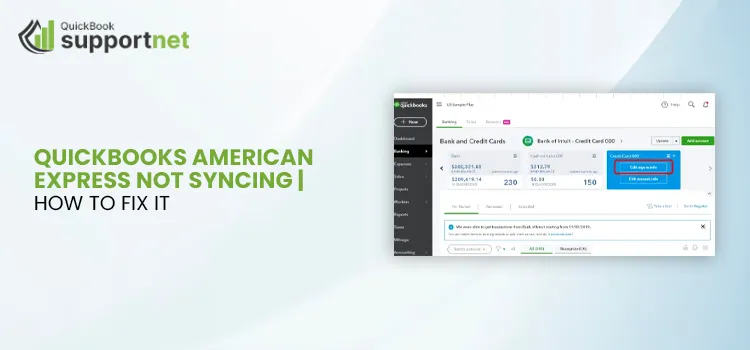
- Go to Banking/Transactions.
- Select your Amex account.
- Click the pencil/edit icon.
- Choose Edit sign-in info.
- Enter your current Amex username and password.
- Save and try syncing again.
4. Complete Multi-factor Authentication
If Amex asks for a code, check your phone or email. Enter the code in QuickBooks when prompted. Without this step, syncing won’t finish.
5. Log In To Amex Directly
Open the American Express website. Log in to your account. If you’re forced to change your password, do it. Then update QuickBooks with your new credentials.
6. Clear Browser Or App Cache
Old cache files can block syncing. Clear your browser cache if you use QuickBooks Online, or restart the app if you use QuickBooks Desktop.
- For browsers: Settings > Privacy > Clear browsing data > Cached images and files.
- For apps: Log out, close the app, and reopen.
7. Disconnect And Reconnect The Amex Account
If nothing works, disconnect Amex from QuickBooks, then reconnect.
- In QuickBooks, go to Banking/Transactions.
- Select your Amex account.
- Click the pencil/edit icon, then Edit account info.
- Check Disconnect this account on save, then save.
- Wait 5 minutes, then reconnect Amex.
This often resets the connection and clears up most errors.
8. Try A Different Browser Or Device
Sometimes, browser plugins or old app versions cause issues. Try syncing on a different browser (like Chrome, Firefox, or Edge) or device.
9. Wait And Try Later
QuickBooks or Amex sometimes fix issues on their own. If there’s a service outage, wait a few hours and try syncing again.
10. Contact Support
If all else fails, call QuickBooks or American Express support. Give them any error codes or screenshots you have. They may know about a larger issue.
Comparing Amex Sync In Quickbooks Online Vs. Quickbooks Desktop
Not all versions of QuickBooks handle Amex syncing the same way. Here’s how they differ:
| Feature | QuickBooks Online | QuickBooks Desktop |
|---|---|---|
| Automatic Sync | Yes, daily | Manual download required |
| Multi-factor Authentication | Supported | Often not supported |
| Number of Accounts | Multiple cards/accounts supported | May require separate setup per card |
| Common Issues | Connection errors, missing transactions | File import errors, outdated formats |
If you use QuickBooks Desktop, you may need to download Amex transactions as a .QBO file and import them manually. Online users get automatic syncing, but it’s more sensitive to login and security changes.
Credit: www.quickbooksupportnet.com
Advanced Troubleshooting Steps
If you’ve tried the basics and syncing still fails, these advanced steps can help.
Check Amex Account Type And Access
Not all Amex cards work with QuickBooks. For example, some personal cards or corporate cards have limited online access. Go to Amex and check if your card supports .QBO file downloads or online banking connections.
If you use a company card, ask your admin if online banking is enabled.
Review Account Permissions
If multiple people access your Amex account, only the main account holder may have permission to sync. Log in as the primary user when connecting to QuickBooks.
Look For Duplicate Connections
Sometimes, QuickBooks can link the same Amex account twice. This causes missing or duplicate transactions. Disconnect any extra Amex accounts in QuickBooks.
Update Quickbooks And Browser
Make sure you have the latest version of QuickBooks and your browser. Outdated software can block new connection methods.
Check For 3rd Party App Conflicts
Other finance or budgeting apps (like Mint, Expensify, or Zapier) can interfere with QuickBooks’ connection to Amex. Temporarily disconnect these apps and try syncing again.
Manually Import Transactions
If nothing else works, download your Amex transactions as a .QBO or .CSV file from the Amex website. Then import them into QuickBooks:
- Log in to Amex.
- Go to Statements & Activity.
- Download your recent transactions in .QBO or .CSV format.
- In QuickBooks, click Upload transactions and follow the steps.
This is not automatic, but it keeps your books accurate until syncing is fixed.
Check For Service Status
Visit the QuickBooks status page to see if they report a syncing outage. You can also check Amex’s site for known issues.
Review Connection History
In QuickBooks, you can view your sync history:
- Go to Banking/Transactions.
- Click the clock or history icon.
- Look for failed sync attempts and note the times and error codes.
This helps support teams diagnose problems faster.
Preventing Future Sync Problems
Once you fix the sync, you want to avoid future headaches. Here’s how to keep QuickBooks and Amex working smoothly:
- Update passwords regularly and update QuickBooks each time.
- Enable alerts on Amex for login attempts or changes.
- Check sync status weekly, not just at month-end.
- Disconnect old Amex accounts in QuickBooks that you no longer use.
- Limit third-party app connections to only those you need.
- Keep your browser and QuickBooks updated.
- Avoid sharing your Amex login with others unless necessary.
Many users forget to update QuickBooks after changing their Amex password, causing silent sync failures. Others unknowingly connect the wrong Amex account or card, leading to incomplete data.
Real-world Examples
Let’s look at a few stories from real QuickBooks users. These examples show how the syncing issue appears and how it was solved.
Example 1: The Travel Expense Gap
Maria runs a small marketing agency. She noticed that her Amex travel expenses for March were missing in QuickBooks. She had changed her Amex password for security, but forgot to update it in QuickBooks. After updating her login in QuickBooks and refreshing the sync, all missing transactions appeared.
Example 2: The Disconnected Account
John had two Amex cards—one for business, one for personal use. He accidentally linked his personal card to QuickBooks. When he disconnected the wrong account and added his business card, syncing worked perfectly.
Example 3: The MFA Block
A tech startup used Amex for all purchases. When Amex added a new multi-factor authentication step, syncing broke. The team had to complete the MFA process inside QuickBooks. Once done, syncing resumed as normal.
Key Differences Between Amex And Other Banks In Quickbooks
Not all banks sync with QuickBooks in the same way. Here’s how Amex compares:
| Bank | Sync Frequency | Common Issues | MFA Support |
|---|---|---|---|
| American Express | Daily (if working) | Login, MFA, account type mismatch | Yes |
| Chase | Daily | Occasional connection errors | Yes |
| Bank of America | Daily | Older accounts may need re-linking | Yes |
| Wells Fargo | Daily | Multi-user conflicts | Partial |
Amex is more likely to require multi-factor authentication and has unique account types, which means you may see more sync errors compared to other banks.
Credit: asquarecloudhosting.com
Quickbooks Sync Error Codes And What They Mean
QuickBooks may show error codes when syncing fails. Here are some common ones and their meaning:
- 103: Invalid login credentials. Check your Amex username/password.
- 185: Additional information required. Complete MFA.
- 108: New terms or messages from Amex. Log in to Amex and accept.
- 101/102: Connection timed out. Try again later.
- 105: Amex is down for maintenance.
Most errors can be fixed by updating your login, completing MFA, or waiting for service to resume.
When To Manually Add Transactions
If syncing fails for several days, add important transactions manually so your books stay accurate. This is critical for payroll, tax deadlines, or grant applications. Don’t wait for a fix if you need up-to-date numbers.
The Hidden Impact Of Syncing Issues
Many users focus only on missing transactions, but there are less obvious problems:
- Duplicate entries: Manually adding and then syncing can double expenses.
- Unmatched payments: Reconciling becomes harder if payments and credits don’t match.
- Cash flow errors: Reports may show more or less money than you really have.
Always check for duplicate or missing entries after fixing a sync issue.
How Secure Is The Quickbooks-amex Connection?
Both QuickBooks and Amex use bank-level encryption and strict security protocols. Your login is never shared directly. However, always:
- Use a strong, unique password for Amex.
- Enable two-factor or multi-factor authentication where possible.
- Monitor your account for unauthorized access.
For more on security, see the official American Express Security Center.
What To Do If You Can’t Fix The Sync
If you still can’t sync after trying all the steps:
- Use manual file import to keep your books up-to-date.
- Contact QuickBooks and Amex support and ask if your account type is supported.
- Ask your accountant or bookkeeper for help—they may have seen the issue before.
- Consider switching to a different bank or card if syncing is critical for your workflow.
Frequently Asked Questions
Why Are My American Express Transactions Missing In Quickbooks?
Missing transactions usually mean there’s a sync problem. This can be due to outdated login info, multi-factor authentication not completed, or a service outage. Check your Amex login in QuickBooks and refresh the connection.
Can I Sync Multiple Amex Cards With Quickbooks?
Yes, you can sync multiple Amex cards, but each card must be connected separately in QuickBooks. Make sure you select the right card during setup to avoid mixing personal and business expenses.
How Often Does Quickbooks Sync With American Express?
QuickBooks Online syncs with Amex daily (sometimes more often if you click Update). QuickBooks Desktop requires you to manually import new transactions.
What Should I Do If I See A 103 Error In Quickbooks?
A 103 error means QuickBooks can’t log in to Amex. Double-check your Amex username and password in QuickBooks. If you recently changed your password, update it in QuickBooks too.
Is It Safe To Connect My Amex Account To Quickbooks?
Yes, both QuickBooks and Amex use bank-level security. Your credentials are encrypted. Always use strong passwords and enable multi-factor authentication for extra safety.
Syncing QuickBooks with American Express should save you time, not cause headaches. With the right steps and a bit of patience, you can get your transactions flowing smoothly again—and keep your finances accurate and stress-free.

Credit: www.bigxperts.com