
If you rely on Omny and Apple Pay to get around, nothing is more frustrating than tapping your iPhone or Apple Watch at the subway turnstile and seeing a red light. Your day gets off track, and you’re left wondering, “Why isn’t Omny Apple Pay working?” This problem is more common than you think, especially in busy cities like New York where Omny powers most subways and buses. With mobile payments growing every year—Apple Pay alone has over 500 million global users—smooth contactless transit matters more than ever.
But why does Omny sometimes fail with Apple Pay? Is it your phone, your card, or something else? This article breaks down every cause, solution, and insider tip you need. Whether you’re a daily commuter or just visiting, you’ll learn how to fix Omny Apple Pay issues fast, avoid delays, and get back on track.
How Omny And Apple Pay Work Together
Understanding how Omny and Apple Pay interact helps you find the source of any problem. Omny is the contactless fare payment system used by the MTA in New York City and several other transit agencies. Apple Pay is Apple’s mobile wallet, letting you pay with your iPhone or Apple Watch instead of a physical card.
When you add a supported credit or debit card to Apple Pay, you can use it on Omny readers by holding your device near the scanner. The system should instantly approve your fare and open the gate. The entire process relies on NFC (Near Field Communication), which is a wireless technology for close-range payments.
Common scenario: You tap your iPhone or Apple Watch, but the gate does not open. The screen may say “Try Again,” “Payment Not Accepted,” or nothing at all.
Let’s look at all the reasons why this happens—and how to solve each one.
Most Common Reasons Omny Apple Pay Fails
Several factors can break the connection between Omny and Apple Pay. Identifying the right one saves you time and stress.
1. Device Not Set Up For Apple Pay
If your iPhone or Apple Watch is not set up correctly for Apple Pay, Omny cannot recognize your payment.
- You must add a supported card to your Apple Wallet.
- The device must be signed in to iCloud.
- The card must be active and not expired.
Example: If you recently changed banks or received a new card, your old card may no longer work even if it’s still in your Wallet.
2. Omny Reader Or Transit Gate Malfunction
Sometimes, the problem is not your device but the Omny hardware itself. Readers can be dirty, damaged, or temporarily offline.
- Look for error messages on the Omny screen.
- If multiple people are having issues at the same gate, it’s likely a hardware problem.
3. Apple Pay Card Issues
Even if your card shows up in your Wallet, it may not be accepted by Omny.
- Some cards are not eligible for Omny payments, especially prepaid cards or cards from non-US banks.
- There may be a hold, block, or insufficient funds on your card.
Insider tip: Omny does not support Apple Cash or all digital-only cards.
4. Device Battery Or Power Saving Mode
Low battery or power saving features can disable NFC or restrict background processes needed for Apple Pay to work.
- If your phone is below 10% battery, try charging before using Omny.
- Make sure NFC is enabled (it’s on by default on iPhones).
5. Software Problems And Updates
A bug in iOS or a missed software update can cause Apple Pay to malfunction with Omny.
- Outdated iOS versions may have known bugs.
- App conflicts, especially with security or banking apps, can interfere.
6. Incorrect Device Positioning
Apple Pay uses NFC, which only works at close range and correct angle.
- The top of the iPhone (or the face of the Apple Watch) must touch the Omny reader.
- Holding your device too far away will not work.
Beginner mistake: Waving the phone or watch instead of holding it still on the reader.
7. Multiple Cards In Apple Wallet
If you have several cards, the wrong one might be set as default.
- You can select the right card before tapping, but sometimes the device picks the default card automatically.
- Omny may reject cards not issued by a US bank.
8. Express Transit Not Enabled
Apple Pay offers an Express Transit feature, which lets you pay without unlocking your device.
- If Express Transit is not set up, you must unlock your phone and select the card.
- Express Transit makes the process faster and more reliable.
9. Security And Account Flags
If your bank detects suspicious activity, it may block Apple Pay transactions—even if other purchases work.
- International travel, large purchases, or frequent small payments can trigger flags.
- Contact your bank to resolve these blocks.
10. Internet Or Network Requirements
Apple Pay does not require an internet connection for each tap, but initial setup and card verification do.
- If you recently added a new card and did not finish setup, it may not work.
- Some updates require you to connect to Wi-Fi or cellular data before using Apple Pay on Omny.
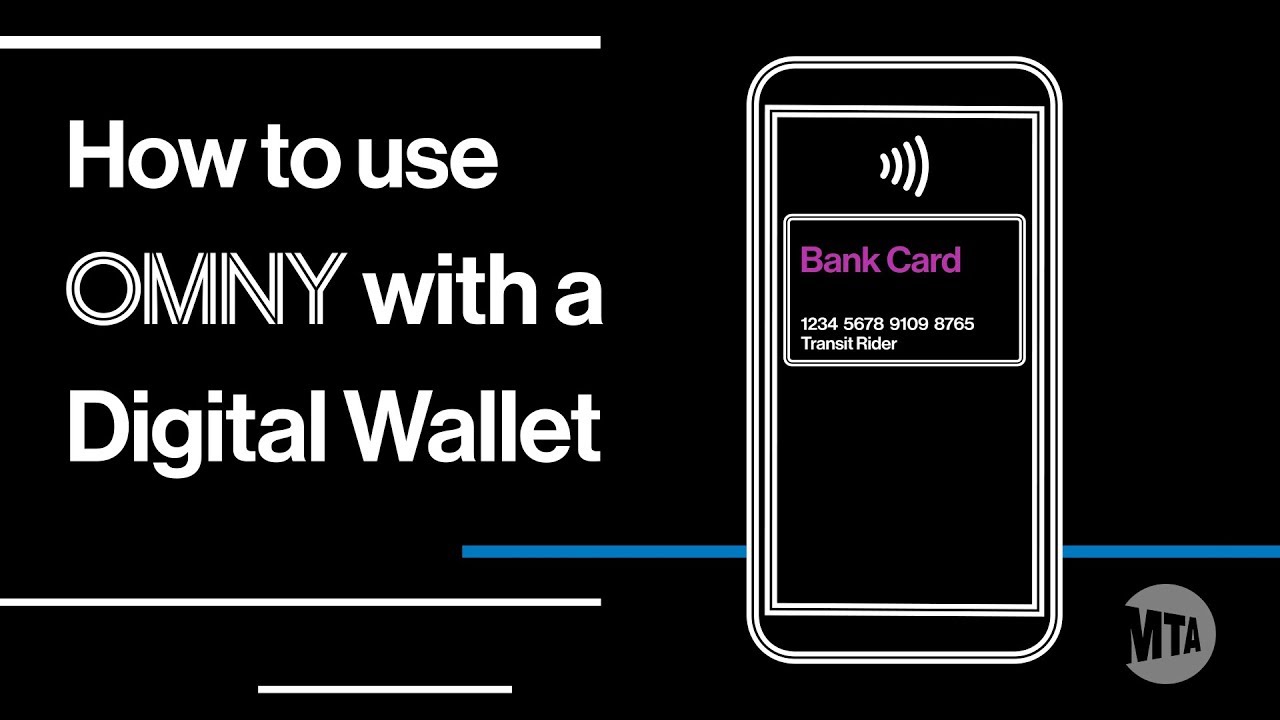
Credit: omny.info
Step-by-step Solutions: Fixing Omny Apple Pay Problems
Now that you know the main causes, here’s how to fix each one. These steps work for both iPhones and Apple Watches.
1. Double-check Your Device And Card Setup
- Open the Wallet app.
- Make sure your preferred card is listed and not expired.
- Remove and re-add the card if you suspect an issue.
- Confirm you are signed in to iCloud.
- For Apple Watch, check the Watch app on your iPhone.
2. Enable Express Transit
- Go to Settings > Wallet & Apple Pay > Express Transit Card.
- Select your main card for Omny payments.
- This lets you tap and go without Face ID or a passcode.
Non-obvious insight: If you travel abroad and set up Express Transit elsewhere (like London or Tokyo), you may need to re-select your card for NYC Omny.
3. Restart And Update Your Device
- Restart your iPhone or Apple Watch.
- Update to the latest version of iOS or watchOS.
- This fixes bugs and ensures maximum compatibility.
4. Test Card On Other Readers
If your card works at stores but not at Omny, try these steps:
- Use your card at a different Omny reader or station.
- If it works elsewhere, the original reader is likely faulty.
- Report broken readers to MTA staff.
5. Check For Card Restrictions
- Some cards, especially prepaid, foreign, or certain gift cards, do not work with Omny.
- Call your bank to confirm your card supports NFC transit payments.
6. Make Sure Battery And Nfc Are Ready
- Charge your device above 20% before using Omny.
- Avoid Low Power Mode if possible.
- For iPhones, NFC is always on, but damaged hardware can still fail.
7. Hold Your Device Properly
- Place the top of your iPhone or the face of your Watch flat against the reader.
- Hold for 1–2 seconds until you see the green light.
8. Contact Your Bank If Card Is Blocked
- Call your card issuer if you suspect a security block.
- Sometimes, Omny payments are flagged as “unusual” by banks.
9. Remove And Re-add Your Card
- Delete the card from your Wallet.
- Restart your device.
- Add the card again and complete any security checks.
10. Use An Alternative Payment Method
- If nothing else works, use the physical card you added to Apple Pay.
- Omny also supports Google Pay, Samsung Pay, and contactless credit/debit cards.
Special Cases: Troubleshooting Apple Watch Vs. Iphone
Problems can show up differently depending on the device you use.
Apple Watch
- Make sure your Watch is unlocked and on your wrist.
- Open the Watch app on your iPhone and check the Wallet section.
- Express Transit must be enabled separately for Apple Watch.
Iphone
- Face ID or passcode is not required for Express Transit, but your iPhone must be awake.
- If you get a “Card Not Supported” message, remove and re-add the card.
- If you have two iPhones, check both for the correct setup.
Non-obvious insight: Updates or changes to Wallet on your iPhone do not always sync instantly to Apple Watch. Always check both.
Device And Card Compatibility
Not all devices or cards work with Omny. Here’s a quick comparison.
| Device Model | Supports Omny Apple Pay? | Notes |
|---|---|---|
| iPhone 6S/6S Plus | No | No NFC support for transit |
| iPhone 7/8/X and later | Yes | Full support with Express Transit |
| Apple Watch Series 3 and later | Yes | Must set up Express Transit in Watch app |
| Older Android phones | No | Use Google Pay if supported |
Key takeaway: Use an iPhone 7 or newer, or Apple Watch Series 3 or newer for best results.
Card Types: Which Ones Work?
Omny supports most US-issued Visa, Mastercard, American Express, and Discover credit and debit cards. But not all cards are equal.
| Card Type | Works with Omny Apple Pay? | Notes |
|---|---|---|
| US Credit/Debit (Visa/Mastercard/Amex/Discover) | Yes | Most major banks supported |
| Apple Cash | No | Not supported for Omny |
| Prepaid Cards | Sometimes | Varies by issuer; check with your bank |
| Foreign Cards | Rarely | Most are declined; use US-issued cards |
| Gift Cards | No | Not supported |
Tip: If you are a tourist, add a US-based card to your Apple Pay for reliable use.
Real-world Examples And Data
Problems with Omny Apple Pay are not rare. In 2023, the MTA reported that over 12% of Omny failures were due to mobile wallet issues, and about 7% involved hardware or reader errors. These numbers are improving as the system matures, but issues still occur every day.
Case example: Anna, a commuter, found her Apple Pay stopped working on Omny after a bank issued her a new card. Although she added the card to Apple Wallet, it was set as a backup and not the default Express Transit card. Once she changed her settings, Omny worked again.
Another scenario: Mark tried to pay with his Apple Watch but forgot to update the card after receiving a fraud alert from his bank. The bank blocked all contactless payments, but standard purchases still worked. Only after calling his bank did Omny Apple Pay start working again.
Tips For Reliable Omny Apple Pay Use
To avoid problems, use these practical tips:
- Always keep your device updated—new iOS or watchOS versions often fix bugs.
- Charge your device before you leave home; NFC and Apple Pay need power.
- Test your card on a vending machine or store if Omny fails—if it works elsewhere, the reader may be the problem.
- Set up Express Transit for your main card. It speeds up entry and lowers error rates.
- Travelers: If you use Apple Pay for transit in multiple countries, always check your Express Transit card settings before each trip.
- Check for service alerts—sometimes Omny readers are under maintenance.
- Avoid storing too many cards in your Wallet; this can confuse the system.
When To Contact Support
If you have tried every step and Omny still does not accept your Apple Pay, you may need expert help.
- Contact your bank if you suspect a card or account problem.
- Reach out to MTA customer service for Omny-specific issues. Use their website or help desks at major stations.
- Apple Support can help with Wallet or device issues.
Insider tip: Bring your physical card as a backup if you are in a hurry. Even with the best setup, rare technical glitches can occur.
Comparing Omny Apple Pay To Other Payment Methods
How does Omny Apple Pay stack up against other fare payment options? Here’s a quick look.
| Payment Method | Speed | Reliability | Convenience |
|---|---|---|---|
| Apple Pay (with Express Transit) | Very Fast | High (if set up) | Most convenient; no unlock needed |
| Physical Credit/Debit Card | Fast | Very High | Good backup |
| MetroCard | Moderate | High | Requires physical card |
| Google Pay/Samsung Pay | Fast | High (varies by device) | Good for Android users |
Bottom line: Apple Pay is the fastest and most convenient if set up right, but always have a backup option.
Preventing Future Omny Apple Pay Issues
You can reduce the risk of problems by following these steps:
- Update your device and cards regularly. Remove expired or blocked cards from Apple Wallet.
- Enable Express Transit. It reduces errors and saves time.
- Keep your device charged. Low battery disables Apple Pay.
- Stay informed. Check for service alerts at Omny.info before you travel.
- Travelers: Re-check Express Transit settings when switching cities or devices.
Frequently Asked Questions
Why Does Omny Reject My Apple Pay Even When It Works At Stores?
Omny requires cards that support contactless fare payments. Some cards work at stores but not for transit. Also, Omny may not accept Apple Cash, certain prepaid, or foreign cards. Check your card’s support with your bank.
Do I Need An Internet Connection For Omny Apple Pay?
No, you do not need an internet connection for each tap. However, adding a new card or updating your Wallet does require Wi-Fi or cellular data at least once before use.
Can I Use Apple Pay With Omny If My Phone Battery Is Low?
Apple Pay needs enough battery power for NFC to work. If your phone or watch is below 10%, payment may fail. Always charge before travel.
How Do I Set Up Express Transit For Omny?
Go to Settings > Wallet & Apple Pay > Express Transit Card and select your preferred card. For Apple Watch, use the Watch app on your iPhone and select the card there.
What Should I Do If None Of My Cards Work With Omny Apple Pay?
Try a different reader, remove and re-add your card, or use a physical card. If problems continue, contact your bank or MTA customer service for help.
Conclusion
Omny and Apple Pay make travel simpler—when they work together smoothly. With this guide, you now know how to fix problems, set up your devices right, and avoid common mistakes. Most issues can be solved in minutes if you follow the right steps.
Remember, technology isn’t perfect, so always have a backup plan for your trip. With a little preparation, you’ll breeze through the turnstile every time.