
Many people love using Octastream devices for streaming TV shows, sports, and movies. They bring hundreds of channels and apps into your living room, making it easy to cut the cord on expensive cable. But what happens when your Octastream suddenly stops working? It can feel very frustrating, especially if you just want to relax and watch your favorite content.
This article will help you solve most Octastream problems. We’ll look at why your device might not work, how to fix common issues, and what steps to take if nothing helps. You’ll also learn about network requirements, account issues, app errors, and hardware problems. If you’re a beginner or not very technical, don’t worry. All steps are simple and explained clearly. By the end, you’ll feel confident fixing your Octastream not working problems without wasting time or money.
Understanding How Octastream Works
Before fixing problems, it’s important to know how Octastream devices function. An Octastream box is an Android-based streaming device. You connect it to your TV using an HDMI cable. The device uses your Wi-Fi or Ethernet internet to stream content from the web. Most Octastreams come with a remote and support apps like YouTube, Netflix, or their own IPTV service. They may also use their own app store or let you install APK files.
Octastream’s system is very similar to a smartphone or tablet, but it’s designed for TV screens. This means it needs app updates and sometimes system upgrades, just like your phone does. A common mistake for beginners is thinking that once you set up the box, you never have to touch it again.
In reality, you should check for updates every month or so.
The device needs a stable internet connection and access to the Octastream servers to work properly. If any part of this setup fails—like the internet drops, the app crashes, or the hardware breaks—your streaming can stop.
A key insight: Octastream is not “plug and forget.” It needs regular updates, some simple maintenance, and a bit of troubleshooting from time to time. The more you understand how the device works, the faster you’ll spot and fix problems.
Main Reasons Why Octastream Stops Working
Several issues can cause your Octastream to stop working. Some are simple, others more complex:
- Internet connection problems – Weak or unstable Wi-Fi is the top reason.
- Server downtime – Sometimes Octastream’s own servers go offline.
- Software glitches – Apps freeze, crash, or fail to update.
- Outdated firmware – Old software can cause errors or incompatibility.
- Account or subscription issues – Your service may be expired or blocked.
- HDMI or TV input errors – Wrong TV source or faulty cables.
- Overheating or hardware failure – Device gets too hot or is physically damaged.
Most users overlook checking the server status or HDMI input, even though these are common causes. For example, many people waste time restarting their device when the real problem is simply that the TV is set to the wrong input.
Another less obvious reason is power supply issues; if your power adapter is weak, the device might turn on but work unreliably or not boot up at all.
Quick First Steps: Check The Basics
When your Octastream is not working, always start with basic checks. These can save you a lot of time:
- Check the power – Is the device plugged in? Is the power light on?
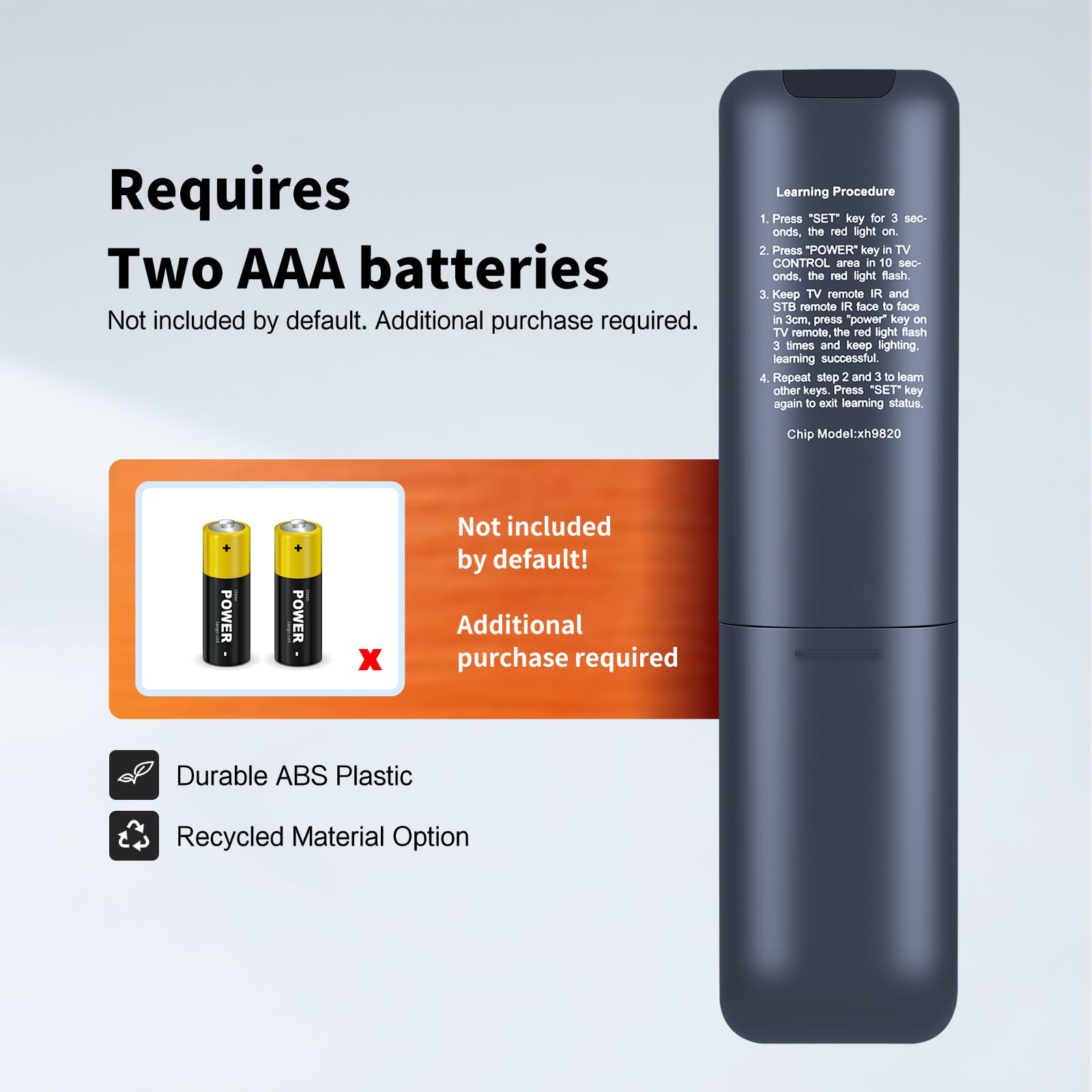
- Test the remote – Try new batteries. Use the physical power button if possible.
- Verify TV input – Make sure the TV is set to the correct HDMI port.
- Restart everything – Unplug the Octastream and your TV for 60 seconds, then plug back in.
These simple steps fix over 30% of Octastream problems for most users. If you skip these, you may end up trying more complicated fixes for a simple issue. For example, a loose HDMI cable often causes a “no signal” message, and just pushing the cable in firmly can solve it.
Another tip: If you have pets or children, check that no one has accidentally unplugged the device or pressed buttons on the remote. Sometimes, a small detail is all that stands between you and your favorite show.
Internet And Network Troubleshooting
The internet connection is the most critical part of your streaming experience. Without a good connection, Octastream cannot load any content. Even a device in perfect working order is useless without reliable internet.
How To Test Your Internet Speed
For HD streaming, Octastream needs at least 10 Mbps download speed. For 4K, you need 25 Mbps or more.
You can check your speed using the device’s built-in browser or a phone:
- Open a browser and visit speedtest.net.
- Run a test and note the download and upload speeds.
If your speed is too low or unstable, try these fixes:
- Move your Octastream closer to the router.
- Use a wired Ethernet connection for more stability.
- Reboot your router by unplugging for 30 seconds.
If you have multiple devices using the same internet, such as phones, laptops, and tablets, your bandwidth may be shared. Heavy use by other devices can slow down streaming. Try disconnecting other devices or streaming at a different time. If you live in an apartment, your neighbors’ Wi-Fi may also interfere with your signal, especially during peak hours.
Fixing Wi-fi Issues
Many streaming interruptions are caused by Wi-Fi interference or weak signal.
Tips to improve Wi-Fi:
- Keep your router high and in the open, away from walls.
- Avoid other electronics near your Octastream.
- Use the 5GHz Wi-Fi band if possible (faster, less interference).
Some users find success using Wi-Fi extenders or mesh networks to boost signal in larger homes. If you notice your signal drops at certain times of day, check if a microwave, cordless phone, or baby monitor is running nearby, as these can interfere with Wi-Fi.
Another non-obvious solution: Change your Wi-Fi channel in the router settings. Sometimes, too many networks in the same channel cause interference and slow speeds.
Comparing Ethernet Vs Wi-fi
Here’s a quick look at the pros and cons of each:
| Connection Type | Pros | Cons |
|---|---|---|
| Ethernet (Wired) | Stable, fast, no interference | Requires cable, less flexible placement |
| Wi-Fi (Wireless) | Easy to set up, flexible location | Can be unstable, slower, prone to dropouts |
Whenever possible, use Ethernet for best results. If you can’t run a cable, consider a powerline adapter, which sends internet through your home’s electrical wiring and is more stable than Wi-Fi in many cases.

Credit: www.youtube.com
App Crashes And Software Bugs
Sometimes the Octastream boots up, but apps crash or won’t open. This is often caused by software bugs or outdated apps.
How To Fix App Problems
- Force stop the app – Go to Settings > Apps > Choose the app > Force Stop.
- Clear app cache and data – In the same menu, select “Clear Cache” and “Clear Data.”
- Update the app – Use the app store or APK installer to get the latest version.
- Uninstall and reinstall – If updates don’t help, uninstall then reinstall the app.
These steps fix most app glitches. Be aware that clearing data may log you out or delete settings. Always check if your login details are saved elsewhere before clearing app data.
Sometimes, app issues are caused by compatibility problems with the current firmware. If one app keeps failing while others work, check if the app developer has released a recent update specifically for Octastream or Android TV. Also, make sure your device’s date and time are correct; incorrect settings can cause apps to fail or refuse to update.
System Update And Firmware Upgrade
Using old firmware causes many problems, including app crashes and streaming errors.
How to update:
- Go to Settings > About Device > System Update.
- Check for updates and install if available.
- Restart your device after updating.
A useful tip: Always back up your important apps and settings before a firmware update, as sometimes updates reset your device.
If the update fails or freezes, try restarting the device and running the update again. Sometimes, updates may take longer than expected—be patient and avoid unplugging the device during the process. Also, make sure your device is connected to a stable power source to prevent failures.
Server Downtime And Account Issues
Even with perfect internet, your Octastream may stop working if the streaming servers are down or your account has issues.
How To Check Server Status
- Visit Octastream’s official website or social media for downtime announcements.
- Try using a different streaming app or device. If all fail, it’s likely a server issue.
If servers are down, you must wait until they’re restored. Sometimes, maintenance is scheduled, and notifications are posted ahead of time. Save the official support page or social media links for fast updates.
Subscription And Account Problems
If your subscription is expired or blocked, you may see error messages or missing channels.
To fix:
- Log in to your Octastream account on their website.
- Check your subscription status and renew if needed.
- Make sure your email and payment info are up to date.
A non-obvious mistake: Some users forget to activate their device after renewing. Always follow the activation steps sent to your email.
Sometimes, payments can fail without you noticing, especially if your card expires. Double-check your payment method if you suddenly lose access. If you share your account with family, remember that too many logins at once can trigger a block or suspension.
Hdmi, Tv Input, And Display Problems
Sometimes the Octastream is working fine, but nothing shows on your TV screen. This is usually a HDMI or display issue.
Common Display Fixes
- Make sure the HDMI cable is fully inserted on both ends.
- Try a different HDMI port on your TV.
- Use a known good HDMI cable (cheap cables often fail).
- Switch your TV input/source to the correct HDMI number.
If your TV has multiple HDMI ports, try each one. Some TVs have “smart” HDMI that only works with certain devices.
In rare cases, the HDMI port on the Octastream box itself can become loose or damaged from frequent plugging and unplugging. If you suspect this, gently wiggle the cable while the device is powered on—if the picture flickers, the port may need repair.
Display Settings On Octastream
Go to Settings > Display to adjust resolution. If you see a black screen, set the resolution to Auto or a lower setting like 1080p.
If your TV is older, it may not support 4K or certain refresh rates. If the screen is zoomed in or out, adjust the “Screen Position” or “Overscan” settings to fit your TV perfectly. Some TVs have their own picture settings that can interfere—switch off any “dynamic contrast” or “game mode” if you notice odd colors or flickering.
Remote Control Not Working
A non-working remote can make it seem like the whole Octastream is broken.
How To Troubleshoot The Remote
- Replace batteries with fresh ones.
- Make sure nothing is blocking the signal.
- Try using the physical buttons on the box (if available).
- Use the Octastream mobile app as a remote (if supported).
Some remotes need to be paired after changing batteries. Check the manual for pairing steps.
Also, check for signs of physical damage—sticky buttons, battery leaks, or cracks. If your remote works only when very close to the device, the IR sensor might be dirty or blocked. Gently clean it with a soft cloth.
For advanced users: If your remote uses Bluetooth, you may need to re-pair it after a firmware update. Look for a pairing button or follow prompts in the device’s settings menu.
Overheating And Hardware Problems
If your device feels hot, it may overheat and shut down or freeze. Overheating can damage your Octastream permanently.
How To Prevent Overheating
- Place the device in a cool, open area.
- Do not cover with cloth or stack on top of other electronics.
- Clean dust from vents regularly.
- Turn off the device when not in use.
If your device still gets hot, it might be failing. Contact the seller or manufacturer if under warranty.
A less obvious tip: Avoid running heavy apps or streaming 4K content for long periods if your room is hot, or if airflow is poor. If you live in a warm climate, a small fan near your device can help. Watch for warning signs like slow performance, random restarts, or a burning smell—these mean you should turn off the device immediately and seek help.
Factory Reset: The Last Resort
If nothing else works, a factory reset will return your Octastream to its original settings. This erases all apps, data, and accounts, so only use it as a last option.
How To Perform A Factory Reset
- Go to Settings > Backup & Reset > Factory Data Reset.
- Follow on-screen instructions.
- The device will restart and look like new.
After resetting, you need to re-install your apps and set up your accounts again.
A critical insight: Always note down your app logins and Wi-Fi password before resetting.
Another tip: After a factory reset, install only the most important apps first. Test the device for stability before adding extra apps, as some third-party apps can cause crashes or slow performance.
Advanced Troubleshooting: For Persistent Issues
If you’ve tried all the above and your Octastream is still not working, try these advanced methods:
Sideloading Or Reinstalling Firmware
Sometimes the system firmware is corrupted. You can reinstall it using a USB drive or SD card:
- Download the correct firmware from Octastream’s official site.
- Copy to a USB drive.
- Plug the drive into your Octastream.
- Boot into recovery mode (usually by holding a reset button while powering on).
- Follow the firmware update steps.
Warning: The wrong firmware can “brick” your device. Always double-check the model and version.
If you’re unsure about this process, it’s best to ask a knowledgeable friend or a professional. Some advanced users keep a backup copy of the original firmware on hand, just in case something goes wrong.
Checking Power Supply Issues
A failing power adapter can cause random shutdowns or no power.
- Test with a different adapter (same voltage and current).
- Inspect the power port for damage or loose connections.
Sometimes, power issues show up as flickering screens or the device turning off unexpectedly. If you see these symptoms, replace the adapter first before trying other fixes.
Common Error Messages And What They Mean
Understanding error messages helps you fix problems faster. Here are common ones and their solutions:
| Error Message | Possible Cause | Solution |
|---|---|---|
| No Signal | HDMI/TV input issue | Check HDMI cable and TV input |
| Network Error | Poor internet or Wi-Fi | Check router, restart device |
| App Not Responding | Software crash | Force stop, clear cache, update app |
| Subscription Expired | Account issue | Renew or check payment |
| Server Unavailable | Octastream server down | Wait for server to come back online |
If you see an unusual error, search for the exact message on Octastream forums or support sites. Sometimes, error codes are unique to specific models or firmware versions, so always match the exact wording.
Credit: dailyplanetvt.com
Comparing Octastream With Similar Devices
Sometimes users wonder if other streaming boxes have the same issues. Here’s a quick comparison:
| Device | Typical Issues | Ease of Fixing |
|---|---|---|
| Octastream | Server outages, app crashes, account problems | Medium (firmware updates, resets) |
| Fire TV Stick | App freezing, Wi-Fi drops | Easy (app updates, restart) |
| Roku | App compatibility, remote issues | Easy (replace remote, reinstall apps) |
| Android TV Box | Firmware bugs, overheating | Medium (reset, firmware flash) |
A unique point: Octastream is more dependent on its own servers than most other streaming devices. This means that server downtime can affect more features compared to devices like Fire TV Stick or Roku, which rely on many different services.
Another insight: Devices such as Roku and Fire TV have bigger developer and support communities, making it easier to find troubleshooting steps or third-party repair help.
Preventing Future Problems
To avoid “Octastream not working” problems in the future, follow these best practices:
- Keep software updated – Always install the latest system and app updates.
- Use good internet – Prefer Ethernet or strong Wi-Fi.
- Avoid overheating – Give your device space to breathe.
- Renew your subscription on time – Set reminders if needed.
- Backup settings and logins – Before major changes or resets.
Remember, prevention is easier than troubleshooting after something breaks. Regularly check your cables and clean your device to avoid dust buildup. Keep a small notebook or digital file with your important logins and Wi-Fi passwords for quick recovery.
Another tip: If you add new apps or make changes to your device, test everything immediately. This way, you’ll know what caused any new problem and can undo it fast.
Credit: www.elvalordelaeducacionfisica.com
When To Seek Professional Help
If your Octastream still does not work after all these steps, it may have a serious hardware issue. Seek help if:
- The device does not power on, even with a good adapter.
- The screen stays black on all TVs and cables.
- There’s physical damage (burn marks, broken ports).
- The device is still under warranty.
Contact Octastream support or your seller for repair or replacement options. Sometimes it’s more cost-effective to buy a new device than fix a very old or damaged one.
If your device is out of warranty but you want to try repair, look for local electronics shops with experience in Android TV boxes. Some issues, like replacing a power port, are cheap to fix, while others may not be worth the cost.
Useful Resources For Octastream Users
If you need more help, check these resources:
- Official Octastream website – For downloads and updates.
- YouTube – Many troubleshooting videos exist for your exact model.
- Online forums – Other users often share solutions for rare problems.
- Customer support – Use live chat or email for technical support.
A useful external source for understanding streaming device troubleshooting in detail is the Wikipedia Streaming Media Device page.
If you join online communities, you can often find step-by-step guides, firmware downloads, and user experiences that match your problem exactly. Sometimes, just reading about someone with the same issue can save hours of guessing.
Frequently Asked Questions
Why Does My Octastream Keep Buffering?
Buffering usually means slow or unstable internet. Test your speed and try using Ethernet instead of Wi-Fi. Also, check if too many devices are using your network at the same time.
If your internet is good but you still see buffering, the problem may be with the streaming server. Try switching to a different app or channel. Reducing the streaming quality from 4K to HD can also help reduce buffering.
Can I Use Octastream Without A Subscription?
Some apps like YouTube will work without an Octastream subscription. But most live TV and premium channels require an active subscription. Without it, you’ll have limited access.
If you only watch free content, you may never need to pay for a subscription. But if you want sports, movies, or special channels, a subscription is usually required.
How Do I Know If Octastream’s Servers Are Down?
If all apps or channels fail, and your internet works fine, servers may be down. Check their official website or social media for server status updates. Try using another streaming device to compare.
If only one channel or app fails, it’s likely an app problem. If nothing works, it’s likely a server issue or your account.
My Octastream Remote Is Lost. What Can I Do?
You can use the Octastream mobile app as a remote if your device supports it. Otherwise, buy a compatible replacement remote online. Some universal remotes also work.
Another tip: Some TVs let you use their own remote to control Octastream if HDMI-CEC is enabled. Look in your TV settings for HDMI-CEC or “Device Control” features.
Is It Safe To Update Octastream Firmware Myself?
Usually yes, if you get the firmware from the official site and follow instructions. Do not use firmware from random sites, as it may harm your device. Always back up important data before updating.
If you are unsure about the process, ask for help in a forum or from support before starting.
Conclusion
Solving Octastream not working can be simple when you know where to look. With these steps, most issues can be fixed at home. If you still have trouble, don’t hesitate to ask for expert help or check trusted resources. Happy streaming!