
Norton 360 is a popular antivirus and security software. Many people use it to protect their computers from viruses, malware, and online threats. But sometimes, users want to uninstall Norton 360. Maybe the subscription ended, maybe the software is causing problems, or perhaps you want to try a different antivirus.
However, uninstalling Norton 360 is not always easy. Some users find that the uninstall process gets stuck, fails with error messages, or simply does not work. If you are facing this problem, you are not alone. Many people have trouble removing Norton 360 from their computers.
This guide will help you understand why this happens and show you, step by step, how to fix it. We will look at common reasons for uninstall problems, different ways to remove Norton 360, and what to do if nothing seems to work.
You will also learn how to avoid common mistakes and make sure your computer is safe after uninstalling Norton 360.
Let’s get started with a complete, easy-to-follow guide.
Why Norton 360 Won’t Uninstall: Common Reasons
Before you try to fix the problem, it helps to know why uninstalling Norton 360 sometimes fails. Here are some of the most common reasons:
1. Norton 360 Is Still Running
If Norton 360 is running in the background, Windows cannot remove it completely. The uninstall process may hang or fail. Antivirus programs often protect themselves from being removed while running to prevent malware from disabling them.
2. Corrupt Installation Files
Sometimes, files needed for uninstalling Norton 360 are missing or damaged. This can happen because of previous failed updates, disk errors, or malware attacks. If the uninstaller cannot find all the necessary files, it may not work.
3. Lack Of Admin Rights
Uninstalling security software like Norton 360 needs administrative privileges. If you are not logged in as an administrator, or if User Account Control (UAC) blocks the process, uninstalling can fail.
4. Conflicting Software
Other antivirus programs or security tools can interfere with Norton 360’s uninstaller. Some software may block changes to system files, making it impossible to remove Norton 360.
5. Windows System Errors
Problems with Windows itself, such as corrupted system files or registry errors, can prevent Norton 360 from uninstalling. Sometimes, recent updates or system changes can also cause issues.
6. Incomplete Previous Uninstall Attempts
If you tried to uninstall Norton 360 before and it failed, some files or registry entries may be left behind. These leftovers can interfere with future uninstall attempts.
Example: Why Knowing The Cause Matters
If you know the uninstall failed because Norton 360 was running, you can fix the problem by closing the program. But if the problem is a damaged Windows registry, you will need a different solution. Understanding the cause helps you choose the right fix, saving time and avoiding frustration.

Credit: community.norton.com
Preparing To Uninstall Norton 360
Before you start, take a few minutes to get ready. Preparation can prevent new problems and make the process smoother.
1. Back Up Important Data
Uninstalling software usually does not affect your documents, photos, or other files. But it’s always a good idea to back up important data. If something goes wrong, you will not lose your files.
- Use an external hard drive, USB stick, or cloud storage service.
- Back up anything you cannot afford to lose.
2. Make Sure You Have Admin Rights
You must be logged in as an administrator to uninstall Norton 360. If you are not sure, check your user account settings.
- In Windows, open the Start menu and type “User Accounts.”
- Click “Manage your account,” and check if your account says “Administrator.”
- If not, ask someone who manages your computer for help.
3. Close All Programs
Before uninstalling, save your work and close all open programs. This helps avoid conflicts and makes the uninstall smoother.
4. Disable Other Security Software
If you have another antivirus or security tool installed, temporarily disable it. This prevents it from blocking Norton 360’s uninstaller.
5. Make A System Restore Point
A system restore point lets you undo changes if something goes wrong. In Windows, you can create one by following these steps:
- Search for “Create a restore point” in the Start menu.
- Click on it to open System Properties.
- Under the System Protection tab, click “Create.”
- Give the restore point a name (like “Before Norton 360 Uninstall”) and click “Create.”
This step is optional but highly recommended.
Standard Method: Uninstall Norton 360 Using Windows Settings
The easiest way to remove Norton 360 is through Windows’ built-in settings. Here’s how:
Step-by-step Instructions
- Open the Start menu and select “Settings.”
- Click on “Apps” (or “Apps & Features” in some versions).
- Find “Norton 360” in the list of installed programs.
- Click on Norton 360, then select “Uninstall.”
- Follow the on-screen prompts. You may be asked to confirm, enter an admin password, or restart your PC.
What If You See An Error?
Sometimes, you might see error messages like:
- “Uninstallation failed.”
- “Norton 360 is still running.”
- “Access denied.”
If this happens, don’t panic. There are other ways to remove Norton 360.
Pro Tip: Watch For Leftovers
Even if the uninstall seems to work, Norton 360 may leave behind files, folders, or registry entries. These leftovers can sometimes cause problems if you want to install a different antivirus. We’ll cover removal of leftovers later in this guide.
Advanced Method: Using The Norton Remove And Reinstall Tool
If the standard uninstall fails, Norton offers a special tool to help. The Norton Remove and Reinstall Tool is made by Norton to fix uninstall problems and remove all traces of Norton products.
How To Use The Norton Remove And Reinstall Tool
- Go to the official Norton website and download the [Norton Remove and Reinstall Tool](https: //support.norton.com/sp/en/us/home/current/solutions/v60392881).
- Save the file to your desktop.
- Double-click the downloaded file to run it.
- Accept the license agreement.
- Click “Remove & Reinstall.” If you only want to remove Norton and not reinstall it, click “Advanced Options,” then “Remove Only.”
- Follow the on-screen instructions. The tool will remove Norton 360 and may restart your computer.
When To Use This Tool
- If the normal uninstall does not work
- If you see error messages or the process freezes
- If you want to make sure all Norton files are gone
Common Mistake
Some users download the tool from unofficial websites. Always use Norton’s official website. Unofficial tools can contain malware or not work correctly.
Manual Uninstall: Removing Norton 360 When All Else Fails
If both the standard uninstall and Norton’s removal tool fail, you may need to remove Norton 360 manually. This is more advanced and requires care. Mistakes can harm your system, so only try this if you are comfortable with computers.
Important Warning
Manual removal means editing system files and the Windows registry. If you are not careful, you can cause new problems. Always back up your data and create a system restore point first.
Step 1: End Norton 360 Processes
You need to stop Norton 360 from running.
- Press Ctrl + Shift + Esc to open Task Manager.
- Look for processes named “Norton,” “Norton 360,” or “Symantec.”
- Right-click each one and select “End task.”
Step 2: Delete Norton 360 Files And Folders
- Open File Explorer.
- Go to C: Program Files and C:Program Files (x86).
- Look for folders named “Norton,” “Norton 360,” or “Symantec.”
- Delete these folders.
- Also check C: ProgramData for Norton folders.
Step 3: Remove Norton 360 From The Windows Registry
This step is risky. The registry controls many parts of Windows.
- Press Win + R and type `regedit`, then press Enter.
- In the Registry Editor, press Ctrl + F and search for “Norton” and “Symantec.”
- Delete entries related to Norton 360 only.
- Be careful not to delete unrelated entries.
Pro Tip
After manual removal, restart your computer. Then, check if any Norton files or folders remain. Remove any leftovers.
Hidden Problem: Stubborn Services
Sometimes, even after deleting files, Norton-related services may remain. You can check this by:
- Press Win + R, type `services.msc`, and press Enter.
- Scroll down the list and look for services with “Norton” or “Symantec” in the name.
- Right-click and choose “Stop,” then set the “Startup type” to “Disabled.”
Uninstalling Norton 360 On Mac
The process for removing Norton 360 from a Mac is different from Windows.
Uninstall Norton 360 Using The Built-in Uninstaller
- Open the “Applications” folder.
- Find “Norton 360.”
- Double-click to open the Norton 360 folder.
- Look for an app called “Uninstall Norton 360” or similar.
- Run the uninstaller and follow the prompts.
If The Uninstaller Doesn’t Work
- Open “Finder.”
- Go to “Applications.”
- Drag “Norton 360” to the Trash.
- Empty the Trash.
Cleaning Up Leftovers
Macs can also have leftover files. Check these folders for Norton files and delete them:
- ~/Library/Application Support/
- ~/Library/Preferences/
- ~/Library/LaunchAgents/
- ~/Library/LaunchDaemons/
Be careful not to delete unrelated files. Restart your Mac when finished.
Special Cases: What If Norton 360 Still Won’t Uninstall?
Sometimes, even after trying all the steps above, Norton 360 refuses to uninstall. Here are some less common but important scenarios:
1. Norton 360 Is Locked By Malware
Some malware tries to hide from antivirus programs by blocking their removal. If you suspect this, try booting Windows in Safe Mode and then uninstalling Norton 360.
How to Boot in Safe Mode:
- Restart your computer.
- Hold down the Shift key while clicking “Restart.”
- Choose “Troubleshoot” > “Advanced options” > “Startup Settings.”
- Click “Restart,” then choose “Safe Mode with Networking.”
Try uninstalling again in Safe Mode.
2. Windows Installer Service Is Not Working
If Windows’ installer service is damaged, you may see errors during uninstall. To fix:
- Press Win + R, type `services.msc`, press Enter.
- Find “Windows Installer,” right-click, and select “Start” (if not running).
- Try the uninstall again.
3. You See Error Codes
If you see an error code (for example, “Error 8504, 104”), search for that code on Norton’s support site. Many error codes have specific fixes.
4. Norton Account Or Subscription Issues
Sometimes, uninstall fails if your Norton account is locked or your subscription has problems. Log in to your [Norton account](https://my.norton.com) and check for alerts.
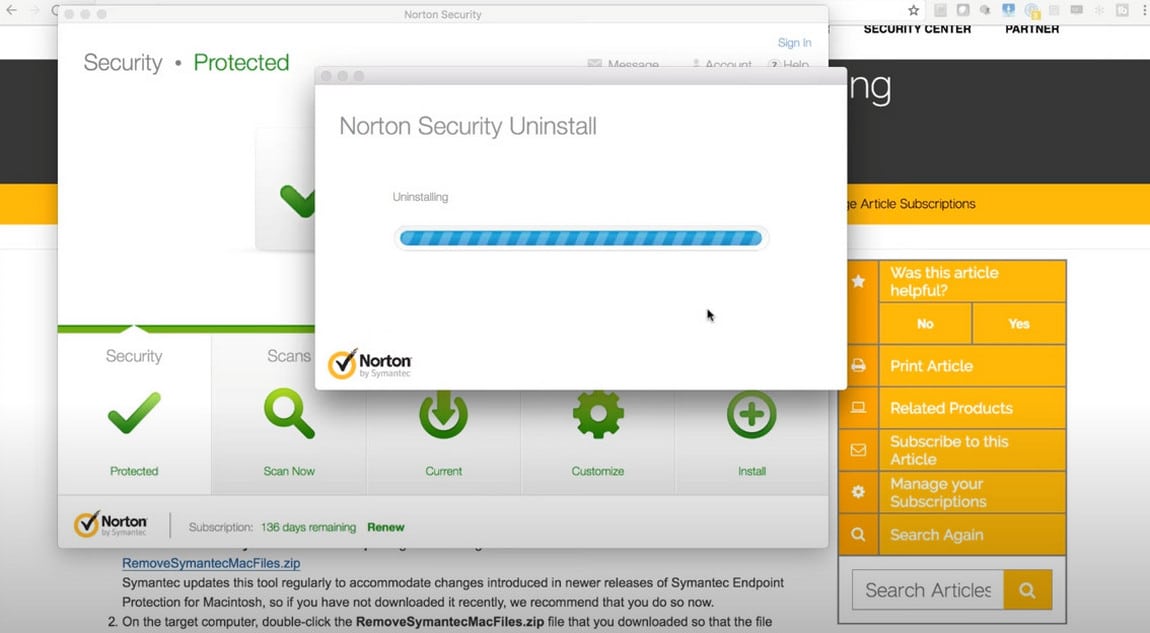
5. Windows Updates Are Pending
Pending Windows updates can sometimes block uninstalls. Make sure your system is up to date, then try again.
Credit: www.comparitech.com
Cleaning Up Leftover Files After Uninstall
Even after successful uninstall, leftover files can cause trouble. For example, they can block new antivirus installations or slow down your computer.
How To Find And Remove Leftovers
- Open File Explorer and search for “Norton” and “Symantec.”
- Delete any leftover folders or files.
- Press Win + R, type `%appdata%`, and press Enter. Look for Norton folders and delete them.
- Use a free tool like [CCleaner](https: //www.ccleaner.com/) to clean up leftover registry entries and files. (Only use trusted tools.)
Non-obvious Insight
Many users skip this step, thinking the uninstall is complete. But leftover files can cause strange problems later, such as failed installations or error messages from Windows Security.
What To Do After Uninstalling Norton 360
Once Norton 360 is gone, your computer may be at risk. Here’s what you should do next:
1. Restart Your Computer
Restarting helps complete the uninstall and clears temporary files.
2. Install A New Antivirus
Do not leave your computer unprotected. As soon as Norton 360 is removed, install a new antivirus program. Windows Defender is built into Windows 10 and 11 and offers basic protection. You can also try other trusted antivirus programs.
3. Update Windows
Check for Windows updates to fix any security holes.
- Open Settings > Update & Security > Windows Update.
- Click “Check for updates.”
4. Scan For Malware
Sometimes, malware can sneak in during software changes. Run a malware scan with your new antivirus, or use a free tool like Malwarebytes for an extra check.
5. Check System Performance
If your computer is running slow, check Task Manager for leftover Norton tasks. Use the cleanup steps above to remove them.
Common Mistakes To Avoid When Uninstalling Norton 360
Removing antivirus software can be tricky. Here are some mistakes people make:
1. Not Backing Up Data
It’s rare, but uninstalling security software can sometimes cause problems. Always back up important files first.
2. Using Unofficial Tools
Only use removal tools from the official Norton website. Other tools can contain malware or make things worse.
3. Ignoring Leftovers
Leftover files can cause installation problems for new antivirus software. Always check for and remove leftovers.
4. Not Restarting After Uninstall
Restarting is important. Some changes only take effect after a reboot.
5. Running Multiple Antivirus Programs
Some users try to install a new antivirus before fully removing Norton 360. This can cause conflicts, slowing down your PC or making both programs less effective.
Frequently Asked Questions
Why Can’t I Uninstall Norton 360 From Control Panel?
There can be many reasons: Norton is still running, files are corrupted, or you lack admin rights. Try closing Norton, running as administrator, or using the Norton Remove and Reinstall Tool.
Does Uninstalling Norton 360 Remove My Files?
No, your personal files and documents are not removed. But always back up important data before uninstalling any software.
Can I Reinstall Norton 360 After Uninstalling?
Yes, you can reinstall Norton 360 if you have a valid subscription. Download the latest version from the official Norton website.
Is It Safe To Use The Norton Remove And Reinstall Tool?
Yes, as long as you download it from [Norton’s official support page](https://support.norton.com/sp/en/us/home/current/solutions/v60392881).
What Do I Do If Norton 360 Still Won’t Uninstall?
Try Safe Mode, check for Windows updates, and use the Norton tool. If all else fails, contact Norton Support.
When To Contact Norton Support
If you have tried all the steps above and still cannot uninstall Norton 360, it may be time to get professional help.
How To Contact Norton Support
- Visit the [Norton Support Page](https: //support.norton.com/)
- Use the live chat or phone support options.
- Explain the steps you have already tried.
Support agents can use special tools or remote access to help you uninstall Norton 360 safely.
Final Thoughts
Uninstalling Norton 360 can be simple, but sometimes problems make it difficult. The key is to stay calm and work through each step. Start with the standard uninstall, then try the Norton Remove and Reinstall Tool if needed. Be careful with manual removal and always back up your data.
Remember to install a new antivirus right away to keep your computer safe. And if you hit a wall, don’t hesitate to contact Norton’s support team.
Many users get stuck because they skip basic steps like closing Norton or using the official removal tool. Others run into trouble when they try to rush or ignore leftover files. Take your time, follow the guide, and you should be able to remove Norton 360 fully and safely.
For more details or help, you can visit the [official Norton support site](https://support.norton.com/). This resource offers up-to-date solutions for many common uninstall and error issues.
Your computer is yours to control. With the right steps, you can remove Norton 360 and choose the protection that works best for you.