
Is your Netgear serial number not working when you try to register or access your router? This can be frustrating, especially when you need a quick fix to get your internet back up and running.
You might see error messages like “Serial number not recognized” or “The information you entered does not match,” leaving you stuck and unsure what to do next. But don’t worry—you’re not alone, and there are simple steps you can take to solve this problem.
Keep reading to discover effective solutions that will help you get past this hurdle fast and restore full control over your Netgear device.
Common Serial Number Issues
Netgear users often face serial number problems that disrupt device setup and management. These issues can block access to router features or cause errors during registration. Understanding common serial number problems helps in quick troubleshooting and smooth device operation.
Invalid Serial Number Error
This error appears when the entered serial number does not match Netgear’s database. It may happen due to typing mistakes or using an outdated number. Check the serial number carefully on your device label. Avoid confusing similar characters like ‘O’ and ‘0’ or ‘I’ and ‘1’.
Serial Number Not Recognized
Sometimes, the router fails to recognize a valid serial number. This issue occurs due to firmware glitches or server communication errors. Restart the router and try again. Ensure your internet connection is stable during the process for proper validation.
Problems After Router Reset
After a factory reset, some users report serial number issues. The reset restores default settings but may cause temporary recognition problems. Wait a few minutes after resetting, then re-enter the serial number. If problems persist, update the router firmware or contact Netgear support.

Credit: www.router-switch.com
Quick Troubleshooting Steps
Quick troubleshooting can resolve most Netgear serial number issues fast. Start with simple steps before trying complex fixes. These methods help identify common problems and restore normal function. Follow each carefully for best results.
Check Router Label And Serial Number
Locate the serial number on the router’s label. It is usually on the back or bottom. Confirm the number matches what you enter online. Mistyping is a common error. Use capital letters and avoid spaces. Double-check for any smudges or damage on the label.
Perform A Full Factory Reset
Press and hold the reset button for 10-15 seconds. Use a paperclip or similar tool to reach the button. Keep the router powered on during this process. Release the button and wait for the router to reboot. This clears all custom settings and restores defaults.
Verify Power And Connections
Ensure the power adapter is firmly plugged into the router and outlet. Check the cable for any visible damage or fraying. Confirm the router’s power light is on. Inspect Ethernet cables to and from the router. Replace any faulty cables to maintain stable connections.
Fixes For Router Login Problems
Router login issues can be frustrating, especially when the serial number does not work. Many users face trouble accessing the Netgear router’s admin panel. The problems often arise from incorrect login details or browser glitches. This section provides practical fixes to help you regain access quickly. Follow these steps to solve common router login problems.
Bypass Serial Number Login
Some Netgear routers ask for a serial number during login. This step can cause errors if the number is not recognized. Try bypassing this step by resetting the router to factory settings. Press and hold the reset button for 10 seconds using a paperclip or pin. Release the button and wait for the router to restart. After reset, the router should not require the serial number for login.
Reset Admin Password
Incorrect admin passwords block access to your router. Resetting the password can fix this. After resetting the router, the admin password returns to the default. Usually, the default is “password” or “admin”. Check your router’s label or manual for the exact default password. Use this password to log in and change it to a new, secure one.
Clear Browser Cache And Cookies
Browser cache and cookies sometimes cause login issues. Old data may conflict with the router’s login page. Clear your browser’s cache and cookies to solve this. Go to your browser settings, find the privacy or history section, and clear cache and cookies. Restart the browser and try logging into the router again. This simple step often fixes many login problems.
Resolving Account Registration Errors
Account registration errors can stop you from accessing Netgear services. Fixing these issues requires clear steps. Simple checks often solve the problem quickly. Follow these tips to resolve common registration errors with your Netgear device.
Confirm Serial Number Entry
Check the serial number carefully. Enter each character exactly as shown on the device. Avoid confusing similar letters and numbers like O and 0 or I and 1. Use uppercase letters if needed. A small mistake can cause the number to be invalid.
Look for the serial number on the router label or box. If you reset your device, verify the number again. Double-check to prevent errors during registration.
Use Correct Netgear Account Details
Make sure you use the correct email and password for your Netgear account. Enter your login details carefully. Avoid spaces or typos in your email address. If you forgot your password, reset it using the official Netgear website.
Using a different or old account may cause mismatch errors. Confirm that your account matches the device registration information. This step avoids conflicts and registration failures.
Contact Netgear Support
If problems continue, contact Netgear support for help. Their team can verify your serial number and account details. They offer solutions for complex registration issues. Prepare your device information before reaching out.
Use phone, chat, or email to connect with support. Provide clear details about your problem. Support staff can guide you through the next steps to fix the error quickly.
Firmware And Software Solutions
Firmware and software issues often cause Netgear serial number problems. Fixes in this area can restore router function without complex steps. Updating firmware and using official apps help keep your device running smoothly. Resetting security questions can also resolve recognition errors. These solutions are simple and effective for many users.
Update Router Firmware
Check your router’s firmware version regularly. New updates fix bugs and improve device stability. Visit the Netgear support site to download the latest firmware. Follow the instructions carefully to avoid errors. After updating, reboot your router to apply changes. This step often resolves serial number recognition issues.
Use Netgear Genie App
Netgear Genie app helps manage your router settings. It offers an easy way to check firmware and network status. Download and install the app on your smartphone or PC. Log in with your router credentials to access features. The app can detect and fix common software problems. Using Genie reduces the need for manual troubleshooting.
Reset Security Questions
Incorrect security questions can block serial number verification. Access your router’s admin panel to reset these questions. Use simple, memorable answers to avoid future trouble. This reset can clear errors linked to serial number mismatches. It also strengthens your router’s security settings. Keep your answers safe but easy to recall.
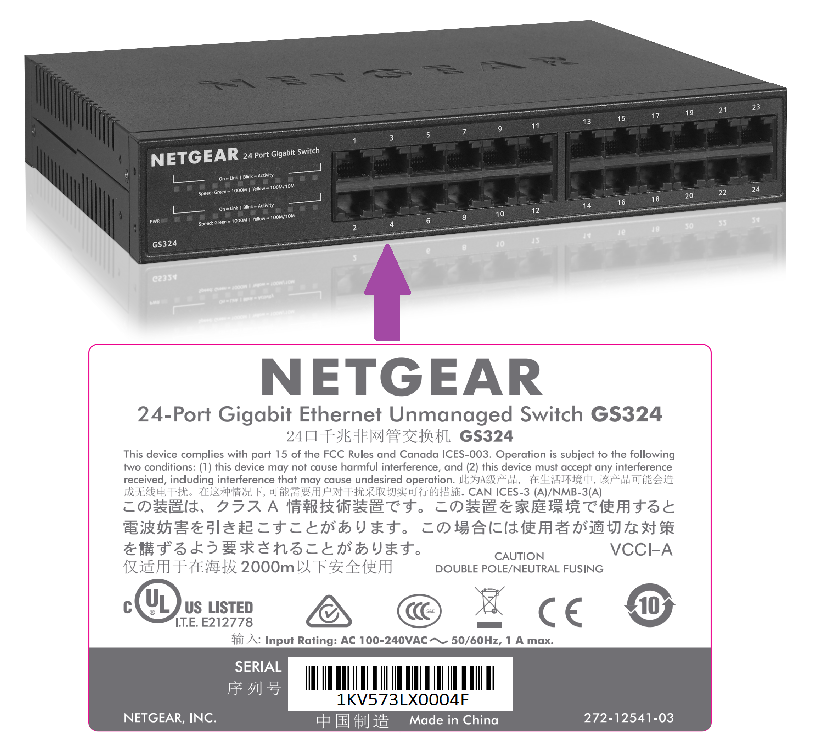
Credit: kb.netgear.com
Expert Tips To Prevent Issues
Preventing issues with your Netgear serial number saves time and stress. Simple steps keep your router running smoothly. Follow these expert tips to avoid common problems and ensure quick access when needed.
Keep Serial Number Handy
Always note down the serial number of your Netgear router. Keep it in a safe place like a notebook or phone notes app. This helps during setup or support calls. Avoid searching for it on the device repeatedly.
Regular Firmware Updates
Check for firmware updates regularly through the Netgear app or website. Updates fix bugs that may affect the serial number recognition. They also improve router security and performance. Set a reminder to update every few months.
Secure Router Settings
Protect your router with a strong password to prevent unauthorized changes. Avoid sharing login details with many people. Unauthorized access can cause configuration errors, including serial number issues. Regularly review and update your security settings.
Frequently Asked Questions
Why Is My Netgear Serial Number Not Recognized?
Netgear may not recognize serial numbers if entered incorrectly. Double-check for typos or extra spaces. Also, ensure the number matches the label on your device.
How Do I Find The Correct Netgear Serial Number?
Look for the serial number on the back or bottom of your router. It is usually printed on a sticker along with the model number. Use this exact number when asked.
What To Do If Netgear Serial Number Shows Invalid?
Try restarting your router and re-entering the serial number carefully. If the problem continues, reset the router to factory settings. This can fix common glitches.
Can A Factory Reset Fix Serial Number Issues?
Yes, a factory reset often resolves serial number recognition problems. It restores default settings, including admin credentials. Press and hold the reset button for 10 seconds to start.
Why Does Netgear Require A Serial Number On Login?
Serial numbers help verify your device’s identity and security. They ensure you access the right router settings. This step protects your network from unauthorized access.
Conclusion
Troubles with your Netgear serial number can be frustrating. Always double-check the number you enter. Try restarting or resetting your router to fix common issues. Keep your firmware updated for better performance. Contact Netgear support if problems continue. Staying patient helps you solve these technical glitches.
Your router should work smoothly with the right steps. Don’t give up; solutions are often simple.