
When your Macally keyboard stops working, it can feel frustrating and confusing. Whether you use it for work, gaming, or everyday tasks, a keyboard problem can slow you down. Many people choose Macally keyboards because they promise easy plug-and-play use and wide compatibility. But when things go wrong, getting them to work again is not always simple.
This guide will help you solve the problem if your Macally keyboard is not working. You will learn the most common reasons for keyboard failure, practical solutions, and tips to avoid future issues. Whether you use Windows, macOS, or even Linux, you’ll find answers here.
We’ll also cover both wired and wireless Macally models, from the classic USB keyboard to Bluetooth and wireless dongle versions.
By the end of this article, you’ll know what steps to take, what to check, and how to fix or replace your keyboard if needed. Even if you are not a computer expert, you can follow these instructions and get your keyboard working again.
Understanding Macally Keyboard Types
Before you start troubleshooting, it’s important to know which Macally keyboard you have. Macally makes several types:
- Wired USB keyboards – Plug directly into your computer’s USB port.
- Wireless keyboards with USB dongle – Use a small receiver that plugs into your computer.
- Bluetooth keyboards – Connect wirelessly without a dongle.
- Compact and full-size models – Some have number pads and extra keys, while others are smaller.
Each type can have different issues. For example, wireless keyboards may have battery or pairing problems, while wired ones might suffer from cable or port issues.
Common Reasons A Macally Keyboard Stops Working
If your Macally keyboard is not working, there are several possible causes. Here are the most common ones:
- Loose cable or connection (for wired keyboards)
- Dead batteries (for wireless models)
- Interference or pairing loss (for Bluetooth models)
- USB port problems (damaged or unresponsive ports)
- Driver issues (especially after system updates)
- Physical damage (spills, drops, or worn-out keys)
- System settings (keyboard not enabled or recognized)
- Outdated firmware
- Conflicts with other devices
- Operating system incompatibility
Some issues can be fixed in minutes, while others may require more effort or even replacing the keyboard.

First Steps: Quick Checks For Any Macally Keyboard
Before diving into detailed solutions, try these quick checks. Many problems are solved by simple actions:
- Reconnect the Keyboard: Unplug the keyboard and plug it in again (for USB), or turn off and on (for wireless).
- Restart Your Computer: A simple restart can reset drivers and connections.
- Try Another USB Port: The port itself may be the problem.
- Test on Another Device: Plug your keyboard into a different computer. If it works there, your original device may have a software issue.
- Check for Physical Damage: Look for broken keys, bent pins, or frayed cables.
Many users overlook these steps, but they solve a surprising number of keyboard problems.
Troubleshooting Wired Macally Keyboards
Wired keyboards are usually reliable, but problems can still occur. If your wired Macally keyboard is not working, follow these steps.
Check The Usb Connection
First, make sure the USB plug is fully inserted. Sometimes, the connection is loose, or the port is dirty. Try these actions:
- Unplug and replug the keyboard.
- Blow gently into the USB port to remove dust.
- Try the keyboard in another USB port.
Inspect The Cable
A damaged cable is a common reason for keyboard failure. Look for:
- Cuts, bends, or exposed wires
- The cable pulling out from the keyboard body
If you see physical damage, the keyboard may need repair or replacement.
Test On Another Computer
This step helps you know if the issue is with your keyboard or your computer. If the keyboard works on another machine, your computer may have a settings or driver problem.
Check Keyboard Settings
On both Windows and Mac, you can check if the keyboard is recognized.
On Mac:
- Open System Settings > Keyboard
- See if your Macally keyboard appears in the device list
On Windows:
- Go to Control Panel > Devices and Printers
- Look for your keyboard under devices
If it’s missing, your computer may not be detecting the keyboard.
Update Or Reinstall Drivers
Sometimes, drivers become corrupted or outdated, especially after a system update. Here’s what to do:
On Mac:
- Most Macally keyboards use standard macOS drivers. Try restarting your Mac. If it doesn’t help, update macOS to the latest version.
On Windows:
- Right-click the Start button, select Device Manager
- Expand Keyboards
- Right-click your keyboard and choose Update driver
- If that fails, uninstall the keyboard device, then restart your PC and plug the keyboard back in
Try A Powered Usb Hub
Some older computers or laptops may not supply enough power to USB devices. Using a powered USB hub can help in these cases, especially if you notice your keyboard works sometimes but not always.
Troubleshooting Wireless Macally Keyboards
Wireless keyboards add convenience, but also new points of failure. If your wireless Macally keyboard is not working, try these troubleshooting steps.
Replace The Batteries
The most common issue is dead or weak batteries. Even if your keyboard turns on, low battery power can cause connection issues or random key drops. Always use fresh, high-quality batteries. Rechargeable batteries may lose charge faster than new disposable ones.
Check The Usb Dongle
If your keyboard uses a wireless dongle (small USB receiver), make sure:
- The dongle is plugged in securely
- The dongle is not damaged
- You try the dongle in different USB ports
Losing or damaging the dongle can make the keyboard unusable. In many cases, dongles are paired at the factory and are not replaceable individually.
Re-pair The Keyboard
Some wireless keyboards have a pairing button. Try pressing this button (usually under the keyboard) and the button on the dongle (if present) to reconnect.
Remove Interference
Wireless keyboards can suffer from interference from other devices, especially Wi-Fi routers, microwaves, and Bluetooth gadgets. Try moving other electronics away from your keyboard and receiver.
Test On Another Computer
Like with wired keyboards, testing your wireless keyboard on another device helps identify if the problem is with the keyboard itself or your computer.
Update Wireless Drivers
On Windows, go to Device Manager, look for Human Interface Devices or Keyboards, and update the drivers.
On Mac, update macOS, as wireless driver updates are included with system updates.
Troubleshooting Bluetooth Macally Keyboards
Bluetooth keyboards have extra steps, since they connect through your computer’s Bluetooth system.
Check Bluetooth Is On
On your computer, make sure Bluetooth is enabled. On Macs, look for the Bluetooth icon in the menu bar. On Windows, check in Settings > Devices > Bluetooth & other devices.
Pair The Keyboard
Put your Macally keyboard in pairing mode (usually by pressing and holding a Connect button). On your computer, look for the keyboard in the Bluetooth device list and pair it.
Remove And Re-add The Device
If your keyboard is already paired but not working, try removing it from your device list and pairing again.
On Mac:
- Go to System Settings > Bluetooth
- Click the “x” next to your keyboard, then pair again
On Windows:
- Go to Settings > Devices > Bluetooth & other devices
- Click on your keyboard, select Remove device, then pair again
Charge The Keyboard
Some Bluetooth Macally keyboards have built-in rechargeable batteries. Make sure it is fully charged before troubleshooting further.
Check For Interference
Bluetooth devices can be affected by other wireless products. Keep your keyboard close to your computer and away from other Bluetooth or Wi-Fi devices.
Macally Keyboard Not Working After System Update
Many users report their Macally keyboard stops working after a Windows or macOS update. This is often caused by changes to drivers or system settings. Here’s how to fix it:
- Restart your computer. Sometimes, updates require an extra restart to finish installing drivers.
- Update your drivers. Go to Device Manager (Windows) or update macOS.
- Roll back the update. If the problem started immediately after a system update and nothing else works, consider uninstalling the update or restoring your system to an earlier point.
- Check accessibility settings. Updates can sometimes change keyboard settings under Accessibility (macOS) or Ease of Access (Windows).
Macally Keyboard Not Recognized
If your computer does not detect your Macally keyboard at all (it doesn’t appear in device lists, and no lights turn on), try these solutions:
- Use a different cable (for models with detachable cables)
- Check for damage on the USB plug or the keyboard port
- Try the keyboard on another computer
- Reset SMC/PRAM (Mac users)
- Use a powered USB hub
If nothing works, the keyboard’s internal electronics may have failed.
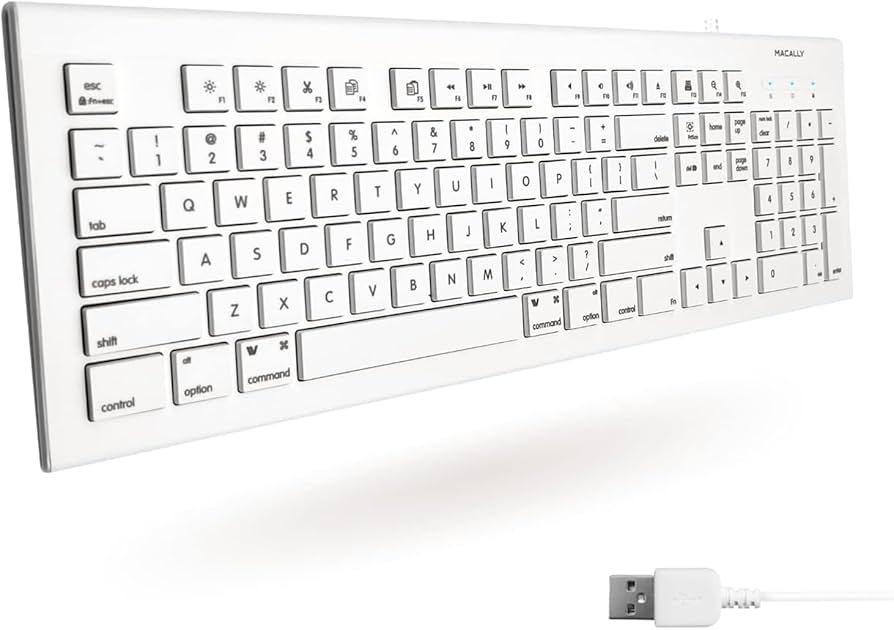
How To Reset A Macally Keyboard
Resetting a keyboard can sometimes fix connection or software issues. The exact steps depend on your model.
For Wired Keyboards
- Unplug the keyboard from your computer.
- Wait 30 seconds.
- Plug it back in.
For Wireless Or Bluetooth Keyboards
- Remove or disconnect the batteries.
- Wait 30 seconds.
- Replace the batteries and turn on the keyboard.
- For Bluetooth, remove the device from your computer’s Bluetooth list and pair again.
This process helps clear memory and reset the keyboard’s small internal computer.
Macally Keyboard Keys Not Working Or Typing Wrong Characters
Sometimes the keyboard is connected, but some keys do not work, or typing gives wrong characters. Here’s what to do:
Check For Stuck Keys
Gently press each key to see if any are stuck down. Dust, crumbs, or spills can cause keys to stick.
Change Keyboard Layout Settings
If your keyboard types the wrong symbols, your system may be using the wrong keyboard layout.
On Mac:
- Go to System Settings > Keyboard > Input Sources
- Make sure the correct language and layout are selected
On Windows:
- Go to Settings > Time & Language > Language
- Check your keyboard layout
Clean The Keyboard
Turn off your keyboard. Use compressed air to blow out debris. For sticky keys, wipe gently with a slightly damp cloth.
Test In Another Program
Try typing in a different application. Sometimes, the problem is with a specific program, not the keyboard.
Run A Keyboard Tester
Online tools like keyboardtester.com help you check if all keys are detected by your system.

Macally Keyboard Lag Or Delay
If your keyboard responds slowly:
- For wireless and Bluetooth models, replace or recharge the batteries.
- Remove sources of wireless interference.
- Move your keyboard closer to the computer.
- Disconnect other USB devices that might conflict.
- Update drivers.
Some users find turning off and on Bluetooth or restarting the computer solves lag problems.
Macally Keyboard Not Working On Specific Devices
Not all keyboards work with every device. Macally keyboards are designed for Windows and macOS, but some also work with tablets, phones, and smart TVs. If your keyboard does not work on a specific device:
- Check the device’s compatibility list on the Macally website
- Make sure your device supports standard USB or Bluetooth keyboards
- Update the device’s firmware or operating system
- Try a different keyboard to confirm the device’s input works
Macally Keyboard Shortcuts And Special Keys Not Working
Many Macally keyboards have special keys for volume, playback, or launching apps. If these are not working:
- On Mac, check System Settings > Keyboard > Shortcuts
- On Windows, look for the Macally Keyboard Manager software (if available)
- Try updating your operating system
- Some function keys may require you to hold down Fn or another modifier
Not all special keys work on every operating system or app.
Comparing Macally Keyboards To Other Brands
How do Macally keyboards compare to other popular brands like Logitech, Microsoft, or Apple? Here’s a quick comparison of typical features:
| Feature | Macally | Logitech | Apple | Microsoft |
|---|---|---|---|---|
| Price Range | Low-Mid | Mid-High | High | Mid |
| Plug-and-Play | Yes | Yes | Yes (Mac only) | Yes |
| OS Compatibility | Windows, Mac, Linux | Windows, Mac, Linux | Mac, iOS | Windows, Mac |
| Special Keys | Yes | Yes | Yes | Yes |
| Bluetooth Models | Yes | Yes | Yes | Limited |
Non-obvious insight: Macally keyboards usually offer wide compatibility, making them a good choice for people who switch between Mac and Windows. However, their build quality is often slightly lower than premium models from Apple or Logitech.
When To Replace Your Macally Keyboard
Sometimes, a keyboard cannot be fixed. Here are signs that it’s time to get a new one:
- Multiple keys are physically broken or missing
- No lights or response, even after all troubleshooting
- Repeated connection drops, even after changing batteries or dongles
- Severe physical damage (from dropping, water, etc.)
- The keyboard is over 5 years old and has frequent problems
Modern keyboards are designed to last, but constant heavy use can wear them out. Replacing an old keyboard is often cheaper than professional repair.
How To Prevent Macally Keyboard Problems
Regular care and smart use can keep your keyboard working longer. Here are some practical tips:
- Keep it clean. Wipe your keyboard weekly, and use compressed air to remove crumbs or dust.
- Avoid eating and drinking at your desk. Spills are a top cause of keyboard failure.
- Store in a safe place. Don’t let the cable get crushed or twisted.
- Update your operating system regularly to avoid driver conflicts.
- Use a surge protector to prevent damage from power spikes.
- Change batteries regularly if you use a wireless model.
- Do not drop or hit the keyboard.
Non-obvious insight: The angle at which you use your keyboard can affect its lifespan. Using a keyboard at a very steep angle puts stress on the cable and keys, leading to earlier failure.
Macally Keyboard Warranty And Support
Most Macally keyboards come with a 1-year limited warranty. If your keyboard is still under warranty and stops working for no obvious reason, you may be able to get a free replacement. Keep your purchase receipt and contact Macally support through their website.
For more help, visit the official Macally support page.
Data Table: Common Macally Keyboard Problems And Solutions
Here’s a simple guide to help you match symptoms to solutions.
| Problem | Possible Cause | Quick Solution |
|---|---|---|
| No power or lights | Dead batteries, bad cable | Replace batteries, check cable |
| Not recognized by computer | Driver issue, bad USB port | Update driver, try new port |
| Some keys not working | Physical damage, debris | Clean keyboard, check for damage |
| Random disconnects | Wireless interference, low battery | Move devices, replace batteries |
| Lag or delay | Low battery, Bluetooth issue | Recharge, re-pair device |
Frequently Asked Questions
Why Does My Macally Keyboard Only Work In Some Usb Ports?
Some USB ports provide less power or may be damaged. Try plugging your keyboard into a different port, especially one on the back of a desktop computer, as these often have more reliable power.
How Do I Check If My Macally Keyboard Is Under Warranty?
Keep your purchase receipt and check the date. Most Macally keyboards have a 1-year limited warranty. Visit the official Macally support page for warranty details and to start a claim.
Can I Use A Macally Keyboard With An Ipad Or Android Tablet?
Some Macally Bluetooth and wireless keyboards work with tablets and smartphones. Check the model’s compatibility list on the Macally website before buying or connecting.
My Macally Keyboard Types Numbers Instead Of Letters. What’s Wrong?
You may have accidentally turned on Num Lock or changed your keyboard layout. Try pressing the Num Lock key or check your keyboard settings on your computer.
Where Can I Find Drivers For My Macally Keyboard?
Most Macally keyboards use standard drivers included in Windows and macOS. If you need a specific driver, visit the official Macally website or check your computer’s update system. For more info, see this device driver explanation.
Getting your Macally keyboard working again is possible in most cases with the right troubleshooting steps. With careful checks, simple fixes, and a little patience, you can solve most problems yourself and avoid the expense of a new keyboard. If your keyboard is still under warranty or truly broken, don’t hesitate to seek support or buy a replacement. Your typing comfort and productivity are worth it.