
When your Logitech M325 mouse stops working, it can feel frustrating—especially if you depend on it for daily tasks or work. This mouse is popular for its comfort, wireless convenience, and long battery life. But like any device, problems can happen.
The good news is that most issues are easy to fix with the right steps.
This guide explains everything you need to know to get your Logitech M325 working again. You will learn simple checks, advanced fixes, and tips to prevent problems in the future. Even if you are not a tech expert, you will find clear solutions here.
Understanding Common Logitech M325 Problems
Before you try to fix your mouse, it helps to know what usually goes wrong. Here are the most common problems users face with the M325:
- Mouse pointer does not move at all
- Mouse pointer moves but clicks do not work
- Scroll wheel is not working
- Mouse disconnects randomly
- Mouse not detected by the computer
- Lag or slow response
- Double-click issue (single click acts as double-click)
Each problem has its own cause, but many fixes overlap. Most issues are related to batteries, wireless connection, drivers, or sometimes physical damage.
Basic Troubleshooting: Quick Checks
Start with these simple checks. Many users fix their mouse in just a few minutes.
1. Check The Batteries
The M325 runs on a single AA battery. If the battery is weak or dead, the mouse will not work or may act strangely.
- Open the battery cover under your mouse.
- Remove the old battery and replace it with a new, high-quality AA battery. Alkaline batteries work best.
- Make sure you insert the battery in the correct direction.
Insider Tip: Some rechargeable batteries do not provide enough voltage for wireless mice. Always use a fresh alkaline battery for testing.
2. Inspect The Usb Receiver
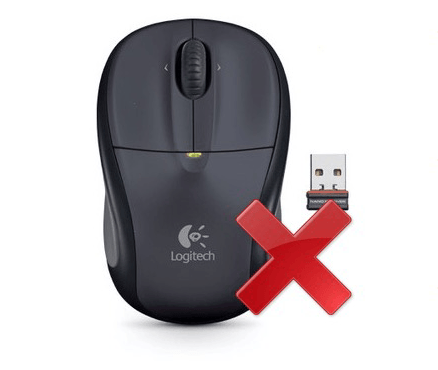
The M325 uses a small Logitech Unifying Receiver (a tiny USB dongle). If the receiver is not fully plugged in or is damaged, the mouse will not work.
- Unplug the USB receiver from your computer.
- Clean any dust or debris from the receiver and USB port.
- Plug it back in firmly. Try different USB ports, including those on the back of your computer.
Non-obvious Insight: USB ports on the front of desktops sometimes have weaker connections. Try a rear port if possible.
3. Turn The Mouse Off And On
- Find the power switch under the mouse. Slide it off, wait five seconds, then turn it back on.
- Look for a light on the mouse. A green light means it has power.
This simple reset can solve minor glitches.
4. Test On Another Computer
If possible, try your M325 and receiver on a different computer. If it works there, your mouse is fine and the problem is likely with your main computer’s settings or drivers.
Software And Driver Fixes
If your mouse still does not work after basic checks, the problem might be with your computer’s software.
1. Update Or Reinstall Drivers
Drivers are small programs that help your computer talk to devices like mice. Outdated or corrupted drivers can cause problems.
For Windows:
- Press the Windows key, type “Device Manager,” and open it.
- Find “Mice and other pointing devices.” Right-click on your Logitech mouse and select “Update driver.”
- Choose “Search automatically for drivers.” Let Windows install any updates.
- If this does not help, right-click again and choose “Uninstall device.” Unplug the receiver, restart your computer, and plug the receiver back in. Windows will reinstall the driver automatically.
For Mac:
- MacOS does not use special mouse drivers for the M325. Restart your Mac and try again.
- Make sure your Mac is updated (Apple menu > System Settings > General > Software Update).
Extra Insight: Sometimes, third-party mouse software can conflict with Logitech devices. If you have other mouse or touchpad software installed, try disabling or uninstalling it.
2. Install Logitech Options Or Setpoint Software
Logitech offers software to customize mouse settings and improve compatibility.
- Download Logitech Options or SetPoint from the official Logitech website.
- Install the software and follow the instructions to detect your mouse.
- Use the software to check battery status, change button functions, or update the firmware.
Advanced Tip: If your mouse is not detected in the software, try plugging the receiver into a different port or restarting your computer.
Wireless Connection Problems
Wireless mice can sometimes lose connection or behave strangely because of interference or pairing problems.
1. Remove Wireless Interference
Other wireless devices or metal objects can affect your mouse’s signal.
- Move your mouse and receiver away from routers, mobile phones, and other wireless devices.
- Avoid using the mouse on metal surfaces.
Pro Insight: Even a metal desk lamp near your receiver can cause problems.
2. Re-pair The Mouse With The Receiver
If the connection is lost, you may need to pair the mouse and receiver again.
- Download the Logitech Unifying Software from the [official site](https: //support.logi.com/hc/en-us/articles/360025297913).
- Open the software and follow the instructions to pair your M325 with the Unifying Receiver.
- If pairing fails, try a different USB port and repeat the process.
3. Try A Different Receiver
If you have another Logitech Unifying Receiver, try using it. Some users find that their receiver is faulty, not the mouse.
- Pair your M325 with the new receiver using the Unifying Software.

Credit: www.youtube.com
Physical And Hardware Checks
Sometimes, the problem is with the mouse itself or its components.
1. Check For Physical Damage
- Inspect the mouse for cracks, loose buttons, or damage to the scroll wheel.
- If the mouse was dropped or got wet, internal damage may have occurred.
Repair Tip: If you hear rattling or a button feels stuck, professional repair or replacement may be needed.
2. Clean The Mouse Sensor
A dirty sensor can stop your mouse from working smoothly.
- Use a soft, dry cloth or cotton swab to gently clean the sensor area under the mouse.
- Avoid using water or cleaning chemicals.
Hidden Insight: Even a small piece of hair or dust can block the sensor and stop movement.
3. Test On Different Surfaces
Some mouse pads or glossy surfaces can confuse the sensor.
- Try the mouse on a plain white sheet of paper or a different mouse pad.
- Avoid glass or reflective surfaces unless your mouse is designed for them.
Fixing Specific Problems
Below are solutions for common symptoms with the Logitech M325.
1. Mouse Pointer Does Not Move
- Check the battery and receiver as above.
- Clean the sensor.
- Test on a different surface.
- Try a different computer to rule out software issues.
2. Mouse Clicks Not Working
- Check if only one button fails or all buttons.
- Inspect for physical damage or dirt around the button.
- If the click is stuck, gently tap the mouse upside down to dislodge debris.
- If the problem continues, the microswitch inside may be worn out. Replacement by a technician may be needed.
3. Scroll Wheel Not Working
- Clean around the scroll wheel gently with compressed air or a dry brush.
- Test scrolling in different applications (browser, document, etc. ).
- Check mouse settings in Logitech software to ensure the scroll function is enabled.
4. Mouse Disconnects Randomly
- Replace the battery with a new one.
- Plug the receiver into a different USB port.
- Move other wireless devices away from the receiver.
- Use a USB extension cable to bring the receiver closer to the mouse.
Advanced Insight: USB power-saving settings can cause disconnects. In Device Manager (Windows), right-click the USB Root Hub under “Universal Serial Bus controllers,” open Properties, and uncheck “Allow the computer to turn off this device to save power.”
5. Lag Or Slow Response
- Change the battery.
- Reduce the number of wireless devices near your computer.
- Make sure you are not using the mouse too far from the receiver.
6. Double-click Issue
- If a single click acts as a double-click, adjust the double-click speed in your computer’s mouse settings.
- If this does not help, the mouse button’s microswitch may be worn. This is a known issue in older mice and may need repair or replacement.
Advanced Fixes
If basic steps do not solve your problem, try these advanced solutions.
1. Remove Conflicting Devices
Multiple mice or other pointing devices can confuse the computer.
- Disconnect other USB mice, touchpads, or Bluetooth devices.
- Restart your computer with only the M325 connected.
2. Check For Windows Updates
Outdated Windows systems can cause device problems.
- Open “Settings” > “Update & Security” > “Windows Update.”
- Click “Check for updates” and install any available updates.
3. Test With A Clean Boot (windows)
A clean boot starts Windows with only basic programs.
- Press Windows + R, type “msconfig,” and press Enter.
- On the “Services” tab, check “Hide all Microsoft services,” then click “Disable all.”
- On the “Startup” tab, click “Open Task Manager” and disable all startup items.
- Restart your computer. Test the mouse.
Non-obvious Fix: This can reveal if third-party programs are causing the problem. If the mouse works now, enable items one at a time to find the cause.
4. Replace The Receiver
If your receiver is lost or broken, you can buy a new Logitech Unifying Receiver.
- Pair it using the Logitech Unifying Software.
- Not all old Logitech mice support unifying receivers—check for an orange star logo under your mouse.
Preventing Future Problems
Keeping your M325 in good shape can reduce future issues.
- Change batteries before they are completely dead.
- Clean the sensor and buttons every few months.
- Store the receiver in the mouse (if possible) or in a safe place when traveling.
- Avoid dropping or spilling liquids on the mouse.
Credit: www.drivereasy.com
Frequently Asked Questions
Can I Use The Logitech M325 With A Different Receiver?
Yes, if both the mouse and receiver have the orange Unifying logo, you can pair them using the Unifying Software.
Does The M325 Work With Mac Or Linux?
Yes, it works with Windows, Mac, Chrome OS, and most Linux systems. Some advanced functions need Logitech software, which may not be available for all systems.
How Long Does The Battery Last?
A single AA battery can last up to 18 months with normal use. Using high-quality alkaline batteries helps.
What If My Mouse Is Still Under Warranty?
Check your purchase date. Logitech offers a limited warranty (usually 1-3 years). If your mouse is faulty and basic fixes do not help, contact Logitech support for a replacement.
Is There A Reset Button On The M325?
No, but turning the mouse off and on, or removing the battery for 30 seconds, acts as a soft reset.
When To Replace Your Mouse
If you have tried all the steps above and your M325 still does not work, the mouse may be damaged beyond repair. Signs you need a new mouse:
- It does not work on any computer.
- The receiver is lost and cannot be replaced.
- Physical damage (cracks, broken buttons).
- The mouse is several years old and out of warranty.
Modern mice are inexpensive, and a new device can save time and frustration.

Credit: www.youtube.com
Where To Get Further Help
If you need more support, visit the [Logitech Support Page](https://support.logi.com/hc/en-us). You will find downloads, manuals, and contact information for technical support.
Conclusion
Most Logitech M325 problems are easy to fix with simple checks—battery, receiver, and cleaning. Software updates and the right settings also solve many issues. For more serious problems, advanced steps like pairing software or replacing parts may be needed. Keeping your mouse clean and using quality batteries can prevent trouble.
And if your mouse is truly broken, it may be time for a new one. With this guide, you have all the tools you need to get back to work fast.