
Is your Logitech K780 keyboard suddenly not working and leaving you frustrated? You’re not alone, and the good news is that this issue can often be fixed quickly.
Whether your keyboard isn’t responding, keys aren’t typing, or it won’t connect to your device, there are simple steps you can take right now to get it back up and running. You’ll discover easy, effective troubleshooting tips that anyone can follow—no tech expertise needed.
Keep reading, and you’ll have your Logitech K780 working smoothly again in no time.
Check Power And Batteries
When your Logitech K780 keyboard stops working, the first step is to check its power and batteries. A weak or dead battery often causes connection issues and unresponsiveness. Ensuring the keyboard has enough power helps avoid unnecessary troubleshooting.
Many users overlook this simple fix, but verifying battery status can save time. The keyboard may still have some charge but not enough to maintain a stable connection. A quick battery check is essential before moving on to more complex solutions.
Replace Or Recharge Batteries
The Logitech K780 uses two AAA batteries that need regular replacement or recharging. Remove the battery cover and take out the old batteries carefully. Insert new or fully charged batteries, matching the correct polarity.
Rechargeable batteries should be fully charged before use. Using low-quality or nearly dead batteries can cause intermittent keyboard failures. Fresh power sources ensure smooth and consistent performance.
Toggle Power Switch
The keyboard has a power switch on its side that controls its operation. Turn the switch off, wait for a few seconds, then turn it back on. This simple action resets the internal system and can fix minor glitches.
Sometimes, the keyboard may appear off due to accidental toggling. Confirm the switch is firmly in the “on” position. Ensuring the power switch is correctly set is a quick way to restore functionality.

Credit: www.reddit.com
Inspect Connections
When the Logitech K780 keyboard stops working, the first step is to inspect all connections. Loose or faulty connections often cause issues. Checking these connections can quickly identify simple problems.
Start by ensuring the USB receiver is properly connected. Sometimes, it may come loose or not fit tightly. A secure connection is essential for the keyboard to communicate with your device.
Reconnect Usb Receiver
Remove the USB receiver from your computer. Wait for a few seconds and plug it back in firmly. This can reset the connection and fix minor glitches. Make sure the receiver is fully inserted into the USB port.
Try Different Usb Ports
Try plugging the USB receiver into a different USB port. Some ports might be damaged or not provide enough power. Use a port directly on your computer, not a USB hub. This helps rule out port-specific issues.
Test On Another Device
Connect the keyboard and USB receiver to another computer or laptop. This test shows if the problem is with your device or the keyboard itself. If it works on another device, your computer settings may need adjustment.
Reset Keyboard
Resetting your Logitech K780 keyboard can fix many common issues. It clears glitches and restores default settings. This process often helps when the keyboard stops responding or behaves oddly.
Resetting is simple and takes only a few minutes. Follow the steps carefully to avoid any damage.
Locate Reset Button
The reset button on the Logitech K780 is small and hidden. Look on the back or bottom of the keyboard. It may be a tiny hole that needs a pin or paperclip to press. Check near the battery compartment or the Bluetooth button area.
If you cannot find it, consult the user manual or Logitech’s official support site for exact location details.
Perform Hard Reset
To perform a hard reset, turn off the keyboard first. Use a pin to press and hold the reset button for about 5 seconds. Release the button and wait for the keyboard to restart.
After resetting, turn the keyboard back on. Reconnect it to your device. Test if the keys respond correctly now. This reset can fix unresponsive keys and Bluetooth connection problems.

Credit: www.youtube.com
Update Software And Drivers
Updating software and drivers is essential to keep your Logitech K780 keyboard working smoothly. Outdated software can cause connection issues or unresponsive keys. Regular updates fix bugs and improve compatibility with your computer. Follow the steps below to ensure your keyboard’s software and drivers are current.
Use Logitech Options+
Logitech Options+ is a free software designed to manage your Logitech devices. It helps update your keyboard’s firmware easily. Download and install Logitech Options+ from the official Logitech website. Open the app and connect your K780 keyboard. The software will check for updates automatically. If an update is available, follow the prompts to install it. Restart your computer after updating to apply changes fully.
Reinstall Keyboard Drivers
Reinstalling keyboard drivers can resolve many hardware issues. On Windows, open Device Manager by pressing Windows + X keys and selecting it. Find your keyboard under the “Keyboards” section. Right-click on your Logitech K780 and choose “Uninstall device.” After uninstalling, restart your computer. Windows will reinstall the drivers automatically. This process refreshes the driver files and can fix detection problems.
Check For Interference
Interference can disrupt the connection of your Logitech K780 keyboard. Wireless signals from other devices can block or weaken the keyboard’s signal. Checking for interference helps ensure smooth and reliable keyboard operation.
Remove Nearby Wireless Devices
Other wireless devices can interfere with your keyboard’s signal. Remove or turn off nearby gadgets like routers, cordless phones, or Bluetooth devices. This reduces signal overlap and improves connection quality.
Keep your keyboard away from microwave ovens and wireless speakers. These devices emit signals that can cause interference. Clearing the area helps restore your keyboard’s responsiveness.
Change Keyboard Location
Sometimes the keyboard’s position causes weak signals. Move the keyboard closer to its receiver or computer. Avoid placing it behind metal objects or inside drawers.
Try different spots on your desk or workspace. A small change in location can improve signal strength. Test the keyboard after each move to find the best position.
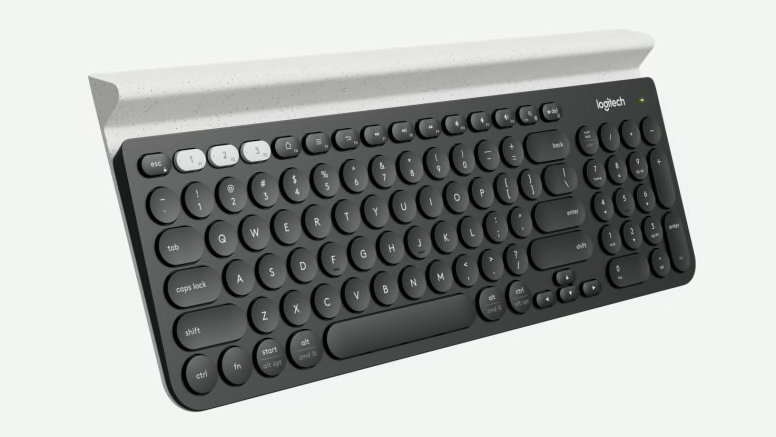
Credit: www.logitech.com
Troubleshoot Bluetooth Issues
Bluetooth connection problems often cause the Logitech K780 keyboard not to work properly. Fixing these issues can restore smooth communication between the keyboard and your device. Follow simple steps to troubleshoot Bluetooth problems and get your keyboard working again.
Re-pair Keyboard
Start by turning off your Logitech K780 keyboard. On your device, open Bluetooth settings and remove the keyboard from paired devices. Turn the keyboard back on and enter pairing mode by pressing the Bluetooth button until the light blinks. On your device, search for available Bluetooth devices and select the Logitech K780. Wait for the connection to establish. This process refreshes the link and can fix many connectivity issues.
Clear Bluetooth Cache
Sometimes, stored Bluetooth data causes problems. Clearing the Bluetooth cache on your device removes old data and helps build a fresh connection. On Android, go to Settings > Apps > Bluetooth > Storage > Clear Cache. On Windows, open Device Manager, find Bluetooth, right-click your adapter, and select Uninstall. Restart your computer to reinstall the driver. This step often resolves hidden Bluetooth glitches affecting the keyboard.
Identify Hardware Problems
Identifying hardware problems helps find the cause of your Logitech K780 keyboard issues. It ensures you do not waste time on software fixes if the problem is physical. Checking the keyboard carefully can reveal visible damages or connection faults. Testing different connection methods shows if the keyboard hardware works properly.
Look For Physical Damage
Examine your keyboard for cracks, dents, or broken keys. Check for signs of liquid spills or sticky residue. Damaged parts can block key presses or stop the keyboard from working. Also, inspect the battery compartment for corrosion or loose contacts. Physical damage often requires repair or replacement.
Test With Wired Connection
The Logitech K780 supports wireless and wired use with a USB cable. Connect the keyboard directly to your computer using a USB cable. This step helps verify if the wireless function causes the issue. If it works wired but not wireless, the problem lies in the Bluetooth or receiver. If it fails wired, hardware faults like internal circuits could be the cause.
When To Seek Warranty Or Support
Knowing when to seek warranty or support helps avoid prolonged keyboard issues. It saves time and effort. It also ensures proper repair or replacement. If basic troubleshooting does not fix your Logitech K780, checking your warranty is the next step. Support from Logitech can guide you through repair options or replacements.
Check Warranty Status
Start by verifying if your Logitech K780 is still under warranty. You can find this information on your purchase receipt or Logitech’s website. Most Logitech keyboards come with a limited warranty that covers hardware defects. Knowing your warranty status helps decide if you qualify for a free repair or replacement. Keep your purchase details handy to speed up the process.
Contact Logitech Support
Reach out to Logitech Support for expert help with your keyboard. They provide assistance via phone, chat, or email. Describe the issue clearly and mention the troubleshooting steps you tried. Logitech Support can offer advanced solutions or arrange for warranty service. Keep your serial number and warranty details ready to simplify communication.
Frequently Asked Questions
How To Reset A Logitech K780 Keyboard?
To reset a Logitech K780 keyboard, turn it off, remove batteries, wait 10 seconds, reinsert batteries, and turn it on.
Why Is My Logitech Keyboard Suddenly Not Working?
Your Logitech keyboard may stop working due to low batteries, USB port issues, interference, or outdated firmware. Try replacing batteries, switching USB ports, reconnecting the receiver, and updating firmware to fix it.
Where Is The Reset Button On A Logitech Keyboard?
The reset button on most Logitech keyboards is not physically present. To reset, turn off the keyboard, remove batteries, then reinsert and power it on. For specific models like Wave Keys, follow the manual’s reset instructions or use Logitech Options software to reset or update firmware.
Why Is My Keyboard Connected But Not Typing?
Your keyboard may be connected but not typing due to low battery, faulty USB port, or driver issues. Restart the keyboard, replace batteries, try a different USB port, and update or reinstall drivers to fix the problem.
Why Is My Logitech K780 Keyboard Not Responding?
The keyboard may have low battery or connection issues. Check batteries and try reconnecting the device. Also, test it on another computer to find the problem.
Conclusion
Troubleshooting the Logitech K780 keyboard can solve most problems. Check the batteries and connections first. Try switching USB ports or reconnecting Bluetooth. Updating the keyboard’s firmware often helps fix glitches. Restart your computer to refresh settings. If none of these work, the keyboard might need repair or replacement.
Stay patient and follow each step carefully. This way, you can get your keyboard working again soon.