
Is your Logi Tune software suddenly not working? You’re not alone, and it can be really frustrating when your Logitech devices don’t respond the way they should.
Whether your headset won’t connect, the camera isn’t detected, or settings just won’t apply, it’s easy to feel stuck. But don’t worry—there are simple fixes that can get your devices back in sync quickly. You’ll discover practical, step-by-step solutions to troubleshoot Logi Tune issues so you can get back to work or play without the hassle.
Keep reading, because the answer to your Logi Tune problems might be easier than you think.
Common Logi Tune Issues
Logi Tune is a helpful tool for managing Logitech devices. Sometimes, users face issues that stop the app from working well. These common problems can affect the audio, software, and device connections. Understanding these issues helps in finding quick fixes. Below are some frequent problems with Logi Tune.
Audio Gear Not Recognized
Logi Tune may fail to detect your headset or microphone. This can happen if the device is not properly connected. USB hubs or extenders might block detection. Try plugging your device directly into the computer’s USB port. Also, check if the device drivers are up to date.
Software Fails To Launch
The Logi Tune app might not open at all. This issue can appear after a system update or software conflict. Close any other Logitech software before starting Logi Tune. Restart your computer to clear temporary glitches. Reinstall Logi Tune if the problem continues.
Settings Not Applying
Changes made in Logi Tune may not save or take effect. This happens if the software cannot communicate with the device. Make sure your device firmware is current. Run Logi Tune as an administrator to allow full access. Disconnect and reconnect the device to refresh the connection.
Device Not Pairing
Pairing issues occur when Logi Tune can’t connect to Bluetooth devices. Ensure Bluetooth is enabled on your computer. Set your device to pairing mode correctly. Remove old Bluetooth connections that might cause conflicts. Restart Bluetooth services or your computer to fix pairing problems.
Check Connections
Checking connections is the first step to fix Logi Tune not working. Faulty or loose connections often cause device problems. Confirming all cables and wireless links are stable saves time and effort. This section guides you through important connection checks that help restore Logi Tune functionality quickly.
Usb And Bluetooth Status
Verify your device’s USB or Bluetooth connection status. For USB, ensure the device is plugged into a working port. For Bluetooth, check if your device appears in the list of paired devices. Turn Bluetooth off and on again to refresh the connection. Unpaired or disconnected devices prevent Logi Tune from working properly.
Avoid Usb Hubs And Extenders
Do not use USB hubs or extenders to connect your Logi device. These devices can weaken the signal or cause power issues. Plug your device directly into the computer’s USB port. Direct connection improves stability and reduces connection errors with Logi Tune software.
Secure Cable Attachments
Make sure all cables are firmly attached to both the device and the computer. Loose cables can interrupt data transfer. Check for any damage to the cables or connectors. Replace damaged cables to ensure a reliable connection. A secure cable attachment supports consistent communication with Logi Tune.
Update Firmware And Software
Updating firmware and software is a key step to fix Logi Tune not working issues. Outdated versions can cause bugs and connection problems. Keeping everything current ensures smooth performance and access to the latest features.
Firmware updates improve your device’s hardware functions. Software updates fix bugs and improve compatibility. Together, they help Logi Tune run without glitches.
Install Latest Logi Tune Version
Download the newest Logi Tune version from the official Logitech website. Remove older versions before installing the new one. The latest version often has bug fixes and new features. This step can solve many common issues quickly.
Update Device Firmware
Connect your Logitech device to your computer via USB or Bluetooth. Open Logi Tune and select your device under “My Devices.” Check for firmware updates and follow the on-screen instructions. Firmware updates fix hardware bugs and improve device stability.
Operating System Compatibility
Ensure your computer’s operating system supports the Logi Tune version. Older OS versions may not work well with new software. Check Logitech’s website for OS requirements. Updating your OS may be necessary for full functionality.
Adjust System Settings
Adjusting system settings can fix many Logi Tune problems. Incorrect settings often block the software from working right. Changing a few options can restore Logi Tune’s functionality quickly.
Focus on audio permissions, privacy settings, and app conflicts. Each plays a key role in how Logi Tune runs on your computer. Proper configuration helps Logi Tune detect your devices and operate smoothly.
Enable Audio Permissions
Logi Tune needs access to your microphone and speakers. Without permission, it cannot control or test audio devices. Go to your system’s audio or privacy settings.
Find the section for app permissions. Turn on access for Logi Tune. Restart the app after changing permissions to apply the update.
Configure Privacy Settings
Privacy settings can block device access. Check your computer’s privacy options for camera and microphone. Make sure Logi Tune is allowed to use these devices.
Disable any restrictions that stop apps from accessing hardware. This step ensures Logi Tune can communicate with your Logitech products properly.
Manage Conflicting Applications
Other software may interfere with Logi Tune. Audio or video apps can block device control. Close unused apps that use your microphone or camera.
Check your task manager for background apps that might conflict. Temporarily disable or exit these programs to see if Logi Tune works better.
Restart And Relaunch
Restarting and relaunching the Logi Tune app often solves many common issues. Simple resets can refresh the connection between your devices and the software. This step is easy and can save time before trying more complex fixes.
Sometimes, the app or your computer may get stuck, causing Logi Tune not to work properly. Restarting helps clear temporary bugs and glitches. It also ensures the app starts fresh, ready to detect your audio devices correctly.
Reboot Your Computer
Turn off your computer completely and wait for a few seconds. Restarting clears the system memory and closes any background processes that might block Logi Tune. After rebooting, open the app again to check if it works.
Restart Logi Tune App
Close the Logi Tune app fully, not just minimizing it. Use the task manager or system tray to ensure it is not running in the background. Relaunch the app and see if it detects your devices properly now.
Reconnect Audio Devices
Disconnect your Logitech headset or speakers from the computer. Wait a moment, then plug them back in securely. This helps the computer and Logi Tune re-establish a fresh connection with your devices.

Credit: hub.sync.logitech.com
Reinstall Logi Tune
Reinstalling Logi Tune can solve many common issues quickly. Sometimes, the software files get corrupted or settings cause problems. Starting fresh often clears these errors. This process involves removing the current software, deleting leftover files, and installing the latest version. Follow these simple steps for a clean reinstall.
Uninstall Current Software
First, open the Control Panel on your computer. Go to “Programs and Features” or “Apps & Features.” Find Logi Tune in the list of installed programs. Click on it and select “Uninstall.” Wait for the removal process to complete. This step removes the main program but may leave some files behind.
Delete Leftover Files
Open File Explorer and go to the installation folder, usually in “C:Program FilesLogitechLogiTune.” Delete this folder if it still exists. Press Windows + R, type %appdata%, and press Enter. Find the Logi Tune folder and delete it. This clears cached files and settings that may cause issues.
Fresh Installation Steps
Visit the official Logitech website to download the latest Logi Tune version. Choose the right file for your operating system. Run the installer and follow the on-screen instructions. Restart your computer after installation. Open Logi Tune to check if it works properly now.
Troubleshoot Bluetooth Pairing
Bluetooth issues can stop Logi Tune from working properly. Troubleshooting Bluetooth pairing helps fix common connection problems. This section guides you through simple steps. Follow these tips to restore the connection quickly.
Activate Pairing Mode
Start by turning on your Logitech device. Press the pairing button or switch to enable Bluetooth pairing. The device should enter pairing mode, often indicated by a blinking light. This step allows your computer or phone to find the device.
Check Bluetooth Settings
Open your device’s Bluetooth settings. Make sure Bluetooth is turned on. Look for your Logitech device in the list of available devices. If it does not appear, turn Bluetooth off and on again. Restarting Bluetooth can refresh the connection.
Remove And Re-add Devices
Remove your Logitech device from the list of paired devices. This clears any old or corrupted connection data. Then, search for the device again and add it. This process often resolves pairing conflicts and improves stability.
Use Logitech Support Tools
Using Logitech support tools helps fix Logi Tune issues quickly. These tools check your device and update firmware. They identify common problems and improve performance. Follow the steps below to use official Logitech utilities for troubleshooting.
Logitech Firmware Update Tool
The Logitech Firmware Update Tool updates your device’s software. Updated firmware fixes bugs and improves device stability. Download the tool from Logitech’s website. Connect your device via USB or Bluetooth. Run the tool and follow on-screen instructions. Keep your device plugged in during the update.
Logitech Hub Diagnostics
Logitech Hub Diagnostics scans your device for problems. This tool detects hardware and connection issues. Open Logitech Hub and select Diagnostics from the menu. Follow the instructions to test your device. The tool offers suggestions based on test results. It helps fix issues without complex steps.
Contact Support Channels
Contact Logitech support if tools do not fix the problem. Use live chat or email for quick responses. Provide device details and error messages for faster help. Visit Logitech’s official support page to find contact options. Support staff guide you through advanced troubleshooting. Keep your device serial number ready before contacting.
Prevent Future Issues
Preventing future issues with Logi Tune ensures smooth device performance. Taking simple steps can avoid common problems and save time. Regular care keeps your Logitech devices working well.
Regular Software Updates
Keep Logi Tune software up to date. Updates fix bugs and improve stability. Check for updates often to avoid glitches. Updated software supports new device features.
Avoid Usb Extenders
Plug Logitech devices directly into your computer. USB extenders or hubs may cause connection problems. Direct connections ensure better power and data flow. This reduces device detection issues.
Maintain Device Firmware
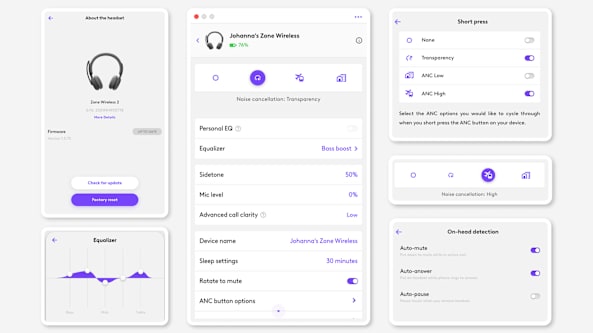
Update your device firmware regularly using Logi Tune. Firmware updates improve device performance and fix known bugs. Connect your device and run updates in the app. Well-maintained firmware prevents unexpected failures.

Credit: www.reddit.com
Credit: www.logitech.com
Frequently Asked Questions
Why Is My Logitech Not Working?
Check that your Logitech device is securely connected via USB or Bluetooth. Update its firmware and drivers. Restart your computer and ensure proper settings and permissions. Avoid using USB hubs or extenders that may cause detection issues.
How To Update Logi Tune?
Download and install the latest Logi Tune Desktop from Logitech’s website. Connect your device via USB or Bluetooth. Open Logi Tune, select your device under MY DEVICES, and follow on-screen prompts to update firmware. Restart the app if needed to complete the update.
Why Is My Logitech Not Pairing?
Check if your Logitech device is powered on and in pairing mode. Ensure Bluetooth is enabled on your computer. Restart the device and remove any conflicting connections. Update device firmware and software. Try connecting directly without USB hubs or extenders.
Why Is My Logi Camera Not Working?
Check your Logi camera’s USB connection and restart your computer. Ensure no other software blocks it. Verify camera permissions in your system settings. Update or reinstall Logitech drivers and Logi Tune software.
Why Is Logi Tune Not Detecting My Device?
Logi Tune may not detect devices connected through USB hubs. Connect your device directly to a USB port for better detection.
Conclusion
Logi Tune issues can be frustrating but often have simple fixes. Check your USB or Bluetooth connection first. Restarting your computer may solve many problems quickly. Always keep Logi Tune updated to the latest version. Avoid using USB hubs; plug devices directly into ports.
Verify device permissions and close conflicting software. These steps usually restore proper function. Stay patient and try each tip one by one. Your Logitech device should work smoothly again soon.