
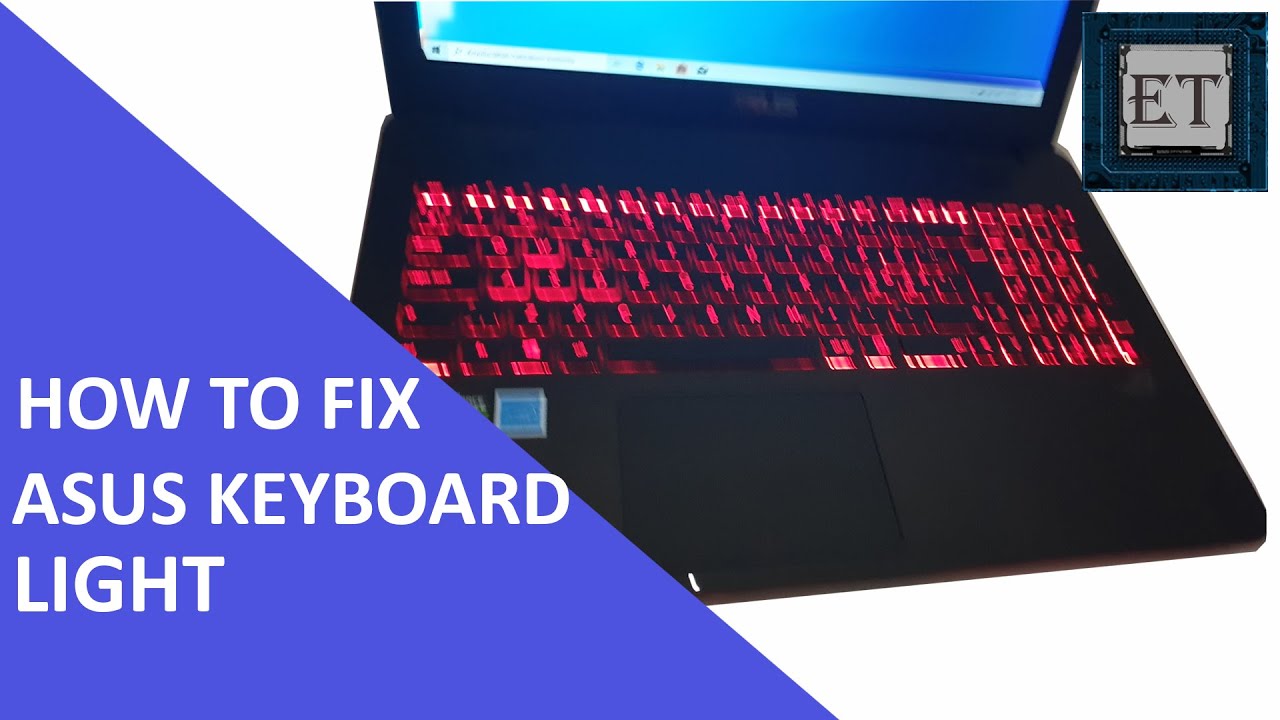
If you own an Asus laptop and suddenly find the keyboard backlight not working, you’re not alone. Many users face this problem, sometimes right out of the box or after a Windows update. A non-functional backlight can make it hard to type in low light, reduce productivity, and even cause eye strain. The good news? Most backlight issues on Asus laptops can be fixed with the right steps, even if you’re not a tech expert.
This article explains why the Asus keyboard backlight might fail, how you can diagnose the issue, and proven methods to restore the lighting. You’ll also learn how to avoid common mistakes and when it’s time to seek professional help. We’ll use simple words, clear examples, and real troubleshooting steps so you can follow along easily, even if you’re not a native English speaker.
Why Keyboard Backlight Matters On Asus Laptops
A working keyboard backlight is more than just a cool feature. It helps you see the keys in dark rooms, lets you work or study at night, and can even help reduce mistakes when typing. For many Asus laptop models, especially in the ROG, ZenBook, VivoBook, and TUF series, the backlight is a basic comfort.
When it stops working, it feels like you lost an important part of your laptop.
Common Reasons The Keyboard Backlight Stops Working
When the backlight on your Asus laptop is not working, the cause can be simple or complex. Here are the most common reasons:
- Wrong key combination: Sometimes, the backlight is turned off by accident.
- Outdated or missing drivers: Asus laptops use special drivers for the keyboard and lighting.
- Windows or BIOS updates: Updates may change device settings or disable drivers.
- Hardware issue: The backlight system might be broken.
- Software conflicts: Programs or settings can interfere with keyboard lighting.
- Power settings: Some power-saving modes turn off the backlight.
- Incorrect BIOS settings: The backlight may be disabled at the hardware level.
- Physical damage: Spilled liquids or drops can damage the keyboard circuit.
Many people don’t realize that even small software updates can affect the backlight. It’s also common to overlook the simple fact that some Asus models don’t have a backlit keyboard—always check your model specifications before troubleshooting.
Credit: www.youtube.com
How To Confirm If Your Asus Keyboard Has Backlight
Before trying to fix the backlight, make sure your Asus laptop model actually has one. Some models look similar but don’t have this feature. Here’s how to check:
- Look for the backlight symbol: Usually, the F3 and F4 keys have a lightbulb or keyboard icon.
- Check Asus official website: Search for your model and read the specs.
- User manual: Find details on keyboard features.
If you see no symbol or your manual does not mention a backlight, your keyboard probably does not support it.
Quick First Steps: Basic Checks
Many backlight problems are easy to fix. Try these steps before moving on:
- Restart your laptop: This can fix temporary glitches.
- Try key shortcuts: Press Fn + F4 (increase brightness) or Fn + F3 (decrease brightness) to adjust backlight.
- Plug in your charger: Some laptops turn off backlight to save battery.
If these quick steps don’t work, continue with the deeper solutions below.
Software Troubleshooting Steps
Most Asus keyboard backlight issues are caused by software. Follow these steps one by one:
Update Keyboard And Atk Package Drivers
Asus laptops use the ATK Package (ATK Hotkey Utility) for keyboard features. If this driver is outdated or missing, the backlight won’t work.
- Go to Asus Support: Visit the official Asus support website.
- Enter your laptop model: Download the latest ATK Package and Keyboard Device Filter driver.
- Install the drivers: Follow the on-screen instructions.
- Restart your laptop.
Many users forget to install both the ATK Package and Keyboard Device Filter. Both are needed for full keyboard function.
Reinstall Keyboard Driver
A corrupt or missing driver can cause backlight failure.
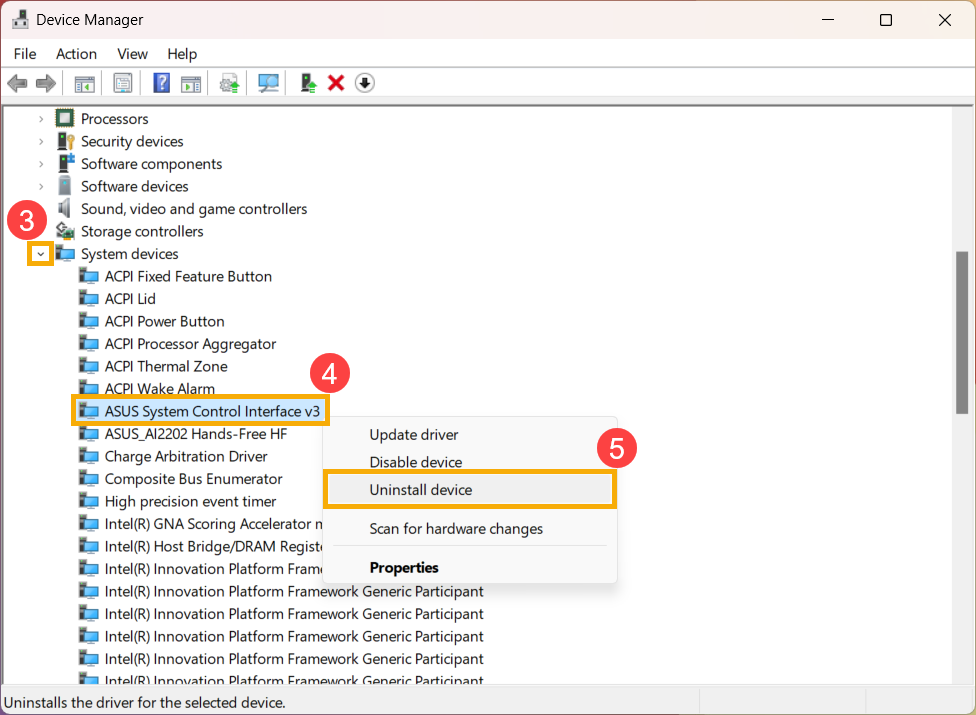
- Open Device Manager: Right-click the Start menu, choose Device Manager.
- Find Keyboards: Expand the Keyboards section.
- Uninstall Keyboard Driver: Right-click your keyboard device and choose Uninstall device.
- Restart your laptop: Windows will reinstall the driver automatically.
If the backlight starts working, the problem was likely a corrupt driver.
Check Windows Mobility Center
Some Asus laptops let you control keyboard brightness from the Windows Mobility Center.
- Press Windows Key + X: Choose Mobility Center.
- Find Keyboard Backlight: Adjust the slider if available.
If you don’t see a slider, your laptop may not support this feature, or the driver is missing.
Update Windows
Outdated Windows versions can cause device conflicts.
- Go to Settings: Press Windows Key + I.
- Choose Update & Security.
- Check for updates: Install any available updates.
Always restart your device after updating.
Use Myasus App
The MyAsus app controls many hardware features, including the keyboard backlight.
- Open MyAsus: If not installed, download from the Microsoft Store.
- Go to Customization: Look for Keyboard Backlight options.
- Adjust settings: Make sure backlight is enabled.
If you see no backlight option, your model may not support it or the ATK Package is missing.
Hardware Troubleshooting Steps
If software fixes do not work, the problem might be hardware-related.
Check For Physical Damage
Look for signs of damage:
- Water marks or sticky keys (liquid spill)
- Broken or missing keycaps
- Laptop dropped recently
If you see damage, the backlight system may be broken. You’ll need professional repair.
Test In Bios Or Safe Mode
Sometimes, you can test the backlight outside Windows to check if it’s a hardware problem.
- Restart your laptop.
- Enter BIOS: Press F2 or Del as the laptop starts.
- Check keyboard backlight: Try the Fn + F4 or F3 keys.
If backlight works in BIOS but not in Windows, the problem is in the software or drivers.
Connect To External Power
Some Asus laptops only allow backlight when plugged in.
- Plug in your charger.
- Try using the backlight shortcut keys.
If the backlight works now, it’s a power-saving setting.
Run Asus Diagnostic Tools
Asus offers tools like Asus PC Diagnostics. These can test hardware components.
- Download from Asus support site.
- Run keyboard tests.
- Check results for backlight errors.
If the test says backlight hardware failed, you’ll need a repair.

Credit: appuals.com
Adjusting Keyboard Backlight Settings
Asus laptops often let you control keyboard backlight brightness and effects. Here’s how to adjust them:
Using Function Keys
- Fn + F4: Increase brightness
- Fn + F3: Decrease brightness
Some models use different keys (like F7 or F8). Check your keyboard for the backlight symbol.
Myasus App Or Armoury Crate
For gaming laptops (ROG, TUF):
- Open Armoury Crate or MyAsus.
- Go to the Device section.
- Adjust keyboard lighting: Choose colors, patterns, or brightness.
Some backlight features are only available on higher-end models.
Bios Settings
Some Asus laptops let you change backlight behavior in the BIOS.
- Enter BIOS (restart, press F2 or Del).
- Look for a “Keyboard Backlight” or “LED” setting.
- Enable or change default brightness.
Remember to save changes before exiting BIOS.
Power And Sleep Settings
Windows power settings can affect your keyboard backlight. If the backlight turns off when idle or on battery, adjust these settings:
- Open Control Panel.
- Go to Power Options.
- Change plan settings.
- Set “Turn off keyboard backlight” to “Never” or desired time.
Some Asus laptops offer detailed backlight timers in the MyAsus app.
Keyboard Backlight And Windows Updates
Windows updates often change device drivers or power settings, which can break keyboard backlight features. Many users report the backlight stops working after a major update.
How To Fix After Windows Update
- Reinstall the ATK Package and keyboard drivers.
- Check for new updates from Asus.
- Use Windows “Restore” to go back to a point where the backlight worked.
Non-obvious tip: Always back up your laptop before major Windows updates to prevent driver conflicts.
When The Backlight Works Only Sometimes
Some Asus users notice the backlight works sometimes but not always. This usually means:
- The laptop is on battery and saving power.
- The keyboard backlight timer is set to turn off after a few seconds.
- A background program is interfering.
How To Fix Intermittent Backlight
- Plug in your charger.
- Set keyboard backlight timer to “Always On.”
- Close unnecessary apps.
- Disable third-party keyboard or lighting software.
Insight: Sometimes, security programs or system cleaners can stop the ATK Package from running. Add it to the “allowed” list in your security software.
Model-specific Solutions
Different Asus laptop series use different software for the keyboard backlight. Here’s a quick comparison:
| Series | Backlight Control App | Special Features |
|---|---|---|
| ROG (Republic of Gamers) | Armoury Crate | RGB effects, per-key lighting |
| ZenBook | MyAsus | Simple white backlight |
| VivoBook | MyAsus | Brightness levels only |
| TUF Gaming | Armoury Crate | Zone RGB lighting |
If your model is not listed, check the Asus support page for your device.
Common Mistakes When Fixing Keyboard Backlight
Many users make these mistakes when trying to fix their Asus keyboard backlight:
- Installing wrong drivers: Each model needs specific drivers.
- Forgetting to restart: Changes only take effect after reboot.
- Changing BIOS settings without care: Can cause other issues.
- Not checking warranty: Opening your laptop may void warranty.
- Ignoring hardware damage: Software fixes can’t repair physical problems.
Pro tip: Always write down what you change, so you can reverse it if needed.
Advanced Troubleshooting: Registry And Bios
If basic steps don’t work, advanced users can try these methods.
Edit Registry Settings
Warning: Editing the Windows registry can cause system problems if done wrong.
- Press Windows + R: Type “regedit” and press Enter.
- Navigate to: HKEY_LOCAL_MACHINESOFTWAREASUSATK Package
- Look for backlight settings: Change value from 0 (off) to 1 (on).
- Restart your laptop.
Reset Bios To Default
- Restart laptop and enter BIOS (F2 or Del).
- Choose “Load Setup Defaults”.
- Save and exit.
This can fix backlight issues caused by wrong BIOS settings.
Professional Help And Warranty
If none of the above steps solve the problem, your keyboard backlight hardware may be broken. Here’s what to do:
- Check your warranty: Go to the Asus support site and enter your serial number.
- Contact Asus support: They can guide you through more steps or arrange repair.
- Visit an authorized service center: Never open your laptop if you’re not sure.
Physical repair may involve replacing the keyboard or motherboard, which can be expensive outside warranty.
Comparison: Asus Backlight Vs Other Brands
How does Asus keyboard backlight reliability compare to other laptop brands?
| Brand | Typical Backlight Issues | Fix Difficulty |
|---|---|---|
| Asus | Driver, ATK Package, BIOS | Medium |
| Dell | Function key, power settings | Easy |
| HP | BIOS, hardware switch | Medium |
| Lenovo | Function key, Vantage app | Easy |
| Acer | Limited models, driver | Medium |
Asus laptops are not the most difficult to fix, but require the right drivers and apps.
Tips To Prevent Future Keyboard Backlight Problems
- Keep drivers updated: Download updates from Asus, not third-party sites.
- Update Windows regularly: But always create a restore point first.
- Avoid spills: Use a keyboard cover if you eat or drink near your laptop.
- Don’t force key presses: Gentle use prevents damage.
- Use official Asus software: MyAsus and Armoury Crate control backlight settings best.
Extra insight: Some users find that using a USB keyboard with backlight is a good backup if the laptop’s backlight fails.
When To Replace The Keyboard
If your Asus keyboard backlight never works, or only a few keys light up, you may need a replacement. Signs you need a new keyboard:
- Backlight never turns on, even after software and BIOS fixes.
- Only a few keys light up or flicker.
- Other keys stop working (typing issues).
Replacement usually requires a service center. DIY repairs can be risky and may void your warranty.
Asus Support Resources
For more help, visit the official Asus support site or user forums. They provide:
- Driver downloads
- Troubleshooting guides
- Contact info for repair centers
You can also find more info on the Asus official website: Asus Support.
Credit: www.asus.com
Frequently Asked Questions
Why Did My Asus Keyboard Backlight Stop Working After A Windows Update?
This is a common issue. Windows updates sometimes remove or disable the ATK Package and keyboard drivers needed for the backlight. Reinstalling these drivers from the Asus support site usually fixes the problem.
How Do I Know If My Asus Laptop Has A Keyboard Backlight?
Check for a lightbulb or keyboard icon on the F3 or F4 keys, read your user manual, or look up your model on the Asus official website. If you see no symbol or mention of backlight, your laptop likely does not support it.
Can I Control The Brightness Of My Asus Keyboard Backlight?
Yes, most backlit Asus keyboards allow you to adjust brightness using the Fn + F4 (increase) and Fn + F3 (decrease) keys. Some models also let you control brightness in the MyAsus app or Armoury Crate.
What Should I Do If Only Some Keys Are Lit?
This often means a hardware problem, like a broken LED or circuit. Try updating drivers and BIOS first. If only a few keys light up after that, you may need a keyboard replacement.
Does Using The Keyboard Backlight Drain My Laptop Battery?
Yes, but the drain is small. Using the backlight on full brightness can shorten battery life by 5–10%. Most laptops allow you to set the backlight to turn off after a few seconds to save power.
Conclusion
A working keyboard backlight is a key part of your Asus laptop experience. With the right steps, you can usually fix problems yourself and get back to comfortable typing in any light.