
Are you frustrated because your JBL Tune Flex left earbud suddenly stopped working? You’re not alone, and this common issue can disrupt your music, calls, and daily routine.
But before you consider tossing them aside or rushing to buy new ones, there are simple fixes you can try right now. You’ll discover easy and effective steps to bring your left earbud back to life. Keep reading to get your JBL Tune Flex earbuds working perfectly again—your ears will thank you!
Credit: www.compuformas.com
Common Causes Of Left Earbud Issues
Experiencing issues with your JBL Tune Flex left earbud can be frustrating. Basic troubleshooting steps often solve the problem quickly. These steps help identify simple issues before more complex solutions. Follow these easy methods to try restoring sound to your left earbud.
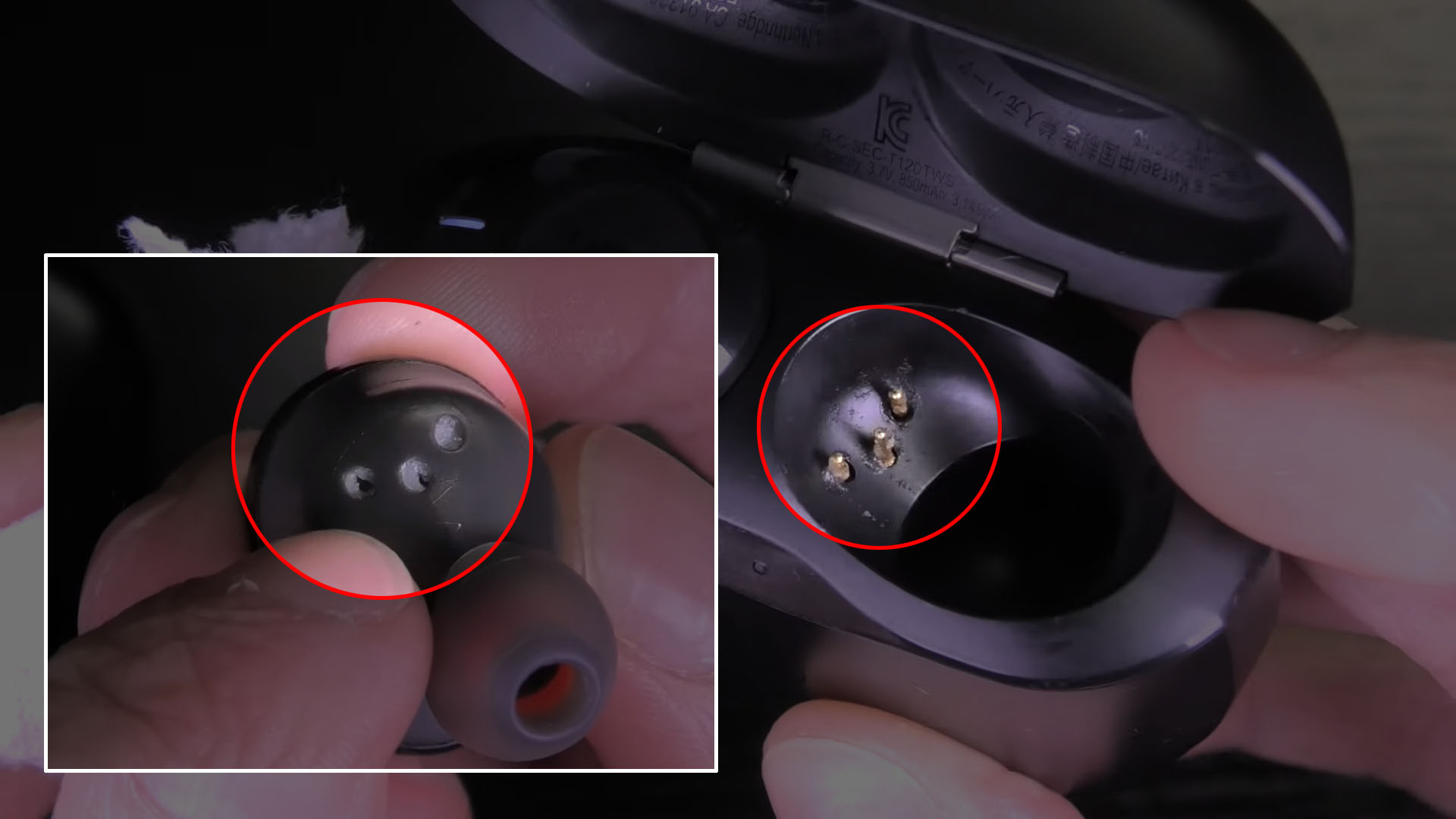
Clean Charging Pins And Contacts
Dirt or debris on charging pins can stop the earbud from working. Use a cotton swab slightly moistened with rubbing alcohol. Gently clean the charging pins on the earbud and inside the charging case. Make sure everything is dry before placing the earbuds back. Clean contacts ensure proper charging and connection.
Check And Disable Mono Audio
Mono Audio mode sends sound to only one earbud. Check your phone’s Bluetooth or accessibility settings. Look for the “Mono Audio” option and make sure it is turned off. Disabling mono audio can fix the issue of one earbud not producing sound.
Restart And Re-pair Earbuds
Restarting the earbuds can fix minor glitches. Turn off both earbuds and the Bluetooth on your device. Turn them back on and remove the earbuds from the Bluetooth list. Pair the earbuds again as a new device. This refreshes the connection and often restores the left earbud’s sound.
Use Jbl Headphones App For Reset
The JBL Headphones app offers a reset feature for your earbuds. Download and open the app on your smartphone. Follow the instructions to reset your JBL Tune Flex earbuds. Resetting clears software bugs and restores factory settings. This step can fix persistent problems with the left earbud.
Basic Troubleshooting Steps
Advanced fixes help solve complex issues with the JBL Tune Flex left earbud. These steps go beyond basic troubleshooting and target software or connection problems. Follow each method carefully to restore sound in your left earbud.
Perform A Factory Reset
Resetting the earbuds clears settings and bugs. First, place both earbuds in the charging case. Hold the button on the case for 10 seconds until the LED flashes. This action restores the earbuds to factory defaults. After resetting, pair the earbuds with your device again. This often fixes stubborn sound issues in one earbud.
Update Earbud Firmware
Firmware updates improve performance and fix bugs. Open the JBL Headphones app on your phone. Connect your earbuds to the app. Check for available updates and install them. Keep earbuds close to your phone during the update. Updated firmware can resolve audio problems and improve connectivity.
Reset Bluetooth Settings On Device
Bluetooth settings on your phone may cause connection issues. Go to your device’s Bluetooth menu. Find the JBL Tune Flex earbuds and remove or forget them. Then, reset all Bluetooth settings on your device. After that, pair your earbuds again. This refreshes the connection and can fix one earbud not working.
Test With Another Device
Testing with a different device isolates the problem. Connect your JBL Tune Flex earbuds to another phone or tablet. Check if the left earbud works on the new device. If it does, the issue is with your original device. If not, the earbuds may need repair or replacement. This step helps identify the cause of the problem.
Advanced Fixes
Knowing when to seek warranty or professional help is important for your JBL Tune Flex earbuds. Minor issues can often be fixed at home. Some problems need expert attention to avoid further damage. Acting at the right time saves money and stress.
Persistent Left Earbud Power Issues
Check if the left earbud does not power on after multiple charges. Try resetting and cleaning the charging contacts first. If the earbud still fails to turn on, this signals a deeper problem. Persistent power issues often require warranty service or professional repair.
Physical Damage Signs
Look for cracks, dents, or broken parts on the earbud. Damage from drops or water exposure can cause malfunction. If you see physical damage, avoid using the earbud to prevent more harm. Physical damage usually means you need expert help or a replacement under warranty.
Contacting Jbl Support
Visit the official JBL support website for help options. Provide your purchase details and describe the problem clearly. JBL support can guide you through troubleshooting or the warranty claim process. Professional advice ensures safe and effective repairs.
Credit: www.youngtechies.com
When To Seek Warranty Or Professional Help
Proper maintenance helps keep your JBL Tune Flex earbuds working well. Small care steps prevent common problems like the left earbud not working. Taking care of earbuds extends their life and sound quality. Follow simple tips to avoid damage and keep your earbuds clean and safe.
Regular Cleaning Routine
Clean earbuds regularly to remove earwax and dust. Use a soft, dry cloth or a cotton swab. Avoid using water or harsh chemicals on the earbuds. Clean charging contacts gently with a slightly moistened cotton swab. Let the earbuds dry completely before charging or storing them.
Proper Storage Habits
Store earbuds in their charging case after each use. The case protects them from dust and damage. Keep the case closed when not in use. Avoid dropping or placing heavy objects on the case. Store earbuds in a cool, dry place away from direct sunlight.
Avoiding Moisture And Dirt
Keep earbuds away from water and sweat as much as possible. Moisture can damage internal parts and reduce sound quality. Use earbuds only in dry conditions or during light exercise. Wipe off sweat and dirt after use. Do not share earbuds to avoid transferring dirt and bacteria.

Credit: www.youtube.com
Frequently Asked Questions
Why Does My Left Jbl Earbud Stop Working?
Your left JBL earbud may stop working due to dirty charging contacts, Bluetooth mono mode, or pairing issues. Clean contacts, disable mono audio, and re-pair earbuds. If problems persist, reset the earbuds or seek warranty support.
How To Fix Jbl Earbuds That Only Work On One Side?
Clean the earbud and case charging contacts with a cotton swab and rubbing alcohol. Disable Mono Audio in Bluetooth settings. Reset and re-pair the earbuds via the JBL app. If issues persist, contact JBL support for warranty replacement.
Why Is Only My Left Earbud Not Working?
Your left earbud may not work due to dirty charging contacts, mono audio settings, or pairing issues. Clean contacts, disable mono audio, and re-pair earbuds. If problems persist, reset or contact JBL support for warranty replacement.
How To Get Out Of Mono Mode Jbl Tune Flex?
To exit mono mode on JBL Tune Flex, disable “Mono Audio” in your phone’s Bluetooth or accessibility settings. Then, reset and re-pair both earbuds using the JBL app or quick-start guide. Clean charging contacts if needed.
Why Is My Jbl Tune Flex Left Earbud Not Working?
The left earbud may have a connection or charging issue. Try cleaning the charging pins and reconnecting the earbuds.
Conclusion
The JBL Tune Flex left earbud not working can be frustrating. Start by cleaning the charging contacts carefully. Check your phone’s Bluetooth and audio settings for mono mode. Try resetting or pairing the earbuds again. Using the JBL Headphones app may also help fix connection issues.
If these steps do not work, the earbud might need a warranty replacement. Following these simple tips can bring your left earbud back to life. Don’t give up—small fixes often solve the problem quickly.