
Many people rely on their laptops for work, study, or entertainment. A fast and stable wireless connection is essential. Intel Wireless AC 9560 is a popular Wi-Fi card found in many laptops. But sometimes, this card suddenly stops working. Maybe your laptop cannot find any Wi-Fi networks, or it connects but the internet is slow or keeps dropping.
If you are facing these problems, you are not alone. Many users struggle with Intel Wireless AC 9560 issues, and the good news is there are proven ways to fix most of them without needing expert help.
In this guide, you will learn why the Intel Wireless AC 9560 might stop working, step-by-step troubleshooting, and how to avoid common mistakes. Even if you are not a tech expert, you will find simple solutions explained clearly. Let’s solve the Wi-Fi problem together.
Common Reasons The Intel Wireless Ac 9560 Stops Working
When your Wi-Fi stops working, it can be confusing. There are several common reasons the Intel Wireless AC 9560 may have problems:
1. Driver Problems
The most common reason for Wi-Fi issues is a problem with the driver. A driver is a small program that lets Windows “talk” to your Wi-Fi card. If the driver is missing, outdated, or corrupted, your Wi-Fi card may not work properly.
Sometimes, after a Windows update, the driver can become incompatible.
Example:
You notice that your Wi-Fi worked yesterday, but after a Windows update, it is not working today. This is often because the update changed or removed the driver.
2. Disabled Device
Sometimes, the Wi-Fi card gets disabled by mistake. This can happen in the device settings, BIOS, or by using a keyboard shortcut. When disabled, your laptop cannot use the Wi-Fi card at all.
Example:
You pressed a function key (like Fn + F2) to turn off Wi-Fi, and now the Intel Wireless AC 9560 is not showing up in your device list.
3. Hardware Problems
Physical issues inside your laptop, like a loose connection, can also cause Wi-Fi failures. In rare cases, the Wi-Fi card itself is faulty.
Example:
After dropping your laptop, your Wi-Fi stops working, and you hear a rattling sound inside. This could be hardware-related.
4. Power Management Settings
Windows tries to save battery by turning off unused devices. Sometimes, it turns off your Wi-Fi card to save power, but then does not turn it back on when needed.
Example:
Your Wi-Fi disconnects every time your laptop sleeps, and you have to restart to reconnect.
5. Conflicting Software
Antivirus programs, VPNs, or firewall tools can sometimes block or interfere with Wi-Fi connections. This is more common if you installed new software recently.
Example:
You installed a new VPN, and now your Wi-Fi does not connect anymore.
6. Router Or Network Issues
The problem is not always your laptop. Sometimes, the router is at fault, or there is interference from other wireless devices.
Example:
Other devices in your home also have Wi-Fi problems, or your Wi-Fi works fine at a café but not at home.
How To Troubleshoot The Intel Wireless Ac 9560
Troubleshooting can seem complicated, but it is easier if you go step by step. Follow these simple instructions to find and fix the problem.
Step 1: Restart Everything
Before making changes, always restart your computer and your Wi-Fi router. This simple step can fix many temporary problems.
How to do it:
- Shut down your laptop completely (do not just sleep or hibernate).
- Unplug your router from the power source for 30 seconds, then plug it back in.
- Wait for the router lights to return to normal.
- Turn on your laptop and check your Wi-Fi.
Practical tip:
If your router is shared with other people, let them know before unplugging it.
Step 2: Check If The Intel Wireless Ac 9560 Is Detected
Let’s see if your computer can see the Wi-Fi card.
- Press Windows Key + X and choose Device Manager.
- Look under Network adapters.
- Find Intel Wireless-AC 9560.
If you see it:
That means the card is present. If you see a yellow warning sign, there is a driver or hardware problem.
If you do NOT see it:
Your Wi-Fi card may be disabled or disconnected.
Non-obvious insight:
Sometimes, Device Manager shows the Wi-Fi card as “Unknown device. ” This can mean the driver is missing, not that the hardware is broken.
Step 3: Enable The Device
Sometimes the Wi-Fi card is just disabled.
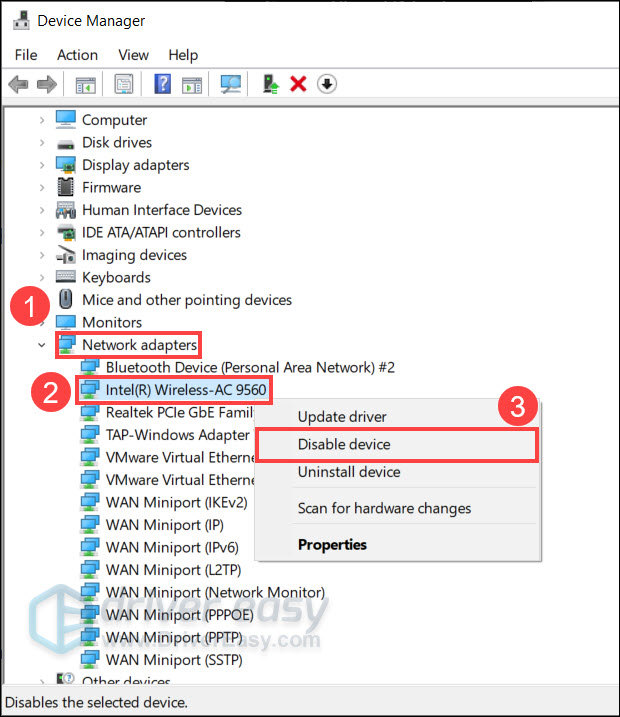
- In Device Manager, right-click Intel Wireless-AC 9560.
- If you see Enable device, click it.
- If you see Disable device, it is already enabled.
Extra tip:
If your laptop has a physical wireless switch or a key with a Wi-Fi symbol, make sure it is ON.
Step 4: Update Or Reinstall The Driver
Drivers control how hardware works with Windows. Outdated or missing drivers are a top cause of issues.
How To Update Automatically:
- In Device Manager, right-click Intel Wireless-AC 9560.
- Click Update driver.
- Choose Search automatically for drivers.
If That Does Not Work:
- Visit the [Intel Download Center](https: //downloadcenter.intel.com/).
- Search for Intel Wireless-AC 9560 drivers for your Windows version.
- Download and install the latest driver.
- Restart your computer.
How To Reinstall:
- In Device Manager, right-click Intel Wireless-AC 9560.
- Select Uninstall device.
- Check the box to delete the driver software.
- Restart your laptop. Windows should reinstall the driver automatically.
Non-obvious insight:
Sometimes, Windows installs a generic driver that works only partly. Always use the official Intel driver for best results.
Step 5: Check Power Management Settings
By default, Windows may turn off the Wi-Fi card to save power. This can cause random disconnects.
- In Device Manager, right-click Intel Wireless-AC 9560 and select Properties.
- Go to the Power Management tab.
- Uncheck Allow the computer to turn off this device to save power.
- Click OK.
Extra tip:
This is especially important on laptops. Battery saver modes can cause hidden issues.
Step 6: Run The Windows Network Troubleshooter
Windows has built-in tools to find and sometimes fix network problems.
- Go to Settings > Network & Internet > Status.
- Click Network troubleshooter.
- Follow the instructions.
If Windows finds a problem, it will try to fix it or tell you what to do next.
Step 7: Check Bios/uefi Settings
The Wi-Fi card can be disabled in your computer’s BIOS or UEFI settings.
- Restart your computer and enter BIOS/UEFI (usually by pressing F2, F10, or DEL during startup).
- Look for a setting related to Wireless, WLAN, or Network.
- Make sure it is Enabled.
- Save and exit.
Example:
On some Dell laptops, disabling the wireless card in BIOS will make it disappear from Windows entirely.
Step 8: Try Safe Mode
Safe Mode loads Windows with minimal drivers. This can help you see if another program is interfering.
- Press Windows Key + R, type `msconfig`, and press Enter.
- Go to the Boot tab.
- Check Safe boot and select Network.
- Click OK and restart.
If Wi-Fi works in Safe Mode, some third-party software is likely causing the issue.
Practical advice:
After testing, repeat the steps and uncheck Safe boot to return to normal mode.
Step 9: Check For Physical Problems
If none of the above works, the issue may be hardware-related.
- If your laptop is under warranty, contact the manufacturer.
- If you are comfortable, you can open the back panel (after turning off the laptop and removing the battery) to check if the Wi-Fi card is loose.
- Look for dust or damage.
Warning:
Opening the laptop may void your warranty. If unsure, always ask a professional.

Credit: www.systweak.com
Advanced Fixes For Stubborn Problems
Sometimes, basic steps are not enough. Here are advanced fixes for tough cases.
1. Use System Restore
If your Wi-Fi stopped working after a recent change, System Restore can return your computer to a working state.
- Type System Restore in the Windows search box and open it.
- Choose a restore point from before the problem started.
- Follow the on-screen instructions.
Real-world example:
You updated your antivirus and Wi-Fi stopped working. Rolling back with System Restore can undo the change.
2. Manually Set Network Adapter Settings
Advanced users can manually set network properties to solve hidden issues.
- In Control Panel > Network and Sharing Center > Change adapter settings, right-click your Wi-Fi connection and select Properties.
- Click Configure next to the Intel Wireless-AC 9560.
- Go to the Advanced tab.
- Adjust settings like Channel Width or Preferred Band (try switching between 2.4GHz and 5GHz).
Why this helps:
Some routers only support one band, or crowded Wi-Fi channels may cause interference.
3. Clean Boot To Find Software Conflicts
A clean boot starts Windows with only essential programs.
- Type msconfig in the search box and open it.
- Go to the Services tab, check Hide all Microsoft services, and click Disable all.
- Go to the Startup tab and click Open Task Manager.
- Disable all startup items.
- Restart your computer.
Test your Wi-Fi. If it works, enable services and startup items one by one to find the conflict.
4. Reset Network Settings
Resetting network settings can fix deep software problems.
- Go to Settings > Network & Internet > Status.
- Scroll down and click Network reset.
- Click Reset now.
Note:
You will need to reconnect to your Wi-Fi networks and re-enter passwords.
5. Replace The Wi-fi Card
If all else fails, the Wi-Fi card itself may be broken. Many laptops allow you to replace the card. Look for a replacement Intel Wireless-AC 9560 or a compatible newer model. This is a last resort if nothing else works.
Preventing Future Wi-fi Problems
It is better to avoid problems than to fix them. Here are ways to prevent issues with your Intel Wireless AC 9560:
1. Keep Drivers Updated:
Check for driver updates every few months on the Intel website.
2. Avoid Unnecessary Software:
Only install trusted antivirus and VPN programs. Uninstall any software you do not use.
3. Handle Your Laptop Carefully:
Avoid drops or bumps that could loosen internal parts.
4. Restart Regularly:
Rebooting your laptop and router once a week can prevent many problems.
5. Backup Your System:
Create a restore point before making major changes.
Non-obvious insight:
Dust buildup inside your laptop can cause overheating, which affects all hardware, including Wi-Fi. Clean your laptop vents once every few months.
Common Mistakes To Avoid
Even experienced users sometimes make these mistakes:
- Assuming the problem is always the Wi-Fi card:
Sometimes, the router or your internet provider is at fault.
- Ignoring Windows updates:
Updates can fix known bugs, but sometimes break things. Always read update notes before installing.
- Using random drivers from the internet:
Always get drivers from Intel or your laptop maker, not unknown websites.
- Not writing down Wi-Fi passwords:
Resetting network settings or the router will need you to re-enter passwords.
- Skipping simple steps:
A restart or re-plug can fix many issues, but people often forget this.
Real-world Examples
Example 1: After Windows Update, No Wi-Fi
Maria updated her Windows laptop and lost Wi-Fi. In Device Manager, the Intel Wireless-AC 9560 showed a yellow warning. She downloaded the latest driver from Intel’s website, installed it, and restarted. Her Wi-Fi returned.
Example 2: Wi-Fi Drops When Laptop Sleeps
Raj’s laptop lost Wi-Fi every time it went to sleep. He unchecked “Allow the computer to turn off this device to save power” in the Power Management tab. The problem stopped.
Example 3: Wi-Fi Missing from Device Manager
Chen’s laptop could not see the Wi-Fi card at all. He checked the BIOS and saw the wireless card was disabled. Enabling it fixed the issue.
Credit: www.drivereasy.com
When To Ask For Professional Help
If you have tried all the steps above and your Intel Wireless AC 9560 still does not work, it may be time to ask for help. Contact your laptop manufacturer if your device is under warranty. If not, a local computer repair shop can check for hardware problems.
Warning signs for expert help:
- Wi-Fi card not detected even after reinstalling drivers
- Visible damage to your laptop
- No improvement after all software fixes
Frequently Asked Questions
Can I Use A Usb Wi-fi Adapter As A Temporary Fix?
Yes, a USB Wi-Fi adapter is a quick way to get back online. Plug it in and install any required drivers. This does not fix the Intel Wireless AC 9560, but it lets you use your laptop until you solve the main problem.
Is The Intel Wireless Ac 9560 Compatible With Windows 11?
Yes, Intel provides drivers for Windows 11. Make sure to download the latest version from the official Intel site.
Will Replacing The Wi-fi Card Void My Warranty?
On most laptops, opening the case or replacing internal parts can void your warranty. Always check your warranty terms before attempting hardware repairs.
What If My Wi-fi Works But Is Very Slow?
Slow Wi-Fi is usually caused by interference, distance from the router, or too many devices on the network. Update your router firmware, move closer, or try changing the Wi-Fi channel.
How Can I Tell If My Wi-fi Card Is Failing?
If your Wi-Fi card randomly appears and disappears from Device Manager, or if you have tried all driver and software fixes with no success, the card may be failing.
Final Thoughts
Fixing Wi-Fi problems can be stressful, but most Intel Wireless AC 9560 issues are easy to solve with the right steps. Start with the basics—restart your devices, check for drivers, and make sure your card is enabled. If you are still stuck, do not hesitate to ask for help from professionals.
Remember, patience and step-by-step troubleshooting will solve most Wi-Fi problems. By following this guide, you can get your laptop connected again and avoid future issues. For more technical support, visit Intel’s [official support page](https://www.intel.com/content/www/us/en/support.html).