
Staying at a hotel should feel easy, but sometimes, technology gets in the way. If you recently checked into a Hyatt hotel and tried to use the Chromecast feature on your room’s TV, you may have faced problems. Many guests today travel with their own devices—phones, tablets, or laptops—and want to stream content directly to the big screen in their room. Chromecast is supposed to make this simple, but what if it does not work?
You are not alone. Each week, thousands of guests run into issues with hotel Chromecast setups. The good news: most problems have clear solutions. This guide will walk you through everything you need to know if your Hyatt Chromecast is not working. You will learn why issues happen, how Chromecast in hotels is different than at home, and practical steps you can take to fix it yourself or get help. You will also find answers to tricky questions that many first-time users miss.
Let’s make sure you can watch your favorite content without headaches, whether it’s Netflix, YouTube, or a business presentation.
How Hyatt Chromecast Works
When you first see the Chromecast option in a Hyatt hotel room, you might expect it to work just like at home. But there are important differences. In your own house, you control the Wi-Fi and can connect devices freely.
In a hotel, things are more complicated.
Hyatt hotels use a managed entertainment system. This usually means:
- The TV has a built-in or attached Chromecast device.
- Chromecast is linked to the hotel’s network, not your room’s Wi-Fi.
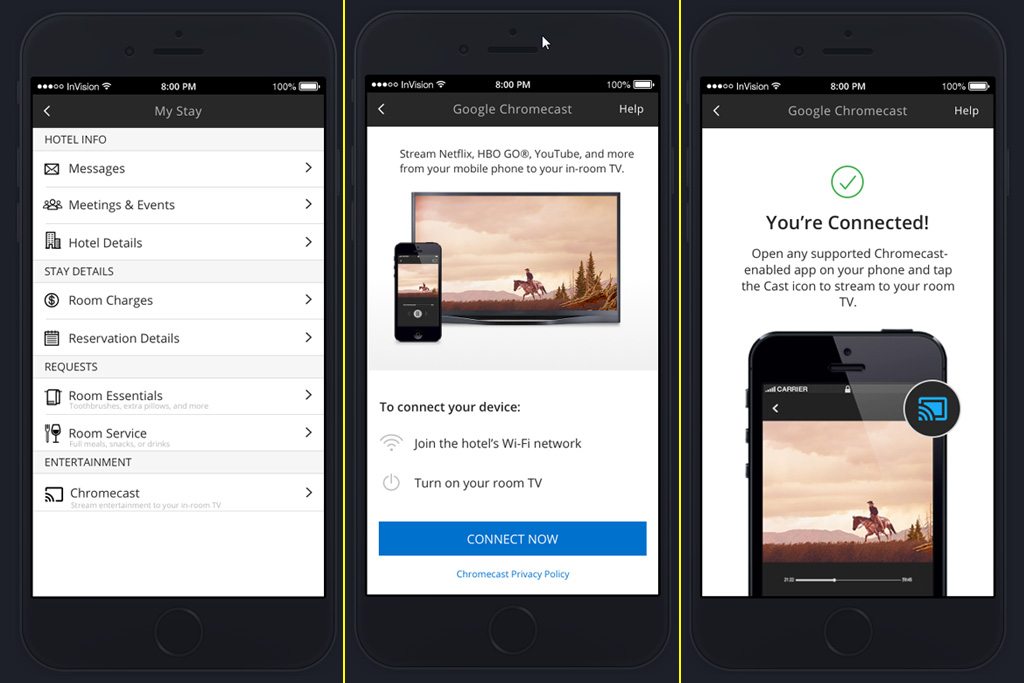
- You connect your device (phone, tablet, laptop) through a special portal or web page.
- You may need to scan a QR code or follow on-screen instructions.
These steps protect your privacy and keep you from accidentally casting to someone else’s TV. But they also create more places where things can go wrong.
Common Reasons Hyatt Chromecast Does Not Work
Many things can stop Chromecast from working in a hotel room. Here are the top issues:
- Wi-Fi connection problems: Your device and the Chromecast must be on the same network, but hotel Wi-Fi can be tricky.
- Device setup not completed: Skipping steps or closing the portal before finishing can break the connection.
- Multiple devices connected: Some systems get confused if you connect a phone, then a laptop, or try using several devices.
- Outdated software: Old versions of apps, or your device’s operating system, might not support the hotel’s Chromecast.
- Network isolation: Many hotels block devices from seeing each other for security. If not set up correctly, this can block Chromecast.
- Chromecast reset or error: The device attached to the TV may need a reset or might be offline.
- Room change or new check-in: Moving rooms or just checking in can require you to set up Chromecast again.
- VPN or security apps: If you use a VPN or some security apps, they can block Chromecast communication.
Understanding these points is the first step toward fixing the problem.
Step-by-step Troubleshooting Guide
Before you call the front desk, try these steps. Most problems can be solved in a few minutes.
1. Check The Tv’s Chromecast Welcome Screen
Turn on the TV and look for a Chromecast welcome screen. It usually shows a QR code or instructions. If you do not see this, switch input sources or restart the TV. Sometimes, TVs are left on HDMI or cable mode.
2. Connect To The Correct Wi-fi
Your device must be connected to the hotel’s guest Wi-Fi, not your mobile data or a personal hotspot. Go to your device’s Wi-Fi settings and double-check. Some Hyatt hotels have a special network just for Chromecast. Look for names like “Hyatt Chromecast” or similar.
3. Use The Hotel’s Chromecast Portal
Do not try to cast directly from your app. Instead, follow the instructions on the TV:
- Open your phone’s camera and scan the QR code on the TV.
- Or, enter the URL shown (like cast.hyatt.com) in your browser.
- Follow the steps to link your device and TV.
This process connects your device securely to the room’s Chromecast.
4. Restart All Devices
If things are still not working:
- Turn off the TV, then turn it back on.
- Restart your phone or tablet.
- Try casting again from your app (look for the Cast icon).
5. Update Your Apps And Operating System
Outdated apps often cause problems. Go to your app store and update:
- Google Home app (if you use it)
- Netflix, YouTube, Hulu, etc.
- Your phone/tablet operating system
6. Disable Vpns And Security Apps
If you use a VPN, turn it off while trying to cast. Some security or ad-blocking apps can also block Chromecast. Temporarily disable them to see if that fixes the issue.
7. Try A Different App
Sometimes, only one app fails. Try casting from another app (like YouTube if Netflix fails). This will show if the problem is with the app or the Chromecast connection.
8. Double Check Room Number
If the Chromecast portal asks for your room number, make sure it matches the TV you are in front of. Trying to connect to the wrong room can block casting.
9. Reset The Chromecast (with Staff Help)
If nothing works, the device may need a reset. Hyatt staff can usually do this from their control system. Ask the front desk to “reset the Chromecast in room X. ” Do not try to unplug or reset the device yourself.
10. Try A Different Device
If you have another phone or tablet, try to cast from it. Sometimes, one device has a unique problem or setting that blocks casting.
How Hotel Chromecast Differs From Home Use
It’s easy to get frustrated when Chromecast works perfectly at home but not in your hotel room. There are important differences:
Network Security
Hotels use network isolation to keep guests safe. But this can block devices from talking to each other. At home, all devices are on the same trusted network.
Managed Systems
Hotels use centralized control panels for TVs and streaming devices. These are often set up by a third-party company. If something breaks, it may take time for hotel staff to notice.
Device Sharing
In a hotel, the Chromecast device is shared between many guests (one per room). The system has to “forget” the previous user and connect to the new one each time.
Custom Portals
Hotels often require you to use a custom web portal to set up Chromecast. This adds another step where things can go wrong.
Bandwidth Limits
Hotels may limit Wi-Fi bandwidth or block certain streaming services to save costs or avoid overload.
Table: Home Vs. Hotel Chromecast
Here’s a quick comparison between home and hotel Chromecast setups:
| Feature | Home Chromecast | Hyatt Hotel Chromecast |
|---|---|---|
| Wi-Fi Control | You manage the network | Hotel manages the network |
| Device Setup | Direct from Google Home app | Setup via hotel portal or QR code |
| Security | Simple password, trusted devices | Network isolation, guest portals |
| Multiple Users | Usually one household | Many guests, reset after checkout |
| Device Reset | User can reset anytime | Hotel staff must reset |
Understanding these differences helps you adjust your expectations and troubleshoot better.
Common Questions And Myths
Many guests have similar questions about Hyatt Chromecast. Let’s clear up some confusion.
“can I Use My Own Chromecast Device?”
Usually, no. Most Hyatt rooms have TVs locked down so you cannot plug in your own devices. The HDMI port is often disabled. You must use the in-room system.
“is It Safe To Cast My Personal Content?”
Yes. Hotel Chromecast systems are designed for privacy. When you check out, the device is reset and your information is removed. Still, avoid casting sensitive documents or work files if you are concerned.
“why Do I Need To Use A Portal Or Qr Code?”
This step makes sure you only cast to the TV in your room, not a neighbor’s TV. It also helps the hotel keep the system secure.
“can I Mirror My Phone Screen?”
Sometimes. Basic casting (like Netflix or YouTube) almost always works. Full screen mirroring (showing your whole phone screen) may be blocked by the hotel system for security reasons.
“why Does The Connection Drop After A Few Minutes?”
Hotel Wi-Fi can be unstable. If many guests are streaming, bandwidth drops and Chromecast may disconnect. Try again during less busy hours, or ask the front desk if they can improve the connection.
Advanced Troubleshooting (for Tech-savvy Guests)
If you have tried all basic steps and still have trouble, these advanced tips may help:
Check For Captive Portal Issues
Some hotel Wi-Fi networks require you to accept terms in a browser (captive portal). If your device is not fully connected, Chromecast cannot work. Make sure you have accepted any pop-ups or terms.
Check Device Compatibility
Some older devices or custom Android builds have trouble with hotel Chromecast systems. Check if your device works at home. If not, you may need to borrow another device.
Use Guest Mode
Some Chromecast devices support Guest Mode. This uses a special PIN or signal to allow casting without being on the same Wi-Fi. If you see this option, try enabling it. However, not all Hyatt systems support this feature.
Table: Troubleshooting Steps And Success Rate
Based on guest reports, here’s how often each fix helps:
| Step | Success Rate | Comments |
|---|---|---|
| Restart TV and device | ~35% | Solves many simple glitches |
| Reconnect to Wi-Fi | ~20% | Especially after room changes |
| Update apps/OS | ~10% | Prevents compatibility issues |
| Ask staff to reset Chromecast | ~25% | Fixes most hardware faults |
| Switch to different device | ~10% | Helps if phone/tablet is the issue |
Credit: skift.com
When To Call For Help
If you have tried all the steps above and Hyatt Chromecast is still not working, it’s time to get assistance. Here’s how to get the fastest results:
- Call the front desk and clearly state: “I am in room X and the Chromecast is not working. Can you please reset the device or send someone from tech support?”
- Be ready to explain what steps you have tried. This helps staff know you already did the basics.
- Ask if there are known network issues or maintenance happening.
- If the room’s TV or Chromecast is broken, ask to move to a different room (if possible).
Most hotels want you to have a good experience and will act quickly.
Real Guest Experiences And Insights
Many guests have shared stories online about their hotel Chromecast problems. Here are some common patterns:
- After a room change, guests often forget to redo the Chromecast setup.
- Network traffic is highest in the evening; try streaming in the afternoon if possible.
- Some Hyatt hotels have newer TVs that support AirPlay for Apple devices as well as Chromecast. If you have an iPhone, try looking for this option.
- A few guests have found that hotel Wi-Fi “forgets” their device after a few hours, requiring a new setup.
- If you are on a business trip, check with the hotel in advance if you need Chromecast for presentations.
Pro tip: Save the portal URL or QR code on your device in case you need to reconnect quickly.

Credit: www.reddit.com
How Hyatt And Hotels Are Improving Chromecast Experience
Hotels know streaming is important to guests. In recent years, Hyatt and other brands have invested in better systems:
- Faster Wi-Fi: Many properties now offer upgraded internet to handle streaming.
- Easier onboarding: Newer systems require just a QR code scan, not a long portal setup.
- Better privacy: Automatic Chromecast resets after checkout reduce security worries.
- Multiple streaming options: Some hotels now offer both Chromecast and Apple AirPlay.
Still, there is no perfect system. Hotel Wi-Fi will always be less reliable than home internet, and device compatibility will remain an issue as technology changes.
Comparing Hyatt Chromecast With Other Hotel Streaming Options
How does Hyatt’s Chromecast system compare with other major hotel chains or streaming options?
| Brand/Option | Streaming Method | Ease of Use | Device Support |
|---|---|---|---|
| Hyatt | Chromecast via portal/QR | Moderate | Android/iOS |
| Marriott | Enseo, Netflix login | Easy | App login only |
| Hilton | Staycast, AirPlay | Easy/Moderate | Android/iOS |
| Bring Your Own Device | Own Chromecast/Fire Stick | Difficult (HDMI often blocked) | All devices |
Hyatt’s system is solid, but not perfect. The main advantage is privacy and simplicity once set up correctly. The main disadvantage is extra steps and possible network issues.
Two Key Insights Most Guests Miss
- Chromecast and TV Inputs: If the TV is set to the wrong input (like cable or HDMI 2), Chromecast won’t show. Always check the input/source button.
- Device “Memory”: Chromecast in hotels is wiped clean after each guest, so you must set it up each stay—even if you return to the same room.
Many first-time users miss these points and waste time troubleshooting.
What Not To Do (common Mistakes)
- Do not try to unplug or reset the Chromecast device yourself. This can cause more problems or even damage the equipment.
- Avoid logging in with your own Google account on the TV itself. Use only the casting method through your phone or tablet.
- Do not connect to a different room’s Chromecast. You may accidentally stream content to a neighbor!
- Avoid using personal hotspots unless the hotel network is completely down, as this often blocks casting.
Best Practices For A Smooth Experience
To avoid problems next time:
- Update your streaming apps before you travel.
- Carry a backup device (if possible).
- Write down the Chromecast portal URL when you first connect.
- Turn off VPNs or security apps during setup.
- Ask the front desk in advance if you plan to use Chromecast for work or important meetings.
Hyatt’s Official Support Channels
If you need official help, Hyatt’s website and support lines can offer guidance. Visit the Hyatt Help Center or ask the front desk for a manager if you do not get a fast response.
For tech enthusiasts, Google’s own support page for Chromecast is also helpful: Google Chromecast Help.

Credit: www.hyatt.com
Frequently Asked Questions
Why Does My Chromecast Disconnect Every Time I Leave The Room?
Some hotel Wi-Fi systems disconnect idle devices or require re-login after a period of inactivity. Try reconnecting when you return, and save the setup URL or QR code for faster access.
Can I Cast From My Laptop, Or Only A Phone?
You can cast from most modern laptops (using Chrome browser) as well as phones and tablets. Make sure your device is on the hotel’s Wi-Fi and follow the same portal setup.
Is Chromecast Safe To Use With My Personal Netflix Or Youtube Account?
Yes, casting does not save your login data on the hotel TV. Your account information stays on your device. When you check out, the Chromecast is reset.
What Should I Do If The Tv Says “no Signal” Or Shows A Black Screen?
Check that the TV is on the correct input/source (often labeled “Chromecast” or “HDMI 1”). If still blank, call the front desk—there may be a hardware problem.
Why Can’t I See The Cast Icon In My App?
Make sure your device is on the same Wi-Fi network as the Chromecast and you have completed the hotel’s portal/QR setup. If the icon still does not appear, update your app and restart your device.
Conclusion
Staying at a Hyatt should be relaxing, not frustrating. With these steps and tips, you can enjoy your favorite shows even when away from home. If all else fails, hotel staff are ready to help—just ask with clear details about your problem.
Happy streaming!