
Is your LG microwave acting up or displaying confusing error codes? You’re not alone.
Sometimes, all it takes to get your microwave back to perfect working order is a simple reset. Whether your microwave is frozen, unresponsive, or showing error messages, knowing how to reset it can save you time, frustration, and even the cost of a service call.
In this guide, you’ll discover easy, step-by-step methods to reset your LG microwave quickly and safely. Stick with me, and you’ll be heating your meals again in no time!
Credit: marcotran.com.au
Hard Reset By Unplugging
Hard reset by unplugging is a simple way to fix most LG microwave issues. It clears memory and resets the internal system. This method helps remove glitches that affect performance. No special tools or skills are needed. Just follow the steps below carefully.
Disconnect Power Source
First, unplug the microwave from the wall outlet. This stops all power to the appliance. Make sure the plug is fully removed. Do not use the microwave while it is unplugged.
Wait For Internal Reset
Leave the microwave unplugged for at least five minutes. This time lets internal parts reset and lose stored power. It also clears error codes and resets the control board. Avoid plugging it back too soon.
Restore Power And Test
Plug the microwave back into the power outlet. Turn it on and check if the problem is fixed. Test basic functions like heating and timer settings. Repeat the process if needed or consult the manual for more help.
Credit: www.asurion.com
Soft Reset Using Control Panel
Performing a soft reset using the control panel is a quick way to fix minor issues on your LG microwave. This method does not require unplugging the device. It helps clear error messages and resets the control settings. Soft resets are simple and safe to do.
Locate Reset Or Clear Button
First, look at the microwave’s control panel. Find a button labeled “Reset” or “Clear.” Some models may have “Off/Clear” instead. This button is usually near the number pad or cooking options. Identifying this button is the key step to start the reset process.
Press Or Hold Button
Press the reset or clear button once. On some models, you must press and hold the button for 3 to 5 seconds. Holding the button helps fully reset the microwave’s control system. Release the button after the microwave screen clears or beeps.
Disable Child Lock If Needed
If your microwave has a child lock feature, it might block the reset. Check if the lock is active. To disable it, press and hold the “Stop/Cancel” or “Clear” button for 3 to 5 seconds. The lock icon on the display should disappear. Now, you can perform the soft reset without issues.
Resetting Error Codes
Error codes on your LG microwave signal a problem inside the device. Resetting these codes helps clear the error and restore normal function. This process often fixes minor issues without needing repair.
Resetting error codes can be done by clearing the messages or following specific steps for your microwave model. Both methods help the microwave return to its default settings.
Clear Error Messages
Start by pressing the ‘Clear’ or ‘Stop’ button on the control panel. This action often removes simple error codes. If the code does not clear, try unplugging the microwave for a few minutes. Unplugging cuts power and resets the internal system. After waiting five minutes, plug it back in and check if the error remains.
Use Model-specific Procedures
Each LG microwave model may have unique reset steps. The user manual provides these model-specific instructions. Some models require pressing and holding buttons like ‘Reset’ or ‘Cancel’ for several seconds. Others may need a combination of buttons to reset the error codes. Follow your manual closely to avoid further issues. Using the right method ensures proper resetting and safe operation.
Resetting Clock And Settings
Resetting the clock and settings on your LG microwave helps keep the appliance running smoothly. It ensures the timer works correctly and clears any unwanted settings. This section explains how to set the clock and restore default settings easily.
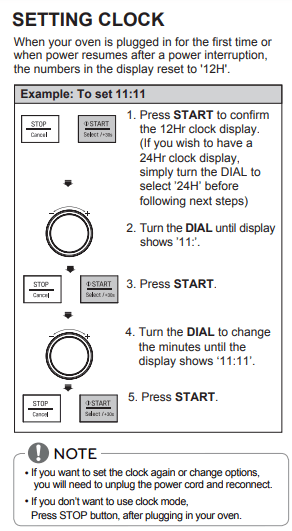
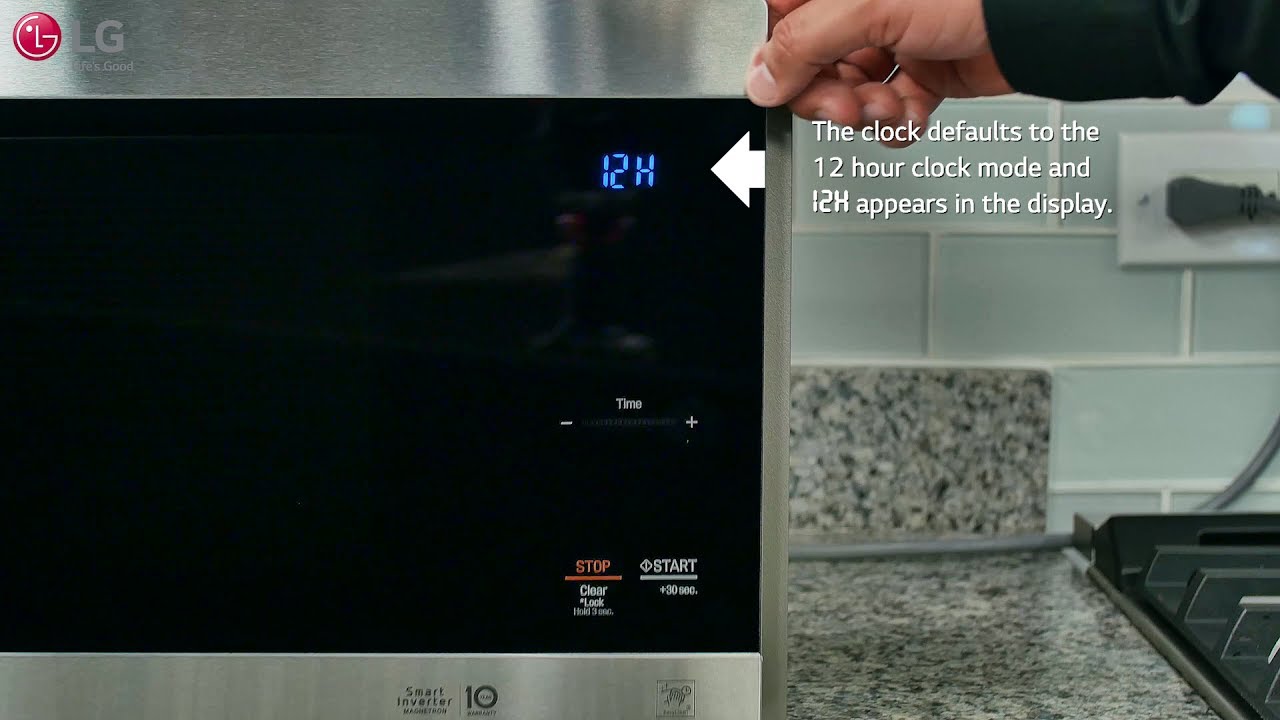
Set The Clock
Press the “Clock” button on the microwave’s control panel. Enter the current time using the number pad. Press the “Clock” button again to confirm the time. The display will show the updated clock setting. This process keeps your microwave timer accurate for cooking.
Restore Default Settings
Locate the “Settings” or “Reset” button on the control panel. Press and hold the button for about 3 seconds. The display will blink or show “Reset.” Release the button to restore factory settings. The microwave will clear all customized settings and return to default mode.
Troubleshooting Persistent Issues
Persistent issues with your LG microwave can be frustrating. Sometimes, a simple reset does not fix the problem. Troubleshooting these issues requires checking a few key components. This helps identify the root cause and avoid further damage.
Check Circuit Breaker
A tripped circuit breaker can cause your microwave to stop working. Find your home’s electrical panel and check the breaker for the microwave’s outlet. If it is off or tripped, switch it off and then back on. This restores power to the microwave. If the breaker trips again, do not keep resetting it. This could signal a wiring problem or electrical fault.
Inspect Door Latch And Fuses
The microwave will not run if the door latch is faulty. Check the latch to ensure it closes firmly. A loose or broken latch stops the microwave from heating. Also, inspect the internal fuses. These protect the microwave from power surges. If a fuse is blown, replace it with one of the same rating. Always unplug the microwave before inspecting fuses to avoid electrical shock.
When To Call A Technician
Some issues need a professional touch. Call a qualified technician if you notice strange smells, sparks, or loud noises. Persistent errors on the display or repeated breaker trips also require expert help. Avoid opening the microwave yourself beyond simple checks. A technician has the tools and knowledge to fix complex problems safely.
Special Cases: Demo Mode Reset
Special cases like Demo Mode on LG microwaves require a different reset approach. Demo Mode is designed for store displays. It stops the microwave from heating but keeps the display active. This mode can confuse users and may seem like a malfunction. Resetting Demo Mode helps restore normal microwave functions quickly.
Identify Demo Mode
Demo Mode shows unusual behavior on your microwave. The microwave won’t start cooking or heating food. The display might show “Demo” or “D” on the screen. Buttons may beep but won’t trigger any action. The light inside may stay off during cooking attempts. These signs tell you the microwave is in Demo Mode.
Steps To Exit Demo Mode
Turn on the microwave and open the door. Press and hold the “Stop/Clear” button for 3 to 5 seconds. Wait for the display to change or beep sound. The display should clear the “Demo” message. Close the door and try to start a cooking cycle. Your microwave should now work normally.
Resetting Filter Indicator Light
The filter indicator light on your LG microwave helps track the condition of the charcoal filter. This light turns on when the filter needs replacement or cleaning. Resetting this light after changing the filter is important. It ensures the microwave accurately monitors the filter status. Without resetting, the light may stay on even after maintenance.
Change Charcoal Filter
First, open the microwave vent cover. Locate the charcoal filter inside the vent area. Remove the old filter carefully. Dispose of it according to local regulations. Insert the new charcoal filter into the slot. Make sure it fits snugly and securely. Close the vent cover properly to avoid air leaks.
Reset Filter Notification
Turn on the microwave after replacing the filter. Find the button or option for the filter reset on the control panel. Usually, press and hold the “Filter Reset” or “Stop/Reset” button. Hold it for about 3 to 5 seconds. The filter indicator light should turn off. This confirms the reset was successful.
Resetting the filter notification helps the microwave track the new filter’s lifespan. It also prevents unnecessary alerts. Follow these steps whenever you replace the charcoal filter. This keeps your microwave running efficiently and cleanly.
Credit: www.youtube.com
Frequently Asked Questions
Can You Reset A Lg Microwave?
Yes, you can reset an LG microwave by unplugging it for five minutes to perform a hard reset. Alternatively, press the “Reset” or “Clear” button on the control panel for a soft reset. Consult your user manual for specific model instructions if issues persist.
How Do You Reset A Microwave?
Unplug the microwave for five minutes to perform a hard reset. Alternatively, press the control panel’s ‘Reset’ or ‘Clear’ button for a soft reset. Check your user manual for model-specific instructions if problems persist.
How Do I Manually Reset My Lg?
To manually reset your LG microwave, unplug it from the power outlet. Wait at least five minutes, then plug it back in. For a soft reset, press the “Reset,” “Clear,” or “Off/Clear” button on the control panel. Check your user manual for specific instructions.
Why Is My Lg Microwave Not Working?
Your LG microwave may not work due to power issues, a tripped circuit breaker, a faulty door latch, or internal component failure. Try unplugging it for five minutes to reset. Check the control panel for error codes and consult the user manual or a technician if problems persist.
How Do I Reset My Lg Microwave Quickly?
Unplug the microwave for 5 minutes, then plug it back to reset its internal system.
Conclusion
Resetting your LG microwave is simple and helps fix many issues. Start by unplugging it for five minutes to clear memory. Use the control panel’s reset or clear button for a quick fix. Always check your user manual for model-specific instructions.
If problems continue, inspect the circuit breaker or contact a technician. Regular resets keep your microwave working smoothly. Try these easy steps whenever your microwave acts up.