
Replacing the battery in your APC UPS is a smart move to keep your devices protected during power outages. But once the new battery is in place, what’s next?
If you don’t reset your APC UPS correctly, it might not recognize the new battery or function as it should. You might feel stuck, wondering how to get everything back up and running smoothly. Don’t worry—this guide will walk you through the simple steps to reset your APC UPS after battery replacement.
By following these clear, easy instructions, you’ll have your UPS working like new in no time. Keep reading to avoid common mistakes and ensure your backup power is reliable when you need it most.

Credit: www.se.com
Preparing For Battery Replacement
Preparing your APC UPS for battery replacement is crucial for a smooth and safe process. Proper preparation helps avoid damage and ensures the UPS functions correctly after the new battery is installed.
Before starting, take time to gather the right tools and follow safety steps. This preparation reduces risks and makes the replacement faster and easier.
Safety Precautions
Always wear protective gloves and eyewear to avoid injury. Batteries contain harmful chemicals and can leak acid.
Work in a dry, well-ventilated area to prevent accidents. Keep children and pets away from your workspace.
Disconnect the UPS from power sources before touching any internal parts. Avoid short-circuiting battery terminals by not using metal tools near them.
Tools Needed
Gather a screwdriver that fits your UPS screws. Most models use Phillips head screws.
Have a multimeter ready to check battery voltage if needed. Use battery terminal cleaner or a soft cloth to clean connections.
Keep electrical tape handy for securing loose wires after replacement.
Powering Down The Ups
Unplug all devices connected to the UPS. This prevents data loss and hardware damage.
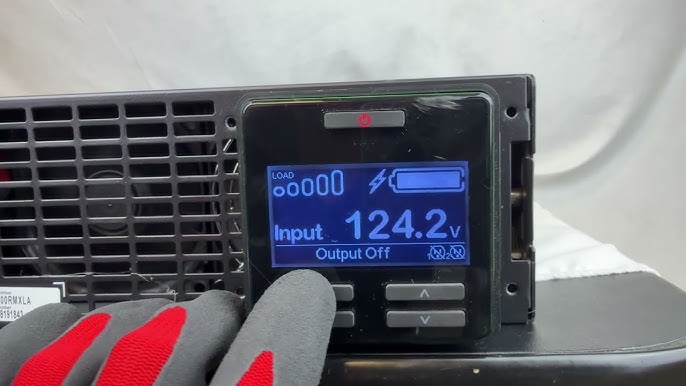
Turn off the UPS using its power button. Wait for all lights to go off before unplugging the unit from the wall outlet.
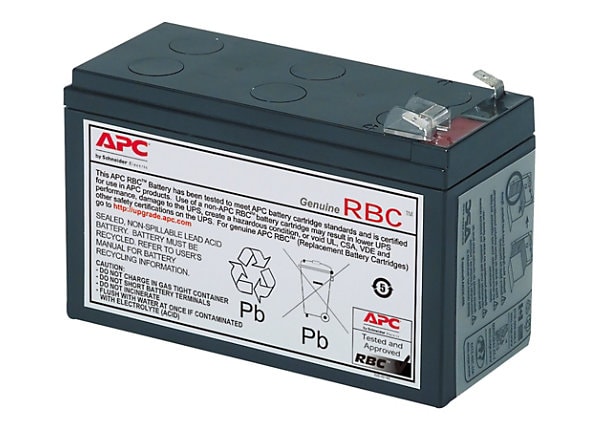
Disconnect the internal battery by unplugging its connector or switching it off. This step stops power flow and protects you during replacement.
Credit: www.youtube.com
Removing The Old Battery
Removing the old battery from your APC UPS is the first step after replacement. This process requires care to avoid damage. Follow each part carefully to ensure safety and proper handling.
Start by preparing the UPS and the area around it. Make sure the UPS is off and disconnected from power sources. Keep tools ready if needed for opening compartments.
Disconnecting Attached Devices
Unplug all devices connected to the UPS. This includes computers, monitors, and other electronics. Removing these devices prevents power surges or damage during battery removal.
Unplugging The Ups
Turn off the UPS using the power button. Then unplug the UPS from the wall outlet. This step ensures no electricity flows through the unit while you work on it.
Accessing The Battery Compartment
Locate the battery compartment on your UPS model. It is usually found at the bottom or back panel. Use a screwdriver if the compartment has a cover secured by screws.
Open the compartment carefully to avoid breaking any clips or connectors. Keep the screws or fasteners safe to close the compartment later.
Disconnecting The Battery
Identify the battery connector inside the compartment. Gently unplug the connector from the battery terminals. Avoid pulling on the wires directly to prevent damage.
Some models may have a battery on/off switch. Turn the switch off before removing the battery. Carefully lift the battery out of the compartment and set it aside for proper disposal.
Installing The New Battery
Installing the new battery in your APC UPS is a crucial step after battery replacement. Proper installation ensures the UPS functions correctly and protects your devices during power issues. Follow these simple steps to install the new battery safely and securely.
Connecting The Battery Terminals
Start by locating the battery terminals inside the UPS. Identify the positive and negative terminals carefully. Connect the red cable to the positive terminal and the black cable to the negative terminal. Make sure the connections are tight and secure. Loose connections can cause malfunctions or damage the unit.
Securing The Battery In Place
After connecting the terminals, position the battery firmly in the battery compartment. Use any provided straps or brackets to hold the battery in place. Secure the battery so it does not move during UPS operation or transportation. A stable battery connection helps maintain UPS reliability and safety.
Resetting The Ups
Resetting the UPS is essential after replacing the battery. This step ensures the unit recognizes the new battery and operates correctly. A proper reset clears old errors and prepares the UPS for normal use. Follow these clear methods to reset your APC UPS safely and effectively.
Performing A Logic Reset
A logic reset refreshes the UPS’s internal system. Start by turning off the UPS and unplugging it from the power source. Disconnect the internal battery by unplugging its connector or using the battery switch. Wait about 30 seconds before reconnecting the battery. Plug the UPS back into the wall and turn it on. The UPS will run a self-test and should return to normal operation.
Using The Reset Button
Some APC UPS models have a reset button on the front panel. Press and hold this button for several seconds. Hold it until you hear a long beep. This beep signals that the reset process started. Release the button and wait for the UPS to complete its self-test. This method resets the battery status and clears error notifications.
Confirming Reset With Audible Signals
After resetting, listen carefully for UPS beeps. A long beep usually means the reset was successful. Short beeps or no sound may indicate a problem. Check the UPS display for error messages. If the UPS shows normal status, the reset is complete. This confirmation helps ensure your UPS is ready for use.
Powering On And Testing
After replacing the battery in your APC UPS, powering it on and testing is vital. This step ensures the new battery works correctly and the UPS functions as expected. Proper testing can prevent future power interruptions and protect your devices.
Follow these simple steps to reconnect, run a self-test, and verify the UPS status for a smooth restart.
Reconnecting The Ups To Power
First, reconnect the internal battery securely to the UPS unit. Check the connectors for tightness and no corrosion. Next, plug the UPS back into a reliable wall outlet. Avoid using extension cords or power strips. Finally, press the power button to turn on the UPS. The unit should light up and start its normal startup sequence.
Running The Self-test
Most APC UPS models perform an automatic self-test after powering on. This test checks battery health and internal circuits. Wait patiently for the test to complete; it usually takes a few seconds. Listen for any beeps or alarms that signal issues. If your model has a manual test button, press it to start the self-test. Confirm the battery is functioning properly before moving on.
Verifying Online Status
Once the self-test finishes, check the UPS display or indicator lights. The UPS should show an “Online” or “On” status. This means it is receiving power and the battery is ready. If the UPS shows “Battery” or “Replace Battery,” recheck the connections or test the battery again. Ensure no devices are connected during this test to avoid false alarms. Proper online status confirms your UPS is ready to protect your equipment.
Troubleshooting Common Issues
Troubleshooting common issues after replacing your APC UPS battery helps keep the unit working correctly. Sometimes, the battery light stays on or the UPS does not reset properly. These problems often have simple fixes you can try at home. Checking connections and knowing when to get expert help saves time and stress. Follow these tips to solve common UPS reset problems fast.
Battery Light Remains On
The battery light may stay on even after a new battery is installed. This can mean the UPS has not detected the new battery. Try resetting the UPS by turning it off and unplugging it from the wall. Wait a few minutes, then plug it back in and turn it on. Press and hold the reset button until you hear a beep. If the light stays on, the battery might be faulty or incompatible.
Loose Connections And Corrosion
Loose battery connections cause many UPS reset issues. Open the battery compartment and check all wires and plugs. Make sure connectors fit snugly with no wiggle. Corrosion on the terminals stops proper contact. Clean terminals gently with a dry cloth or a small brush. Avoid using water or chemicals. After cleaning, reconnect the battery and test the UPS again.
When To Seek Professional Help
Some problems need expert attention. If the UPS still will not reset after checking connections and resetting, call a technician. Avoid opening the UPS beyond the battery compartment. Internal parts can be dangerous or easily damaged. A professional can test the unit, replace parts, or update the firmware safely. Getting help early can prevent bigger problems and extend UPS life.
Credit: www.cdw.com
Frequently Asked Questions
How Do I Reset My Apc Ups Battery?
To reset your APC UPS battery, disconnect all devices and unplug the UPS. Then, disconnect the internal battery. Reconnect the battery and power cord, turn on the UPS, and wait for the self-test to complete. Hold the power button until you hear a beep on some models to confirm reset.
How To Reset Battery Light After Replacing Battery?
To reset the battery light after replacement, tighten all battery terminal connections. Disconnect the negative terminal for a few minutes, then reconnect it. Start the car and drive briefly to allow system recalibration. If the light stays on, consult a mechanic for further diagnosis.
What To Do After Replacing Ups Battery?
After replacing the UPS battery, disconnect all devices and unplug the UPS. Disconnect and reconnect the internal battery. Plug the UPS back in, turn it on, and let it run a self-test. Confirm reset by holding the power button until a beep sounds, if applicable.
How Do You Reset Your Ups?
To reset your UPS, first disconnect all devices and unplug it from the wall. Next, disconnect the internal battery. Reconnect the battery and plug the UPS back in. Finally, turn it on and let it perform a self-test to complete the reset.
How Do I Reset My Apc Ups After Battery Replacement?
Disconnect all devices, unplug the UPS, remove and reconnect the battery, then power it on to reset.
Conclusion
Resetting your APC UPS after battery replacement is simple. Always disconnect all devices and unplug the unit first. Remove and reconnect the internal battery carefully. Power on the UPS and wait for the self-test to finish. Listen for beeps that confirm a successful reset.
Check that the unit returns to normal operation. If the battery light stays on, inspect connections again. Regular maintenance helps your UPS work longer and safer. Follow these steps to keep your system reliable and ready. Easy and effective—your UPS will be as good as new.