
Struggling to get your Brother printer connected to WiFi? You’re not alone.
Connecting your printer wirelessly might sound tricky, but with the right steps, you can have it up and running in no time. Imagine printing documents from anywhere in your home or office without fumbling with cables. This guide will walk you through the easiest and most reliable ways to connect your Brother printer to your WiFi network, whether you prefer using the WPS button or the printer’s setup wizard.
Stick with us, and you’ll turn frustration into smooth, wireless printing before you know it. Ready to simplify your printing experience? Let’s get started!
Prepare Printer And Router
Preparing your Brother printer and router is the first step to connect the printer to WiFi. Both devices need to be ready and compatible for a smooth connection. This stage helps avoid errors and saves time during setup.
Power On Devices
Turn on your Brother printer and router. Check that both devices have power and are fully operational. The printer should display a ready or home screen. The router’s lights should indicate it is working properly and connected to the internet.
Keep both devices close to each other for a strong wireless signal. Avoid placing them near metal objects or thick walls that block WiFi signals. A stable power source prevents interruptions during setup.
Check Router Compatibility
Confirm your router supports the WiFi standards used by your Brother printer. Most printers work with 2.4 GHz networks, some support 5 GHz. Check your router’s settings to see which bands are active.
Disable any guest networks or MAC filtering that might block new devices. Ensure your router allows new connections without extra security steps that the printer cannot handle. This avoids connection failures during setup.
Connect Using Wps Method
The WPS (Wi-Fi Protected Setup) method offers a quick way to connect your Brother printer to a wireless network. It avoids typing long passwords by using a simple button press on the printer and router. This method is ideal for users who want fast, hassle-free setup without navigating complex menus.
Follow these steps to connect your Brother printer using the WPS method. Ensure your router supports WPS and that both devices are powered on.
Access Printer Network Settings
Turn on your Brother printer. Press the Menu or Settings button on the control panel. Use the arrow keys to find Network or WLAN settings. Press OK to enter the network menu.
Activate Wps On Printer
Within the network menu, select the WPS or WPS Push Button option. Press OK to start the WPS connection process. The printer will wait for the router’s signal.
Press Router Wps Button
Find the WPS button on your wireless router. This button usually has the label “WPS” or a symbol with two arrows forming a circle. Press and hold the button for a few seconds to activate WPS mode on the router.
Confirm Connection
The printer will connect automatically to the Wi-Fi network. Wait for a message on the printer screen saying Connected or Connection Successful. This confirms your printer is now on the network and ready to use.
Connect Using Setup Wizard
Connecting your Brother printer to WiFi is simple with the Setup Wizard. This built-in tool guides you step-by-step. It finds networks and helps you enter passwords. No need for extra devices or apps. Just follow the easy menu options on your printer’s screen.
Using the Setup Wizard ensures a smooth and quick connection. It works on most Brother printer models. This method is ideal for first-time wireless setup or when changing networks.
Open Network Menu
Turn on your Brother printer. Press the Menu or Settings button. Use the arrow keys to find the Network option. Press OK to open the network settings.
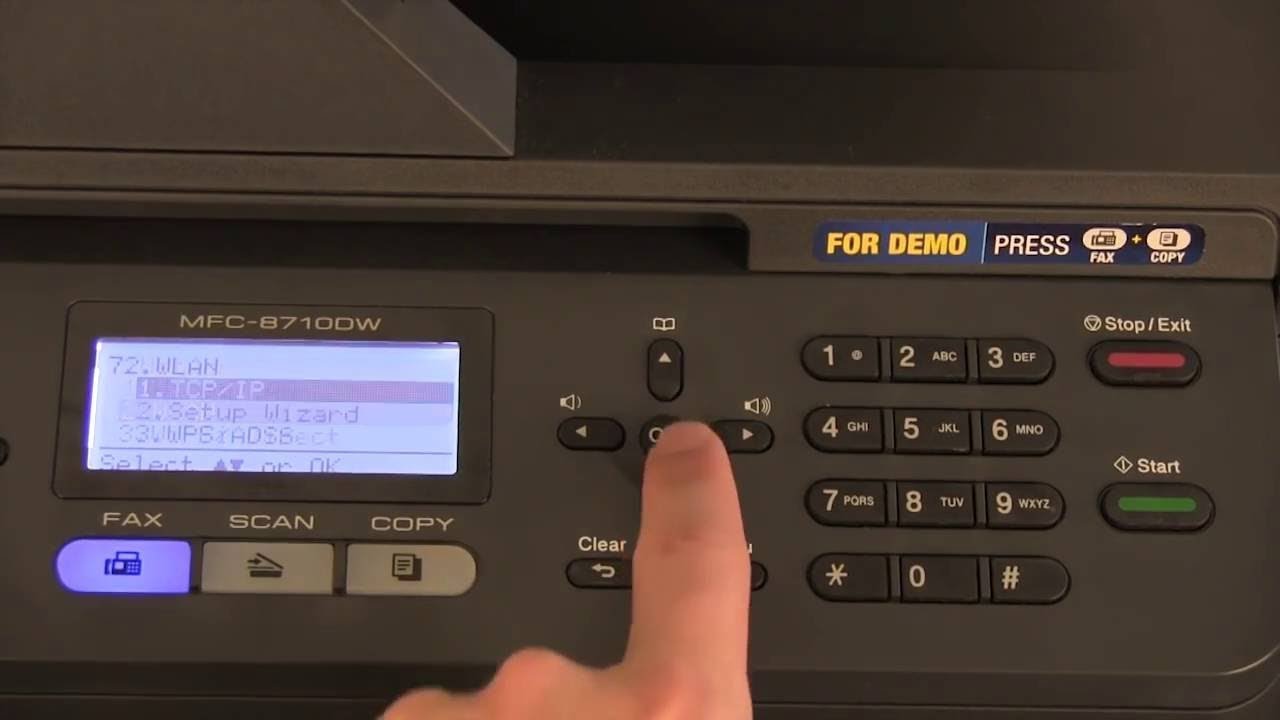
Select Wlan And Setup Wizard
In the Network menu, choose WLAN and press OK. Then select Setup Wizard and press OK again. Your printer will start scanning for WiFi networks nearby.
Choose Wifi Network
Look through the list of available WiFi networks. Select your home or office network’s name (SSID). Press OK to confirm your choice and move to the next step.
Enter Password
Use the printer’s keypad to type your WiFi password. Take your time and enter it carefully. After typing, press OK to continue. The printer will try to connect to the network.
Verify Connection
Wait a moment for the printer to connect. A message will appear showing if the connection was successful. You can print a test page to check the setup. Your Brother printer is now ready to use wirelessly.
Credit: www.youtube.com
Install Printer Drivers
Installing printer drivers is an essential step to connect your Brother printer to WiFi. Drivers act as a bridge between your printer and computer. They allow your computer to communicate with the printer smoothly. Without the correct drivers, printing tasks may fail or cause errors. Follow the steps below to install the drivers properly and prepare your printer for wireless use.
Download Drivers From Brother Website
Open your web browser and go to the official Brother support site. Enter your printer model in the search box. Find the correct driver for your printer and operating system. Click the download button to save the driver file on your computer. Make sure to download the latest version to ensure compatibility.
Run Installation Package
Locate the downloaded driver file on your computer. Double-click the file to start the installation process. The setup program will open and prepare to install the drivers. Wait for the installer to load all necessary files before proceeding.
Follow On-screen Instructions
Carefully read and follow the instructions shown on your screen. Choose the connection type as wireless when prompted. Enter your WiFi network name and password if required. Complete the installation by clicking the finish button. Restart your computer if the installer asks you to do so.
Add Printer To Computer
After connecting your Brother printer to WiFi, you need to add it to your computer. This step allows your computer to recognize the printer. It also enables you to print documents wirelessly. Follow simple steps to complete this process quickly.
Open Devices And Printers
Start by opening the “Devices and Printers” window on your computer. On Windows, click the Start menu and type “Devices and Printers.” Select it from the search results. This area shows all connected devices and printers on your system.
Select Add Printer
In the “Devices and Printers” window, find the “Add a printer” button at the top. Click this button to start the printer installation wizard. The wizard helps find printers available on your network and guides you through the setup.
Choose Brother Printer
Your computer will search for available printers. When your Brother printer appears, select it from the list. If it does not appear, make sure the printer is turned on and connected to the same WiFi network as your computer.
Complete Setup
Follow the on-screen instructions to finish the setup. You may need to install printer drivers. These drivers help your computer communicate with the printer. Once complete, your Brother printer is ready for wireless printing.
Credit: trueimagetech.co.uk
Troubleshoot Connection Issues
Connecting your Brother printer to WiFi can sometimes face hurdles. Troubleshooting connection issues helps ensure a smooth setup. Follow these steps to fix common problems and get your printer online quickly.
Check Wifi Signal Strength
Weak WiFi signals cause connection failures. Move your printer closer to the router. Avoid walls or metal objects between devices. Use a WiFi signal app on your phone to check strength. A strong signal improves printer connectivity and speed.
Restart Printer And Router
Restarting clears temporary glitches. Turn off the printer and unplug the router. Wait 30 seconds before powering them back on. This simple step often restores network connections. After rebooting, try connecting the printer again.
Reset Network Settings
Resetting network settings removes old WiFi details. On the printer, go to Menu > Network > Reset Network. Confirm to erase saved data. Then reconnect using the wireless setup wizard or WPS. This step fixes errors from wrong passwords or network changes.
Update Printer Firmware
Outdated firmware can block WiFi connection. Visit Brother’s official website to download the latest firmware. Follow instructions to update your printer. Updated software improves compatibility and fixes bugs. Check for updates regularly to keep your printer running well.
Connect To Mobile Devices
Connecting your Brother printer to mobile devices allows easy printing directly from smartphones or tablets. Mobile connectivity saves time and adds convenience. It lets you print documents or photos without using a computer. Several methods make this connection simple and fast.
Use Brother Mobile Apps
Brother offers free apps like Brother iPrint&Scan for mobile printing. Download the app from your device’s app store. Open the app and search for your Brother printer on the same WiFi network. Select the printer and start printing or scanning easily. The app supports various file types and lets you customize print settings.
Enable Wifi Direct
WiFi Direct connects your mobile device to the printer without a router. Turn on WiFi Direct from the printer’s control panel under network settings. On your mobile device, open WiFi settings and select the Brother printer’s WiFi Direct name. Connect using the displayed password. This creates a direct link for fast printing without internet.
Pair Via Smartphone Settings
Pair your Brother printer through your phone’s Bluetooth or WiFi settings. Go to your smartphone’s WiFi menu and find the printer listed. Connect to it by entering the password shown on the printer screen. After pairing, open any app to print documents wirelessly. This method works well when no WiFi network is available.
Frequently Asked Questions
How Do I Connect My Brother Printer To My Wireless Network?
Turn on the Brother printer and open the Network menu. Select WLAN, then Setup Wizard. Choose your Wi-Fi network, enter the password, and confirm. Alternatively, use WPS by selecting WPS on the printer and pressing the router’s WPS button. The printer will display a connection confirmation.
How Do I Connect My Printer To Wi-fi?
Turn on the printer and open its menu. Select Network > WLAN > Setup Wizard. Choose your Wi-Fi network and enter the password. Alternatively, use WPS by pressing the WPS button on both printer and router. The printer displays a confirmation when connected.
How Do I Reset My Brother’s Wireless Printer To Connect To Wi-fi?
Turn on your Brother printer. Go to Menu > Network > WLAN > Setup Wizard. Select your Wi-Fi network, enter the password, and confirm to connect. Alternatively, use the WPS method by selecting WPS on the printer and pressing the router’s WPS button within two minutes.
How Do I Get My Brother Printer Back Online?
Turn on your Brother printer and router. Access the printer’s Network menu, select WLAN, then Setup Wizard. Choose your Wi-Fi network and enter the password. Confirm connection on the screen. Restart devices if offline. Download and install the latest drivers from Brother’s website.
How Do I Connect My Brother Printer To Wifi?
Use the printer’s control panel to select Network > WLAN > Setup Wizard, then choose your WiFi network and enter the password.
Conclusion
Connecting your Brother printer to WiFi is simple and quick. Choose either the WPS method or the setup wizard on the printer. Enter your network details carefully to avoid errors. Once connected, download and install the correct drivers from Brother’s website.
This ensures smooth printing from your computer. A wireless connection helps you print from anywhere in your home or office. Stay patient and follow each step exactly. Enjoy hassle-free printing with your Brother printer on WiFi.