
Is your Hewlett Packard laptop touchpad suddenly not working? It’s frustrating when your main tool for navigating your laptop stops responding, especially when you need to get things done quickly.
But don’t worry—you’re not alone, and this problem is often easier to fix than you might think. You’ll discover simple, step-by-step solutions to get your HP touchpad back up and running. Whether it’s a driver issue, a settings glitch, or something else, you’ll learn how to troubleshoot effectively and save time and stress.
Keep reading to regain full control of your laptop with ease.
Check Touchpad Settings
Checking the touchpad settings is a simple but important step to fix your Hewlett Packard laptop touchpad. Sometimes the touchpad might be disabled by accident or the settings may not be set correctly. Verifying these settings can quickly restore touchpad functionality without complex fixes.
This section guides you on how to enable your touchpad and adjust mouse connection options. These steps help ensure your touchpad works smoothly and responds as expected.
Enable Touchpad Toggle
Many HP laptops have a function key that toggles the touchpad on and off. This key usually shows a touchpad icon and is found on the top row of the keyboard.
Press and hold the Fn key, then tap the function key with the touchpad symbol. This action turns the touchpad on or off.
Check Windows touchpad settings too. Go to Settings > Devices > Touchpad. Make sure the toggle switch is set to On. This enables the touchpad in the system.
Adjust Mouse Connection Options
Sometimes the touchpad turns off when an external mouse is connected. This setting can cause confusion.
In Windows touchpad settings, look for “Leave touchpad on when a mouse is connected”. Make sure this option is checked.
This keeps the touchpad active even if a mouse is plugged in. It allows you to use both devices without issues.
Credit: www.drivereasy.com
Use Function Key Shortcut
The function key shortcut is a quick way to fix your HP laptop touchpad. It helps turn the touchpad on or off fast. Many users accidentally disable the touchpad using this shortcut. This method avoids complex settings or driver updates. It saves time and solves the problem for many.
Using the function key is simple and effective. It works like a switch that controls the touchpad. Knowing which key to press is important. This section explains how to find the right key and use it to toggle the touchpad.
Identify Touchpad Function Key
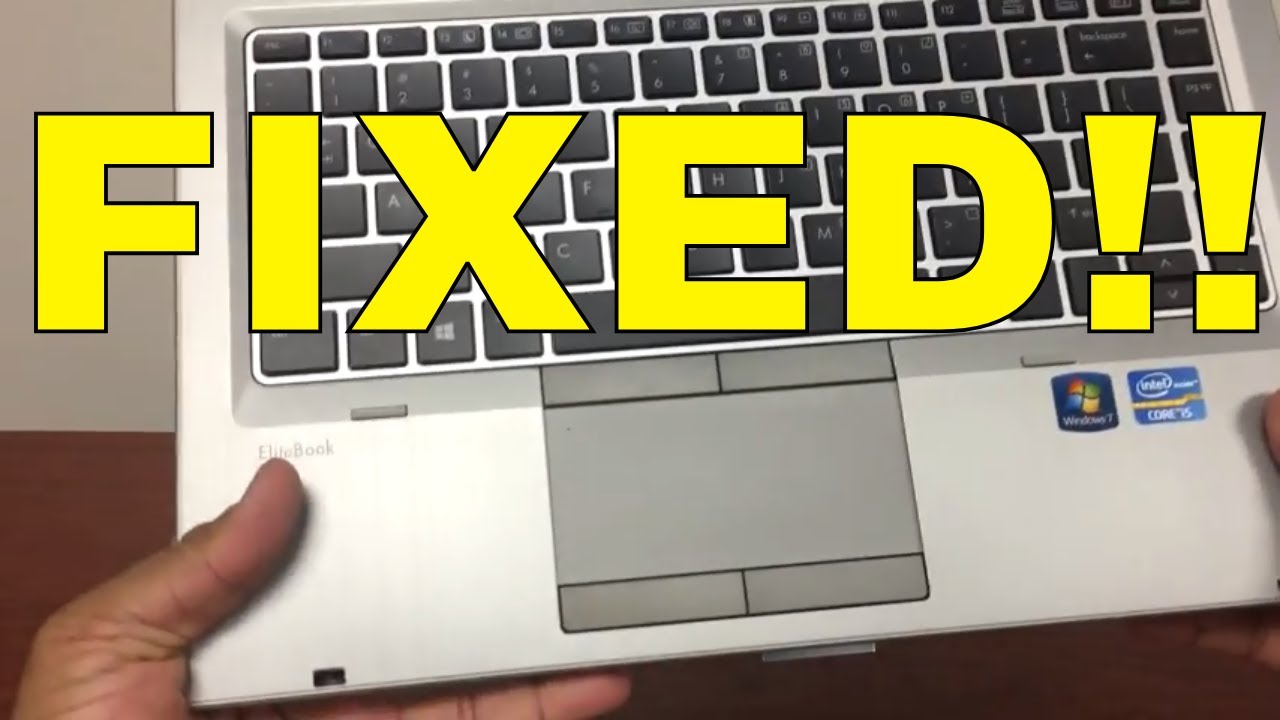
Look at the top row of your keyboard. These keys start with F and a number, like F1, F2, or F3. Find the key with a touchpad icon. The icon usually looks like a small rectangle with dots or a hand on it.
This key varies by model. On some HP laptops, it is F5, F6, or F7. Check your laptop’s manual if unsure. The function key works with the Fn key. The Fn key is near the bottom left of your keyboard.
Toggle Touchpad On Or Off
Press and hold the Fn key. While holding it, press the touchpad function key once. This action turns the touchpad on or off. A light may appear on the key to show the status. If the touchpad was off, this will enable it again.
Try moving your finger on the touchpad after toggling. If it moves the cursor, the touchpad is working. Repeat the steps to turn it off if needed. This shortcut is fast and avoids deeper troubleshooting.
Clean Touchpad Surface
Running the Windows troubleshooter can help fix touchpad issues quickly. It checks your laptop for common problems. The troubleshooter then tries to repair them automatically. This tool is built into Windows and easy to use. It saves time and avoids complex steps.
Locate Troubleshoot Settings
Open the Start menu by clicking the Windows icon. Type “Troubleshoot” in the search bar. Select “Troubleshoot settings” from the list. This opens the main troubleshooting page. Scroll down to find different troubleshooters for hardware and devices.
Run Hardware Troubleshooter
Under the Troubleshoot page, find the “Hardware and Devices” option. Click it, then press “Run the troubleshooter.” Windows will scan your laptop for touchpad problems. Follow the on-screen instructions to complete the process. Restart your laptop if the troubleshooter suggests it. This simple step often restores the touchpad function.
Update Touchpad Drivers
Updating the BIOS firmware can fix many hardware-related problems, including touchpad issues. The BIOS controls low-level hardware functions and keeps your laptop running smoothly. An outdated BIOS may cause the touchpad to stop working or behave strangely. Updating it ensures compatibility with the latest drivers and system updates. This process requires care but can solve persistent touchpad problems effectively.
Visit Hp Support Website
Start by visiting the official HP Support website. Enter your laptop model number to find the correct BIOS update. Make sure you select the exact model to avoid installing wrong firmware. The website provides all necessary files and detailed instructions. Always download BIOS updates from trusted sources to protect your device.
Download Latest Bios Version
Look for the latest BIOS version available for your laptop. Check the release date and update notes to confirm it addresses touchpad issues. Download the BIOS file and save it to a safe location on your computer. Avoid interrupting the download process to prevent corruption. The file is usually in a compressed format that you will need to extract.
Follow Update Instructions
Carefully read the update instructions provided by HP. Connect your laptop to a power source before starting the update. Close all running programs to prevent conflicts. Run the BIOS update tool and follow on-screen prompts. Do not turn off your laptop during the update. Once complete, the system will restart automatically, and your touchpad should work better.
Run Windows Troubleshooter
Advanced software fixes can resolve many touchpad issues on Hewlett Packard laptops. These fixes dive deeper than basic troubleshooting. They help identify hidden problems caused by software conflicts or incorrect settings. Exploring these solutions can restore your touchpad’s functionality without hardware repairs.
Check For Conflicting Software
Some programs may interfere with your touchpad’s operation. Security software, third-party mouse tools, or system utilities can cause conflicts. To find these, open Task Manager and review running applications. Temporarily disable unnecessary programs one by one. Test the touchpad after each change. If the touchpad works again, the last disabled program likely caused the issue. Remove or update conflicting software for a permanent fix.
Adjust Touchpad Sensitivity
Incorrect touchpad sensitivity can make the device unresponsive or jittery. Access the touchpad settings through Windows Settings > Devices > Touchpad. Locate the sensitivity slider and adjust it to a medium or high level. Test the touchpad after changes to find the best setting. Proper sensitivity ensures smooth cursor movement and accurate taps. This simple step often improves touchpad performance significantly.
Credit: www.youtube.com
Frequently Asked Questions
What To Do When The Touchpad Is Not Working In An Hp Laptop?
Check touchpad settings and enable it in Windows. Use Fn + function key to toggle. Update or reinstall touchpad driver via Device Manager. Clean the touchpad surface gently. Run Windows troubleshooter and install updates. Perform a hard reset or update BIOS if issues persist.
How To Turn Hp Laptop Touchpad Back On?
Press and hold the Fn key, then press the function key with the touchpad icon to enable it. Alternatively, check Windows Settings > Devices > Touchpad and ensure the toggle is on. Update or reinstall the touchpad driver via Device Manager if needed.
How Do I Fix My Unresponsive Touchpad?
Check touchpad settings to ensure it’s enabled. Press Fn + touchpad key to toggle it. Update or reinstall drivers via Device Manager. Clean the touchpad surface gently. Run Windows troubleshooter and install BIOS updates if needed. Perform a hard reset for persistent issues.
How To Reset Hp Touchpad?
To reset an HP touchpad, enable it in Settings > Devices > Touchpad. Press Fn + function key with touchpad icon. Update or reinstall the touchpad driver via Device Manager. If needed, perform a hard reset or update BIOS for persistent issues.
Why Is My Hp Laptop Touchpad Not Working Suddenly?
A sudden touchpad failure may be due to disabled settings or driver issues. Check if the touchpad is turned on and update its driver.
Conclusion
Troubles with your Hewlett Packard laptop touchpad can feel frustrating. Start by checking if the touchpad is enabled in settings. Use the function keys to toggle it on or off quickly. Updating or reinstalling the touchpad driver often solves many issues.
A simple hard reset might also help refresh your system. Cleaning the touchpad surface removes dirt that blocks proper function. Running the Windows troubleshooter can find and fix hidden problems. If problems persist, checking for BIOS updates is a good step.
These easy steps help get your touchpad working smoothly again.