
Many people enjoy streaming shows and movies on HBO Max, but when closed captioning does not work, it can ruin the experience. For viewers who rely on captions, such as those who are deaf, hard of hearing, or prefer reading along, this issue is more than just a minor inconvenience. It affects understanding, accessibility, and enjoyment. In today’s digital world, streaming platforms must ensure their accessibility features are reliable. This article explores the common causes and solutions for HBO Max closed captioning problems, offering practical advice for users, troubleshooting methods, and real insights you won’t find elsewhere.
Understanding Hbo Max Closed Captioning
Closed captioning is a key accessibility feature. It provides text on screen that shows spoken dialogue and often describes sounds or music. HBO Max, like other streaming services, offers captions for most content. These captions can be turned on or off in the settings, and users can usually customize their appearance.
For many, captions are essential. They help people with hearing difficulties follow the story, and they also assist viewers in noisy environments or those learning English. When captions fail to appear or work incorrectly, the platform becomes less accessible.
HBO Max closed captioning problems can happen on different devices, including smart TVs, phones, tablets, computers, and streaming gadgets like Roku, Fire TV, and Apple TV. The issue can range from captions missing entirely, appearing out of sync, or being unreadable due to formatting errors.
Captions also help in other situations people often overlook. For example, if you are watching late at night and want to keep the volume low, captions help you follow the story without disturbing others. They are also useful for understanding strong accents or unfamiliar languages.
Even for people without hearing loss, captions can make watching easier and more enjoyable, especially when multitasking.
Common Reasons For Closed Captioning Issues
Several factors can cause closed captioning to fail on HBO Max. Understanding these helps you find the right solution.
1. Device Compatibility
Not all devices handle captions the same way. Some older smart TVs or streaming sticks may not support certain caption formats, causing them not to show up. For example, certain models released before 2016 might not fully support the latest captioning standards HBO Max uses.
2. App Version
Running an outdated HBO Max app can lead to bugs or missing features, including captioning problems. Sometimes, new updates also introduce settings that reset your previous preferences, so double-checking after an update is smart.
3. Internet Connection
A slow or unstable internet connection can prevent captions from loading or syncing properly. Captions are delivered as separate files from video, so lag can make them fall behind or not appear at all.
4. Profile Settings
Sometimes, user profiles have specific settings that override or conflict with caption preferences. For families sharing one account, one person’s settings might affect everyone else’s experience.
5. Operating System Issues
If your device’s operating system is outdated or corrupted, it might not work well with HBO Max’s captioning features. Sometimes, a simple OS update resolves odd bugs.
6. Content-specific Problems
Some shows or movies may not have captions available, or the files may be corrupted, leading to errors. This is more common with older or less popular content.
7. Regional Restrictions
In some countries, HBO Max content might not offer captions in all languages. Even if captions are available in English, they may not appear in other preferred languages due to licensing or technical restrictions.
8. Browser Or App Cache
Stored cache files can interfere with how captions load, especially on browsers or mobile apps. Sometimes, a corrupted file will keep causing issues until it’s cleared.
9. Streaming Device Bugs
Devices like Roku or Fire TV sometimes have software bugs that affect captioning. These bugs might only appear after a system update or when new features are added.
10. Accessibility Settings Conflict
System-level accessibility settings on your device can override or interfere with HBO Max’s captioning. For example, if you have default system captions set to off, HBO Max may not be able to display its captions even if you enable them in the app.
Troubleshooting Steps For Hbo Max Closed Captioning
If captions are not working, these steps will help you diagnose and fix the problem. Start with the simplest solutions first.
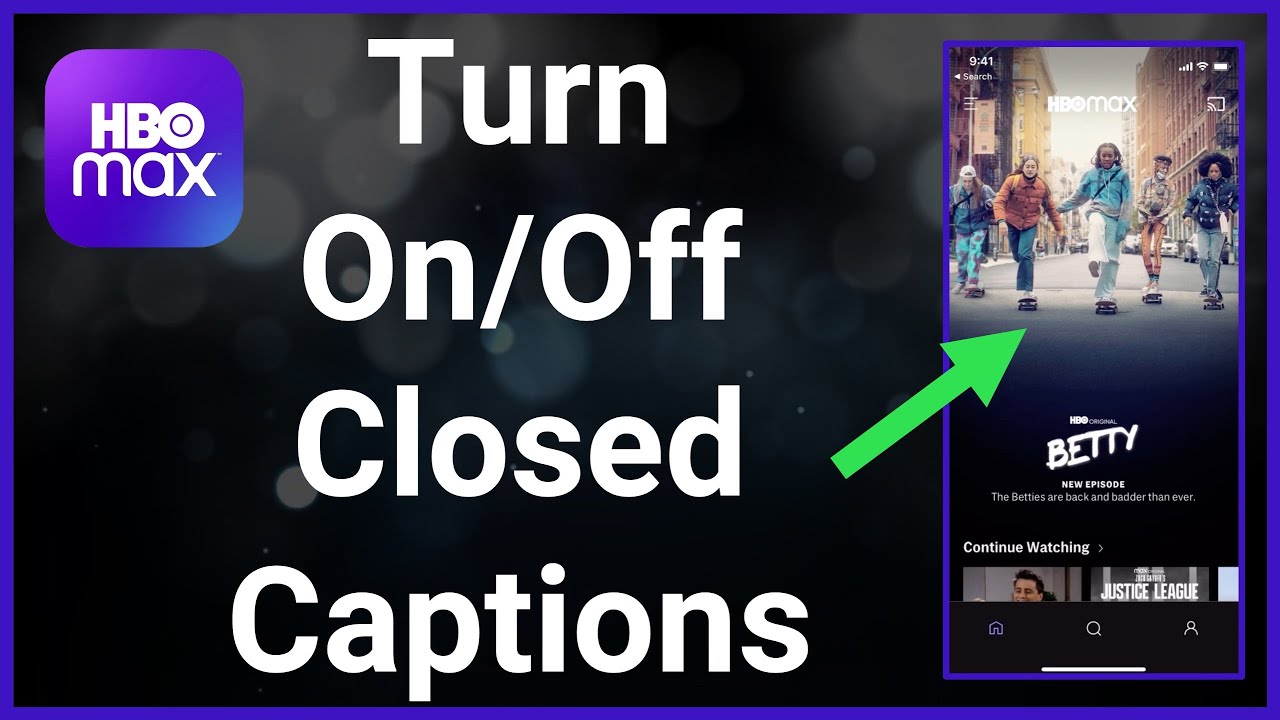
1. Check Caption Settings
- Open HBO Max and select a show or movie.
- Click the audio and subtitle icon (usually found at the bottom or top of the screen).
- Make sure closed captions are turned on.
- Double-check that you selected the correct language. Sometimes, captions are available in several languages, and the wrong one may be selected by default.
2. Restart The App Or Device
- Close HBO Max completely (don’t just minimize).
- Restart your device.
- Reopen HBO Max and check captions again.
- This step sounds basic, but it’s surprisingly effective. Many temporary glitches clear up after a restart.
3. Update The Hbo Max App
- Go to your device’s app store.
- Search for HBO Max and select “Update” if available.
- New versions often fix caption bugs.
- If updates are automatic, still check manually—sometimes updates fail to install in the background.
4. Test Another Title
- Try playing a different show or movie.
- If captions work on some titles but not others, the issue is with specific content.
- Some titles may have only partial captions (for example, just for spoken dialogue, not sound effects).
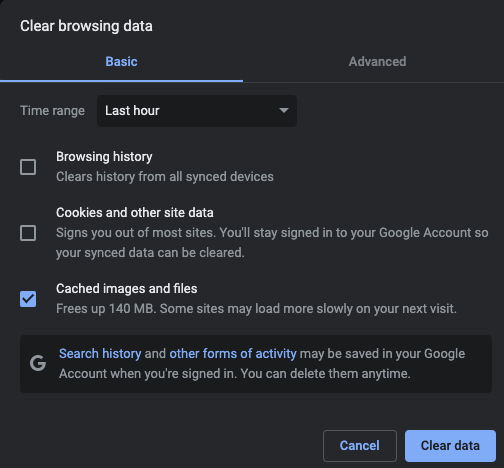
5. Clear Cache And Data
- On phones/tablets: Go to settings > apps > HBO Max > clear cache/data.
- On browsers: Clear cache/cookies for HBO Max.
- This removes temporary files that may cause caption errors.
- If you’re worried about losing preferences, just clear the cache first; only clear all data if problems persist.
6. Check Internet Connection
- Run a speed test.
- Ensure your connection is stable and at least 5 Mbps for streaming.
- Switch to a wired connection if possible.
- If using Wi-Fi, try moving closer to your router or reducing other network activity.
7. Update Device Software
- For smart TVs, streaming sticks, phones, or tablets: Update the operating system.
- Newer systems handle captions better.
- Also check for firmware updates for your TV or streaming stick, as these often include fixes for compatibility issues.
8. Try Another Device
- Play HBO Max on a different device (phone, laptop, TV).
- If captions work elsewhere, your main device may have a compatibility issue.
- This helps you isolate whether the problem is device-specific or app-specific.
9. Review Accessibility Settings
- Check your device’s accessibility options.
- Make sure system-wide captions are not disabled.
- On some devices, system accessibility settings can override individual app settings without warning.
10. Contact Hbo Max Support
- If all else fails, visit HBO Max Help Center.
- Submit a ticket or use live chat.
- Be ready to describe the issue, your device model, app version, and steps you’ve tried. This speeds up support responses.
Device-specific Solutions
Closed captioning problems can look different depending on your device. Here’s how to handle the most common platforms.
Smart Tvs
Many smart TVs have their own caption settings that may override HBO Max.
- Go to your TV’s main settings menu.
- Find “Accessibility” or “Closed Captioning.”
- Make sure captions are enabled.
- Restart the TV and HBO Max app.
- Some brands (like Samsung or LG) may have unique menu names, so check your manual if you can’t find the option.
Roku
Roku devices sometimes have system-level caption settings:
- Press the Home button.
- Go to Settings > Accessibility > Captions mode.
- Set to “On Always.”
- Restart Roku and try HBO Max again.
- If captions are still missing, check for a Roku system update.
Amazon Fire Tv
Fire TV has a similar process:
- Go to Settings > Accessibility > Closed Captions.
- Make sure captions are turned on.
- Update Fire TV software.
- If issues continue, uninstall and reinstall the HBO Max app.
Apple Tv
Apple TV users should:
- Go to Settings > Accessibility > Subtitles and Captioning.
- Enable “Closed Captions + SDH.”
- Customize style if needed.
- If you use AirPlay, ensure your casting device also has captions enabled.
Android Devices
On Android phones or tablets:
- Go to Settings > Accessibility > Caption Preferences.
- Enable captions.
- Restart the device and HBO Max app.
- Some Android versions have extra options for caption style under “Advanced.”
Ios Devices
iPhones and iPads:
- Settings > Accessibility > Subtitles & Captioning.
- Turn on closed captions.
- Try toggling the setting off and on if captions don’t appear.
Web Browsers
If streaming on a browser:
- Try Chrome, Firefox, or Edge (some browsers handle captions better).
- Clear browser cache.
- Disable browser extensions that might interfere.
- Some ad blockers or privacy tools can block caption files, so test with all extensions off.
Comparing Captioning Across Devices
To help you see which devices offer the best HBO Max caption experience, here’s a comparison:
| Device | Caption Support | Common Issues | Recommended Fix |
|---|---|---|---|
| Smart TV | Good | System overrides, outdated app | Update app, check TV settings |
| Roku | Very Good | System settings conflict | Set captions to “On Always” |
| Fire TV | Good | App bugs, software updates | Update device, restart app |
| Apple TV | Excellent | Rare formatting issues | Customize style |
| Web Browser | Good | Cache, extension conflicts | Clear cache, try another browser |
Notice that device choice matters. If you’re planning to buy a new streaming device and captions are important, Apple TV and Roku generally offer the smoothest experience for HBO Max. Smart TVs are convenient, but their software can lag behind in updates, so keep this in mind.
Customizing Closed Captions
HBO Max lets you adjust how captions look. This is helpful for readability, especially for people with vision difficulties.
- Go to HBO Max settings.
- Find “Caption Style” or “Subtitle Appearance.”
- Change font size, color, background, and opacity.
Some devices offer more customization than others. For example, Apple TV lets you create your own style, while Roku uses preset options. If your captions are hard to read, try making them larger or changing the background color.
Customizing captions can make a big difference for users with dyslexia or low vision. A high-contrast background and larger font can make the text much easier to follow. If you share your device, remember that changing caption style may affect everyone watching.
Caption Customization Comparison
Here’s a quick view of customization options by device:
| Device | Font Size Options | Color Choices | Background Settings |
|---|---|---|---|
| Apple TV | Small, Medium, Large | Multiple | Customizable |
| Roku | Limited | Few | Presets only |
| Fire TV | Small, Medium, Large | Several | Customizable |
| Web Browser | Dependent on OS | Varies | Varies |
| Smart TV | Varies by brand | Varies | Varies |
If you need high customization, check your device’s manual or help section to see what’s possible. Remember, some settings might only be available in the system-wide accessibility menu, not inside HBO Max itself.
Credit: www.reddit.com
Real-world Examples Of Caption Problems
Understanding how caption issues appear in real situations can help you diagnose your own problem.
- Delayed or Out-of-Sync Captions:
Captions show several seconds after the dialogue. This is often caused by slow internet or app bugs. For example, if your internet speed drops suddenly, captions can freeze and then jump forward, making it hard to follow the story.
- Missing Captions on Certain Titles:
You see captions on some shows, but not others. Usually, the content provider didn’t upload a caption file, or the file is corrupted. This is more common with older HBO content or special features.
- Unreadable Captions:
Captions are too small, have poor contrast, or blend into the background. Customization fixes this. On some devices, the default caption style is white text with no background, which can be hard to see over light scenes.
- Captions Won’t Turn Off:
Even if you disable captions, they remain. This is often a system-level issue, especially on smart TVs. Sometimes, turning captions off in both the system settings and app is required.
- Wrong Language:
Captions appear in a language you didn’t choose. This may be due to regional settings or content limitations. Check if your device language is set correctly, as HBO Max may use this as a default.
Sometimes, captions only disappear after a device has been running for a long time, which is a sign of memory issues or software leaks. In these cases, a full device restart usually helps.
Non-obvious Insights For Beginners
Many new users miss these important points:
1. Caption Availability Is Not Guaranteed For All Titles
Even big streaming platforms like HBO Max sometimes lack captions for older or niche content. Always check the audio/subtitle options before assuming captions are available. Some movies might only have captions in one language, or none at all due to licensing.
2. App Updates Can Change Caption Behavior
After updating HBO Max, you may find caption settings changed or reset. This happens because updates often introduce new features or fix bugs, but can also affect how captions are handled. It’s a good idea to review your settings after each update.
3. Streaming Device Vs. Content Provider Responsibility
If captions don’t appear on one show, but work elsewhere, the problem is likely with the content provider, not your device. Contacting HBO Max support or checking their Help Center may clarify if captions are missing due to licensing or technical errors.
4. Not All Customization Is In The App
Many customization options are found in your device’s main accessibility settings, not inside HBO Max. For example, changing font size on your smart TV may affect captions across all apps, not just HBO Max.
5. Testing With Another Profile
Sometimes, a problem is tied to a specific user profile. Switching to another profile can help you check if settings or glitches are profile-specific.
Accessibility Beyond Closed Captions
HBO Max offers more than just closed captions. For those with vision difficulties, audio descriptions are sometimes available. For users with physical challenges, the interface can be navigated with screen readers or voice controls. However, closed captions remain the most widely used accessibility feature.
If you rely on captions due to hearing impairment, consider also using these features:
- Audio Descriptions for visually impaired users.
- Screen Reader Support for easier navigation.
- Voice Commands (on smart devices).
- High Contrast Mode in your device’s accessibility settings, which can help make both captions and menus easier to see.
It’s also worth noting that if you use accessibility features on your device for other reasons (like magnification or color correction), they can sometimes interact with captioning settings in unexpected ways. Testing one feature at a time helps you identify any conflicts.
Data On Caption Usage
Closed captions are not just for the hearing impaired. In the US, over 30 million people use captions regularly, according to the National Association of the Deaf. Many viewers use captions to understand accents, follow dialogue in noisy settings, or learn English.
A 2023 survey found that 40% of Gen Z and Millennial viewers use captions “always” or “often” when streaming, even if they have no hearing difficulty. This shows how important reliable captioning is for modern streaming platforms.
Interestingly, the same study showed that people who watch with others are more likely to enable captions, possibly to accommodate everyone’s needs or preferences. This means that making captions easy to use benefits a wide range of viewers, not just those with hearing loss.
Credit: www.online-tech-tips.com
Hbo Max Captioning Vs Other Streaming Platforms
Let’s compare HBO Max with Netflix and Disney+ on caption reliability:
| Platform | Caption Availability | Customization | Known Issues |
|---|---|---|---|
| HBO Max | Most titles | Good | Device conflicts, content gaps |
| Netflix | All titles | Excellent | Rare sync issues |
| Disney+ | Most titles | Good | Formatting problems |
Netflix leads in caption availability and customization, but HBO Max is improving quickly. If you face caption issues on HBO Max, it’s often due to device or app-specific problems.
A unique advantage with Netflix is the availability of captions in many more languages, and a more consistent experience across devices. HBO Max is catching up, but if multi-language support is critical for you, consider this when choosing a streaming service.
Preventing Future Caption Problems
To avoid future issues with HBO Max closed captioning:
- Keep your app and device software updated.
- Check for compatibility before buying new streaming devices.
- Use stable, fast internet connections.
- Choose devices with strong accessibility features.
- Periodically clear app cache and restart devices.
- Set up a regular routine to check for updates—this takes just a minute and can prevent future headaches.
- If you share your streaming device, remind family members not to change accessibility settings without asking.
Keeping a short log of what worked or didn’t when fixing caption issues can also help you solve problems faster in the future. Over time, you’ll notice patterns about which device or app version works best for your needs.
When To Seek Professional Help
If none of the steps above solve your problem, consider:
- Contacting HBO Max support.
- Visiting the official HBO Max Help Center.
- Posting your issue on user forums for advice.
- Checking device manufacturer support pages.
Some problems, like hardware faults or region-specific restrictions, may require expert assistance. Don’t hesitate to ask for help if captions are essential for your viewing.
If you rely on captions daily, keeping the support contacts for both HBO Max and your device manufacturer handy can save time during urgent problems.
The Importance Of Reliable Captioning
Closed captioning is more than just a technical feature—it’s a critical part of making streaming accessible. For millions, it’s the difference between enjoying and missing out on entertainment. Platforms like HBO Max must keep improving their captioning systems to serve all users.
If you’re experiencing caption issues, don’t give up. Most problems have solutions, and streaming services are working hard to fix bugs and improve accessibility. Staying informed and proactive can help you enjoy your favorite shows and movies without barriers.
For more information on accessibility standards and captioning, visit the W3C Web Accessibility Initiative.
Credit: www.youtube.com
Frequently Asked Questions
Why Are Hbo Max Closed Captions Not Appearing On My Smart Tv?
This happens when your TV’s system settings override HBO Max, or the app is outdated. Check your TV’s accessibility settings and update the HBO Max app. Restart both the TV and the app for best results. Also, check if your TV has a recent firmware update that might affect captions.
Can I Customize Closed Captions On Hbo Max?
Yes, you can change font size, color, and background on most devices. Go to caption settings within HBO Max or your device’s accessibility menu. Customization options vary depending on device. If you don’t see enough options, check your device’s system accessibility settings as well.
Are Captions Available For All Hbo Max Content?
Most new and popular titles have captions, but some older or niche shows may lack them. Always check the audio and subtitle options before streaming. If captions are missing, report it through the HBO Max Help Center so they know which titles need updates.
Why Are Captions Out Of Sync With The Video?
Out-of-sync captions are usually caused by slow internet, app bugs, or corrupted content files. Try restarting the app, clearing cache, or switching to another device. If the problem persists, contact HBO Max support. Sometimes, a temporary drop in network speed is enough to knock captions out of sync for the rest of a show.
Who Should I Contact If Captioning Still Doesn’t Work?
Visit the HBO Max Help Center and submit a ticket or use live chat. If it’s a device issue, check your manufacturer’s support page. For accessibility questions, consult resources like the W3C Web Accessibility Initiative.
Conclusion
Reliable closed captioning is vital for accessible streaming. With the right steps and tools, you can fix most caption problems on HBO Max and enjoy your content without frustration.