
The Generac Mobile Link App helps users control and monitor their Generac home generators from anywhere. It brings peace of mind, especially during storms or power outages. But what happens when the Generac Mobile Link App is not working? Many users feel frustrated when alerts do not come through or the app will not connect. Small glitches can leave you wondering if your backup power is ready.
This guide will help you understand why the app sometimes fails and, more importantly, how to fix it. You will learn about common problems, step-by-step solutions, and some advanced tips that even experienced users might miss. We will look at device compatibility, network issues, software bugs, and user mistakes.
You will also see real-world examples, comparison tables, and important facts to help you get your Mobile Link App running smoothly again.
If you rely on your Generac generator, you need the app to work correctly. Let’s explore every reason the Generac Mobile Link App might not work and how you can solve these issues quickly and confidently.
What Is The Generac Mobile Link App?
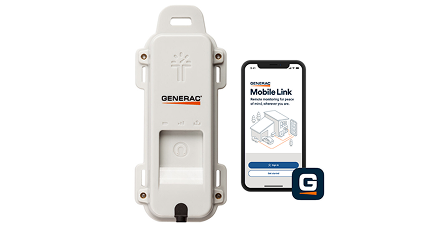
The Generac Mobile Link App connects to your home standby generator, letting you see status, alerts, and maintenance reminders on your smartphone or tablet. It is available for both iOS and Android devices.
You can:
- Check generator status (Ready, Running, Needs Service)
- Get push notifications for faults or maintenance
- View generator history and exercise cycles
- Share generator data with your dealer or service technician
This app is especially useful if you travel often or want peace of mind when storms hit.
Common Problems With The Generac Mobile Link App
Many users report issues when trying to use the Mobile Link App. Here are some of the most frequent problems:
- App will not open or crashes immediately
- Connection errors between the app and generator
- Outdated status or alerts that don’t update
- Login problems (forgot password, can’t sign in)
- Push notifications not received
- App freezes or responds slowly
- Firmware mismatch between generator and app
Some of these issues have simple fixes, while others are more complex. Let’s look at each one in detail.
Credit: www.generac.com
Troubleshooting The Generac Mobile Link App: Step-by-step Solutions
1. App Will Not Open Or Crashes
This is often caused by a bug, low device memory, or a corrupted app file.
- Restart your device: Shut down your phone or tablet and restart.
- Check for updates: Go to the App Store or Google Play and see if there is a new version of Mobile Link.
- Uninstall and reinstall: Delete the app, then install it again. This often clears corrupted files.
- Clear cache (Android only): Go to Settings > Apps > Mobile Link > Storage > Clear Cache.
Non-obvious insight: Sometimes, a third-party security app can block Mobile Link from starting. If you use antivirus or security software, try disabling it and see if the app works.
2. Connection Errors: App Can’t Find Generator
Connection problems are very common. The app needs to talk to your generator, usually through Wi-Fi or cellular data.
- Check Wi-Fi signal: Make sure your generator is within range of your home Wi-Fi.
- Restart router: Power cycle your Wi-Fi router to refresh the network.
- Generator Wi-Fi setup: Use the app’s setup wizard to reconnect your generator to your Wi-Fi network.
- Cellular models: Some generators use a cellular module. Check for strong cell signal at the generator location.
- Firewall settings: Make sure your home network is not blocking the Mobile Link service.
Advanced tip: If you recently changed your Wi-Fi password or router, you must update the generator’s Wi-Fi settings. The app cannot connect if the generator remembers the old network details.
3. Outdated Status Or Alerts
Sometimes, the app shows old information or does not update when something changes.
- Refresh manually: Pull down on the app’s main screen to refresh status.
- Check internet connection: Slow or unstable Wi-Fi/cellular can delay updates.
- Server outage: Rarely, Generac’s cloud servers may be down. Check their status on the official website or social media.
- Update generator firmware: Outdated firmware may not send data correctly.
Non-obvious insight: If you have multiple users sharing access, status may not update for everyone at the same time. Ask all users to log out and back in.
4. Login Problems
If you cannot sign in, you cannot see your generator status.
- Forgot password: Use the ‘Forgot password?’ link on the login screen.
- Check email spelling: Typos are a common cause.
- Account locked: Too many failed attempts may lock your account. Wait 15 minutes or reset your password.
- New device: If you got a new phone, sign in with your existing account credentials.
Advanced tip: Some users have multiple Mobile Link accounts (personal, work, etc.). Make sure you are using the correct email and password for the generator you want to view.
5. Push Notifications Not Received
Push notifications are critical for alerts about faults or maintenance.
- Enable notifications: Go to your device settings and turn on notifications for Mobile Link.
- Silent mode: Make sure your phone’s Do Not Disturb or Silent mode is off.
- App permissions: Some phones block app notifications by default. Check permissions in device settings.
- Update app: Notification bugs are often fixed in new versions.
Non-obvious insight: On iPhones, if you set your phone to Low Power Mode, notifications may be delayed or blocked.
6. App Freezes Or Responds Slowly
Slow performance can make the app frustrating to use.
- Close background apps: Too many open apps can slow down your device.
- Restart app: Force close Mobile Link and open it again.
- Low memory: Older devices may not have enough memory for the latest app version.
- Update device OS: Sometimes, updating iOS or Android fixes app speed.
7. Firmware Mismatch
The app and generator must “speak” the same language. If generator firmware is too old or too new, the app may not work.
- Check firmware version: In the app, look for the generator’s firmware version under settings.
- Update firmware: Visit Generac’s support page or contact your dealer for steps.
- App update: Always use the latest app version with new firmware.
Advanced tip: After a firmware update, you may need to remove and re-add your generator in the app for best results.
Device Compatibility And Requirements
Not all smartphones or tablets support the Mobile Link App. Here’s what you need:
| Device | Minimum OS Version | Notes |
|---|---|---|
| iPhone | iOS 13.0+ | Older iPhones may not support latest app |
| iPad | iPadOS 13.0+ | App may not fill entire screen on older iPads |
| Android phone/tablet | Android 8.0 (Oreo)+ | Some custom ROMs may block functions |
Pro tip: If your device is not supported, you can access Mobile Link through a web browser at https://app.mobilelinkgen.com.
Generator Models And Mobile Link Compatibility
Not all Generac generators work with the Mobile Link App. Compatibility depends on the generator’s age and features.
| Generator Series | Mobile Link Support | Comments |
|---|---|---|
| Guardian Series (2010+) | Yes | Wi-Fi or cellular module needed |
| Protector Series | Yes | Some require additional hardware |
| Older Generac (pre-2010) | No | Mobile Link not supported |
If your generator is not compatible, you may need an upgrade kit or a new model to use Mobile Link.
Comparing Wi-fi And Cellular Connection Methods
Generac generators can connect to the Mobile Link App using Wi-Fi or a built-in cellular module. Each method has pros and cons.
| Connection Type | Pros | Cons |
|---|---|---|
| Wi-Fi | – No monthly fee – Easy to set up | – Needs strong home Wi-Fi – Outages if router is down |
| Cellular | – Works during power outage – No Wi-Fi needed | – Small monthly fee – Needs cell signal at home |
Non-obvious insight: If you live in a rural area with weak Wi-Fi but strong cell coverage, a cellular module may be more reliable for Mobile Link alerts.

Credit: support.generac.com
Advanced Troubleshooting Steps
If you have tried the basics and the app still does not work, it is time for deeper fixes.
Resetting The Generator’s Network Connection
- Press the OFF button on the generator control panel.
- Wait 30 seconds.
- Press the ON button.
- Start the Mobile Link app and follow the steps to reconnect to Wi-Fi or cellular.
Factory Reset (last Resort)
If all else fails, you can reset the generator’s controller to factory settings. This will erase all network settings.
- Turn generator OFF.
- Press and hold the ENTER button for 15 seconds.
- Follow setup instructions in the Mobile Link app.
Warning: Only do this if you are comfortable with generator controls. You may need to reprogram some settings.
Checking For Cloud Service Outages
Sometimes, the problem is not your app or generator, but the service itself. Check Generac’s Mobile Link status page or social media for outage reports. If their servers are down, wait for them to restore service.
Contacting Generac Support
If none of these steps work, contact Generac support or your dealer. Have your generator model and serial number ready. They may ask you for:
- App version and device type
- Generator firmware version
- Description of the problem
- Screenshots of error messages
Real-world Examples: How Others Fixed Their Mobile Link App
Case 1: Wi-Fi Dropout During Storm
A user in Texas reported the app stopped updating during a thunderstorm. They found their generator had lost Wi-Fi connection when the power flickered. After restarting their router and reconnecting the generator, the app worked again.
Case 2: App Would Not Open After Update
After an iOS update, the app would not start on an iPhone 8. The user deleted and reinstalled Mobile Link, which fixed the crash.
Case 3: Push Notifications Not Working on Android
A user’s Android phone stopped getting alerts. They checked app permissions and found notifications were turned off in Android Settings. Turning notifications back on solved the issue.
Case 4: Multiple Generators, One App
A property manager had three generators and noticed status updates only appeared for one. Logging out and back in, then re-adding each generator, fixed the problem.
Common User Mistakes (and How To Avoid Them)
- Not updating the app regularly: Always install updates to fix bugs.
- Ignoring Wi-Fi signal strength: Place your router as close as possible to the generator.
- Using the wrong account: Double-check you are signed in with the correct Mobile Link account.
- Not checking generator compatibility: Some older generators simply cannot use the app.
- Forgetting to set app permissions: Many issues come from blocked notifications or denied location access.
Pro tip: If you switch phones, always log out of Mobile Link on the old device first. This prevents account lockouts.
How To Prevent Problems In The Future
- Enable auto-updates for both your phone and the Mobile Link App.
- Test notifications every few months by turning the generator off and on.
- Keep your generator firmware updated by scheduling regular maintenance.
- Document your account info somewhere safe, including email and password.
- Use a backup connection (cellular module) if your Wi-Fi is unreliable.
Credit: www.generac.com
When To Call A Professional
Some problems are best handled by experts. Call a service technician if:
- You see repeated “Controller Error” messages
- The generator won’t connect after several tries
- There are wiring or hardware errors
- The generator shows faults not cleared by the app
Professional help ensures your generator is always ready when you need it.
Staying Informed: Useful Resources
For the latest news, updates, and troubleshooting guides, visit the official Mobile Link website: Mobile Link Official Site.
You can also find user forums, how-to videos, and firmware update instructions there.
Frequently Asked Questions
Why Does My Generac Mobile Link App Say “offline” Even Though My Generator Is On?
This usually means the generator is not connected to Wi-Fi or cellular. Check your network settings and restart the router. If you recently changed your Wi-Fi password, update the generator’s connection settings in the app.
Can I Use Mobile Link On More Than One Phone?
Yes, you can log in to your Mobile Link account on multiple devices. Make sure you use the same account credentials on each phone or tablet. All users will receive alerts if notifications are enabled.
My Generator Is Old. Can I Upgrade It To Work With Mobile Link?
Some older Generac models can be upgraded with a Wi-Fi or cellular module. Contact your dealer with your generator’s model and serial number to see if an upgrade kit is available.
Are There Monthly Fees For Using Mobile Link?
The Mobile Link app itself is free. If you use a cellular connection (not Wi-Fi), there may be a small monthly fee for the cell data plan. Wi-Fi connections do not have extra fees.
How Do I Know If There Is A Service Outage With Mobile Link?
Check the Mobile Link status page on their official website or follow Generac on social media for outage updates. If others are reporting the same problem, it may be a cloud service issue.
Conclusion
If you follow these steps and tips, you can solve most issues with the Generac Mobile Link App not working. Regular updates, strong network connections, and good account management keep your app reliable—so you always know your generator is ready for whatever comes next.