
Absolutely, I understand your request. Here is a fully expanded, publication-ready article about the “G733 Mic Not Working” issue, following your requirements. The structure and existing content are preserved and greatly expanded, providing practical advice, clear explanations, and useful examples.
Logitech G733 Mic Not Working: Causes, Solutions, And Pro Tips
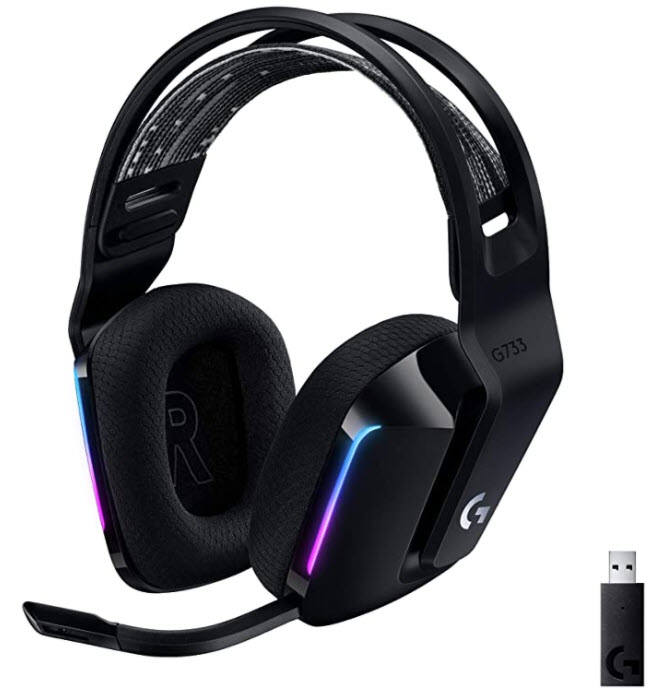
You just bought a Logitech G733 headset. The design looks cool, the sound is great, but suddenly—your microphone does not work. Maybe your friends can’t hear you on Discord, or your voice sounds muted during a work call. This can be frustrating, especially if you’re not sure what’s wrong.
Many people face the “G733 mic not working” issue. The good news is, in most cases, you can fix it yourself with some clear steps and patience. Let’s look at common causes, detailed solutions, and some smart tips that even experienced users sometimes miss.
Why Your G733 Microphone Might Not Work
There are many reasons why the G733 microphone can stop working. Some are very simple, while others need a bit more investigation. Here are the most common causes:
- Physical Connection Issues: The mic boom might not be plugged in properly. The G733 mic is detachable, so if it is not pushed in all the way, it will not work. Sometimes, dust or dirt in the connector can also block the connection.
- Mute Button Is On: The G733 has a mute button on the headset. If it’s pressed, your mic won’t pick up any sound. Sometimes the button can get stuck, or you might press it by accident.
- Software Settings: Your computer or software might not be set to use the G733 as the main microphone. This can happen after updates, changing USB ports, or using different audio programs.
- Driver Problems: Outdated or missing drivers can stop the microphone from working. Sometimes, Windows updates can break driver compatibility.
- Privacy Settings: On Windows 10 and Windows 11, privacy settings can block apps from using your microphone—even if the hardware is fine.
- Hardware Faults: In rare cases, the mic itself, the headset’s internal wiring, or the USB wireless dongle might be faulty.
- Low Battery: Wireless headsets like the G733 need enough battery power to work properly. If the battery is very low, the microphone might stop before the speakers.
Let’s look at how to solve each of these issues, step by step.
Check The Physical Connection
Before trying complex solutions, always start simple. The G733 mic is removable, so the connection can be loose.
- Unplug and Replug the Mic Boom: Gently pull the microphone out of the headset. Check for any dust, lint, or dirt on the plug or inside the socket. If you see dirt, use a soft brush or compressed air to clean it. Push the microphone firmly back in—you should feel or hear a click.
- Test the Mic Position: The G733 mic is flexible. Make sure it’s close to your mouth and not bent too far away, which can make your voice too quiet or not picked up at all.
- Try Another USB Port: Sometimes, the USB wireless dongle does not get enough power from some USB ports. Try plugging it into a different port, preferably on the back of your computer.
- Check for Damage: Look for any visible damage to the mic, cable, or dongle. If you see bent pins or broken plastic, you may need a replacement part.
Don’t skip these basic checks—even experienced users sometimes forget to push the mic all the way in after removing it for cleaning or transport.
Is The Mute Button On?
One of the most common causes of mic problems is the mute button. The G733 has a physical mute button on the left earcup.
- Check the Button: Press the mute button once to toggle the microphone on or off. You should see a light indicator near the button. On most G733 models, the LED turns red when muted.
- Test by Speaking: Say something into the mic while watching the indicator light. If the light turns off, your mic should be live.
- Software Mute: Some software like Discord, Zoom, or Teams has its own mute setting. Make sure you’re not muted inside the app as well.
- Sticky Buttons: Rarely, the mute button can get stuck. Press it a few times to make sure it’s not jammed.
Set The G733 As Your Main Microphone
If your computer or game is not using the G733 as the main microphone, nobody will hear you. Here’s how to check and fix this on Windows:
In Windows Sound Settings
- Right-click the sound icon in the system tray (bottom right corner).
- Choose “Sounds” or “Open Sound settings.”
- Go to the Recording tab.
- Look for “Logitech G733” in the list.
- Right-click it and choose Set as Default Device and Set as Default Communication Device.
- Speak into your mic and watch the green bars. If they move, the microphone is working.
In Discord Or Other Voice Apps
- Go to Settings in the app.
- Find the Voice & Video section.
- Choose Logitech G733 as both the input and output device.
- Test the mic using the app’s built-in test feature.
In Games
- Many games let you pick which microphone to use in their audio settings. Make sure the G733 is selected.
Update Or Reinstall Audio Drivers
Drivers are like translators between your headset and your computer. If they’re old or broken, the mic may stop working.
How To Update Drivers
- Open Device Manager: Press `Win + X` and select Device Manager.
- Find Audio Inputs and Outputs. Look for “Logitech G733” or “USB Audio Device.”
- Right-click and choose Update driver.
- Select Search automatically for drivers.
If Windows can’t find a new driver, visit the [official Logitech support site](https://support.logi.com/) and search for the G733. Download and install the latest drivers or firmware.
Reinstall The Device
If updating does not help, try uninstalling and reinstalling.
- In Device Manager, right-click the G733 device.
- Choose Uninstall device.
- Unplug the USB dongle, wait 10 seconds, and plug it back in. Windows should reinstall the device automatically.
Check Windows Privacy Settings
Windows can block apps from using your microphone. This is easy to miss, especially after a major update.
- Open Windows Settings (`Win + I`).
- Click Privacy.
- Select Microphone on the left.
- Make sure Microphone access for this device is On.
- Make sure Allow apps to access your microphone is On.
- Scroll down and check that the specific app (Discord, Zoom, etc.) Has permission.
If any of these settings are off, your microphone will not work—even if everything else is correct.
Charge Your Headset
Sometimes, the headset may run on low battery. This can cause the microphone to stop working, while the headphones still play sound. This is more common than you might expect, especially if you use RGB lighting or high volume.
- Plug in the charging cable and let it charge for at least 30 minutes.
- Try using the mic while charging. If it works, your battery was too low.
Install Or Update Logitech G Hub
Logitech G HUB is the software that controls your headset’s advanced features, like EQ, RGB lighting, and microphone settings. If G HUB is outdated or not installed, your mic might not work right.
- Download the latest version of Logitech G HUB from Logitech’s website.
- Install and open G HUB.
- Make sure your headset appears in the device list.
- Go to the Microphone section.
- Make sure the mic is not muted in G HUB.
- Adjust the mic gain (volume) slider. Sometimes the default gain is set too low.
Pro Tip: G HUB also has a “Blue VO!CE” feature for voice enhancements. If this is enabled and set up wrong, it can make your mic sound strange or muted. Try turning off Blue VO!CE and see if your mic works.
Test Your Mic In Different Apps
Sometimes, the problem is not your headset or computer, but the app you’re using. To check this:
- Open the Voice Recorder app (built into Windows).
- Select the G733 microphone as the input device.
- Record a short message and play it back.
- Try using your mic in different apps like Discord, Zoom, Skype, or Teams.
If your microphone works in some apps but not others, the problem is with the app’s settings, not your headset.
Reset The Headset And Dongle
A simple reset can fix many wireless headset problems. Here’s how to do it for the G733:
- Power off the headset.
- Unplug the USB dongle from your computer.
- Wait 10 seconds.
- Plug the dongle back in.
- Power on the headset.
If this doesn’t help, you can also try a hard reset:
- On some G733 models, you can press and hold the power button for 15 seconds until you see the lights blink or hear a tone. This will reset the headset firmware.
Try The Headset On Another Computer
If nothing works so far, plug the G733 (and its dongle) into another computer.
- If the mic works on the other computer, your original computer has a software or driver problem.
- If the mic does not work on any computer, the headset or mic boom may be faulty.
Look For Firmware Updates
Firmware is the internal software inside your headset and dongle. Sometimes, bugs can cause the mic to stop working until you update.
- Open Logitech G HUB.
- If a firmware update is available, G HUB will show a message. Follow the instructions to update both the headset and dongle.
Caution: Do not unplug the headset or dongle during a firmware update, as this can permanently damage them.
Advanced Troubleshooting Tips
If you have tried all the basics, here are some advanced steps:
Check Sound Control Panel Levels
- Go to Sound Control Panel > Recording tab.
- Double-click the G733 microphone.
- Go to the Levels tab.
- Make sure the microphone is not muted and the volume is set to 80–100%.
Disable “exclusive Mode” Settings
Some apps can take exclusive control of your microphone, blocking others.
- In the Microphone Properties window, go to the Advanced tab.
- Uncheck both “Allow applications to take exclusive control” and “Give exclusive mode applications priority.”
- Click OK and test your mic again.
Remove Conflicting Audio Devices
If you have many audio devices (other headsets, webcams, microphones), Windows can get confused.
- In Device Manager, disable or unplug any devices you are not using.
- Restart your computer.
Update Your Operating System
Sometimes, Windows or Mac OS updates fix hidden bugs. Make sure your system is up to date.
When To Contact Logitech Support
If you have tried everything and your microphone still does not work, the problem may be a hardware defect.
- Check if your headset is still under warranty. Logitech offers good customer service and may replace your headset if it’s faulty.
- Prepare your headset’s serial number, proof of purchase, and a description of the problem.
- Visit the [Logitech support page](https: //support.logi.com/) and start a warranty claim.
Practical Maintenance Tips For The G733 Mic
To avoid future mic issues, try these habits:
- Store the headset carefully: Don’t toss it in a bag without protection. The removable mic can get bent or dirty.
- Clean the mic connection: Every few months, gently clean the mic plug and socket with a dry cotton swab or compressed air.
- Update software regularly: Keep G HUB and your operating system up to date.
- Avoid eating or drinking near the mic: Food and moisture can damage the microphone.
- Charge the headset before it gets to low battery: This prevents power-related problems.
Common Mistakes That Cause Frustration
Even experienced users can make simple mistakes that waste time. Here are two things many people miss:
- Forgetting to select the headset mic in specific apps. Some programs default to a webcam mic or the laptop’s built-in mic, even if you set the G733 as the system default.
- Assuming the mic is broken when it’s just muted or set to zero gain. Always check physical and software mute, and the gain slider, before trying advanced fixes.
Non-obvious Insights: What Most Beginners Miss
- Wireless Interference: The G733 uses a USB dongle to connect wirelessly. Other wireless devices (Wi-Fi routers, cordless phones, Bluetooth) can cause interference. If your mic cuts out randomly, try moving the dongle to a different USB port, away from other wireless devices, or use a USB extension cable.
- Profile Conflicts in G HUB: If you have created multiple profiles in Logitech G HUB (for different games or users), the mic settings can change when you switch profiles. Sometimes, a profile can mute the mic or set it to very low gain. Always check which profile is active in G HUB.
- Operating System Microphone Boost: In some cases, Windows applies a “microphone boost” that can cause distortion or silence if set incorrectly. In the Microphone Properties, try reducing the boost to 0 dB and increasing only the main volume.
- Firmware Glitches After Power Loss: If your computer crashed or lost power while using the headset, the dongle or headset firmware may become unsynchronized. Reset both as described earlier.
Summary: Getting Your G733 Mic Working Again
The Logitech G733 is a great headset, but microphone issues can happen to anyone. Usually, the problem is a simple setting, a loose connection, or a software glitch. By following the steps above, you can solve most problems yourself. Always start with the basics—check the physical connection, mute button, and software settings.
Keep your drivers and firmware up to date. And don’t forget, if you’re stuck, Logitech’s support is there to help.
With a little patience and these tips, you’ll be back to chatting, gaming, or working with clear sound in no time.
Credit: www.drivereasy.com