
If you use Microsoft Excel often, you probably know how helpful the Freeze Panes feature can be. It lets you lock certain rows or columns in place, so when you scroll through your spreadsheet, the headers or key data stay visible. This is very useful for large data sets or reports. But sometimes, you might find that Freeze Panes is not working the way you expect. This can be frustrating, especially when you need to review or share data with others.
Understanding why Freeze Panes fails and how to fix it can save you time and prevent errors. This guide explores all possible reasons behind the problem, how to troubleshoot each cause, and practical solutions. Whether you are a beginner or an advanced Excel user, this article will help you get the most out of Freeze Panes. Along the way, you’ll see examples, step-by-step advice, and even some expert tips that many users overlook.
What Is Freeze Panes In Excel?
Freeze Panes is a feature in Microsoft Excel that allows you to keep certain rows and columns visible on your screen as you scroll through the worksheet. For example, you can freeze the top row to always see your headers or freeze the first column to track names or IDs.
This makes it easier to analyze large amounts of data.
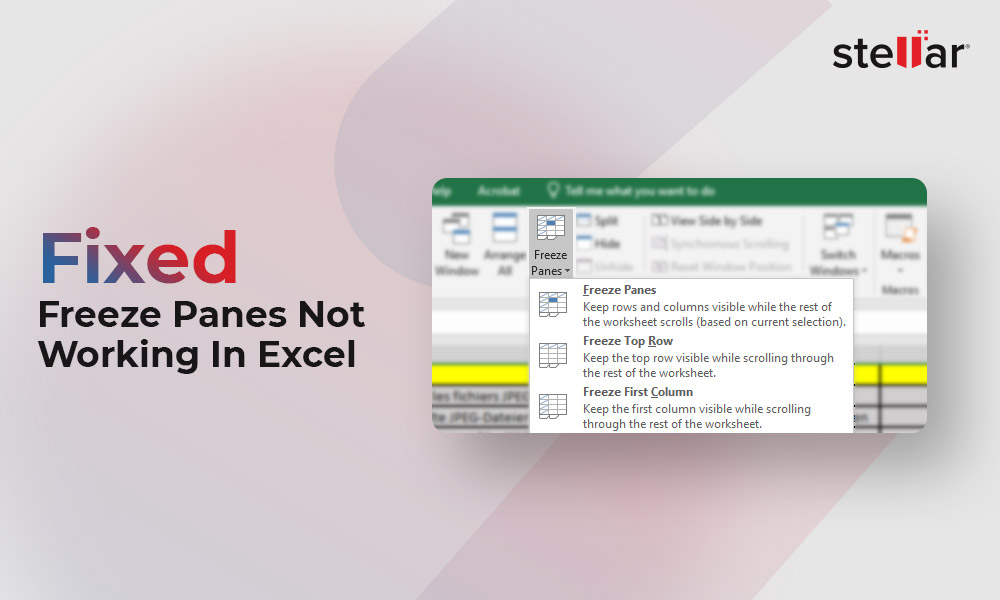
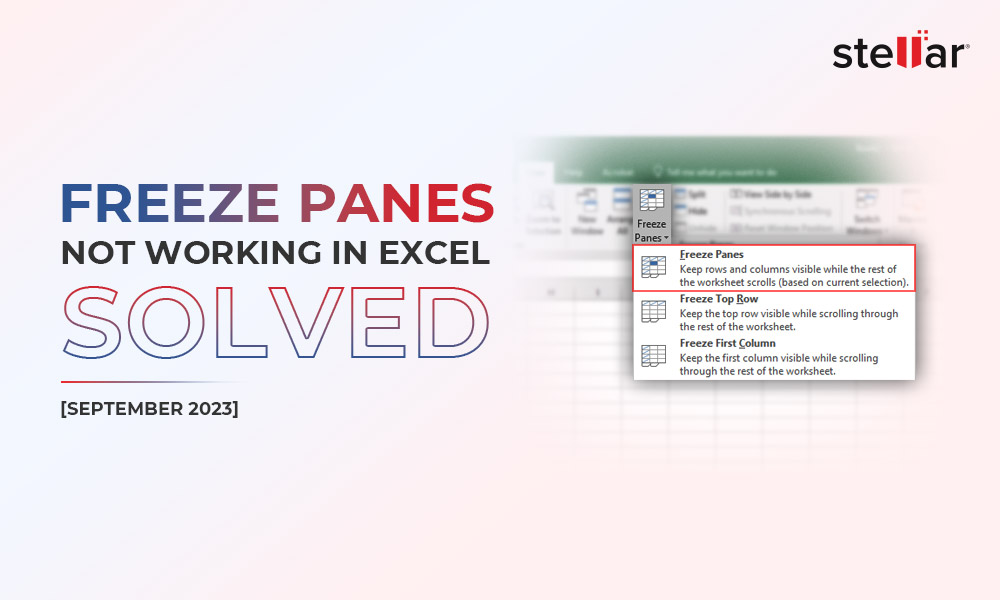
You can find Freeze Panes in the View tab of the Excel ribbon. There, you have three main options:
- Freeze Panes: Locks rows and columns above and to the left of your selection.
- Freeze Top Row: Keeps only the first row visible when scrolling.
- Freeze First Column: Keeps only the first column visible.
Despite its simplicity, this feature can sometimes stop working, leaving users confused.
Common Reasons Why Freeze Panes Is Not Working
If you are struggling with Freeze Panes not working in Excel, it’s usually because of one or more specific reasons. Let’s look at the most common causes and how they affect your worksheet.
1. Freeze Panes Is Grayed Out
Sometimes, the Freeze Panes option is not clickable. This can happen due to:
- Worksheet protection: If your sheet is protected, many features, including Freeze Panes, are disabled.
- Group mode: If you have multiple sheets selected (grouped), Freeze Panes will not be available.
- Editing cell: If you are currently editing a cell, the feature is temporarily disabled.
2. Freeze Panes Not Working As Expected
You might apply Freeze Panes but still find that your rows or columns are not staying in place. This could be because:
- Wrong cell selected: Freeze Panes works based on the selected cell. If you choose the wrong cell, you may not freeze what you intended.
- Scrolling issue: Sometimes, users expect more rows or columns to stay frozen than the feature supports.
- Merged cells: Merged cells in the area you want to freeze can disrupt the function.
- Hidden rows/columns: If there are hidden elements, Freeze Panes might not behave as expected.
3. File Format Or Compatibility Issues
Some file formats or older versions of Excel may not fully support Freeze Panes. For instance, files in CSV format do not save Freeze Panes settings.
4. Display Settings And Zoom
Your screen resolution, zoom level, or display scaling can sometimes affect how Freeze Panes appears or works. High zoom levels may make frozen lines hard to spot.
5. Large Data Sets And Performance
In very large workbooks, Excel can have trouble applying Freeze Panes due to memory or performance limitations.
Credit: www.stellarinfo.com
How Freeze Panes Actually Works
Many users do not realize that Freeze Panes is based on your current cell selection. Here’s how it operates:
- When you select a cell and click Freeze Panes, Excel locks all rows above and all columns to the left of your selected cell.
- If you select Freeze Top Row, only row 1 is frozen.
- If you select Freeze First Column, only column A is frozen.
For example, if you select cell B2 and click Freeze Panes, row 1 and column A will be frozen. This surprises some users, as they expect only the visible row or column to be affected.
Step-by-step Solutions For Freeze Panes Problems
Let’s go through all the possible issues and how to solve them. Each solution comes with specific steps and examples.
1. Unprotect The Worksheet
When a worksheet is protected, many features are disabled. To check and remove protection:
- Go to the Review tab.
- Click Unprotect Sheet.
- If a password is required, enter it.
Once unprotected, try Freeze Panes again.
2. Make Sure Only One Sheet Is Selected
If you accidentally select multiple sheets (grouped mode), Freeze Panes won’t work. Here’s how to fix it:
- Look at the sheet tabs. If more than one is highlighted, right-click any tab and choose Ungroup Sheets.
This simple step solves the problem for many users.
3. Finish Editing All Cells
If you are typing or editing a cell, press Enter or Esc to exit edit mode before trying Freeze Panes.
4. Select The Correct Cell
This is one of the most common mistakes. Decide which rows and columns you want to freeze, then:
- Click the cell below the rows and to the right of the columns you want frozen.
- For example, to freeze the top two rows and the first column, select cell B3.
- Go to View > Freeze Panes > Freeze Panes.
5. Remove Merged Cells
Merged cells in the area to be frozen can block the feature. To find and fix merged cells:
- Select the rows/columns you want to freeze.
- Go to Home > Merge & Center > Unmerge Cells.
Now try to freeze panes again.
6. Unhide Any Hidden Rows Or Columns
Hidden elements can confuse Freeze Panes. To unhide:
- Select the columns or rows around the hidden area.
- Right-click and choose Unhide.
7. Check File Format
Freeze Panes settings are not saved in CSV or other plain text formats. Save your file as an .xlsx or .xls format to retain Freeze Panes.
8. Check For Compatibility Mode
If your file is in compatibility mode (older Excel format), save it as a modern Excel workbook to unlock all features.
9. Adjust Zoom And Display
Freeze Panes lines may be hard to see at very high or low zoom levels. Try setting zoom between 80% and 120% for best visibility.
10. Restart Excel Or Computer
Sometimes, Excel may have a glitch. Saving your file, closing Excel, and reopening it can solve minor problems.
11. Check For Updates And Add-ins
Outdated Excel versions or conflicting add-ins can cause issues. Update Excel and disable any unnecessary add-ins.
12. Use Split As An Alternative
If Freeze Panes will not work, try the Split feature in the View tab. It allows you to create separate scrollable areas.
13. Optimize Large Files
If you work with very large spreadsheets, consider splitting data into smaller sheets to improve performance. This makes Freeze Panes more reliable.
Examples: Solving Freeze Panes Issues
Let’s look at some real-world scenarios and how to fix them.
Example 1: Unable To Freeze Top Row
John wants to freeze the header row in a sales report. He clicks View > Freeze Top Row, but the header still scrolls away.
Solution: John discovers that the first row is hidden. After unhiding it, Freeze Top Row works as expected.
Example 2: Freeze Panes Is Grayed Out
Maria finds the Freeze Panes option is grayed out. She checks and sees that multiple sheets are selected. After ungrouping the sheets, the option is now clickable.
Example 3: Merged Cells Prevent Freezing
David tries to freeze the first two columns, but nothing happens. He finds merged cells in his header row. After unmerging, Freeze Panes works.
Example 4: Freeze Panes Not Saved
Lucy sets up her worksheet with Freeze Panes, but after saving as a CSV file and reopening, the frozen rows are gone. She learns that only Excel file types save Freeze Panes settings.
Data Table: When Freeze Panes Works And When It Doesn’t
Here’s a quick overview of scenarios where Freeze Panes works or fails:
| Scenario | Freeze Panes Works? | Why/Why Not? |
|---|---|---|
| Worksheet is protected | No | Protected sheets disable Freeze Panes |
| Multiple sheets selected | No | Feature is disabled in group mode |
| File saved as .xlsx | Yes | Excel file types support the feature |
| Editing a cell | No | Feature is unavailable during editing |
| Merged cells in freeze area | No | Merged cells block Freeze Panes |
| Hidden rows/columns in freeze area | Sometimes | Can cause unexpected results |
| CSV file format | No | Settings are not saved in CSV |
| Modern Excel format, correct selection | Yes | Freeze Panes works as designed |
Tips To Avoid Freeze Panes Issues
To use Freeze Panes smoothly, keep these practical tips in mind:
- Always save your file as an Excel workbook (.xlsx or .xlsm) if you want to keep Freeze Panes settings.
- Choose your starting cell carefully—remember, everything above and to the left will be frozen.
- Unmerge cells before applying Freeze Panes.
- Avoid hiding rows or columns in the area you want to freeze.
- Unprotect your sheet if you need to use Freeze Panes.
- Keep your Excel updated to avoid bugs and glitches.
- Check for grouped sheets—only one sheet should be active.
- Watch your zoom level—if you can’t see the frozen lines, adjust zoom between 80% and 120%.
Advanced Insights: What Most Users Overlook
Here are two insights most beginners miss:
1. Freeze Panes and Print Settings Are Separate
Many users think Freeze Panes will affect printed pages, but it only works on your screen. If you want header rows or columns to repeat on printouts, use the Print Titles feature under Page Layout > Print Titles.
2. Freeze Panes Affects Only the Active Window
If you have split your workbook into multiple windows, Freeze Panes only applies to the window you set it in. Each window can have its own Freeze Panes settings. This is useful for comparing different parts of a large sheet.
Comparison Table: Freeze Panes Vs Split
Some users confuse Freeze Panes with the Split feature. Here’s how they differ:
| Feature | Purpose | How It Works | When to Use |
|---|---|---|---|
| Freeze Panes | Keep headers or key info visible | Locks rows above and columns to the left of selection | When working with tables or reports with headers |
| Split | View multiple parts of a sheet at once | Creates independent scrollable areas | When comparing distant data in one sheet |
Troubleshooting Checklist For Freeze Panes Not Working
If you still cannot get Freeze Panes to work, follow this checklist step by step:
- Is the worksheet protected? Unprotect it.
- Are multiple sheets grouped? Ungroup them.
- Are you editing a cell? Press Enter or Esc to exit.
- Is the correct cell selected? Double-check which rows/columns you want to freeze.
- Are there merged cells in the area? Unmerge them.
- Are any rows/columns hidden? Unhide them.
- Is the file saved as .xlsx? If not, resave it.
- Are you in compatibility mode? Save as a modern Excel file.
- Is your display zoom reasonable? Adjust it if needed.
- Have you restarted Excel? Try closing and reopening.
- Is Excel up to date? Update if not.
- Are unnecessary add-ins disabled? Turn them off.
- Still having trouble? Try the Split feature as a workaround.
Credit: www.stellarinfo.co.in
Data Table: File Types And Freeze Panes Support
Understanding which file types support Freeze Panes is important:
| File Type | Freeze Panes Supported? | Comments |
|---|---|---|
| .xlsx (Excel Workbook) | Yes | Best for most users |
| .xls (Excel 97-2003) | Yes | Works, but some features limited |
| .csv (Comma Separated Values) | No | Settings not saved |
| .xlsm (Macro-enabled Workbook) | Yes | Supports Freeze Panes |
| .ods (OpenDocument Spreadsheet) | No | Limited support in Excel |
When Freeze Panes Still Doesn’t Work: Alternative Solutions
If you have tried all the steps and Freeze Panes is still not working, here are some alternatives:
- Use the Split feature to create scrollable sections.
- Print headers on every page using Print Titles.
- Create multiple sheets for different views of your data.
- Use filters to limit visible data and reduce scrolling.
These options can help you work around the issue until you find a permanent solution.
Preventing Freeze Panes Problems In The Future
To avoid running into Freeze Panes issues again, consider these habits:
- Set up Freeze Panes before adding complex formatting (like merging or hiding).
- Communicate with teammates if you share files—let them know about Freeze Panes settings.
- Test your file on another computer or version of Excel, especially if sharing.
- Regularly save your work to an Excel file type.
- Document your worksheet layout so others can understand how to use Freeze Panes.
Frequently Asked Questions
What Does Freeze Panes Do In Excel?
Freeze Panes lets you keep specific rows or columns visible as you scroll through your worksheet. For example, you can keep the top row of headers in view while scrolling down a long list of data.
Why Is Freeze Panes Grayed Out In My Excel File?
This usually happens if your worksheet is protected, you are editing a cell, or multiple sheets are selected. Unprotect the sheet, finish editing, and make sure only one sheet is active to enable Freeze Panes.
Will Freeze Panes Affect How My Worksheet Prints?
No, Freeze Panes only changes what you see on your screen. If you want to repeat headers on every printed page, use the Print Titles feature instead.
Can I Freeze Both Rows And Columns At The Same Time?
Yes. Select the cell below the rows and to the right of the columns you want to freeze, then click Freeze Panes. Everything above and to the left of your selection will stay visible.
Does Freeze Panes Work In All File Types?
No. Freeze Panes only works in Excel file formats like. xlsx and. xlsm. It does not work in. csv or some other formats. Always save your file as an Excel workbook to keep Freeze Panes settings.
Conclusion
If you follow the steps and tips in this guide, you should be able to solve almost any problem with Freeze Panes not working in Excel. If you need more details, Microsoft’s official help center is a great resource: Microsoft Excel Support.
With a bit of practice, you’ll turn Freeze Panes into a powerful tool for managing your data—and avoid those frustrating moments when your headers disappear as you scroll.