
If you’ve invested in the Fire TV Recast, you expect to record your favorite shows, skip commercials, and watch live TV on your own schedule. But what happens when your Fire TV Recast simply stops recording? For many users, this problem turns a helpful device into a source of frustration. You might see scheduled recordings vanish, get incomplete recordings, or find that nothing records at all—sometimes with no clear warning.
This guide is for anyone struggling with the Fire TV Recast not recording issue. We’ll break down the reasons behind missed recordings, show you how to troubleshoot, and offer proven solutions. If you want to fix your Recast and never miss an episode again, read on. You’ll also learn tips that most beginners overlook, and get clear answers to common questions.
Understanding Fire Tv Recast And How It Records
The Fire TV Recast is a DVR (Digital Video Recorder) designed for cord-cutters. It lets you record over-the-air TV channels using an antenna and stores them on its hard drive. You can access these recordings on your Fire TV device, Echo Show, or mobile app.
Unlike cloud DVRs, the Recast saves shows locally. This means it depends on your home network, antenna signal, and a few other factors. When it stops recording, the problem could come from many places: settings, signal strength, software bugs, or even hardware limits.
Knowing how the Recast works helps you target the right fix. Here’s a quick look at the recording process:
- You schedule a program or series to record.
- At the set time, the Recast tunes to the channel using your antenna.
- The device captures the broadcast and saves it to its hard drive.
- You watch or manage your recordings from connected devices.
If any step fails, your show may not record. The rest of this article explores each possible failure and how to solve it.
Common Reasons Why Fire Tv Recast Is Not Recording
Let’s start by looking at the most frequent causes. If you notice your Recast isn’t recording, the answer is likely one of these:
- Weak or unstable antenna signal
- Conflicts in recording schedule
- Insufficient storage space
- Outdated software or firmware
- Connectivity problems (Wi-Fi or network)
- Incorrect time zone or clock settings
- Corrupted TV guide data
- Device overheating
- Manual errors in scheduling
- Hardware faults
Each cause has its own fix, but sometimes you’ll need to check more than one area. Let’s go through the top issues step by step.
Checking Antenna Signal And Reception
One of the most overlooked reasons for missed recordings is a weak antenna signal. The Recast can only record what it receives clearly. If the signal drops during the broadcast, you may get partial recordings or none at all.
How To Test Signal Strength
- On your Fire TV, go to the Recast settings.
- Look for a “Signal Strength” or “Channel Scan” option.
- Check each channel’s signal. Anything below 70% may cause problems.
If you see low numbers, try these:
- Reposition your antenna higher or closer to a window.
- Use a longer or better quality coaxial cable.
- Consider an amplified antenna if you’re far from TV towers.
Pro Tip
Many users assume their antenna is fine because live TV plays. But recordings are more sensitive to signal drops, especially for longer shows. Always check signal strength, not just live viewing quality.
Resolving Recording Schedule Conflicts
The Fire TV Recast has either two or four tuners, depending on your model. This means it can record two or four shows at once. If you try to record more than your device supports, some shows will not be recorded.
How To Spot Scheduling Conflicts
- Open your “Scheduled Recordings” list.
- Look for overlapping shows on the same time slot.
- You may get a warning about conflicts, but not always.
Fixing Conflicts
- Adjust recording times to avoid overlap.
- Give priority to your most important shows.
- Delete old or unwanted scheduled series.
Data Table: Number Of Tuners Vs. Recording Capacity
| Model | Number of Tuners | Max Simultaneous Recordings |
|---|---|---|
| Fire TV Recast (500GB) | 2 | 2 |
| Fire TV Recast (1TB) | 4 | 4 |
If you have a 2-tuner Recast, you cannot record 3 shows at once. Choose carefully when scheduling.
Managing Storage Space
A full hard drive is a common reason for failed recordings. The Recast can only store so much. When space runs out, new recordings may not start, or old ones may be deleted automatically (if you’ve set it to auto-delete).
How To Check Storage
- In the Recast settings, find “Storage” or “Disk Space.”
- See how much space is used and available.
Making Room For New Recordings
- Delete watched or unwanted recordings.
- Set some shows to “Do Not Keep” if space is low.
- Use “Auto Delete” with care; you might lose favorite shows.
Key Insight
Many users forget that HD (High Definition) recordings take up much more space than SD (Standard Definition). Recording everything in HD fills the drive quickly. Consider recording less important shows in SD to save room.
Updating Software And Firmware
Outdated software is a silent cause of many Recast problems. Amazon releases updates to fix bugs, improve reliability, and add features.
How To Update Your Recast
- Open your Fire TV settings.
- Go to “Device & Software” > “About” > “Check for Updates.”
- Install any available updates for your Fire TV and Recast.
If your device doesn’t update automatically, restart it and try again.
Pro Tip
Updates sometimes reset settings or fix guide errors. Always check for updates before trying other complex fixes.
Fixing Connectivity Issues
The Recast connects to your network via Wi-Fi or Ethernet. If the connection drops, scheduled recordings may fail—even if your antenna is fine.
Signs Of Network Problems
- Recordings stop halfway or don’t start.
- The Recast is missing from your Fire TV devices.
- Guide data won’t load or update.
How To Improve Connectivity
- Move the Recast closer to your router.
- Switch to a wired Ethernet connection if possible.
- Avoid Wi-Fi “dead zones” and interference from other electronics.
Data Table: Wi-fi Vs. Ethernet For Fire Tv Recast
| Connection Type | Reliability | Recommended For |
|---|---|---|
| Wi-Fi (2.4GHz) | Moderate | Short distance, fewer devices |
| Wi-Fi (5GHz) | Good | Medium distance, less interference |
| Ethernet | Excellent | Best for reliability |
For best results, use Ethernet if possible, especially if you record a lot.
Verifying Time Zone And Clock Settings
The Recast uses your device’s clock to start and stop recordings. If the time zone is wrong, shows may not record at the right time.
How To Check Clock Settings
- In the Recast or Fire TV settings, find “Time” or “Time Zone.”
- Make sure it matches your local time.
Adjusting Time If Incorrect
- Set the correct time zone manually.
- If the device always shows the wrong time, restart your router and device. Sometimes network time sync fails.
A mismatch of even a few minutes can ruin scheduled recordings, especially for live events.
Refreshing Tv Guide Data
The Recast relies on accurate program guide data. If the guide is out-of-date or corrupted, scheduled recordings may not happen.
Signs Of Guide Problems
- Show listings are missing or show “No Information.”
- Scheduled recordings don’t appear in your list.
- Recordings don’t match what you expected.
How To Refresh Guide Data
- In settings, use the “Rescan Channels” or “Refresh Guide” option.
- Wait for the guide to update fully—this may take several minutes.
If problems persist, delete and re-add channels, or restart your device.
Preventing Device Overheating
Like all electronics, the Recast can overheat. High temperatures can cause it to pause, shut down, or skip recordings.
How To Keep Your Device Cool
- Place the Recast in a well-ventilated area.
- Avoid stacking it with other hot devices.
- Clean vents and fans regularly.
If you notice the device is hot to the touch or recordings fail during heatwaves, overheating is likely the cause.
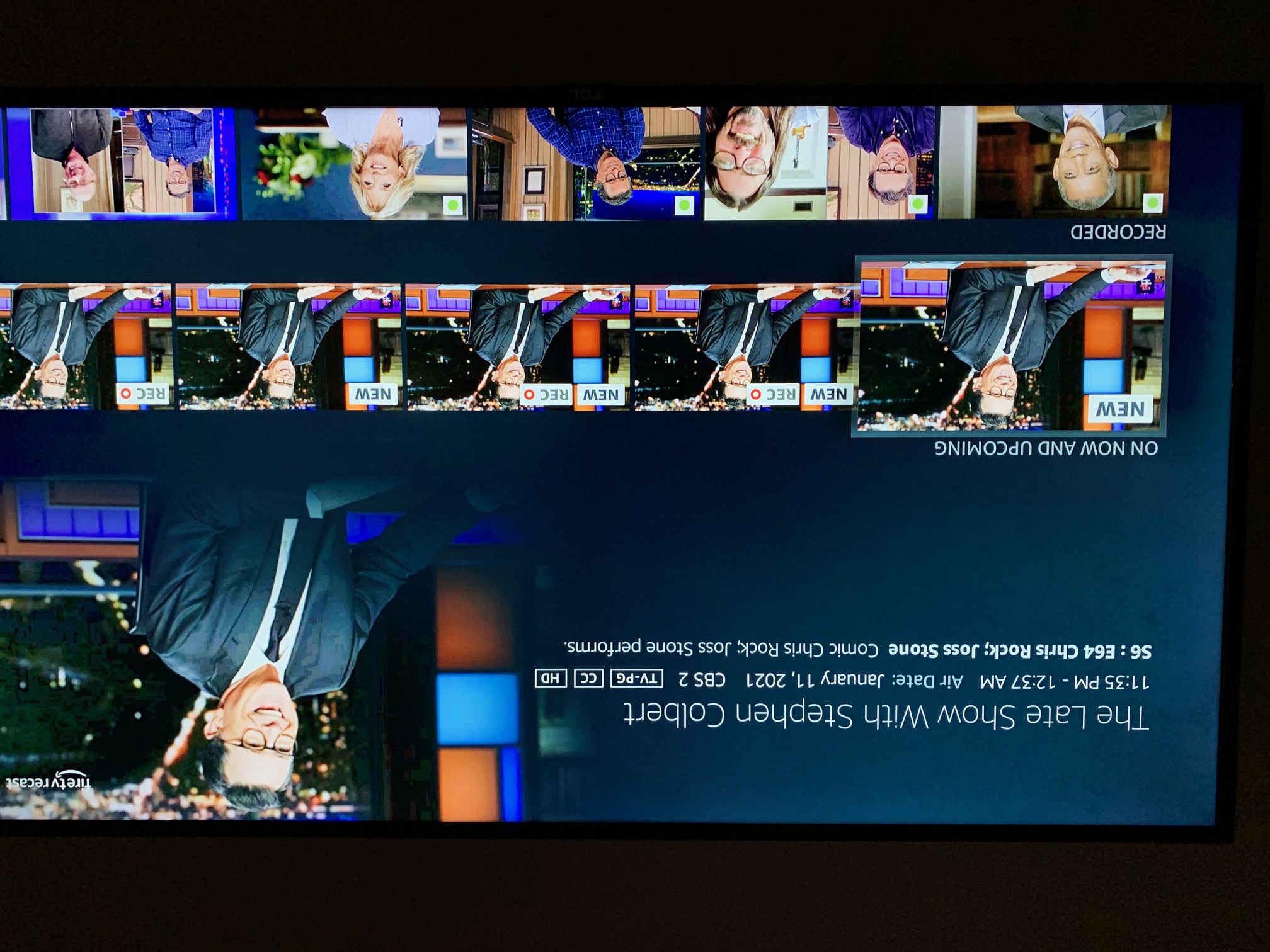
Credit: www.amazonforum.com
Avoiding Manual Scheduling Errors
Sometimes the problem is simple human error. Maybe you set the wrong channel, date, or time. Or you accidentally canceled a recording.
Double-check Your Settings
- Review all scheduled recordings.
- Confirm channels and start/stop times.
- Look for any canceled or skipped items.
It’s easy to miss a small mistake, especially if you schedule shows in advance.
Recognizing Hardware Faults
If you’ve tried every fix and recordings still fail, your Recast may have a hardware problem. Hard drive failure, tuner issues, or even motherboard faults can stop recordings.
Signs Of Hardware Issues
- Device will not power on or gets stuck.
- Hard drive makes clicking or grinding noises.
- Frequent missed recordings with no clear cause.
If you suspect hardware failure:
- Try a factory reset (see below).
- Contact Amazon support for repair or replacement.
Advanced Troubleshooting Steps
If the basics don’t work, try these advanced steps. Most users won’t need them, but they can solve persistent issues.
Restarting The Recast
- Unplug the power cord for 30 seconds.
- Plug back in and wait for reboot.
This often clears temporary glitches.
Factory Reset
- In settings, choose “Reset to Factory Defaults.”
- Note: This erases all recordings and settings.
Only use this if nothing else works.
Re-adding Device To Your Account
- Deregister the Recast from your Amazon account.
- Set it up again as a new device.
Sometimes device registration gets corrupted, causing recording failures.
Tips To Prevent Future Recording Problems
Don’t wait for issues to return. Use these tips to keep your Recast reliable:
- Schedule regular maintenance: Delete old shows and check storage monthly.
- Update device firmware: Set reminders to check for updates every few months.
- Use wired connections where possible.
- Place your antenna for the strongest signal: Rescan channels after big storms or moving.
- Test recordings occasionally: Record a short show to confirm everything works.
- Keep device cool and dust-free.
- Back up important shows: While the Recast doesn’t export easily, consider recording the same show elsewhere if it’s important.
Real-world Example: A User Story
Maria, a Recast user in Texas, noticed her favorite news show wasn’t recording, though the schedule was correct. She tried restarting but the problem continued. After checking, she found her antenna signal dropped below 60% after a recent storm. By moving the antenna to a higher spot and rescanning channels, her recordings returned.
This shows how environment changes—like weather or moving furniture—can affect recordings. Don’t assume your setup will work forever without small adjustments.
When To Contact Amazon Support
Some problems need expert help. Contact Amazon support if:
- Your device won’t power on.
- Recordings fail after a factory reset.
- Hard drive sounds are loud or unusual.
- The device is still under warranty.
Amazon can run remote diagnostics or arrange repair/replacement.

Credit: www.youtube.com
Comparing Fire Tv Recast With Other Dvr Options
It’s helpful to see how Recast stacks up against other DVRs. Here’s a quick comparison:
| Feature | Fire TV Recast | TiVo OTA | Tablo DVR |
|---|---|---|---|
| Storage | 500GB/1TB built-in | 500GB built-in | External USB/Network |
| Number of Tuners | 2 or 4 | 2 or 4 | 2 or 4 |
| Subscription Needed? | No | Optional | Optional |
| App Support | Fire TV, Echo Show, Mobile | TiVo App, TV | Tablo App, Web, TV |
The Recast is a strong choice for Amazon users, but like all DVRs, it depends on good setup and maintenance.
Frequently Asked Questions
Why Does My Fire Tv Recast Miss Recordings Even If They’re Scheduled?
Missed recordings often happen due to signal problems, storage limits, or too many shows scheduled at once. Double-check your antenna signal, available space, and conflicts in your scheduled list.
Can I Record Two Shows At The Same Time With Fire Tv Recast?
Yes, if you have the 2-tuner model, you can record up to two shows at once. The 4-tuner model allows four. Trying to record more than your tuners support will cause missed recordings.
Do I Need An Internet Connection For Recast To Record Shows?
You need internet to set up your Recast and download guide data, but once set, it can record shows using your antenna even if your internet is temporarily down. However, for remote scheduling and guide updates, a connection is required.
Will My Old Recordings Be Deleted If Storage Is Full?
If you have “Auto Delete” enabled, the Recast will remove your oldest recordings when space is low. To protect important shows, mark them as “Do Not Delete” in your settings.
Where Can I Find More Help If These Fixes Don’t Work?
Visit the official Amazon Fire TV Recast support page for advanced troubleshooting, or contact Amazon’s customer service directly.
When your Fire TV Recast is not recording, it can feel like technology is letting you down. But by checking signal strength, updating software, and following the steps above, most problems can be solved at home. With a bit of regular maintenance and attention to the details most people miss, you’ll enjoy reliable recordings and never miss your favorite shows again.
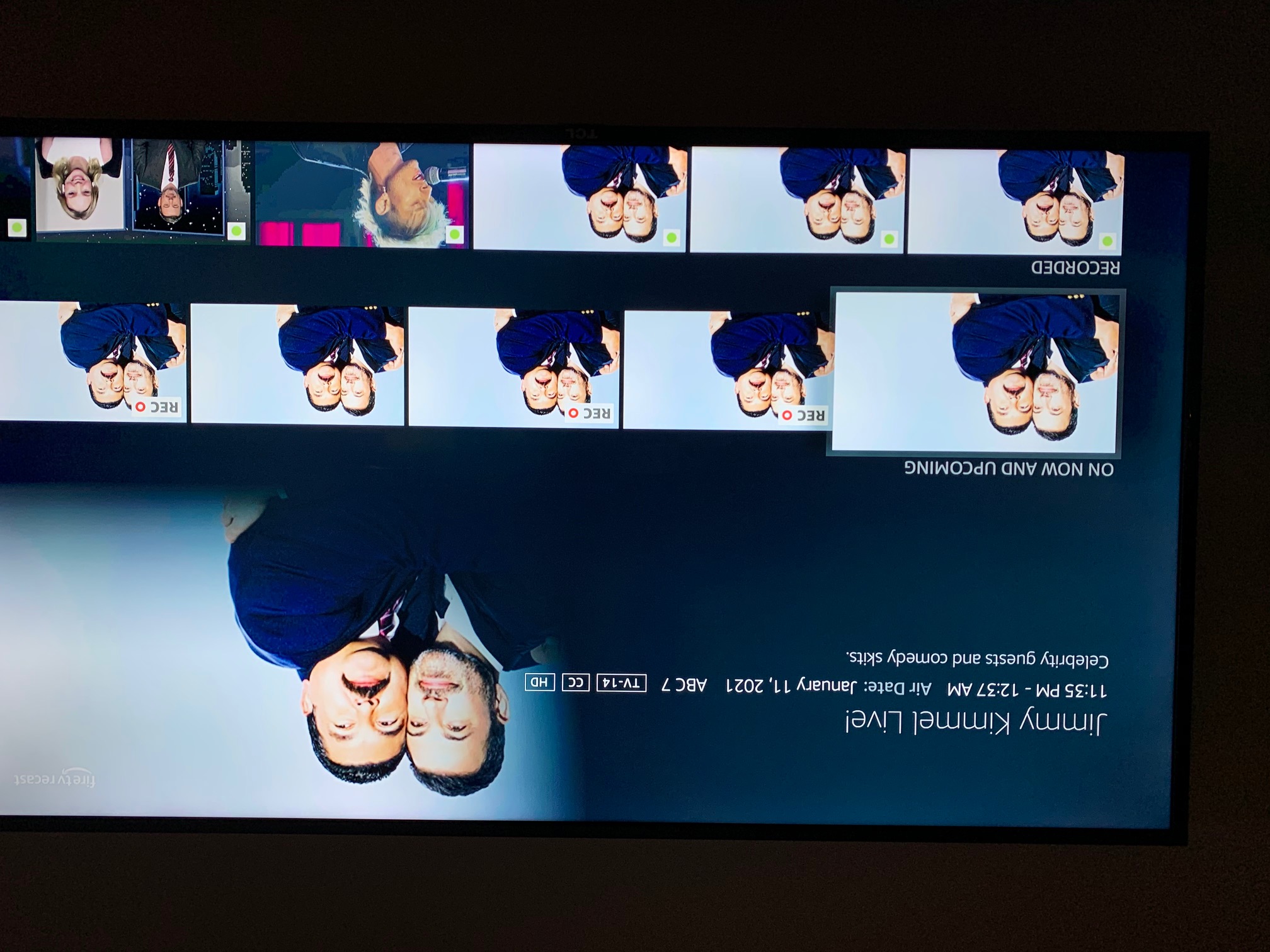
Credit: www.amazonforum.com