
Is your Fios TV remote control suddenly not working? You’re not alone, and it can be incredibly frustrating when you just want to relax and watch your favorite shows.
Before you toss that remote aside or call for help, there are simple fixes you can try right now to get your remote back in action. You’ll discover easy steps to troubleshoot and solve the most common problems with your Fios TV remote.
Keep reading—your perfect TV experience is just a few clicks away!

Credit: www.amazon.com
Common Remote Issues
Many users face issues with their Fios TV remote control not working properly. These problems can stop you from enjoying your favorite shows. Understanding common remote issues helps you fix them quickly. The most frequent troubles involve batteries, pairing, and the infrared sensor.
Battery Problems
Weak or dead batteries often cause remote failure. The remote may not send signals if batteries run low. Replace batteries with fresh ones for better performance. Check battery contacts for dirt or corrosion. Clean contacts gently to restore connection.
Pairing Failures
Sometimes the remote loses connection with the Fios box. This happens if the remote is not paired correctly. Re-pair the remote by holding the setup button until the LED blinks. Then follow on-screen instructions to complete pairing. A successful pairing restores remote control functions.
Infrared Sensor Blockages
The remote uses an infrared sensor to communicate with the TV. Objects or dirt blocking this sensor stop signals from reaching the TV. Make sure nothing blocks the path between remote and TV sensor. Clean the sensor area gently with a soft cloth. Clear line of sight helps the remote work smoothly.

Credit: www.youtube.com
Basic Troubleshooting Steps
When the Fios TV remote control stops working, basic troubleshooting helps identify simple fixes. These steps save time and avoid unnecessary frustration. Begin with easy checks to restore normal remote function.
Check Remote Batteries
Remove the remote’s battery cover. Take out the old batteries. Replace them with new ones, matching the correct size and polarity. Weak or dead batteries often cause remote failure. Test the remote after battery replacement.
Test Remote Signal
Point the remote at your smartphone camera. Press any button and look at the phone screen. You should see a light from the remote’s infrared LED. No light means the remote is not sending signals. This test helps confirm if the remote itself is working.
Restart Your Fios Tv Box
Unplug the power cord from the Fios TV box. Wait about 30 seconds before plugging it back in. Restarting clears temporary glitches that block remote commands. Once the box powers on, try using the remote again.
Resetting The Remote
Resetting the Fios TV remote is a simple way to fix common issues. This process clears minor glitches and restores normal function. It only takes a few steps and can solve many problems quickly.
Knowing how to reset the remote properly helps avoid frustration. Follow the instructions below to reset your remote and get it working again.
Reset Button Combination
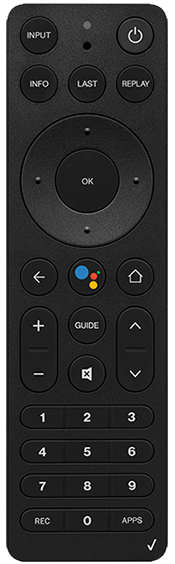
To reset the remote, press the OK and FiOS TV buttons together. Hold them for about 5 seconds. Release both buttons when the red light blinks twice and stays on. This signals the remote is in reset mode.
Next, press and release the Setup button. The red light will blink twice again. This confirms the reset is complete. Your remote should now work properly.
Led Indicator Signals
The LED light on the remote shows its status during reset. A quick double blink means the remote recognized the reset command. A steady red light means the remote is ready for the next step.
If the LED does not blink, check the batteries. Low power can stop the reset process. Replace the batteries if needed and try again.
When To Reset Your Remote
Reset the remote if it stops responding or acts strangely. Issues like unresponsive buttons or failure to change channels are signs. Resetting can fix pairing problems and sensor errors.
Try a reset before replacing the remote or contacting support. This simple step often solves common remote control problems fast.
Credit: www.verizon.com
Re-pairing The Remote
Re-pairing your Fios TV remote helps fix connection problems fast. This process links your remote and TV box again. It solves issues like unresponsive buttons or no signal. Follow the simple steps below to re-pair your remote effectively.
Entering Setup Mode
First, press and hold the Setup button on your remote. Hold it until the LED light turns green. This means the remote is in setup mode. Now the remote is ready to receive the device code.
Finding The Correct Device Code
Next, enter the device code for your Fios TV box. You can find this code in the remote manual or online. Enter the code using the number buttons on the remote. The LED light will blink to confirm the code entry.
Confirming Successful Pairing
Press the OK button after entering the device code. The LED light will blink twice and then stay on. This confirms the remote is paired with your Fios TV box. Test the remote by pressing power or volume buttons to check control.
Using Alternate Remotes
Using an alternate remote can help find the root cause of your Fios TV remote control problem. It helps separate issues with the remote itself from problems with the Fios TV box. Swapping remotes is a simple and effective troubleshooting step. It can save time and avoid unnecessary purchases.
Testing With Another Remote
Grab another remote that works with your Fios TV system. Point it at the TV and try basic commands like power, volume, and channel changes. If the TV responds well, your original remote likely has a fault. Check its batteries or try resetting it. If the TV does not respond, the problem may lie elsewhere in the system.
Identifying Remote Vs. Box Issues
Use the alternate remote to confirm if the TV box is working properly. If this remote works fine, the TV box is functional. Your original remote needs repair or replacement. If neither remote works, the issue is likely with the TV box or its settings. Check the box’s power and connections, and consider rebooting it. This method narrows down the cause quickly and clearly.
Fixing Specific Button Issues
Fixing specific button issues on your Fios TV remote helps restore full control quickly. Each button has a unique function and may face different problems. Targeting these buttons one by one saves time and improves your viewing experience.
Volume Button Troubleshooting
Start by checking the remote’s batteries. Weak batteries often cause volume buttons to stop working. Replace them with fresh ones to see if the problem clears. Clean the remote’s sensor window gently with a soft cloth. Dirt or smudges can block signals to your TV. Try controlling the volume directly on your TV to ensure the issue is with the remote, not the TV itself. If volume buttons still fail, reset the remote by pressing the TV and OK buttons together until the red light blinks twice.
Ok Button Problems
The OK button is essential for selecting options on your TV menu. If it does not respond, first remove and reinsert the batteries. This simple step can fix small glitches. Make sure the remote is paired correctly with your Fios box. You can re-pair it by holding the Setup button until the light turns green, then press OK. Clean around the OK button to remove any dirt blocking the press. Test the button in different menus to check if the problem is consistent.
Input And Channel Controls
Input and channel buttons control switching between channels and external devices. If they stop working, try rebooting your Fios box. Unplug it for 30 seconds, then plug it back in. Make sure nothing blocks the line of sight between the remote and the TV box. Reset the remote by pressing and holding the OK and FiOS TV buttons together until the red light blinks twice. This step often restores lost commands for channel and input controls.
Advanced Solutions
Advanced solutions help fix Fios TV remote issues that basic steps can’t solve. These methods target deeper problems with the remote and the Fios box itself. Follow these tips carefully to restore your remote’s function quickly and smoothly.
Reprogramming The Remote
Reprogramming resets the remote’s connection to your Fios TV box. Start by pressing the OK and FiOS TV buttons together. Hold until the red light blinks twice, then stays on. Next, press the Setup button until the light blinks. This process pairs the remote to the box again. It often fixes unresponsive buttons and signal problems.
Firmware Updates For Fios Box
The Fios box firmware controls many remote functions. Outdated firmware can cause remote errors. Check your box settings for available updates. Install any new firmware and restart the box. Updated firmware improves compatibility with remotes and fixes bugs. This step can resolve issues without replacing equipment.
Contacting Verizon Support
Verizon support offers expert help for stubborn remote problems. Call or chat with them to explain your issue. They can guide you through advanced troubleshooting or send replacement parts. Support may also schedule a technician visit if needed. Using official help ensures safe and correct solutions.
Preventive Tips
Keeping your Fios TV remote control working smoothly requires some simple preventive care. Small habits can stop many common issues. These tips help extend your remote’s life and keep it responsive.
Proper Remote Storage
Store your remote in a dry, cool place. Avoid leaving it near heat sources or in direct sunlight. Keep it away from liquids to prevent damage. Use a dedicated spot to avoid drops or scratches. This reduces the chance of physical and internal damage.
Regular Maintenance
Wipe your remote regularly with a soft, dry cloth. Remove dust and dirt from buttons to prevent sticking. Avoid using harsh cleaners that can harm the remote. Check the sensor window for smudges and clean gently. This helps maintain proper signal transmission.
Battery Care
Replace batteries before they run completely out. Use fresh, good-quality batteries for best performance. Remove batteries if you won’t use the remote for a long time. Check battery contacts for corrosion and clean if needed. Proper battery care prevents sudden power loss and extends remote life.
Frequently Asked Questions
Why Is My Fios Tv Not Responding To The Remote?
Your Fios TV remote may not respond due to dead batteries, pairing issues, or a blocked infrared sensor. Replace batteries, re-pair the remote, and ensure no objects block the sensor. Restart your Fios TV box to fix freezing problems.
How Do I Pair My Fios Remote?
Press and hold the OK and FiOS TV buttons together for two seconds. Release when the red light blinks twice and stays on. Then, press the Setup button until the LED blinks. Enter the device code to complete pairing.
How Do I Reset A Fios Remote Control?
Press and hold the OK and FiOS TV buttons together for two seconds, then release. The red light will blink twice and stay on. This resets your FiOS remote control.
Why Is My Tv Suddenly Not Responding To The Remote?
Your TV may not respond due to dead batteries, remote pairing issues, or a blocked infrared sensor. Check battery power first. Ensure the remote pairs correctly with the TV. Remove obstacles between remote and TV sensor. Reset or re-pair the remote if needed to restore functionality.
Why Is My Fios Tv Remote Not Responding?
A common cause is weak or dead batteries. Also, the remote may need re-pairing with the TV box.
Conclusion
Troubles with your Fios TV remote can feel frustrating. Simple fixes often solve the problem quickly. Check the batteries first; weak power is a common cause. Re-pair the remote with your TV box to restore connection. Resetting the remote can clear glitches and improve response.
Make sure the TV box is on and not frozen. Testing another remote helps find if the issue is with the remote or box. These steps usually bring your remote back to life. Staying calm and patient leads to success.
Enjoy your Fios TV without remote troubles soon.