
Are your VSCode extensions not syncing as they should? If you’ve ever switched between devices or reinstalled Visual Studio Code only to find your extensions missing or out of sync, you know how frustrating it can be.
Your productivity depends on having the right tools ready, and when syncing fails, it feels like everything grinds to a halt. But don’t worry—you’re not alone, and there are clear steps you can take to fix this. You’ll discover why your VSCode extensions might not be syncing and exactly how to get them back on track quickly.
Keep reading to regain control and make your coding environment seamless across all your devices.
Common Sync Issues
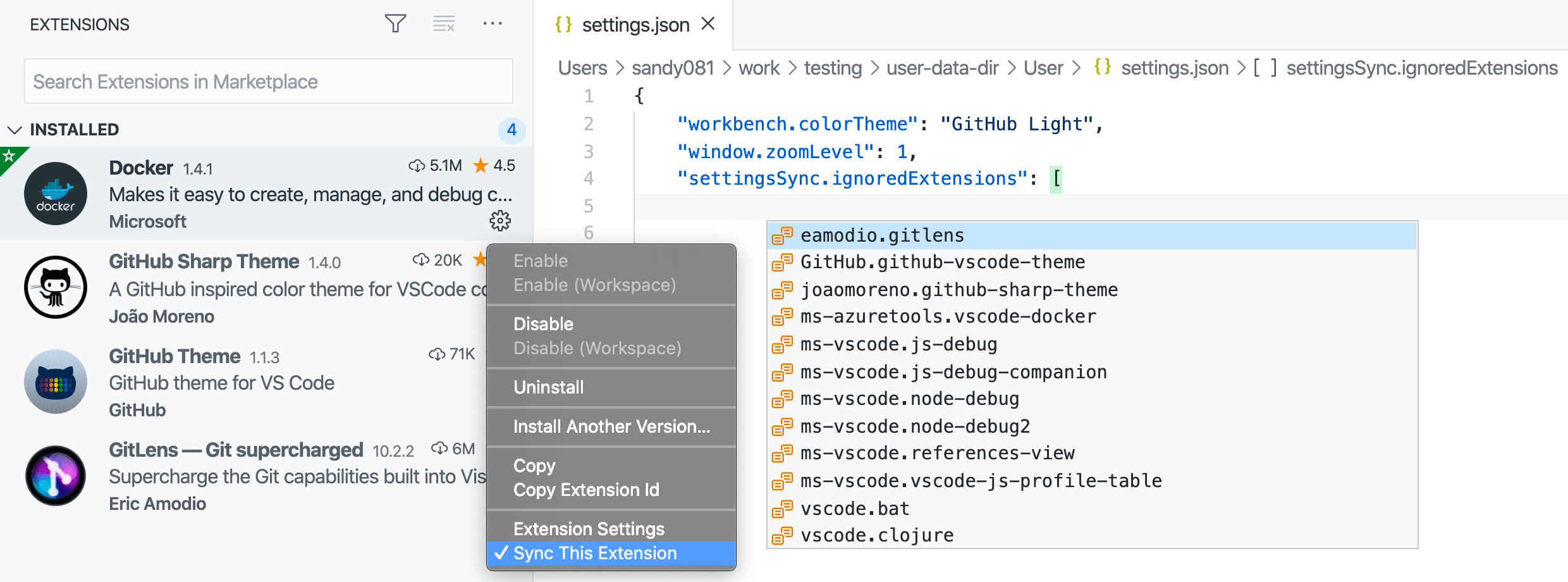
Manual sync methods help fix extension syncing issues in VSCode. These steps let you control sync without waiting for automatic updates. They are useful when extensions do not appear on all devices. Follow these simple actions to refresh and align your extensions quickly.
Force Sync Commands
Use force sync commands to trigger extension syncing immediately. Open the command palette with Ctrl+Shift+P or Cmd+Shift+P. Type Settings Sync: Sync Now and press Enter. This forces VSCode to push and pull your extensions and settings. It helps when syncing is stuck or delayed.
Restart Extension Host
Restarting the extension host refreshes all active extensions. Open the command palette and enter Developer: Restart Extension Host. This stops and starts the extension process without closing VSCode. It resolves issues caused by extension crashes or freezes. Your extensions reload and sync again after restart.
Clear And Reset Sync Data
Clearing sync data removes stored sync information from the cloud. Go to Settings and search for Settings Sync. Turn off sync and choose the option to clear cloud data. After clearing, turn sync back on and sign in again. This resets syncing as if starting fresh. Use this when syncing errors persist.
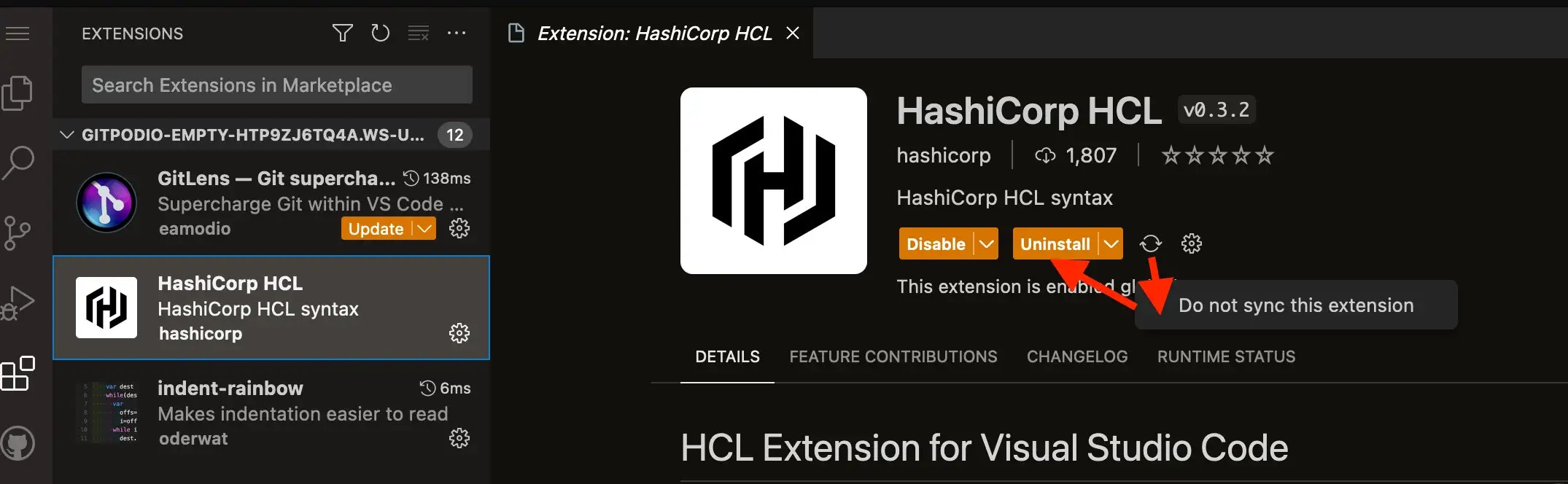
Check Sync Status
Using profiles in VSCode helps keep your extensions and settings organized and synced. Profiles let you separate your work environments. Each profile can have its own extensions, settings, and themes. This makes syncing easier and solves many extension sync problems.
Create And Manage Profiles
Start by opening the command palette with Ctrl+Shift+P. Type Profiles: Create Profile and press Enter. Give your profile a clear name. You can create multiple profiles for different projects or tasks.
Manage profiles by going to Profiles: Manage Profiles. Here, you can rename or delete profiles. You can also export and import profiles to share them or backup your settings.
Switch Profiles To Sync Extensions
Switch between profiles using Profiles: Switch Profile in the command palette. Each profile loads its own set of extensions and settings. This keeps your extensions synced only within the active profile.
Switching profiles helps avoid extension conflicts. It also speeds up syncing because only the active profile data syncs with your account.
Profile Sync Best Practices
Keep your profiles simple. Avoid installing too many extensions in one profile. This reduces sync errors and speeds up VSCode.
Regularly update your extensions and VSCode itself. Outdated versions may cause syncing issues.
Use one profile per main work area. This keeps your extensions relevant and your workflow smooth.

Manual Sync Methods
The VSCode community offers strong support for users facing extension sync issues. Many users share solutions and tips through various channels. These resources help troubleshoot and resolve syncing problems quickly.
Understanding where to find help can save time and reduce frustration. The community-driven platforms provide practical advice from real users and experts. Explore official guides, forums, and discussions to get the best support.
Official Vscode Documentation
The official VSCode documentation is the first place to check for extension syncing issues. It provides detailed steps to enable and configure sync features. Clear instructions guide users through troubleshooting common problems.
This resource is updated regularly with new fixes and tips. It also explains how to reset sync data or manage conflicts. The documentation helps users understand settings sync deeply and resolve issues effectively.
Github Issues And Forums
GitHub hosts the VSCode repository and a dedicated issues section. Users report bugs related to extension sync here. Developers and community members often respond with solutions or workarounds.
Forums linked to GitHub also discuss syncing problems. Search existing issues before posting to find quick answers. Participation in these forums connects you to active contributors and developers.
Reddit And Developer Communities
Reddit has active subreddits like r/VisualStudioCode where users share their syncing experiences. These communities provide informal support and troubleshooting tips. Many users post step-by-step fixes and advice.
Other developer communities and chat groups also discuss VSCode sync problems. Engaging with these groups can offer personalized help. These platforms foster peer support and knowledge sharing.
Frequently Asked Questions
How To Sync Extensions In Vs Code?
Open VS Code, click the gear icon, select “Turn on Settings Sync,” and sign in with your account. Enable “Extensions” sync to sync them across devices.
What Does Ctrl+k Do In Vs Code?
Ctrl+K in VS Code is a shortcut prefix for various commands like cutting lines, adding bookmarks, or folding code. It requires pressing another key to complete the action. This combination speeds up editing and navigation tasks efficiently.
Does Vs Code Automatically Update Extensions?
VS Code automatically checks for extension updates and installs them. After updating, it prompts you to restart the extension host.
How Do You Reset Sync In Vs Code?
To reset sync in VS Code, go to Settings Sync under the Manage gear menu. Turn off sync and select “Clear Data” to remove cloud data. Re-enable sync to start fresh as a new sign-in.
Why Are My Vscode Extensions Not Syncing Properly?
Extension sync may fail due to network issues or corrupted sync data. Check your internet connection and try resetting sync in VSCode settings.
Conclusion
Extensions not syncing in VSCode can disrupt your workflow. Always check your internet connection first. Make sure you are signed in with the same account. Review your sync settings carefully for any errors. Restart VSCode to refresh the sync process.
Disable and re-enable sync if issues persist. Keep your VSCode and extensions updated regularly. Use the sync troubleshooting commands for deeper insight. Syncing extensions keeps your environment consistent and saves time. Follow these steps to maintain smooth syncing across devices.