
If you play Escape the Backrooms, you know how much the microphone matters. This co-op horror game is all about teamwork and communication. When your mic doesn’t work, it ruins the experience and makes the game harder to survive. Many players get stuck with microphone issues and feel lost about how to fix them. This guide is for you if you’re tired of shouting into the void and want a real solution.
In the next sections, you’ll find every possible fix for microphone issues in Escape the Backrooms. Whether you play on Steam or another platform, use Windows 10 or 11, or have a USB or analog mic, this article will help.
You’ll also learn about in-game settings, Windows settings, device drivers, third-party apps, and network problems. By the end, you’ll be able to talk to your friends, warn them about monsters, and enjoy the game as it was meant to be played.
Why Voice Chat Matters In Escape The Backrooms
Escape the Backrooms is not just a horror game; it’s a survival challenge. You and your friends must communicate to solve puzzles, share clues, and avoid dangers. Many monsters can hear you talking, so using your mic adds a layer of strategy.
The game’s design expects players to talk, so a broken mic is more than a minor bug—it’s a core problem.
Voice chat is also important for:
- Immersion: Hearing your friends panic or whisper instructions adds realism.
- Teamwork: You need to coordinate actions, especially in difficult levels.
- Fun: Jokes and reactions make the experience memorable.
This is why fixing microphone issues is not just for technical comfort—it’s vital for full gameplay.
Common Reasons Your Microphone Isn’t Working
Before jumping into advanced fixes, you should know the most common causes. Understanding these helps you choose the right solution faster. Here are the main reasons:
- Wrong input device selected (either in-game or in Windows).
- Microphone is muted (hardware or software mute).
- Microphone privacy settings disabled.
- Audio drivers are outdated or corrupt.
- Exclusive mode settings blocking the mic.
- Third-party apps are interfering (like Discord or Zoom).
- In-game push-to-talk is off or misconfigured.
- Faulty cables or ports.
- Microphone is disabled in Device Manager.
- Game or Steam lacks admin rights.
Some of these are simple, others more advanced. You’ll find solutions for all in the next sections.
Step-by-step Fixes For Escape The Backrooms Microphone Issues
Let’s work through each possible fix, starting with the fastest.
1. Check Your Microphone Hardware
Before blaming the game, test your microphone on another app.
- Try recording your voice with Windows Voice Recorder.
- Use another game or app with voice chat (like Discord).
- Plug the mic into a different USB port or device.
If your mic works elsewhere, the problem is likely with Escape the Backrooms or your system settings.
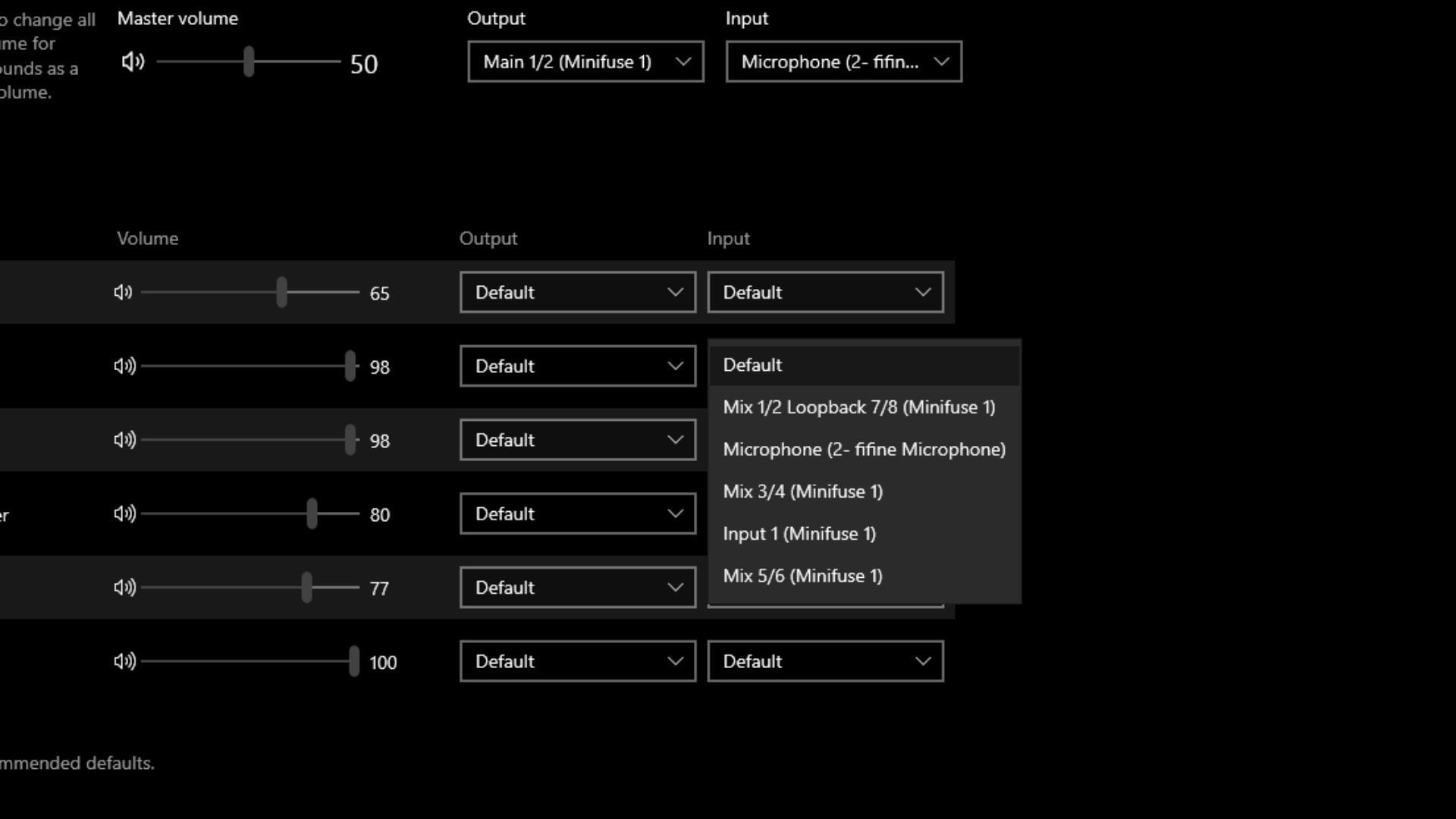
2. Select The Right Microphone In Windows
Sometimes Windows picks the wrong microphone, especially if you have more than one.
How To Check:
- Right-click the speaker icon in the system tray. Select “Sounds.”
- Click the Recording tab.
- Speak into your mic. The correct device should show green bars.
- Right-click your microphone and choose Set as Default Device.
If you use a headset with a built-in mic, make sure it’s set as default.
3. Set The Correct Microphone In Escape The Backrooms
In-game settings can override Windows settings.
Steps:
- Open Escape the Backrooms.
- Go to Options > Audio.
- Look for the Microphone Device setting.
- Select your mic from the list.
Restart the game after changing the setting. Some players miss this step.
4. Check In-game Push-to-talk Settings
Escape the Backrooms uses push-to-talk by default, which means you must hold a key to speak.
- Go to Options > Controls.
- Find the Push-to-Talk keybind.
- Change it to a key you can press easily.
- Test in-game by holding the key and speaking.
If you prefer, turn off push-to-talk for open mic.
5. Unmute Your Microphone
This sounds simple, but it’s a common mistake.
- Check the hardware mute switch on your headset or microphone.
- In Windows, right-click the mic in the Recording tab and make sure “Mute” is NOT checked.
- Some keyboards have a mic mute button—make sure it’s off.
6. Check Microphone Privacy Settings In Windows
Windows 10 and 11 can block apps from using your mic.
- Open Settings > Privacy > Microphone.
- Ensure “Allow apps to access your microphone” is ON.
- Scroll down and make sure “Allow desktop apps to access your microphone” is ON.
- Check that Escape the Backrooms or Steam is listed as allowed.
If the game isn’t there, try launching it again after changing these settings.
7. Update Or Reinstall Audio Drivers
Old or corrupt drivers cause many microphone problems.
How To Update:
- Right-click the Start button and choose Device Manager.
- Expand “Audio inputs and outputs.”
- Right-click your microphone and select Update driver.
- Choose “Search automatically for drivers.”
You can also download the latest drivers from your PC or motherboard manufacturer’s site.
If Updating Fails:
- Right-click and choose Uninstall device. Restart your PC, and Windows will reinstall the driver.
8. Disable Exclusive Mode
Some apps take exclusive control of your mic, blocking others.
- In the Recording tab, right-click your mic and choose Properties.
- Go to the Advanced tab.
- Uncheck “Allow applications to take exclusive control of this device.”
- Click OK and restart your game.
9. Close Conflicting Applications
Apps like Discord, Skype, or Zoom can “lock” your microphone.
- Close all other apps that use your mic.
- Reopen Escape the Backrooms and test again.
- If it works, add the game to the whitelist or change settings in the other app.
10. Run Steam Or The Game As Administrator
Some games need extra permission to use your mic.
- Right-click the Steam shortcut.
- Select Run as administrator.
- Do the same for the Escape the Backrooms shortcut (if not running through Steam).
This can solve hidden permission issues.
Advanced Fixes For Persistent Microphone Problems
If the above steps failed, the problem might be deeper. These advanced fixes require more time but often solve rare bugs.
Reinstall Escape The Backrooms
Corrupt game files can break voice chat.
- In Steam, right-click the game > Manage > Uninstall.
- Reinstall and launch the game fresh.
Verify Game Files Through Steam
Missing files can break mic support.
- In Steam, right-click Escape the Backrooms.
- Choose Properties > Installed Files > Verify integrity of game files.
- Wait for the check. Steam will repair any broken files.
Check Windows Sound Control Panel Levels
Sometimes your mic volume is too low.
- Go to the Recording tab.
- Right-click your mic > Properties > Levels.
- Set volume to at least 80.
Change Usb Ports Or Use A Powered Usb Hub
Some motherboards have weak USB power, which can affect microphones.
- Try plugging your mic into a USB port on the back of your PC.
- Use a powered USB hub for extra stability.
Update Windows
Some Windows updates fix audio system bugs.
- Go to Settings > Update & Security > Windows Update.
- Install all available updates.
Create A New Windows User Profile
Rarely, Windows profiles get corrupted.
- Create a new user account in Settings > Accounts > Family & other users.
- Log in as the new user and test your mic.
This step is rarely needed but can fix “ghost” issues.

Credit: www.sportskeeda.com
Comparing Microphone Troubleshooting Methods
It’s helpful to compare how effective different fixes are. Here’s a simple guide:
| Troubleshooting Method | Time to Complete | Success Rate (User Reports) | Difficulty |
|---|---|---|---|
| Restart PC & Game | 2 minutes | 30% | Very Easy |
| Set Microphone as Default | 2 minutes | 65% | Easy |
| Update Drivers | 10 minutes | 70% | Medium |
| Check Privacy Settings | 5 minutes | 60% | Easy |
| Reinstall Game | 20+ minutes | 20% | Medium |
As you can see, setting the correct microphone and updating drivers are the most effective for most players.
Microphone Not Working Only In Escape The Backrooms? Here’s Why
Many users find their mic works in Discord or other games, but not in Escape the Backrooms. This usually means:
- The wrong device is selected in-game.
- The game lacks permissions.
- A recent update changed settings.
- The game’s push-to-talk is not set.
- Steam Overlay or voice settings are misconfigured.
Non-obvious insight: If you use virtual audio cables or voice changers, these can also break in-game voice chat. Try disabling any “virtual” audio devices before playing.
Steam Voice Settings And Their Impact
Escape the Backrooms uses Steam for some voice chat functions. You may need to check Steam’s own settings.
- In Steam, click Friends & Chat > Settings > Voice.
- Choose the correct Input Device.
- Adjust Microphone Volume.
- Test your mic in Steam’s voice test tool.
Restart the game after changing these settings.
Fixing Microphone Issues For Specific Headset Brands
Some headsets need their own drivers or software. Here’s what to check:
Logitech Headsets
- Install or update Logitech G Hub.
- Make sure the mic is enabled in G Hub.
- Set as default in Windows.
Hyperx And Steelseries
- Update firmware using the manufacturer’s app.
- Some have a physical mute button—check it.
- Re-seat the detachable mic boom.
Razer Headsets
- Use Razer Synapse to check mic settings.
- Update firmware for your device.
Non-obvious insight: Some headset mics only work if the USB is fully inserted. Try unplugging and replugging the cable.
Microphone Quality And In-game Performance
Low-quality mics or weak signals can affect how teammates hear you.
- A mic with low gain may sound far away or not register at all.
- Cheap analog mics can pick up static, which the game may filter out as noise.
If you’re serious about voice chat, consider upgrading to a USB condenser mic. These have better clarity and are less likely to be misdetected by Windows.
Escape The Backrooms On Different Platforms
Most players use Windows, but Escape the Backrooms is sometimes played on Steam Deck or through compatibility layers (like Proton on Linux).
- On Steam Deck: Use the built-in mic and check the SteamOS audio settings.
- On Linux: Make sure Proton is up to date and check pavucontrol for audio devices.
If you use a Mac, voice chat is not officially supported, but similar troubleshooting applies.
Using Third-party Voice Chat Apps
If you can’t get the in-game mic working, consider using Discord or TeamSpeak as a backup. These apps are reliable and have their own troubleshooting steps. But remember:
- In-game voice triggers some monsters, while Discord does not.
- The immersion is lower.
- You must coordinate push-to-talk settings separately.
Are Microphone Issues A Game Bug?
Escape the Backrooms is updated often. Sometimes, an update creates new voice chat bugs. Check the game’s Steam Community or official Discord for recent reports. If many users have the same issue, it may be a temporary bug.
Developers usually fix critical bugs quickly, so keep your game updated.
Network Issues And Voice Chat
Voice chat depends on a stable network connection. If your ping is high or you have packet loss, mic signals can drop.
Ways To Improve:
- Use a wired Ethernet connection.
- Close bandwidth-heavy apps (like video streaming).
- Restart your router.
- Set your game region to the nearest server.
Non-obvious insight: Some routers have a “Quality of Service” (QoS) setting. Give priority to your PC for better voice chat stability.
Troubleshooting Microphone Issues: Step-by-step Checklist
Here’s a quick checklist to follow if you want a systematic approach:
- Test mic in Voice Recorder.
- Set as default in Windows.
- Check privacy settings.
- Set in-game mic device.
- Test push-to-talk.
- Update drivers.
- Close other voice apps.
- Run Steam as admin.
- Disable exclusive mode.
- Verify game files.
- Reinstall game if needed.

Credit: www.youtube.com
Table Of Common Microphone Problems And Solutions
For quick reference, here’s a summary table:
| Problem | Possible Cause | Solution |
|---|---|---|
| Mic not detected in game | Wrong device or privacy settings | Set default device, check privacy |
| Mic works outside game only | In-game device not set | Set mic in game audio options |
| Friends can’t hear you | Push-to-talk not held, low gain | Check keybind, increase mic level |
| Static or poor quality | Cheap mic or interference | Try USB mic, change ports |
| Mic cuts out randomly | Network lag or USB power issues | Use wired network, powered hub |
When To Replace Your Microphone
If you’ve tried every fix and your mic still doesn’t work, it may be time for a new one. Signs you need to replace your mic:
- It works only when you wiggle the cable.
- It’s not detected on any device.
- The sound is always distorted or silent.
For Escape the Backrooms, a basic USB headset mic is usually enough. Avoid “no-name” brands, as they often have driver or quality issues.
Reporting Bugs To Developers
If your microphone issue seems like a bug, report it with these details:
- Your Windows version.
- Your headset or mic brand/model.
- What you’ve tried so far.
- When the problem started (after an update? ).
- Game version number.
This helps developers find and fix issues faster. You can report on the Steam Community or the game’s Discord server.
Preventing Microphone Problems In Future
To avoid issues later:
- Update Windows and drivers monthly.
- Test your mic before each gaming session.
- Avoid unplugging your mic while the game is running.
- Restart your PC after installing audio software or updates.
Small habits like these prevent most repeat problems.
Credit: www.sportskeeda.com
Useful Resources
For more details about audio troubleshooting, you can check the official Microsoft help page: Microsoft Support. This page offers step-by-step guidance for fixing mic problems on all recent Windows versions.
Frequently Asked Questions
Why Does My Microphone Work In Discord But Not In Escape The Backrooms?
This usually means the wrong device is set in-game, or Windows privacy settings block the game. Discord may use a different input device. Check both in-game and Windows settings.
How Do I Test If My Microphone Is Working Outside The Game?
Use the Windows Voice Recorder app or any online mic test tool. If you see the sound wave move when you speak, your mic is working.
Why Does My Mic Cut Out When I Play Escape The Backrooms With Friends?
This may be due to network lag, USB power issues, or interference from other apps. Try using a wired connection and closing other voice apps.
Can I Use A Bluetooth Microphone In Escape The Backrooms?
Yes, but Bluetooth mics can be less reliable due to connection drops or battery issues. Wired USB mics are generally more stable for gaming.
Is There A Way To Reset All Voice Settings In Escape The Backrooms?
There’s no one-click reset, but you can delete the game’s config files (usually in the AppData folder) or reinstall the game to restore defaults.
Conclusion
Getting your microphone working in Escape the Backrooms can feel frustrating, but with careful troubleshooting, you’ll solve it. Once your voice returns, you’ll find the game more immersive, social, and fun. Don’t give up—most problems have a fix, and your teamwork will be stronger than ever.