
When a touchscreen monitor stops working, it can feel like your whole system is stuck. This is especially true with Elo touchscreen monitors, which are widely used in retail, restaurants, hospitals, and offices for their reliability and accuracy. But like any technology, they can sometimes have problems. If your Elo touchscreen monitor is not working, you might worry about lost time or business. The good news is, most issues can be fixed with the right steps, and you do not always need to call a technician.
This guide will help you solve problems with your Elo touchscreen monitor. You will learn about common reasons for failure, step-by-step troubleshooting, real examples, advanced fixes, and tips to avoid future problems. Whether you are a business owner, IT staff, or a home user, you will find clear advice here, even if you are not a tech expert.
Understanding Elo Touchscreen Monitor Basics
Before fixing problems, it helps to know how these monitors work. Elo is a leading brand in touch technology, used for point-of-sale systems, kiosks, and interactive displays. Their monitors use different touch technologies, such as resistive, capacitive, and infrared.
- Resistive screens use two thin layers that touch when you press the screen.
- Capacitive screens use your finger’s electrical charge to detect touches.
- Infrared screens use light beams over the screen surface to sense touch.
Each type has its own strengths and weaknesses. For example, resistive screens work with gloves but are less sensitive. Capacitive screens are more accurate but do not respond to all objects. Knowing your monitor’s technology will help you solve problems faster.
Common Reasons Elo Touchscreen Monitors Stop Working
Many issues can cause an Elo touchscreen monitor to stop responding. Some are simple, while others are more complex. Here are the most common causes:
- Loose cables – Power or data cables can come loose or be damaged.
- Driver problems – Incorrect, missing, or outdated drivers can cause the screen to stop responding to touch.
- Software conflicts – New updates or third-party programs may cause compatibility issues.
- Calibration errors – The touch input does not match the screen position.
- Physical damage – Cracks, water, or dirt can block or confuse touch signals.
- Power issues – Insufficient or unstable power can cause the monitor to turn off or behave strangely.
- Settings changes – Accidental changes in settings can disable touch functions.
- Operating system issues – Windows, Linux, or Android updates can sometimes break compatibility.
- Hardware faults – Internal parts may fail over time.
- Environmental interference – Strong electromagnetic fields or heat can disrupt touch signals.
Often, the real cause is a combination of these factors. For example, a loose cable and a bad driver update can happen together.
First Steps: Quick Checks To Save Time
Before making big changes or calling support, try these quick checks. They solve many problems in minutes.
- Check all cables – Make sure power and USB/serial cables are fully connected. Try unplugging and reconnecting.
- Restart the monitor and computer – Sometimes a simple restart fixes communication glitches.
- Test with another device – If possible, connect the monitor to a different computer. This helps you know if the problem is with the monitor or the original system.
- Clean the screen – Use a soft, damp cloth to remove dust, grease, or debris that could block touch signals.
- Look for obvious damage – Check for cracks, burns, or signs of water.
- Check power supply – Ensure the power adapter is working and plugged into a working outlet.
These first steps often reveal whether the problem is hardware or software related.
Troubleshooting Touchscreen Response Issues
If the above checks do not solve the issue, you may need to dig deeper. Here’s how to troubleshoot different types of problems.
Touchscreen Not Responding At All
If the screen is totally dead or does not react to touch:
- Verify power: Is the power LED on? If not, try a different outlet or adapter.
- Check data connection: Make sure the USB or serial cable is plugged in at both ends. Try a different cable if available.
- Try another port: Use another USB port or computer if possible.
- Observe device manager (Windows): Go to Device Manager and look for the Elo device. If it has a yellow warning or is missing, the driver may be at fault.
Touch Works, But Not Correctly
If touch inputs are inaccurate or laggy:
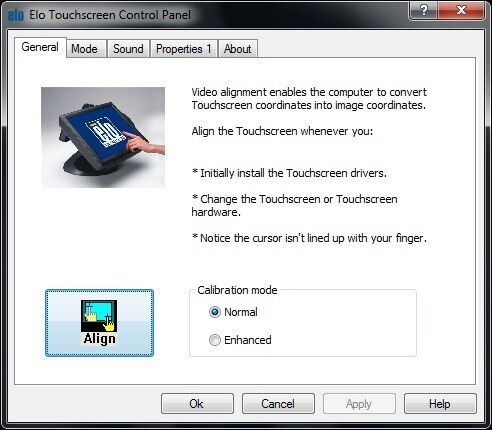
- Calibration: Open the Elo touchscreen calibration utility. Follow the on-screen steps to recalibrate.
- Screen alignment: If touches are offset, recalibration is often the solution.
- Check for dirt or screen protector: Sometimes a thick or dirty screen protector interferes with touch.
Touchscreen Freezes Or Works Intermittently
If the screen sometimes works and sometimes does not:
- Loose cables: Intermittent connection is a common cause.
- Power fluctuations: Try using a surge protector or different outlet.
- Background software: Disable unnecessary programs that may be using USB ports or interfering with the device.
Ghost Touches Or Phantom Inputs
If the screen acts as if it’s being touched when it isn’t:
- Check for moisture: Water or condensation can cause phantom touches.
- Remove nearby electronic devices: Speakers, radios, or other electronics too close to the monitor can cause interference.
- Clean the surface: Grease or dirt may confuse the touch sensor.
Credit: www.elotouch.com
Fixing Driver And Software Issues
Drivers are small programs that let the operating system talk to the monitor. When drivers are wrong or missing, the touchscreen may stop working.
Finding The Right Driver
- Visit the Elo official website and download the latest driver for your monitor model and operating system.
- Double-check model numbers before installing.
Installing Or Updating Drivers
- Uninstall the old driver (in Windows: Device Manager > right-click device > Uninstall).
- Restart the computer.
- Install the new driver you downloaded.
- Restart again.
Dealing With Driver Conflicts
Sometimes, Windows installs a generic touchscreen driver that does not work well with Elo devices. If you see “HID-compliant touch screen” instead of an Elo device, uninstall it and install the Elo-specific driver.
Software Compatibility
- If you recently updated Windows, check the Elo website for driver updates. Sometimes, new OS versions require new drivers.
- Disable or uninstall third-party touchscreen utilities that may conflict.
Advanced Troubleshooting Steps
If basic steps do not help, advanced checks may solve the problem.
Safe Mode Testing
Boot the computer in Safe Mode. If the touchscreen works in Safe Mode, a software conflict is likely the cause.
Bios/uefi Check
Some BIOS or UEFI settings can disable USB ports. Enter BIOS during boot (often by pressing F2 or Del) and check if USB or touchscreen support is disabled.
Test On Another Computer
If possible, connect the Elo monitor to another system. If it works there, your original computer may have a software or hardware issue.
Firmware Updates
Some Elo monitors have upgradable firmware. Visit the Elo support site to see if a firmware update is available for your model. Follow their instructions carefully.
Hardware Reset
Some monitors have a reset button or a process (like holding the power button for 10 seconds). Check your manual for a reset option.

Credit: helpdesk.rite.us
Comparing Elo Touchscreen Models And Problems
Different Elo models may have different issues. Here’s a comparison of common features and problems among three major types.
| Model Type | Touch Technology | Common Problems | Repair Difficulty |
|---|---|---|---|
| Elo 1509L | Resistive | Calibration drift, physical wear | Easy |
| Elo 2202L | PCAP (Capacitive) | Ghost touches, software issues | Medium |
| Elo 3203L | Infrared | Dirt in IR beams, environmental interference | Medium |
This shows that knowing your model helps you focus on the most likely issues.
How To Calibrate Your Elo Touchscreen Monitor
Calibration ensures that your touch matches the correct spot on the display. If the screen is misaligned, calibration usually fixes it.
- Open the Elo calibration utility. It may be in the Start Menu or system tray.
- Follow the on-screen instructions. You will be asked to touch specific targets on the screen.
- Save the new settings.
- Test the screen by touching all corners and the center.
If calibration does not work, check for driver or hardware issues.
Cleaning And Maintaining Your Elo Touchscreen
Keeping your monitor clean is critical for accurate touch.
- Use a soft, lint-free cloth. Microfiber is best.
- If needed, use water or a screen-safe cleaner. Never spray directly on the screen; apply to the cloth.
- Avoid strong chemicals like ammonia or bleach.
- For stubborn spots, gentle rubbing is better than pressure.
- Clean the edges and corners carefully, especially for IR models where dirt can block sensors.
Regular cleaning prevents many touch problems and extends the monitor’s life.
Real-world Examples And Solutions
Example 1: Retail Pos Screen Not Responding
A retail worker finds the Elo monitor at checkout is not responding. After checking cables and restarting, the problem continues. Device Manager shows a yellow warning on the device. Updating the driver from the Elo website solves the issue.
Example 2: Restaurant Kiosk With Ghost Touches
A restaurant self-order kiosk has random touches during the day. Staff notices condensation on the screen from cleaning sprays. After switching to a dry cleaning method and moving a radio away from the monitor, the problem stops.
Example 3: Hospital Check-in Monitor Misaligned
A hospital’s check-in monitor shows touchpoints 2 inches from where patients touch. Recalibrating the monitor with the Elo utility fixes the alignment. Staff now recalibrate monthly as part of routine checks.
Comparing Elo Touchscreen Problems Vs. Other Brands
How do Elo’s issues compare to other leading touchscreen brands? Here’s a quick look:
| Brand | Common Issues | Support Quality | Average Repair Time |
|---|---|---|---|
| Elo | Driver conflicts, calibration, cable issues | High | 1-3 days |
| ViewSonic | Dead spots, power issues | Medium | 2-5 days |
| Planar | Ghost touches, software crashes | Medium | 2-4 days |
Elo’s support and repair time are often better, but driver and calibration issues are common.
Preventing Future Problems With Your Elo Touchscreen Monitor
It’s easier to prevent problems than to fix them. Use these tips for long-lasting performance:
- Secure all cables: Use cable ties or holders to prevent accidental disconnection.
- Regular cleaning: Clean screens weekly, especially in dusty or greasy environments.
- Update drivers: Check the Elo website every few months for updates.
- Train users: Show staff how to avoid pressing too hard or using sharp objects.
- Monitor environment: Keep liquids, food, and strong magnets away.
- Schedule calibration: Set a regular time (monthly or quarterly) to recalibrate screens.
- Protect from power surges: Use surge protectors, especially in areas with unstable power.
These steps often prevent expensive downtime or repairs.
When To Call For Professional Help
If you have tried all the steps above and your Elo touchscreen monitor is still not working, it may be time to contact support.
- Under warranty? Contact Elo support for free repairs or replacement.
- Out of warranty? They can still help, but there may be a fee.
- Do not open the monitor if you are not trained. This can void your warranty or cause injury.
- Describe the problem clearly when calling support. List the steps you have tried.
Sometimes, internal hardware failure is the cause and needs a technician or replacement parts. For more details, see the official Elo Support page.
Advanced Insights: What Most Beginners Miss
Many people focus only on cables and drivers. However, two insights can save you time:
- USB Power Issues: Some computers do not supply enough power through their USB ports, especially with hubs or long cables. If your monitor works on one computer but not another, try a powered USB hub or direct connection.
- Operating System Updates: Windows, especially Windows 10 and 11, can automatically update drivers, sometimes replacing the Elo driver with a generic one. This can break touch functions. Check driver version after major Windows updates and reinstall Elo drivers if needed.
These subtle problems are often missed by beginners, leading to hours of wasted troubleshooting.

Credit: elosupport.elotouch.com
Frequently Asked Questions
Why Is My Elo Touchscreen Monitor Not Showing Up In Device Manager?
This usually means the monitor is not properly connected or powered. Check all cables and try a different USB port. If the monitor still does not appear, the USB controller, cable, or monitor hardware may be faulty.
How Do I Reset My Elo Touchscreen Monitor To Factory Settings?
Some Elo monitors have a reset button, often hidden or accessed by holding the power button for several seconds. If not, you can reset settings by uninstalling the driver and reinstalling the latest version from the Elo website.
What Should I Do If Only Part Of My Touchscreen Is Working?
Partial touch failure is often caused by dirt, damage, or software problems. Clean the screen carefully, recalibrate using the Elo utility, and check for driver updates. If the problem continues, the touch sensor may be damaged.
Can I Use My Elo Touchscreen Monitor With A Mac Or Linux System?
Yes, many Elo monitors support Mac and Linux, but you may need specific drivers from the Elo website. Some features or multi-touch may not be available on all systems.
How Often Should I Calibrate My Elo Touchscreen Monitor?
For most environments, calibrate every few months or whenever you notice touch inaccuracy. In high-use areas like retail or hospitals, monthly calibration is recommended.
Conclusion
A working touchscreen is key to smooth business and a good user experience. By following these steps and tips, you can fix most Elo touchscreen monitor problems yourself, saving time and money. If you ever feel stuck, professional help is available from Elo’s support team. For more in-depth technical details, you can visit the Wikipedia Touchscreen page to learn how touch technology works.