
When you set up domain forwarding with GoDaddy, you expect your visitors to reach the right website every time. But what if it stops working? Suddenly, your traffic drops, your email bounces, or customers get lost. This is a frustrating problem, and it can hurt your business if you don’t solve it fast. Luckily, most domain forwarding issues have clear reasons and proven solutions. In this article, you’ll discover why GoDaddy domain forwarding might not work, how to fix it, and how to avoid problems in the future—even if you’re not a tech expert.
You’ll find step-by-step guidance, practical examples, and answers to real questions people have. Whether you’re a beginner or you’ve managed domains before, you’ll walk away knowing exactly what to do when GoDaddy’s domain forwarding lets you down.
What Is Domain Forwarding And Why Use It?
Domain forwarding lets you redirect visitors from one domain name to another. For example, if you own both mycompany.com and mycompany.net, you can forward mycompany.net to mycompany.com. Anyone typing the “.net” address ends up on your main website.
People use domain forwarding to:
- Protect their brand from copycats.
- Simplify web addresses for marketing.
- Migrate to a new domain without losing visitors.
- Fix typos or old links.
GoDaddy offers two main types of forwarding:
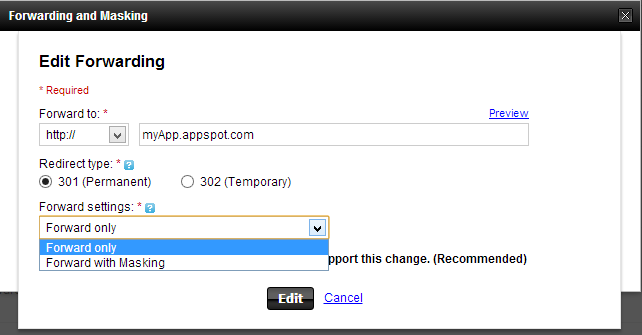
- Forward only: Sends users to the new domain, showing its URL.
- Forward with masking: Sends users to the new domain, but keeps the original domain in the address bar.
It sounds simple, but sometimes, forwarding just doesn’t work as expected.
Common Reasons Godaddy Domain Forwarding Fails
When forwarding fails, it can be caused by several different things. Here are the most common reasons, explained in clear language:
1. Dns Changes Not Propagated
DNS (Domain Name System) is like the phonebook of the internet. When you change forwarding settings, GoDaddy updates DNS records. But these changes need time—sometimes up to 48 hours—to spread across the internet.
Example: You set up forwarding at 10 AM, but at 4 PM it still shows the old site or an error. This is probably just DNS propagation.
2. Incorrect Forwarding Settings
If you enter the wrong destination URL, choose the wrong forwarding type, or forget to save changes, forwarding won’t work.
Example: You want to forward to https://mynewsite.com but type http://mynewsite.co by mistake. Visitors end up at a broken or wrong page.
3. Conflicting Dns Records
GoDaddy’s forwarding needs certain DNS settings, usually their default nameservers. If you use third-party DNS or set A/AAAA/CNAME records manually, this can block forwarding.
Non-obvious Insight: Even one conflicting record can override forwarding for everyone.
4. Ssl Or Https Issues
If your destination site uses HTTPS (SSL), but the forwarded domain does not, browsers may block the redirect or show security warnings.
Data: According to Google, over 90% of web traffic is now encrypted (uses HTTPS).
5. Forwarding Loops
If you accidentally forward Domain A to Domain B, and Domain B is set to forward back to Domain A, you create a “loop. ” Browsers will block these as a security risk.
6. Masked Forwarding Not Supported
Some websites or hosts block masked forwarding. Instead of showing your page, you might see a blank page or an error.
7. Domain Not Registered Or Expired
If your domain is not active, forwarding will never work, no matter how perfect your settings are.
8. Browser Or Cache Issues
Sometimes, your browser “remembers” old forwarding settings. Clearing your cache or using a different browser can reveal the real result.
9. Godaddy System Delays Or Outages
GoDaddy, like all big companies, sometimes has tech problems. Outages or maintenance can temporarily break forwarding.
10. Forwarding Used With Email Hosting
If you use domain forwarding together with GoDaddy email (or another email provider), forwarding can interfere with email delivery. This is a common mistake people miss.
How Godaddy Domain Forwarding Works (behind The Scenes)
Understanding the technical process helps you troubleshoot faster. Here’s what happens when you set up domain forwarding at GoDaddy:
- You set forwarding in your domain’s DNS settings.
- GoDaddy’s system adds special DNS records (usually HTTP redirects).
- When someone types your domain, GoDaddy’s servers check the forwarding rules.
- If forwarding is set up, the server tells the browser to go to the new address.
But if DNS, settings, or GoDaddy’s system have issues, the process stops.
Step-by-step Fixes For Godaddy Domain Forwarding Problems
Ready to solve your issue? Follow these steps in order. If one doesn’t work, move to the next.
1. Wait For Dns Propagation
Patience is sometimes the best fix. After making changes, wait at least 24–48 hours for DNS to update worldwide.
2. Check Domain Status
- Make sure your domain is registered, active, and not expired.
- Log in to GoDaddy and check the domain’s status.
3. Review Forwarding Settings
- Log in to GoDaddy.
- Select your domain.
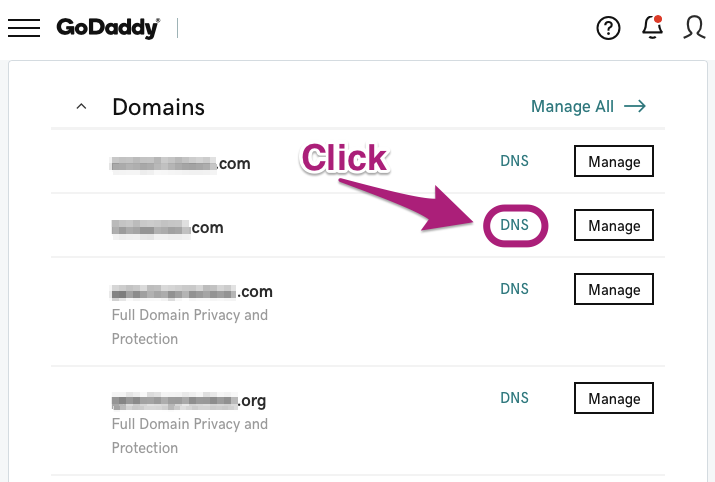
- Go to Domain Settings > Additional Settings > Manage DNS.
- Scroll to Forwarding and click Edit.
Now check:
- Is the destination URL correct?
- Is the forwarding type (with/without masking) what you want?
- Did you save the changes?
4. Remove Conflicting Dns Records
GoDaddy forwarding needs default nameservers and no custom A, AAAA, or CNAME records for the root domain.
Example: If you set an A record for @ pointing to a specific IP, forwarding might be ignored.
Remove or reset these records to GoDaddy’s default.
5. Test Forwarding In Different Browsers
- Clear your browser cache.
- Try private/incognito mode.
- Use a different browser or device.
This can reveal if the issue is only on your computer or is affecting everyone.
6. Check For Https/ssl Mismatch
If your destination site uses HTTPS, make sure your domain has an SSL certificate or GoDaddy’s forwarding supports HTTPS.
Non-obvious Insight: GoDaddy’s basic forwarding may not support HTTPS for the forwarded domain. Upgrade to a plan or use a third-party service if needed.
7. Avoid Forwarding Loops
Double-check that the destination domain is not set to forward back to the original.
8. Disable Masked Forwarding
If you use masking and see errors or blank pages, switch to “forward only” (no masking). Some hosts reject framed forwarding.
9. Contact Godaddy Support
If you’ve tried everything, reach out to GoDaddy support. They can check logs, settings, and backend issues.
Tip: Give them your domain name, forwarding settings, and a description of what’s not working.
How To Set Up Godaddy Domain Forwarding Correctly
Let’s walk through the setup process step by step.
- Log in to GoDaddy.
- Click My Products > Domains.
- Select your domain.
- Scroll to Additional Settings.
- Click Manage DNS.
- Scroll to Forwarding and click Add.
- Enter your destination URL (https: //yournewsite.com).
- Choose Forward only or Forward with masking.
- Set forwarding type: Permanent (301) or Temporary (302).
- Click Save.
Important Tip: Always double-check your destination URL and forwarding type before saving.
Understanding Forwarding Types: 301 Vs 302
When you set up forwarding, you choose between permanent (301) and temporary (302) redirects. Here’s how they compare:
| Redirect Type | Use Case | SEO Impact |
|---|---|---|
| 301 (Permanent) | Domain change, permanent move | Search engines update their index, transfer SEO value |
| 302 (Temporary) | Short-term change, testing | Search engines keep old address, no SEO transfer |
Best Practice: Use 301 unless you plan to reverse the forwarding soon.

Troubleshooting Masked Forwarding Issues
Masked forwarding keeps your original domain in the browser’s address bar. But it can cause problems:
- Some websites block iframes or frames (used in masking).
- SEO can suffer, since search engines may see duplicate or blank content.
- Features like contact forms or scripts may break.
What to do:
- Try switching to “forward only.”
- If you must use masking, test your destination site in an iframe at https: //iframe-test.com to see if it works.
Dns Settings And Forwarding: What You Need To Know
DNS records control where your domain points. Here’s a quick comparison of typical DNS setups:
| DNS Setting | Effect on Forwarding | Common Mistake |
|---|---|---|
| GoDaddy Default Nameservers | Forwarding works smoothly | None |
| Custom Nameservers | Forwarding may not work | Using Cloudflare or external DNS without adding forwarding rules there |
| A/AAAA/CNAME for root (@) | Overrides forwarding | Setting A record for @ to hosting IP blocks GoDaddy’s forwarding |
Pro Tip: Always use GoDaddy’s nameservers for forwarding, unless you replicate the forwarding in your custom DNS.
How Godaddy Forwarding Affects Email
If you forward your domain, will your email still work? It depends.
- Forwarding doesn’t affect MX (Mail Exchange) records. If you only set up web forwarding, your email should be fine.
- But if you change nameservers or DNS records, you might accidentally remove MX records—breaking email.
Example: You switch to Cloudflare for DNS, but forget to copy over GoDaddy’s MX records. Your website forwards, but your email stops.
Advice: Always double-check MX records after any DNS change.
Why Https Forwarding Is A Special Challenge
Most web traffic is now encrypted with HTTPS. But forwarding from an HTTP site to an HTTPS destination can cause problems:
- Browsers may warn users about insecure redirects.
- Some users may see “Not Secure” warnings.
- GoDaddy’s basic forwarding does not always support SSL for the forwarding domain.
Solution:
- Buy an SSL certificate for your forwarding domain (if GoDaddy supports it).
- Or use an external service that supports HTTPS redirects.
Real-world Example: Troubleshooting A Broken Forward
Let’s say you own greengardenshop.com and want it to forward to greengardenstore.com.
You set up forwarding in GoDaddy, but after 24 hours, visitors see a “This site can’t be reached” error.
Troubleshooting steps:
- Check DNS propagation at https: //www.whatsmydns.net.
- Confirm that greengardenshop.com is active and registered.
- Log in to GoDaddy, review forwarding settings: Destination URL, type, and saved status.
- Make sure you’re using GoDaddy’s default nameservers.
- Remove any A, AAAA, or CNAME records for the root domain.
- Test in private/incognito mode.
- If problem continues, contact GoDaddy support.
By following this checklist, most people find and fix the issue quickly.
Domain Forwarding With Third-party Dns (cloudflare, Etc.)
If you use Cloudflare or another DNS provider, GoDaddy’s built-in forwarding may not work. Here’s why:
- GoDaddy’s forwarding works only when you use their DNS.
- With Cloudflare, you need to set up page rules or redirects there.
Example: To forward your domain in Cloudflare, set up a Page Rule to forward all traffic to your new domain.
Pro Insight: Always match your forwarding setup to the provider handling your DNS.
How To Test If Domain Forwarding Is Working
Testing is important. Here’s how to check your forwarding:
- Type your domain in a browser and see if it goes to the right place.
- Use an online redirect checker to see the redirect type (301/302) and destination.
- Ask a friend in a different city or country to test, in case of local cache issues.
- Use your phone’s mobile data (not Wi-Fi) to test from another network.
Preventing Future Forwarding Problems
After fixing your current issue, use these tips to prevent trouble next time:
- Always use GoDaddy’s default nameservers unless you know how to set up forwarding elsewhere.
- Double-check all DNS and forwarding settings before saving.
- Keep your domains renewed and active.
- Monitor your domain regularly using redirect checking tools.
- Back up your DNS settings before making changes.
- If you change DNS providers, copy all important records (A, CNAME, MX, etc. ).
- Consider using a simple landing page as a backup, in case forwarding fails.
Godaddy Forwarding Vs. Other Registrars
How Does Godaddy Compare To Other Domain Registrars For Forwarding?
| Registrar | Forwarding Features | HTTPS Support | Ease of Use |
|---|---|---|---|
| GoDaddy | Forward only, masking, permanent/temporary | Limited (paid SSL needed) | Simple for basic users |
| Namecheap | Forward only, no masking | Free HTTP, paid HTTPS | Very easy |
| Google Domains | Forward only, permanent/temporary | Free HTTPS forwarding | Very easy |
Insight: If you need HTTPS forwarding, some registrars (like Google Domains) offer it for free, while GoDaddy may charge extra.
When To Use Professional Help
If you run a business or rely on your website for income, consider hiring a web professional if:
- Forwarding still fails after all troubleshooting.
- You have complex DNS needs (multiple subdomains, email, etc. ).
- Your site needs to be 100% reliable.
A small investment in expert help can prevent costly downtime.
Best Practices For Reliable Domain Forwarding
To ensure your forwarding works now and in the future, follow these proven tips:
- Use permanent (301) redirects for SEO and user trust.
- Avoid masked forwarding unless absolutely necessary.
- Keep your DNS records clean—remove unused or conflicting entries.
- Test after every change, on different devices and networks.
- Monitor your domain with automated tools.
- Document your DNS and forwarding settings.
- Renew your domains early to avoid expiration.
- When changing DNS providers, migrate all records carefully.
- Use HTTPS wherever possible for security and trust.
- Contact support quickly if problems last more than 48 hours.
Frequently Asked Questions
Why Does My Godaddy Domain Forwarding Take So Long To Work?
GoDaddy forwarding changes often need up to 48 hours to update worldwide. This is due to DNS propagation, which can be slow depending on your location and internet provider. Waiting at least 24–48 hours before troubleshooting is recommended.
Can I Use Domain Forwarding And Email Hosting Together?
Yes, but be careful. Forwarding web traffic won’t affect email, as long as your MX records stay correct. If you change nameservers or DNS settings, always copy over your email (MX) records to avoid lost emails.
What’s The Difference Between “forward Only” And “forward With Masking”?
“Forward only” changes the browser’s address bar to the new domain. “Forward with masking” keeps your original domain in the address bar but shows the new site’s content. Masking can break features or be blocked by some sites, so use it only if you must.
How Do I Set Up Https Forwarding With Godaddy?
GoDaddy’s basic forwarding does not support HTTPS for the forwarded domain. You need to buy an SSL certificate for your domain, or use a third-party service that supports HTTPS redirects. Learn more about HTTPS at Let’s Encrypt.
My Forwarding Works On Some Devices But Not Others—why?
This is usually due to browser or DNS cache. Clear your browser’s cache, test in private mode, or use another device or network. Sometimes, local ISPs take longer to update DNS, causing delays on some devices.
Solving domain forwarding not working with GoDaddy can feel complex, but by following these steps and tips, you’ll fix most problems quickly. Remember to stay patient, test carefully, and keep your domain’s settings organized. If you ever get stuck, GoDaddy support and professional web experts are there to help. With the right approach, your visitors will always reach the correct site—no confusion, no downtime, and no lost business.