
The DirecTV Gemini Remote is designed for convenience and easy control over your TV and streaming devices. But when it stops working, even simple tasks like changing channels or adjusting volume can feel frustrating. If you’re holding a Gemini remote that’s suddenly unresponsive, you’re not alone. Many users encounter issues, ranging from basic setup mistakes to unexpected technical glitches. The good news? Most problems have clear solutions you can try at home, often without needing a technician.
This guide walks you step-by-step through diagnosing and fixing the most common problems with the DirecTV Gemini remote. You’ll learn how the remote works, why issues occur, and how to solve them quickly. We’ll also cover some lesser-known tips that can save you time and avoid repeat problems.
Whether your remote won’t pair, certain buttons don’t respond, or you notice strange behavior, you’ll find detailed answers here. By the end, you’ll know exactly what to do next and when to ask for professional help.
Understanding The Directv Gemini Remote
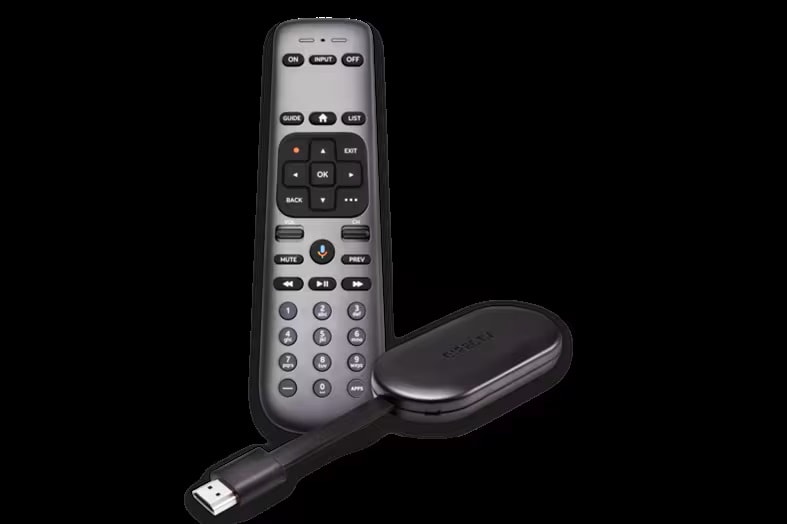
The DirecTV Gemini Remote is a universal remote that controls the Gemini device, your TV, and sometimes audio equipment like soundbars. It uses both infrared (IR) and Bluetooth technology. IR controls most TVs, while Bluetooth is used for the Gemini streaming box. Some features, such as voice commands, rely on an internet connection.
A key point many users miss: The remote may use both technologies at the same time, depending on your setup. If one method fails, some buttons may still work while others do not. Understanding this can help you diagnose the problem faster.
Main features include:
- Power, volume, and mute control for your TV
- Navigation for DirecTV streaming
- Voice search (if connected properly)
- Input/source switching
If your remote is not working as expected, the problem could be with the remote, the Gemini box, your TV, or even your Wi-Fi network.
Common Reasons The Gemini Remote Stops Working
Several factors can cause your DirecTV Gemini Remote to stop working. Here are the most common:
- Dead or Weak Batteries: The remote is powered by AA or AAA batteries. If these are low, the remote may act strangely—respond slowly, miss button presses, or not work at all.
- Lost Pairing: The Gemini remote may lose its connection to the streaming box, especially after power outages or software updates.
- Interference: Physical objects, electronic devices, or even strong sunlight can interfere with infrared signals.
- Software Glitches: Bugs in the Gemini device or remote firmware may cause unresponsiveness.
- Physical Damage: Drops, spills, or wear can damage the remote’s internal components.
- Obstructions: Something blocking the line of sight between your remote and the device can stop signals.
- Incorrect Setup: If the remote was never paired correctly, or if you changed your TV or audio system, commands may not reach the right device.
Let’s look at how to identify and fix these issues step by step.
Step-by-step Troubleshooting For Gemini Remote Issues
When your DirecTV Gemini Remote isn’t working, try these solutions in order. Each step addresses a specific problem. Go slowly and test the remote after each fix.
1. Check And Replace The Batteries
This is the simplest and most common fix. Even if the remote’s light blinks, the batteries might be too weak for reliable use.
How to check:
- Remove the battery cover and take out both batteries.
- Insert fresh, high-quality AA or AAA batteries. Avoid mixing old and new batteries.
- Replace the cover and test the remote.
Tip: Low batteries often cause the remote to work sometimes, but not always. Always try new batteries first.
2. Power Cycle The Gemini Device
Sometimes, the device itself—not the remote—is the problem. Restarting the box can clear minor glitches.
Steps:
- Unplug the Gemini streaming device from the power outlet.
- Wait at least 30 seconds.
- Plug it back in and allow it to restart fully (watch for the home screen to appear).
- Try the remote again.
3. Re-pair The Remote To The Gemini Box
If the remote has lost its Bluetooth pairing, it won’t control the Gemini device. This is common after updates or power issues.
To re-pair:
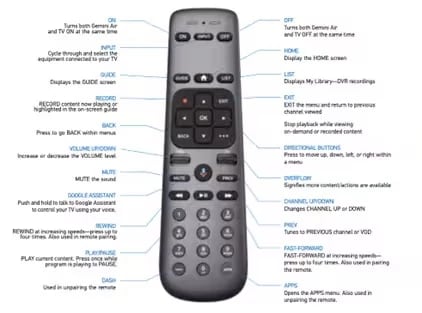
- Press and hold both the Home and Fast Forward buttons on the remote for about 5 seconds.
- Watch for a pairing message on your TV screen.
- Follow any on-screen instructions.
- If successful, the remote should control the box again.
Extra insight: Pairing uses Bluetooth, so the remote must be close to the box during this process—ideally within 5 feet.
4. Test For Infrared Issues
If you can control the Gemini device but not your TV (or vice versa), the problem may be with the IR function.
To test IR:
- Point the remote directly at your TV and press the Power button.
- If nothing happens, try using your phone’s camera: Point the remote at the camera and press any button. Most cameras will show a flashing light if IR is working.
If you see no light, the remote’s IR emitter may be damaged.
5. Remove Obstructions
IR signals require a clear path. Move any objects that might be blocking the remote’s “view” of the device or TV. Glass doors, decorations, or even dust can interfere.
Tip: Bluetooth does not require line of sight, but IR does. If the Gemini device is hidden behind a wall or inside a cabinet, try moving it.
6. Reset The Remote
If the remote is still not working, a factory reset may help.
How to reset:
- Press and hold both the Home and Exit buttons for about 10 seconds.
- Release the buttons when you see the remote light flash.
- The remote will return to default settings. You may need to pair it again with your devices.
7. Update Software
Outdated software can cause compatibility problems. Check for updates on both the Gemini device and remote.
To check for updates:
- Go to the Gemini home screen.
- Navigate to Settings > System > Software Update.
- If an update is available, follow the prompts to install it.
Note: Updates can take several minutes. Do not unplug the device during this process.
8. Clean The Remote
Dirt, dust, or sticky substances can block buttons or IR transmitters.
How to clean:
- Use a soft, dry cloth to wipe the remote’s surface.
- For stubborn dirt, slightly dampen the cloth with water (never use harsh chemicals).
- Clean around the buttons and the front IR window.
Pro tip: If buttons remain stuck, gently tap the remote against your palm to loosen debris.
9. Try The Remote With Another Device
If possible, test the remote with another Gemini box or compatible device. If it works, the issue is with your original device, not the remote. If it doesn’t, the remote may need to be replaced.
10. Contact Directv Support
If you’ve tried all these steps and the remote still doesn’t work, it may be defective. Contact DirecTV customer support for further assistance or to request a replacement.
Comparing Gemini Remote Problems: Symptoms And Causes
Sometimes it helps to compare the most common Gemini remote problems side by side. This can make it easier to spot what’s wrong in your situation.
| Symptom | Possible Cause | Quick Fix |
|---|---|---|
| No response at all | Dead batteries, lost pairing, hardware failure | Replace batteries, re-pair remote |
| Some buttons work, others don’t | Partial pairing, dirt, interference | Clean remote, re-pair, remove obstructions |
| TV controls not working | IR problem, wrong setup | Check IR, re-program TV control |
| Volume not changing | Audio device not paired, setup error | Pair audio device, check settings |
| Remote works only close to device | Weak batteries, Bluetooth issue | Replace batteries, re-pair remote |
Advanced Troubleshooting For Persistent Problems
Sometimes, the basic steps above don’t fix the issue. Here are more advanced fixes and things to check if your DirecTV Gemini Remote is still not working.
Resetting The Gemini Device To Factory Defaults
If the device’s software is corrupted, a factory reset may be needed. Warning: This will erase all settings and preferences.
To reset:
- Go to Settings on your Gemini device.
- Select System > Reset & Admin > Factory Reset.
- Confirm and allow the device to restart.
After resetting, set up the remote and device as new.
Checking For Interference From Other Devices
Microwaves, wireless speakers, or even nearby Wi-Fi routers can sometimes interfere with Bluetooth or IR signals.
What to do:
- Move the Gemini box and remote away from other electronics.
- Try turning off nearby wireless devices to see if performance improves.
Testing The Remote With A Gemini App
DirecTV offers a mobile app that can control your Gemini device using your phone. If the app works but the remote doesn’t, the remote is likely at fault.
How to test:
- Download the DirecTV app on your smartphone.
- Connect to the same Wi-Fi network as your Gemini device.
- Use the app’s remote control feature.
- Compare results with your physical remote.
Checking For Device Compatibility
If you recently changed your TV or added a soundbar, make sure your Gemini remote is compatible with the new hardware. Older TVs or some audio brands may need extra setup steps.
Tip: Check the DirecTV website or user manual for supported devices.
Inspecting For Physical Damage
Look for cracks, water stains, or loose buttons. Sometimes, even small drops can break internal parts.
If you see damage:
- The remote may need to be replaced.
- Do not try to open the remote unless you have experience with electronics.
How To Program The Gemini Remote For Tv And Audio
One mistake many users make: Not programming the Gemini remote to control their TV or sound system. If you skipped this step, the remote won’t adjust volume or power for your TV.
To program the remote:
- Press and hold the Home button.
- Navigate to Settings > Remote & Devices > Program Your Remote.
- Select your TV or audio device brand from the list.
- Follow the on-screen instructions to complete setup.
If your brand is not listed, try the manual code entry option.
Note: Some TVs may need to be turned on or off during the process. Keep the remote pointed at the TV.

Credit: www.youtube.com
Gemini Remote Vs. Other Directv Remotes
DirecTV offers several remote models. The Gemini remote is designed specifically for the Gemini streaming box, but here’s a quick comparison with other models.
| Feature | Gemini Remote | Standard DirecTV Remote | Genie Remote |
|---|---|---|---|
| Bluetooth Support | Yes | No | Yes (limited) |
| Voice Control | Yes | No | Yes |
| Device Control | Gemini, TV, Audio | TV, Audio | Genie, TV, Audio |
| Works with Apps | Yes | No | No |
Insight: If you switch from another DirecTV device to the Gemini, you must use the Gemini remote. Other remotes may not support all features.
When To Replace The Gemini Remote
Not every remote can be saved. Here are signs you need a new one:
- The remote does not respond after replacing batteries and re-pairing.
- Visible damage (cracked case, missing buttons).
- IR emitter does not show a light on a camera test.
- The remote only works at very close range, even with new batteries.
Where to buy: Replacement remotes are available from DirecTV, electronics stores, and online retailers. Always buy genuine DirecTV products to ensure compatibility.
Pro tip: Keep a spare set of batteries and, if possible, a backup remote on hand.
Preventing Future Gemini Remote Problems
A little care can prevent most remote issues. Here’s what you can do:
- Change batteries every 6-12 months. Mark your calendar or set a phone reminder.
- Clean the remote regularly with a dry cloth.
- Keep the Gemini device and remote away from water and high heat.
- Update device software whenever prompted.
- Store the remote in a safe place when not in use—avoid dropping or sitting on it.
Hidden insight: Many users place remotes on sofa arms or cushions. These spots are prone to spills and drops. Consider a small tray or holder for your remote.
Real-world Examples: Common Gemini Remote Scenarios
Example 1: Maria’s Gemini remote suddenly stopped controlling her TV’s volume. She could still change channels but nothing else. After following this guide, she discovered her batteries were weak and the remote had lost its IR programming after a power outage. Replacing the batteries and reprogramming the TV fixed the issue.
Example 2: John noticed his remote only worked if he pointed it directly at the Gemini box from less than 2 feet away. Cleaning the remote’s IR window and moving his soundbar (which was blocking the receiver) solved the problem.
Example 3: A family’s Gemini remote stopped working after a software update. Re-pairing the remote using the Home + Fast Forward buttons restored full function.
Extra tip: If your remote seems “possessed” (randomly activating buttons), check for stuck keys or remove the batteries for a few minutes to reset.
Credit: www.directv.com
Gemini Remote Myths And Mistakes
Many users believe common myths about the Gemini remote:
- Myth: If the light blinks, the batteries are fine.
- Fact: The light may blink even with weak batteries. Replace them first.
- Myth: Only the Gemini device matters for setup.
- Fact: You must also program the remote for your TV and audio devices, or volume and power will not work.
- Myth: All DirecTV remotes work with all devices.
- Fact: The Gemini remote is designed for the Gemini box. Other remotes may not pair or support advanced features.
How Directv Gemini Remote Compares To Competitors
If you’re curious how the Gemini remote stacks up against other streaming device remotes, here’s a quick look.
| Remote | Voice Control | Bluetooth | Universal TV/Audio Control | Device Compatibility |
|---|---|---|---|---|
| DirecTV Gemini | Yes | Yes | Yes | Gemini, TV, Audio |
| Roku Voice Remote | Yes | Yes | Yes | Roku, TV |
| Amazon Fire TV Remote | Yes | Yes | Yes | Fire TV, TV |
| Apple TV Remote | Yes | Yes | No | Apple TV |
Observation: The Gemini remote is competitive, especially in controlling multiple devices and offering voice functions. However, setup and pairing can be more complex than some rivals.
Credit: www.directv.com
Additional Resources
If you need more help, the official DirecTV support page provides step-by-step guides and troubleshooting tools. Visit the DirecTV Support Page for more information.
Frequently Asked Questions
Why Won’t My Directv Gemini Remote Pair With The Device?
There are several possible reasons:
- Low batteries can prevent successful pairing.
- The remote may be too far from the Gemini box; move within 5 feet.
- Interference from other Bluetooth devices may block the signal.
- Try a power cycle on both the remote and the Gemini device, then re-pair.
How Do I Program The Gemini Remote For My Tv Or Soundbar?
Go to the Gemini device menu:
- Open Settings > Remote & Devices > Program Your Remote.
- Choose your device brand and follow the on-screen steps.
- If your brand isn’t listed, use manual code entry.
What Do I Do If Only Some Buttons On The Remote Work?
This usually means:
- The remote is partially paired (try re-pairing fully).
- Dirt or debris is blocking the buttons (clean carefully).
- There is an IR or Bluetooth communication problem (test and reset as needed).
Can I Use The Directv Mobile App As A Remote?
Yes, the DirecTV app can control your Gemini device over Wi-Fi. Download the app, connect to the same network, and use the remote feature. This is a good backup if the physical remote fails.
When Should I Replace My Gemini Remote Instead Of Fixing It?
Replace your remote if:
- It does not work after all troubleshooting steps.
- There is visible physical or water damage.
- The IR emitter does not flash (test with your phone’s camera).
- Buttons are missing or permanently stuck.
Conclusion
The DirecTV Gemini Remote is a powerful tool, but it can run into problems like any electronic device. With the steps and tips in this guide, you can quickly fix most issues and get back to enjoying your TV time. Remember to check batteries, keep the remote clean, and don’t hesitate to contact support if needed. With a little care, your Gemini remote should give you years of reliable service.