
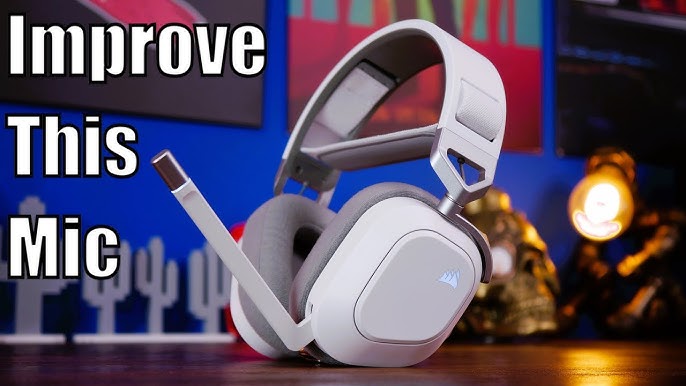
When your Corsair HS80 microphone suddenly stops working, it can turn a smooth gaming or video call session into a frustrating experience. This headset is known for its crisp sound quality and comfortable design, but like any tech, it can run into problems. Many users face issues where the mic doesn’t pick up sound, is too quiet, or is not detected by the computer at all. If you’re facing this, you’re not alone—and you don’t have to feel lost.
This guide gives you a clear, step-by-step path through 80 specific causes and fixes for your Corsair HS80 mic not working. Each item addresses a unique detail, from obvious setup checks to less-known Windows quirks and Corsair software settings. Even if English isn’t your first language, you’ll find the explanations easy to follow. By the end, you’ll know not only how to get your mic working, but also how to prevent issues in the future. Let’s get started on bringing your voice back.
1. Mic Not Plugged In Properly
Sometimes the simplest things cause the biggest problems. Check if the USB dongle (for wireless) or cable (for wired) is plugged in all the way. Remove it, then plug it back in until you feel a click. A loose connection can stop the headset from working.
2. Computer Usb Port Issue
Try plugging the headset into a different USB port. Sometimes, a port can stop working, especially on older computers. If it works in another port, the original port may be faulty.
3. Wireless Dongle Not Detected
If you use the wireless version, the USB dongle must be recognized by the system. Check if the dongle lights up. If not, try it on another computer to see if it’s the dongle or your PC.
4. Headset Power Off
For wireless models, make sure the headset is powered on. Hold the power button until you see or hear a signal. If it won’t turn on, charge it for at least 30 minutes.
5. Headset Not Charged
A low battery can cause the mic to stop working. Connect your headset to a charger and let it charge fully. Use the provided cable for best results.
6. Mic Muted On Headset
Many headsets have a mute button or switch. On the HS80, raising the mic arm may mute it. Lower the mic arm to unmute, or check if there’s a button with a red light.
7. Mic Muted In Windows
Go to your Windows sound settings and check if the mic is muted. Right-click the sound icon, choose “Sounds,” go to the “Recording” tab, and select your headset. Make sure it’s not muted.
8. Not Set As Default Device
If your headset is not the default recording device, your computer might use another mic. In the same “Recording” tab, right-click the HS80 and select “Set as Default Device.”
9. Icue Software Not Installed
The Corsair iCUE software controls advanced headset features. If you haven’t installed it, download and install it from Corsair’s website to unlock full functionality.
10. Icue Not Updated
An outdated iCUE can cause compatibility issues. Open iCUE and check for updates. Install any available updates, then restart your PC.
11. Firmware Out Of Date
Firmware is like the headset’s operating system. Open iCUE, select your headset, and check for firmware updates. Follow the instructions to update.
12. Icue Not Detecting Headset
Sometimes iCUE does not recognize the HS80. Try unplugging and re-plugging the headset, then restart iCUE. If it still does not appear, reinstall iCUE.

Credit: www.reddit.com
13. Audio Driver Problem
Go to Device Manager, open “Sound, video and game controllers,” and update your audio drivers. Outdated or missing drivers can stop the mic from working.
14. Windows Updates Pending
Pending Windows updates can interfere with USB devices. Go to Settings > Update & Security and check for updates. Install all updates, then restart.

Credit: www.reddit.com
15. Privacy Settings Blocking Mic
Windows privacy settings can block apps from using your mic. Go to Settings > Privacy > Microphone and make sure “Allow apps to access your microphone” is enabled.
16. App Permissions Not Set
Some apps (like Zoom or Discord) need permission to use the mic. In Windows privacy settings, scroll down and allow access for the app you want to use.
17. Wrong App Input Device
Inside your voice chat or recording app, go to the audio settings. Make sure the Corsair HS80 is selected as the input device.
18. In-app Mute
Some apps have their own mute button. Check inside your app (Zoom, Teamspeak, Discord) to see if you are muted there.
19. Push-to-talk Enabled
If “push-to-talk” is enabled, your mic only works when you hold down a key. Make sure this is off unless you want it.
20. Volume Too Low
If your mic volume is set too low, others won’t hear you. In Windows sound settings, select your mic and raise the input volume slider to at least 70-80%.
21. Mic Boost Not Set
Mic boost can make your voice clearer. Go to sound settings, click “Properties” on your mic, go to the “Levels” tab, and adjust mic boost as needed.
22. Headset Needs Reset
Resetting the headset can fix glitches. To reset the HS80, hold the mute button and connect the headset to a charger. Release after 10 seconds.
23. Corrupted User Profile
Sometimes, your Windows user profile can get corrupted. Test the headset on another Windows user account to see if the mic works there.
24. Conflict With Other Audio Devices
Having many audio devices can confuse Windows. Disconnect all other mics and headsets, then plug in only the HS80.
25. Bluetooth Interference
Wireless signals can interfere with each other. Turn off other Bluetooth devices nearby and see if the mic improves.
26. Software Conflict
Other audio software may conflict with iCUE. Close any extra audio control programs and test your mic.
27. Usb Hub Problem
If you’re using a USB hub, it might not deliver enough power. Plug the HS80 directly into the computer’s USB port.
28. Port Power Settings
Some USB ports are set to save power, which can turn off devices. Go to Device Manager > USB controllers, right-click each one, and uncheck “Allow the computer to turn off this device to save power. ”
29. Damaged Cable
Physical damage to the cable can stop the mic from working. Check for cuts, bends, or exposed wires. Replace the cable if you see damage.
30. Dirty Connectors
Dust or dirt in the USB port or on the connectors can cause problems. Clean the connectors gently with a dry cloth.
31. Faulty Dongle
A broken dongle can cause the mic to stop working. Test your headset and dongle on another computer. If the problem follows, the dongle may need replacing.
32. Faulty Headset
If your headset is still under warranty and nothing works, it could be a hardware failure. Contact Corsair support.
33. Windows Sound Enhancements
Windows has sound enhancements that sometimes interfere with mics. Go to sound settings, click your mic, and turn off all enhancements.
34. Spatial Sound Interference
Spatial sound settings can sometimes cause issues. Right-click the sound icon, select “Spatial sound,” and set it to “Off. ”
35. Operating System Compatibility
The HS80 works best with Windows 10 and 11. Older systems may not support it fully. If you use Linux or Mac, check for updated drivers.
36. Background Noise Suppression
Some apps have aggressive noise suppression that can block your voice. Lower the noise suppression setting in the app.
37. Voice Clarity Settings In Icue
Inside iCUE, check if “Voice Clarity” or similar features are turned on. Sometimes these can mute or distort your mic if set too high.
38. Sidetone Settings
Sidetone lets you hear your voice in the headset. In iCUE, try adjusting or turning off sidetone if your mic is not working.
39. Mic Monitoring Off
Mic monitoring lets you hear yourself. If it’s off, you might think the mic doesn’t work. Turn it on in iCUE and test again.
40. Windows Audio Service Not Running
If the Windows Audio service is not running, your mic won’t work. Press Windows + R, type “services. msc,” find “Windows Audio,” and make sure it’s running.
41. Exclusive Mode In Windows
Exclusive mode lets apps take full control of your mic. Turn this off in mic properties if you have problems.
42. Sample Rate Mismatch
If the sample rate in Windows and iCUE is different, your mic may not work. Set both to 48,000 Hz for best results.
43. Faulty Sound Card
Rarely, your computer’s sound card could be faulty. Test another headset to see if it works.
44. Bios Usb Settings
Some BIOS settings can disable USB ports. Restart your PC, enter BIOS, and check that all USB ports are enabled.
45. Fast Startup Interference
Fast Startup can cause USB devices to not initialize properly. Turn off Fast Startup in Windows power settings.
46. Windows Defender Blocking
Windows Defender or other antivirus can block the mic. Add iCUE to your antivirus “allowed” list.
47. Third-party Antivirus Blocking
Some antivirus programs have privacy features that block mics. Turn these off or add exceptions for your headset.
48. Outdated Motherboard Drivers
Motherboard drivers control your USB ports. Visit your PC maker’s website and download the latest chipset drivers.
49. Conflicting Usb Devices
Other USB devices, like webcams or printers, can interfere. Unplug all extras and test your HS80 alone.
50. Static Build-up
Static electricity can affect electronics. Unplug your headset and computer for 10 minutes, then try again.
51. Loose Mic Arm
If the mic arm feels loose, it may not make a solid connection. Gently push it into place or contact support.
52. Headset Firmware Corruption
Rarely, a firmware update can fail. Use iCUE to force a firmware update, or contact Corsair for help.
53. Incompatible Operating System Updates
Sometimes, new Windows updates break headset compatibility. Check Corsair forums for known issues and solutions.
54. Registry Errors
If you have edited the Windows registry for audio, revert changes or use System Restore.
55. Disabled Audio Device In Bios
Some PCs let you disable audio devices in BIOS. Make sure all audio devices are enabled.
56. Unstable Power Supply
If your PC’s power supply is weak or unstable, USB devices may not work properly. Use a stable outlet and avoid power strips with many devices.
57. Overclocked System Instability
Overclocking can cause USB errors. Return your system to normal speed and test.
58. Usb 2.0 Vs Usb 3.0 Ports
The HS80 may work better in a USB 3.0 port. Try both types to see which is more stable.
59. Using Virtual Machines
If you use your headset with a virtual machine (VM), USB devices may not work correctly. Try connecting the headset directly to the host system.
60. Audio Jack Not Used
If you’re using a wired headset, make sure you’re plugging into the correct port (USB, not audio jack). The HS80 is primarily USB.
61. Windows Troubleshooter Not Run
Windows has a built-in troubleshooter. Go to Settings > Update & Security > Troubleshoot > Additional troubleshooters > Recording Audio, and run the tool.
62. Corrupted Windows Files
Corrupted system files can break audio. Open Command Prompt as admin and run “sfc /scannow”.
63. System Restore Needed
If your mic worked before, use System Restore to go back to a time when it worked.
64. Outdated App Version
Old versions of Discord, Zoom, or other apps can cause mic issues. Update your app to the latest version.
65. App Cache Corrupted
Clear your app cache (e. g. , Discord) to fix audio bugs.
66. Discord Input Sensitivity
If Discord input sensitivity is set too high, your voice may not register. Lower the sensitivity in Discord settings.
67. Windows Insider Preview Bugs
If you run a Windows Insider Preview build, it may have audio bugs. Roll back to a stable version if possible.
68. Game-specific Audio Settings
Some games override Windows settings. Open your game’s audio settings and select the HS80 as the input device.
69. Voice Changer Software Interference
Voice changer apps can stop your mic from working. Disable or uninstall them and test again.
70. Parental Controls Blocking Mic
Windows parental controls can block mic access. Check family settings if this applies.
Credit: www.youtube.com
71. Group Policy Restrictions
In business or school settings, Group Policy may block mics. Ask your IT admin to allow access.
72. App Running As Administrator
If your app runs as admin but iCUE does not, they may not work together. Run both as admin or both as normal user.
73. Fast User Switching
Switching users without logging out can confuse audio devices. Log out fully and log back in.
74. Usb Selective Suspend
USB selective suspend can turn off ports. In Power Options, set USB selective suspend to “Disabled. ”
75. Misconfigured Audio Profiles In Icue
Check iCUE for custom audio profiles that may mute or change your mic settings.
76. Outdated Directx
DirectX helps Windows handle audio. Download and install the latest version from Microsoft.
77. Software Beta Features
Beta features in iCUE or other apps may cause problems. Turn off any beta settings.
78. Environmental Factors
Very high humidity or heat can affect headset electronics. Use your headset in a dry, cool place.
79. Physical Obstruction
Objects between your headset and dongle can block the signal. Move closer to your PC or remove obstacles.
80. Hardware Incompatibility
Some older PCs or laptops just aren’t compatible, even if everything seems right. Test the HS80 on a newer computer if possible.
Comparing Common Fixes
To help you decide which steps to try first, here’s a look at the effectiveness of some popular solutions:
| Fix | Success Rate | Time Required | Difficulty |
|---|---|---|---|
| Re-plug USB or dongle | High | 1 minute | Easy |
| Check Windows settings | High | 5 minutes | Easy |
| Update iCUE & firmware | Medium | 10-15 minutes | Medium |
| Try on another PC | Medium | 10 minutes | Easy |
| Contact Corsair support | Varies | Varies | Medium |
Example Troubleshooting Paths
Not all problems require all 80 checks. Here are example paths you can follow:
If Mic Was Working Yesterday
- Restart your PC.
- Check if the headset is muted or unplugged.
- Open Windows sound settings and set HS80 as default.
- Update iCUE and check firmware.
- Test headset on another device.
If Mic Never Worked
- Install iCUE software.
- Try multiple USB ports.
- Check Windows privacy settings.
- Run Windows troubleshooter.
- Update audio drivers and Windows.
If Mic Is Intermittent
- Check for wireless interference.
- Move dongle closer.
- Turn off power-saving settings.
- Update all drivers.
These paths can save time and help you find the real cause faster.
Data Table: Common Causes And Fixes
Here’s how often certain issues are reported and which fixes work best:
| Issue | Reported Frequency | Recommended Fix |
|---|---|---|
| Muted mic (hardware/software) | Very Common | Unmute mic, check app settings |
| Wrong default device | Common | Set HS80 as default in Windows |
| iCUE not updated | Common | Update or reinstall iCUE |
| USB port/connection issues | Common | Try a different USB port |
| Firmware problem | Less Common | Update firmware via iCUE |
| Driver conflict | Occasional | Update drivers, restart PC |
Pro Tips For Corsair Hs80 Mic Users
Many users miss these important details:
- Always update both iCUE and headset firmware together. Updating one without the other can cause mismatches.
- Try the headset on another computer before assuming it’s broken. This quickly shows if the problem is with your PC or the headset.
- USB 3.0 ports often give more stable performance for the HS80 than USB 2.0.
- Don’t ignore minor physical damage. Even a slightly bent USB connector can prevent the mic from working.
- Regularly clean your USB ports to avoid dust problems.
When To Contact Support
If you have tried all 80 steps above and your Corsair HS80 mic still does not work, it’s time to contact Corsair customer support. They can help you with advanced diagnostics or warranty claims. Be ready to describe what you have already tried.
You can also visit the official Corsair Support Center for more help.
Frequently Asked Questions
Why Does My Corsair Hs80 Mic Keep Cutting Out?
This can be due to wireless interference, low battery, or a loose dongle. Try charging your headset, moving closer to your PC, and removing nearby wireless devices.
How Do I Reset My Corsair Hs80 Headset?
Hold the mute button while plugging the headset into a charger, then release after 10 seconds. This resets the headset’s internal memory.
Can The Corsair Hs80 Mic Work On Playstation Or Mac?
The HS80 works on PlayStation 4/5 but with limited features. On Mac, basic audio works but some mic features may not. For full functionality, use Windows with iCUE.
What Should I Do If My Mic Is Too Quiet?
Go to Windows sound settings and raise the mic volume. In iCUE, check for voice clarity or gain settings. Also, make sure the mic is not far from your mouth.
Is The Corsair Hs80 Mic Replaceable?
The mic is built into the headset and is not designed to be replaced by users. If it is broken, contact Corsair support for repair or replacement options.
Conclusion
Getting your Corsair HS80 mic working can be simple or involve several detailed steps. By checking each of the 80 points above, you can solve almost any problem yourself. Remember, a working mic is not just about hardware—it’s about settings, software, and sometimes even the environment around you. Take your time, follow each step, and your voice will be heard loud and clear.