
Every day, people and businesses rely on cloud services to keep their files, contacts, and information available anywhere. But sometimes, things do not go as planned. One frustrating issue is when the Keep app, or similar note-taking tools, stop syncing. You add a note on your phone, but it does not show up on your laptop. Tasks disappear. Important reminders are missing. This is not just annoying—it can lead to missed deadlines, forgotten ideas, or lost information.
If you have ever searched for answers to “Keep not syncing,” you are not alone. Sync problems are common, but their reasons can be confusing. Is it your device? Your account? The app itself? Or something else? In this article, you will learn everything you need to know about Keep not syncing: why it happens, how to fix it, and how to avoid it in the future. Whether you use Keep for personal notes or team projects, this guide will help you keep your data safe, up-to-date, and always at your fingertips.
What Is Keep And Why Syncing Matters
Google Keep is a free note-taking app made by Google. It lets users save notes, lists, images, and voice memos. Everything is stored in the cloud, so you can access your information from any device—phone, tablet, or computer.
Syncing is what keeps your notes the same on every device. When you write a note on your phone, syncing makes sure it appears on your computer too. If syncing fails, your notes may be different on each device. You can lose important updates or even overwrite new information with old data.
Many people use Keep for work, school, or personal organization. For example, a student might keep class notes on their phone and review them later on a laptop. A team may share checklists for a project. If syncing breaks, it can cause confusion and mistakes.
Common Causes Of Keep Not Syncing
When Keep does not sync, it can be caused by several issues. Understanding these can help you find the right solution.
1. Internet Connection Problems
Syncing relies on a stable internet connection. If your device is offline or has a weak signal, Keep cannot update your notes with the cloud.
2. Google Account Issues
If you are not signed in, or if there is a problem with your Google account (like password change or security alerts), syncing can stop.
3. App Permissions
Keep needs permission to access storage and the internet. If these are blocked, syncing will fail.
4. Outdated App Version
Older versions of Keep may have bugs or lack support for new syncing features.
5. Device Storage Problems
If your phone or computer runs out of space, Keep might not be able to save or upload new notes.
6. Battery Saver Or Data Saver Settings
Some phones restrict background activity to save battery or data. This can stop Keep from syncing in the background.
7. Server Issues At Google
Rarely, Google’s servers may have outages or maintenance, pausing syncing for everyone.
8. Corrupted App Data
App data can become corrupted, causing syncing errors or missing notes.
Non-obvious insight: Sometimes, having two devices open with Keep at the same time (for example, editing a note on both your phone and computer) can cause conflicts that prevent syncing. Also, using Keep with multiple Google accounts on one device can confuse the app and block updates.
Credit: www.dbreunig.com
How To Troubleshoot Keep Not Syncing
If your notes are not syncing, do not panic. Follow these practical steps to diagnose and fix the problem.
1. Check Your Internet Connection
- Make sure both devices are connected to Wi-Fi or mobile data.
- Try loading a webpage to confirm your internet works.
- If your connection is weak, move closer to your router or switch to a different network.
2. Confirm Your Google Account
- Open Keep and check if you are signed in.
- Visit your Google Account settings. If you see any alerts (like “account compromised”), follow the instructions to fix them.
- If you changed your password recently, sign in again on all devices.
3. Review App Permissions
- On Android, go to Settings > Apps > Keep > Permissions. Enable permissions for storage and network.
- On iPhone, check Settings > Keep. Make sure mobile data and background app refresh are on.
4. Update The Keep App
- Visit the Google Play Store or Apple App Store.
- Check for updates. Install the latest version of Keep.
5. Free Up Device Storage
- Delete unused apps, photos, or videos to free space.
- Restart your device after making space.
6. Check Battery And Data Saver Settings
- On Android, go to Settings > Battery > Battery Saver. Turn it off.
- Check Settings > Network > Data Saver. Make sure Keep is allowed to use background data.
7. Clear App Cache And Data
- On Android, go to Settings > Apps > Keep > Storage. Tap “Clear Cache.”
- If the problem continues, tap “Clear Data.” (Warning: This will log you out and remove local notes not yet synced.)
8. Log Out And Log Back In
- Open Keep, go to Settings, and sign out.
- Log in again with your Google account.
9. Restart Your Device
- Sometimes, a simple restart can solve syncing problems.
10. Check Google’s Service Status
- Visit the Google Workspace Status Dashboard to see if Keep is having widespread problems.
If none of these steps work, your notes may be stuck due to a deeper issue. See the next sections for more advanced solutions.
Comparing Keep Syncing With Other Note Apps
When it comes to note syncing, Keep is not the only choice. Other apps like Evernote, OneNote, and Apple Notes also offer cloud syncing. Here is a quick comparison:
| App | Sync Speed | Offline Access | Multi-Device Support | Sync Issues Frequency |
|---|---|---|---|---|
| Google Keep | Fast (usually seconds) | Yes | Excellent | Occasional |
| Evernote | Moderate | Yes | Excellent | Rare |
| OneNote | Moderate | Yes | Excellent | Rare |
| Apple Notes | Fast | Yes | Apple Devices Only | Occasional |
Key insight: Keep is very fast at syncing, but it is more likely to experience short sync outages compared to others, especially when switching between devices.

Credit: www.reddit.com
Advanced Solutions For Persistent Sync Problems
If basic troubleshooting does not work, try these advanced fixes:
Remove And Re-add Your Google Account
Sometimes, your Google account may have sync errors in the background.
- Go to Settings > Accounts on your device.
- Remove your Google account.
- Restart your device.
- Add your account back and open Keep.
Force Manual Sync
- On Android, go to Settings > Accounts > Google.
- Select your account.
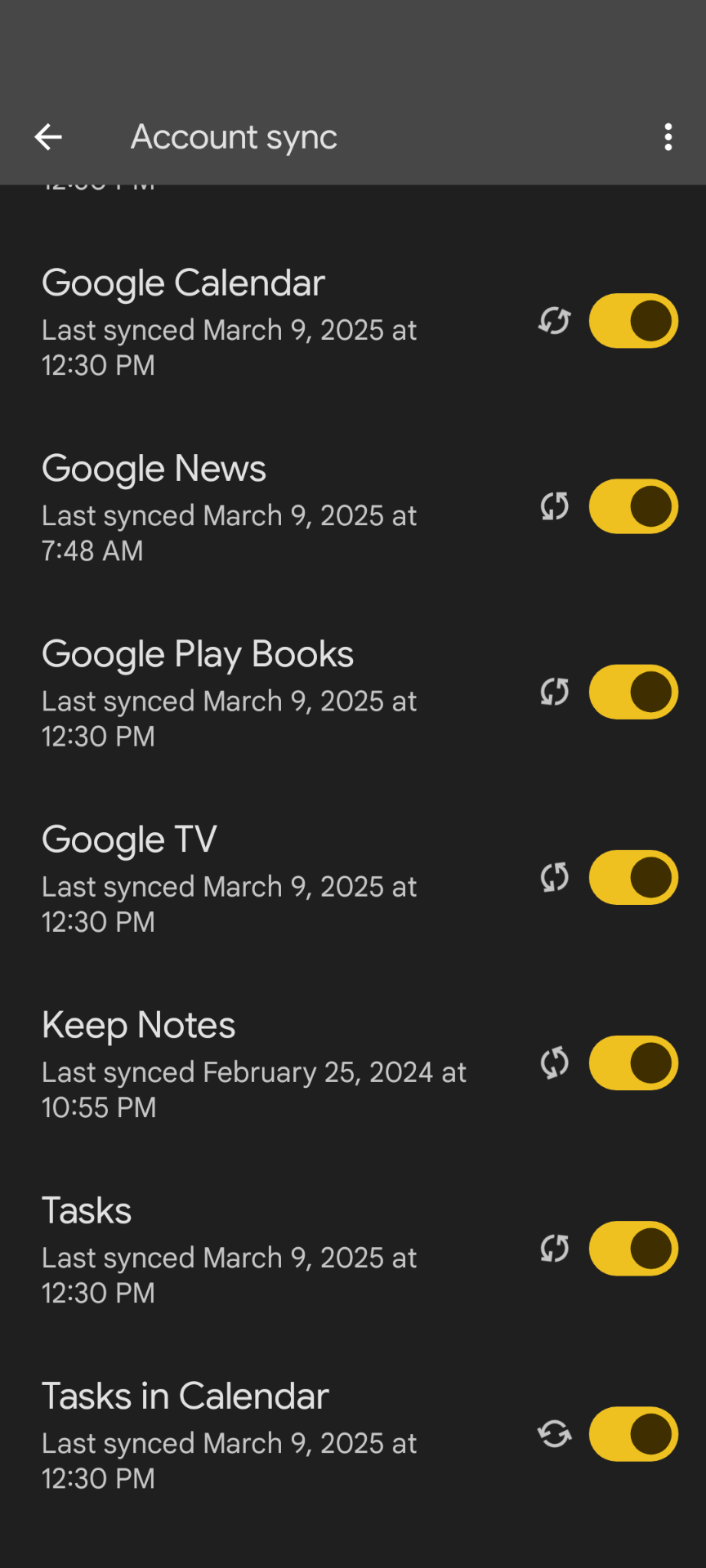
- Tap “Account sync.”
- Find “Keep” or “Notes” and tap “Sync now.”
Use Web Version To Recover Notes
If your mobile app does not show your latest notes, check the web version at keep. google. com. If your notes appear there, the problem is with your app or device.
Reinstall The Keep App
- Delete Keep from your device.
- Restart your phone.
- Install Keep again from the app store.
Export And Backup Notes
If you fear losing notes, export them:
- Select notes in the app.
- Tap the share icon.
- Send them to your email or another app as a backup.
Non-obvious tip: Sometimes, a single corrupted note can block syncing for all notes. If you notice that syncing stops after editing a certain note, try deleting or archiving that note to see if syncing resumes.
How To Prevent Keep Syncing Problems
Stopping syncing issues before they start is much better than fixing them later. Here are practical habits to keep your notes safe:
1. Update Regularly
Keep your app and device OS updated. New versions fix bugs and improve sync reliability.
2. Avoid Simultaneous Edits On Multiple Devices
Try not to edit the same note on different devices at the same time.
3. Monitor Storage
Check your device’s storage every month. Free up space if you are getting close to full.
4. Check Account Alerts
Visit your Google account settings once a month for any alerts or security warnings.
5. Enable Automatic Sync
Make sure sync is enabled for your Google account. On Android, go to Settings > Accounts > Google > Account sync.
6. Back Up Important Notes
For critical information, copy your notes to another app or export them as a backup.
7. Limit Number Of Accounts In App
Using too many Google accounts in Keep can confuse syncing. Stick to one or two accounts per device.
8. Restart Devices Weekly
A weekly restart can clear temporary glitches that affect syncing.
Syncing Issues Across Different Devices
Keep works on many platforms: Android, iOS, Windows, Mac, and through web browsers. But syncing behavior can vary.
| Device | Common Sync Problems | Recommended Fixes |
|---|---|---|
| Android Phone | Battery saver blocks sync; app cache issues | Disable battery saver, clear app cache |
| iPhone/iPad | Background app refresh disabled; app permissions | Enable background refresh, check permissions |
| Windows PC | Browser cache; outdated browser | Clear cache, update browser |
| Mac | Safari browser issues | Try Chrome or Firefox |
| Web Browser (all) | Extensions interfering; network firewalls | Disable extensions, check firewall |
Expert tip: If you use Keep on both work and personal devices, be sure your company’s security settings are not blocking Google’s syncing services.
What To Do If Notes Are Missing After Sync
Sometimes, after fixing sync problems, you may find that some notes are missing or not up-to-date. Here’s what you should do:
- Check Archive and Trash:
Sometimes notes are accidentally archived or deleted. Open the Archive and Trash folders in Keep to look for missing notes.
- Check All Devices:
Sometimes notes are stuck on one device and have not synced to others. Open Keep on each device and see if the notes appear.
- Restore from Backup:
If you exported your notes earlier, now is the time to restore them.
- Contact Google Support:
If notes are important and missing everywhere, contact Google Keep Support for help.
When To Switch To A Different Notes App
If you experience frequent or severe sync problems with Keep, it may be time to try another notes app. Here’s how to decide:
Consider These Factors
- How often do you need cross-device syncing?
- How critical are your notes?
- Are you willing to pay for more reliable services?
Apps like Evernote, Microsoft OneNote, and Notion offer different features and sometimes more robust syncing—especially for large teams or power users.
Migrating Your Notes
- Export your notes from Keep (copy and paste, or use Google Takeout).
- Import them into your new app using available tools or manual entry.
Caution: Not all formatting transfers perfectly. Double-check your imported notes for missing images or checklists.
The Role Of Google Keep Updates And Google Account Policies
Google regularly updates Keep, adding features and fixing bugs. Some updates may change how syncing works or which devices are supported. Also, Google’s account policies sometimes require users to verify their accounts or agree to new terms, which can pause syncing until you complete these steps.
Non-obvious insight: If you have not opened the Keep app for several months, syncing may pause until you open the app again and sign in. Regularly opening the app ensures your notes stay up-to-date.
Frequently Asked Questions
What Should I Do If Keep Is Not Syncing On Only One Device?
First, check the internet connection and make sure you are signed in to the correct Google account. Update the Keep app and restart your device. If the problem continues, clear the app cache and data. Try logging out and back in.
If none of these work, remove and re-add your Google account.
Credit: support.google.com
Can I Recover Notes Lost Due To Syncing Issues?
Yes, sometimes. Check the Archive and Trash in Keep. Also, look for the notes on the web version at keep. google. com. If you backed up your notes, restore them. For very important notes, contact Google Keep Support for help.
Why Do Some Notes Sync But Others Do Not?
This can happen if certain notes are corrupted or contain unsupported content (like very large images). Sometimes, editing the same note at the same time on two devices causes conflicts. Try deleting or changing the problem note, then sync again.
How Often Does Google Keep Sync?
Keep usually syncs every few seconds when the app is open and connected to the internet. Syncing may pause if your device is offline, in battery saver mode, or if the app is closed for a long time.
Are There Limits To Google Keep Syncing?
Yes. While Google does not publish hard limits, users have reported problems when storing thousands of notes or very large images. For most people, Keep’s syncing is fast and reliable, but heavy users may experience slowdowns or errors.
Staying organized and productive depends on reliable syncing. By understanding why Keep not syncing happens and how to fix it, you can avoid frustration and keep your notes safe. Regular updates, backups, and good digital habits go a long way. If you ever outgrow Keep, know that other options are available—and your ideas are always worth keeping.