
When you save a bookmark in Safari, you expect to find it on all your Apple devices. Maybe you’re reading an article on your Mac, then want to pick up on your iPhone. But sometimes, this seamless experience breaks. Bookmarks stop syncing. Important links go missing. For many, this is not just annoying—it’s a real problem for work, study, and daily life.
Bookmark syncing issues in Safari are common, but the causes and solutions are not always simple. They can range from small settings mistakes to deeper software bugs. In this article, you’ll find a full guide to understanding why bookmarks do not sync in Safari, how to fix the problem step by step, and how to keep it from happening again. If you want to save time, avoid frustration, and keep your digital life organized, read on.
Why Safari Bookmarks Stop Syncing
Safari syncing problems almost always come down to a few key issues. Knowing these helps you solve them faster.
- ICloud not enabled: Syncing bookmarks across devices uses iCloud. If iCloud is off for Safari, syncing won’t happen.
- Signed in with different Apple IDs: If your devices use different Apple IDs, bookmarks won’t sync.
- Outdated software: Old iOS or macOS versions can have bugs or lack features needed for syncing.
- Network issues: A weak or unstable internet connection can stop bookmarks from syncing.
- Account or storage problems: If your iCloud account is locked or full, syncing might fail.
- Conflicts or corruption: Rarely, bookmark files become corrupted, or syncing conflicts happen.
Many users miss one detail: even a small mistake (like turning off iCloud for Safari on just one device) can break syncing everywhere. Also, Apple’s cloud system sometimes delays changes—what looks like a syncing failure could just be a slow update.
Understanding How Safari Syncs Bookmarks
Safari uses iCloud to keep bookmarks the same on all your Apple devices. This is called iCloud Bookmarks. When you save, change, or delete a bookmark on one device, iCloud updates the others. This works on:
- IPhone
- IPad
- Mac
- Some Windows computers (with iCloud for Windows app)
Here’s what usually happens:
- You add or change a bookmark in Safari.
- Safari checks if iCloud is enabled for bookmarks.
- The device uploads the change to iCloud servers.
- Other devices download the change from iCloud.
But if any step fails, syncing breaks. For example, if your Mac can’t connect to iCloud, you might see new bookmarks on your iPhone but not on the Mac.
Non-obvious insight: iCloud can take several minutes—or sometimes hours—to sync bookmarks, especially after large changes or if the device was offline for a while. Being patient can sometimes solve the problem.
First Checks: Simple Things To Try
Before changing settings or doing deeper fixes, start with these simple steps:
- Wait a few minutes: Sometimes, bookmarks just take time to sync. Wait at least 10–15 minutes after making a change.
- Restart all devices: A quick restart can refresh connections and solve minor bugs.
- Check your internet connection: Syncing needs stable Wi-Fi or mobile data. Test with a speed check or by loading a website.
- Check all devices are awake and unlocked: Sleeping or locked devices may not sync right away.
If bookmarks still aren’t syncing, move on to the main troubleshooting steps.
How To Fix Bookmarks Not Syncing On Safari
This section gives you a full, step-by-step guide to finding and fixing the problem.
1. Make Sure Icloud Is On For Safari
On each device:
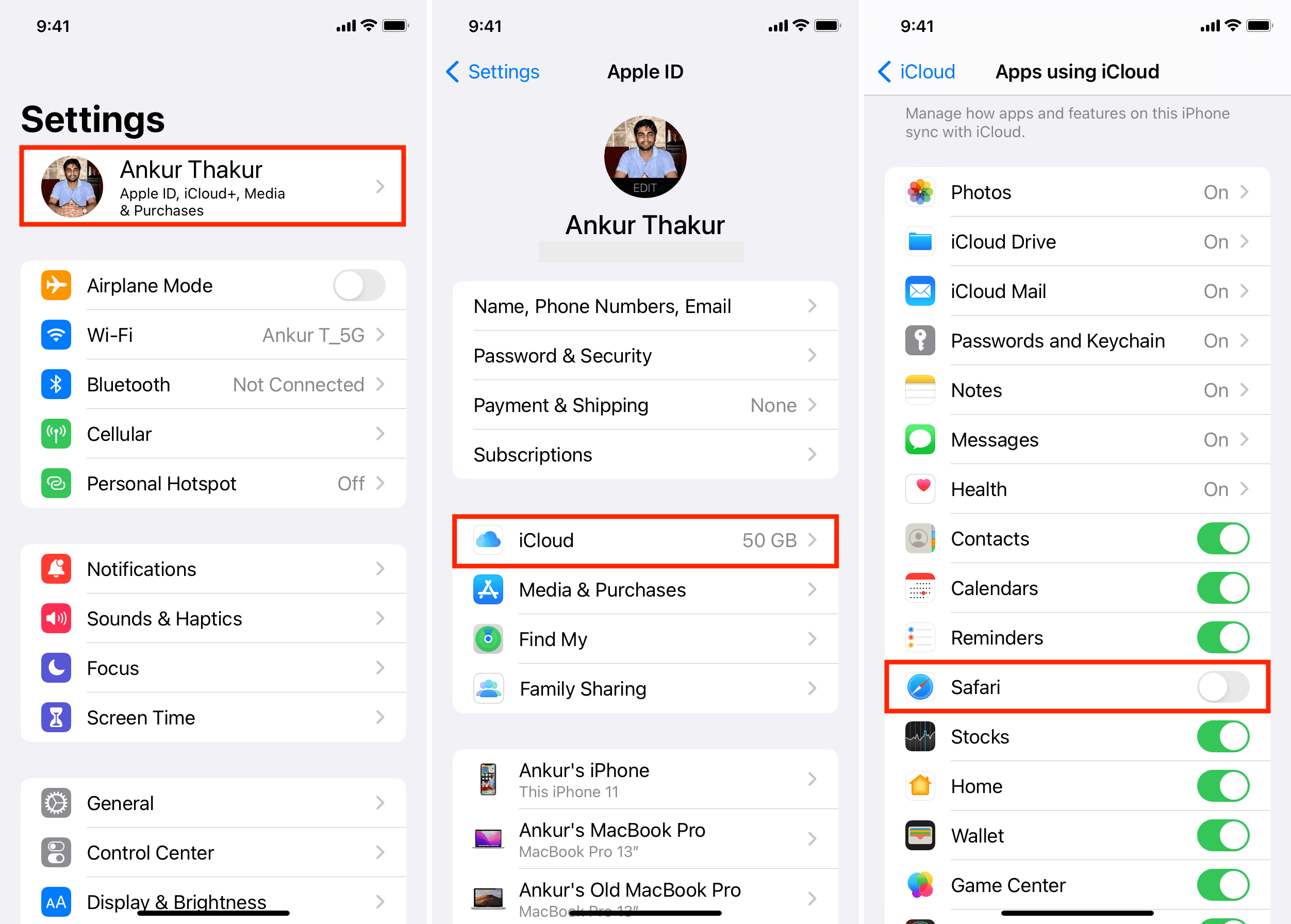
On Iphone Or Ipad
- Open Settings
- Tap your name (top of the screen)
- Tap iCloud
- Tap Show All under “Apps Using iCloud”
- Make sure Safari is ON (switch is green)
On Mac
- Click the Apple menu (), choose System Settings (or System Preferences in older macOS)
- Click your Apple ID (top left)
- Click iCloud
- Make sure Safari is checked
Important: If Safari is off on any device, bookmarks from that device will not sync.
2. Confirm You’re Using The Same Apple Id
Bookmarks only sync between devices signed in to the same Apple ID. Sometimes, people have multiple IDs (work and personal, for example) and get them mixed up.
Check your Apple ID on each device:
- IOS: Settings → Tap your name
- Mac: Apple menu → System Settings → Apple ID
If they’re different, sign out and sign in with the one you want to use everywhere.
3. Update Ios, Ipados, And Macos
Outdated software can stop iCloud features from working. Update each device:
- IPhone/iPad: Settings → General → Software Update
- Mac: Apple menu → System Settings → General → Software Update
Install any updates found. After updating, restart the device.
4. Check Icloud Storage
If your iCloud account is full, new bookmarks cannot be uploaded or synced.
- Go to Settings (iOS) or System Settings (Mac)
- Tap your name → iCloud → See how much storage is left
If you’re almost out, delete old backups, photos, or upgrade your plan.
5. Turn Icloud Bookmarks Off And On
This forces a fresh sync and can fix small glitches.
On each device:
- Turn Safari off in iCloud settings
- Choose whether to keep or delete local bookmarks (pick Keep to avoid losing data)
- Wait a minute
- Turn Safari back on
Wait several minutes and check if bookmarks sync.
6. Sign Out And Sign In To Icloud
A full sign out/in can repair deeper iCloud connection issues.
- Go to Settings or System Settings
- Tap your name → Scroll down → Tap Sign Out
- Restart the device
- Sign in again with your Apple ID
After signing in, make sure Safari is enabled for iCloud.
7. Check Icloud System Status
Rarely, Apple’s iCloud servers go down. This can stop syncing for everyone.
- Visit the official Apple System Status page.
- Look for any issues with iCloud Bookmarks & Tabs.
If there’s a problem, wait for Apple to fix it.
8. Remove Problematic Bookmarks
Sometimes, a single corrupt or very large bookmark can block syncing.
- Delete any bookmarks you added just before the problem started.
- Remove bookmarks with strange characters or very long URLs.
- Try syncing again.
9. Reset Safari Data (mac Only)
If you only have problems on your Mac, try resetting Safari’s data.
Warning: This deletes all bookmarks and history from your Mac (but not iCloud). Only use if other steps fail.
- Quit Safari
- Go to Finder
- Click Go → Go to Folder
- Type: `~/Library/Safari/`
- Delete the Bookmarks.plist file
- Restart your Mac
- Open Safari and turn iCloud Bookmarks back on
Your bookmarks should download from iCloud.
10. Advanced: Use Icloud.com To Check Bookmarks
On a computer, go to iCloud.com and log in. Click the Safari section (or Bookmarks, if available). See if your bookmarks are there.
- If yes: ICloud has your bookmarks, but your device is not downloading them.
- If no: The bookmarks are not uploading from your device.
This test tells you where the problem is—upload or download.
11. Try On Another Network
Sometimes, firewalls or network restrictions (like at work or school) block iCloud syncing. Try connecting your device to a different Wi-Fi or using mobile data.
12. Check For Security Or Privacy Apps
Certain apps, like VPNs, ad blockers, or security tools, can interfere with iCloud. Try disabling these apps and see if bookmarks sync.
13. Contact Apple Support
If you’ve tried everything and bookmarks still won’t sync, it’s time to contact Apple Support. They can check for account issues or deeper bugs.
Credit: www.idownloadblog.com
Common Problems And How To Solve Them
Fixing Safari bookmark sync sometimes means handling specific problems. Here are some common ones, along with solutions.
Bookmarks Only Sync One Way
Sometimes, bookmarks from your iPhone appear on your Mac, but not the other way around. This usually means one device is not uploading or downloading correctly.
- Try turning iCloud Bookmarks off and on (see above).
- Make a small change (add or delete a bookmark) on the device that’s not syncing.
- Wait several minutes and check again.
Old Or Duplicate Bookmarks Appear
If you see bookmarks you deleted long ago, or many copies of the same link, iCloud might be restoring old data or having trouble merging changes.
- Delete unwanted bookmarks on all devices.
- Turn iCloud Bookmarks off and on.
- Allow time for all devices to sync.
Bookmarks Sync, But Not Tabs Or Reading List
Safari can also sync open tabs and Reading List. If bookmarks sync but tabs/Reading List do not, the problem is likely with those features, not bookmarks.
- Make sure “Safari” is enabled in iCloud on all devices.
- Update all devices to the latest software.
- Try signing out/in to iCloud.
Data Table: Common Causes And Fixes
Below is a simple table to help you match common problems with their solutions.
| Problem | Likely Cause | Quick Fix |
|---|---|---|
| Bookmarks not updating | iCloud off or network issue | Enable iCloud, check internet |
| Only some bookmarks sync | One device not syncing | Restart, toggle iCloud |
| Duplicates or missing items | Sync conflict | Reset Safari data, resync |
| Sync is very slow | Large bookmark set | Clean up bookmarks |
| Tabs/Reading List not syncing | Feature off or outdated software | Update devices, check iCloud |
How To Prevent Safari Bookmark Sync Issues
Fixing a problem is good, but preventing it is even better. Here are best practices to keep your bookmarks syncing smoothly.
- Use one Apple ID for all devices: Mixing IDs always causes trouble.
- Keep software up to date: Install updates regularly.
- Check iCloud status after major changes: If you switch devices, upgrade, or change accounts, check iCloud settings.
- Don’t overload bookmarks: Thousands of bookmarks can slow down syncing. Delete what you don’t need.
- Avoid third-party sync tools: Using other apps to manage bookmarks can cause conflicts.
Non-obvious insight: Even after fixing sync issues, it’s wise to keep a manual backup of important bookmarks—especially if you rely on them for work or study.
Data Table: Icloud Bookmarks Compatibility
Understanding which devices and systems support iCloud Bookmarks helps avoid confusion.
| Device/Platform | iCloud Bookmarks Supported? | Special Notes |
|---|---|---|
| iPhone/iPad (iOS 11+) | Yes | Needs Safari enabled in iCloud |
| Mac (macOS High Sierra+) | Yes | Best with latest macOS |
| Windows (iCloud for Windows) | Yes | Bookmarks sync with Internet Explorer/Edge/Firefox, not Chrome |
| Android devices | No | Use another browser or export bookmarks |
Data Table: Safari Vs. Other Browsers’ Sync Features
For users considering alternatives, here’s how Safari’s bookmark syncing compares to other major browsers.
| Feature | Safari (iCloud) | Chrome (Google Sync) | Firefox (Sync) |
|---|---|---|---|
| Bookmarks Sync | Yes (Apple devices only) | Yes (all devices) | Yes (all devices) |
| Open Tabs Sync | Yes | Yes | Yes |
| Reading List Sync | Yes | No (use extensions) | No |
| Manual Backup Needed? | Recommended | Optional | Optional |
Special Cases: Windows And Old Devices
Syncing Bookmarks On Windows
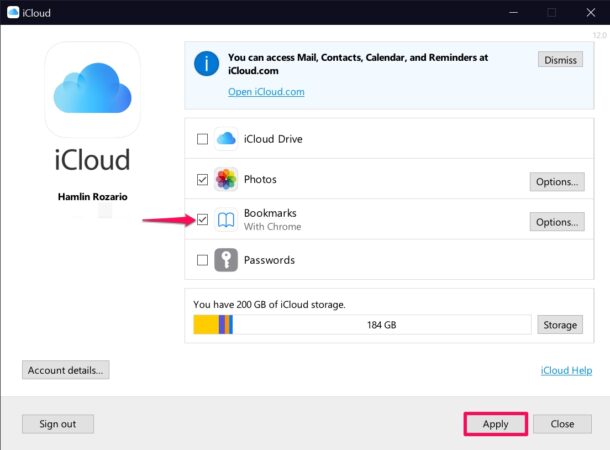
You can sync Safari bookmarks to Windows using the iCloud for Windows app. This supports syncing with Internet Explorer, Edge, or Firefox, but not Chrome.
- Download and install iCloud for Windows from Apple’s website.
- Sign in with your Apple ID.
- Check “Bookmarks” in options, and choose your browser.
Old Devices And Software
If you use older devices (iOS 10 or earlier, OS X Yosemite, etc. ), bookmark syncing may not work reliably. Updating the device often solves the problem. If you can’t update, consider exporting bookmarks and importing them manually.

Credit: www.reddit.com
What To Do If Bookmarks Disappear
Sometimes, bookmarks not only stop syncing—they vanish. Here’s how to handle it:
- Check Recently Deleted (if available) in Safari.
- Visit iCloud.com, click Account Settings, then Restore Bookmarks (bottom of the page). You can restore bookmarks deleted in the last 30 days.
- If you have a backup of your device, restore from backup.
Tip: Restoring bookmarks from iCloud.com is a lifesaver and not well-known. It is often possible even after you think the data is lost.
Tips For Power Users
If you use many devices or organize hundreds of bookmarks, try these extra tips:
- Use bookmark folders to keep things organized and avoid confusion during sync.
- Periodically export your bookmarks (Safari: File → Export Bookmarks).
- Avoid using special characters (like emojis or symbols) in bookmark names—they can sometimes cause sync bugs.
- If you use browser extensions that manage bookmarks, disable them to test for conflicts.
Credit: osxdaily.com
When To Consider Alternatives
If Safari’s syncing is too unreliable for you, consider using another browser with cross-platform sync, like Google Chrome or Mozilla Firefox. They sync bookmarks across Windows, Mac, Android, and iOS. But remember: only Safari syncs your Reading List and open tabs on Apple devices.
More information on browser comparison can be found at the official Wikipedia: Comparison of web browsers page.
Final Thoughts
Safari bookmarks not syncing is a frustrating problem, but it’s almost always fixable. Most issues come from simple things: a setting turned off, the wrong Apple ID, or an old software version. Working through the steps in this guide will fix the problem for most people. If you need your bookmarks for work or study, consider making manual backups as well.
A final piece of advice: patience is key. Sometimes, sync takes longer than expected, especially after big changes or updates. Give it a little time before jumping to advanced fixes. But if the basics don’t work, use the steps here to get everything back in order—and keep your browsing life smooth.
Frequently Asked Questions
Why Are My Safari Bookmarks Not Syncing Between My Mac And Iphone?
This usually happens because iCloud is not enabled for Safari on one or both devices, or the devices are using different Apple IDs. Also, check for software updates and make sure both devices are connected to the internet.
How Do I Force Safari Bookmarks To Sync?
Turn off Safari in iCloud settings on all devices, then turn it back on. Make a small change (like adding a test bookmark) to trigger syncing. Wait a few minutes and check if the bookmarks appear everywhere.
Can I Recover Deleted Safari Bookmarks?
Yes. Go to iCloud.com on a computer, sign in, open Account Settings, and choose Restore Bookmarks at the bottom. You can recover bookmarks deleted within the last 30 days.
Do Safari Bookmarks Sync With Windows Computers?
Yes, but only with iCloud for Windows. Install it, sign in, and enable Bookmarks sync. This works with Internet Explorer, Edge, or Firefox—not Chrome.
How Long Does It Take For Safari Bookmarks To Sync?
It usually takes a few seconds to a few minutes. Sometimes, after software updates or large changes, it can take longer. If bookmarks do not sync after 15 minutes, check the troubleshooting steps above.