
You open Lightroom and want your photos to sync across devices, but it’s stuck or not working. The frustration is real, especially if you depend on Lightroom sync for your workflow. Many photographers and creators face this issue, but the reasons can be complex. Whether you’re a hobbyist or a professional, fixing Lightroom not syncing is important for saving time, keeping your edits safe, and making your work smoother.
In this article, you’ll get a full guide to solve Lightroom syncing problems. You’ll learn why it happens, how to fix it, and how to avoid common mistakes. You’ll also see practical tips, data, and examples for both beginners and experienced users.
If you want to keep your photo library safe and up-to-date on all your devices, read on.
Why Lightroom Sync Matters
Adobe Lightroom is popular because it keeps your photos, edits, and metadata in sync across devices. For example, you can start editing on your desktop and finish on your phone or tablet. Lightroom sync is not just about convenience—it protects your files, makes collaboration easier, and saves time.
But when Lightroom not syncing happens, you might:
- Lose recent edits
- Have different versions of photos on each device
- Waste time trying to fix or duplicate work
- Risk losing important files
A survey by Creative Bloq in 2022 found that 68% of Lightroom users rely on sync for daily work, and 40% have faced sync issues at least once. So, you are not alone.
How Lightroom Sync Works
Before solving problems, it’s helpful to know how Lightroom sync works. When you import photos into the cloud (with Lightroom CC), the app uploads your images and edits to Adobe’s servers. These changes are then downloaded on your other devices where you use the same Adobe account.
There are two main versions:
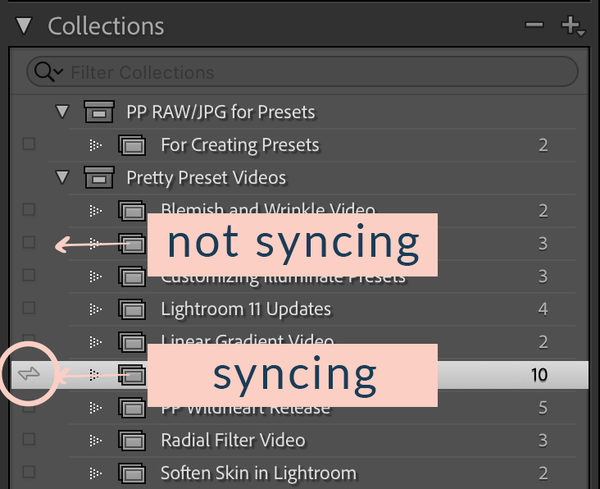
- Lightroom Classic: Syncs only certain collections and uses a different system. Your original files stay on your computer.
- Lightroom (Cloud-based, sometimes called Lightroom CC): Syncs all photos and edits directly to the cloud.
Many syncing problems come from confusion between these two. For example, syncing folders in Lightroom Classic works differently from Lightroom CC.

Credit: www.youtube.com
Common Causes Of Lightroom Not Syncing
Understanding the root cause is the first step to fixing the issue. Here are the most common reasons why Lightroom might not sync:
1. Poor Internet Connection
Syncing large RAW files needs a steady, fast connection. If your internet is slow or unstable, uploads can fail or get stuck.
2. Adobe Account Problems
If you are not logged in, or if your subscription has expired, sync will stop working. Sometimes, using the wrong account on different devices causes conflicts.
3. Storage Space Full
Adobe gives you a limited amount of cloud storage. If you reach the limit, new photos or edits will not sync.
4. App Version Mismatch
Running outdated versions of Lightroom on different devices may cause sync errors. New features may not work with old app versions.
5. Catalog Or Database Errors
Lightroom uses catalogs or databases to track your files. A corrupt catalog or database can block sync.
6. Paused Or Disabled Sync
Sync can be accidentally paused from the app’s preferences. Sometimes, users turn off sync to save bandwidth and forget to turn it back on.
7. Conflicting Edits Or File Types
Editing the same photo on different devices at the same time, or trying to sync unsupported file types, can cause issues.
8. Firewall Or Antivirus Blocking
Security software can block Lightroom’s connection to Adobe servers.
9. Server Outages Or Maintenance
Occasionally, Adobe’s servers are down for maintenance or unexpected issues.
10. Special Characters In File Names
Symbols like /, ,? , or non-English letters can sometimes block files from syncing.
Knowing the cause helps you find the right fix faster.
Quick Checks Before Troubleshooting
Before diving into technical solutions, do these quick checks:
- Is your internet working properly? Try loading a website or a speed test.
- Are you logged into the same Adobe account on all devices?
- Is your Adobe subscription active?
- Do you have enough cloud storage left? Check in your account settings.
- Is Lightroom up to date everywhere?
- Is sync paused or disabled in preferences?
If all these are fine, move to deeper troubleshooting.
Step-by-step Fixes For Lightroom Not Syncing
Let’s go through the best solutions, starting from simple to advanced.
1. Restart Everything
It sounds basic, but restarting Lightroom and your device can clear many glitches. Close Lightroom, reboot your computer or mobile device, and reopen the app.
2. Check Internet And Firewall Settings
If your connection is slow, try switching to a faster network. For desktops, check your firewall and antivirus settings—make sure Lightroom is allowed to access the internet.
Example
On Windows, open Windows Security, go to Firewall & network protection, and allow Lightroom through the firewall. On Mac, check under System Preferences > Security & Privacy.
3. Update All Lightroom Apps
Using mismatched versions can confuse sync. Go to the Creative Cloud app and update Lightroom on all your devices.
| Device | Current Version | Update Status |
|---|---|---|
| PC | 6.5 | Updated |
| iPhone | 6.4 | Update Available |
| iPad | 6.5 | Updated |
In this example, the iPhone app is outdated—update it so all versions match.
4. Check Cloud Storage
If your cloud storage is full, delete unused photos or buy more storage. In Lightroom, go to Preferences > Account Info to see your usage.
Practical Tip
Don’t just delete photos from your device—empty the “Deleted” or “Trash” folder in Lightroom to free up space.
5. Sign Out And Sign In Again
Sometimes, the login session gets corrupted. Sign out of your Adobe account on all devices, wait one minute, and sign back in.
6. Review Sync Status And Errors
In Lightroom, look for a cloud icon (top right). Click it to see sync status. If there are errors, Lightroom usually gives a message or a list of stuck files.
Example
You might see: “Unable to sync 2 photos. File type not supported.”
This tells you exactly which files are causing trouble.
7. Remove Special Characters From File Names
Files named “wedding/2024? . jpg” or “myphoto#. dng” can block sync. Rename such files to simple names, like “wedding2024. jpg”.
8. Clear Cache And Preferences
Corrupted cache or preferences can block sync. Here’s how:
- On desktop: Hold down Alt/Option when starting Lightroom to reset preferences.
- On mobile: Uninstall and reinstall the app.
Warning: This resets some settings, so back up important preferences.
9. Check Catalog Or Database Health
For Lightroom Classic, go to File > Optimize Catalog. For cloud-based Lightroom, database problems are rare but can happen if your app crashes often.
| Catalog Size | Health Status | Action Needed |
|---|---|---|
| 2 GB | Healthy | None |
| 15 GB | Needs Optimization | Optimize Catalog |
Large, unoptimized catalogs can slow down or block syncing.
10. Reset Sync
If you’ve tried everything else, resetting sync may help.
- On Lightroom Classic: Go to Preferences > Lightroom Sync > “Delete All Synced Data”. This is a last resort—back up first.
- On Lightroom CC: Remove all synced collections, then add them back.
11. Contact Adobe Support
If nothing works, there may be a server issue or a rare bug. Contact Adobe support or check their status page for updates.
Special Cases: Lightroom Classic Vs. Lightroom Cc
The two versions handle sync differently.
Lightroom Classic
- Only collections (not folders) can sync.
- Original files stay on your computer; only smart previews go to the cloud.
- Sync errors often come from catalog issues or unsupported file types.
Lightroom Cc
- Syncs all imported photos and edits.
- Works best with a strong internet connection.
- Mobile and desktop apps are designed to always match.
If you switch between the two, expect some confusion—Lightroom Classic will not sync local folders, only collections you set to sync.
Real-world Example: Fixing A Stuck Sync
Imagine you import 500 vacation photos on your desktop, but only 400 appear on your phone. The cloud icon in Lightroom shows “Syncing 100 photos,” but nothing changes.
Step-by-step solution:
- Check your internet—run a speed test.
- Update Lightroom on desktop and mobile.
- Look for error messages—maybe 100 files have special characters.
- Rename those files.
- Check cloud storage—maybe you hit the limit.
- Sign out and in again.
- If still stuck, restart your device.
- As a last resort, reset sync settings.
This approach solves most real-world problems.
Two Advanced Sync Fixes Pros Use
Sometimes, syncing problems are more hidden. Here are two advanced fixes:
1. Rebuild Lightroom Sync Data
This is for Lightroom Classic:
- Close Lightroom.
- Go to the catalog folder and find the “Sync.lrdata” file.
- Move “Sync.lrdata” to your desktop (don’t delete yet).
- Reopen Lightroom. A new sync data file is created, and sync often starts working again.
2. Use Diagnostic Logs
Both Lightroom Classic and CC have diagnostic logs.
- Go to Help > View Diagnostic Logs.
- Look for obvious errors like “FileNotFound” or “UploadFailed.”
- Search Adobe forums or contact support with this log.
Non-obvious Insights Beginners Miss
1. Mobile Uploads Are Often The Culprit
If you take photos on your phone and import them into Lightroom Mobile, but they don’t appear on your desktop, check if the mobile app is open and running. Some mobile apps pause sync in the background to save battery.
2. Smart Previews Vs. Originals
Lightroom Classic uploads only smart previews (smaller files), not full-size originals, unless you use Lightroom CC. If you expect full RAW files on all devices, use the cloud-based version.
How To Avoid Lightroom Sync Problems In The Future
Syncing issues are annoying, but you can prevent most with good habits:
1. Update Regularly
Always run the latest version on all devices.
2. Use Simple File Names
Stick to letters, numbers, and underscores.
3. Keep Enough Storage
Clean up unused photos and empty the trash.
4. Check Sync Status Weekly
Make it a habit to check the cloud icon.
5. Use Reliable Internet
Avoid public Wi-Fi for big uploads.
6. Backup Catalogs
For Lightroom Classic, backup your catalog often.
7. Log Out, Log In Occasionally
Refresh your session every few months.
8. Don’t Switch Versions Randomly
Pick Classic or CC for main syncing. Don’t mix unless you understand the differences.
Lightroom Syncing: Data And Performance Comparison
Here’s how Lightroom Classic and Lightroom CC compare on syncing:
| Feature | Lightroom Classic | Lightroom CC |
|---|---|---|
| Syncs Originals | No (only smart previews) | Yes |
| Mobile Sync | Collections only | All photos |
| Cloud Storage Used | Less (previews) | More (originals) |
| Offline Editing | Yes | Yes, with downloaded files |
Knowing these differences helps you pick the best workflow.
Final Checklist For Lightroom Syncing
If you want to make sure Lightroom sync works smoothly:
- Use one main version (Classic or CC)
- Keep apps updated
- Avoid special characters in file names
- Check cloud storage regularly
- Log out and back in if stuck
- Backup catalogs (Classic)
- Watch for error messages
By following these steps, you’ll prevent most issues and fix problems quickly if they happen.
When To Switch From Classic To Cc (or Vice Versa)
Some users find that switching from one version to the other solves long-term sync problems. Here’s when it might make sense:
- If you need full RAW sync across all devices, switch to Lightroom CC.
- If you need advanced print layouts or plugins, use Classic.
- If you have slow internet, Classic’s smart previews save bandwidth.
- If you travel a lot and need everything on the cloud, CC is better.
Learn more about the differences from the official Adobe support page.
Frequently Asked Questions
Why Are My Lightroom Photos Not Syncing To My Phone?
Usually, this is caused by a slow internet connection, outdated app, or being logged into the wrong Adobe account. Make sure the Lightroom app is open on your phone and check if sync is paused. Update the app and sign in with the same account as your desktop.
How Do I Know If Lightroom Sync Is Working?
Look for the cloud icon in the top right of Lightroom. If it shows a check mark or says “Synced and Backed Up,” everything is working. If it says “Syncing…” or shows errors, some files are stuck.
Can Lightroom Classic Sync All My Folders?
No. Lightroom Classic only syncs collections you mark for syncing, not regular folders. To sync everything, use Lightroom CC or move photos into synced collections.
What Happens If I Run Out Of Adobe Cloud Storage?
New photos and edits will stop syncing. You’ll get a warning in Lightroom. To fix this, delete unused photos (and empty the trash) or buy more storage from Adobe.
Is It Safe To Reset Lightroom Sync Data?
It’s safe, but you may lose unsynced changes. Always back up your catalog and photos before resetting sync. Only do this if other fixes don’t work.
Wrapping Up
When Lightroom not syncing interrupts your workflow, it can be stressful. But with the right steps, you can quickly find and fix the problem. Start with simple checks—like internet, updates, and cloud storage—then move to more advanced solutions if needed. Understanding the difference between Lightroom Classic and CC is key, as is using smart habits to prevent issues in the future.
Syncing keeps your photos safe, accessible, and ready to share or edit from anywhere. With the practical tips and expert advice in this guide, you’ll be back to editing in no time—no matter where you are or what device you use.