
Many gamers and tech enthusiasts love 8Bitdo controllers because they blend classic design with modern technology. But one frustration can ruin the fun: the 8Bitdo Ultimate Software not syncing with your device. When this happens, you can’t remap buttons, adjust sticks, or update firmware easily. For beginners and even experienced users, the problem can feel complicated. But with a careful approach, you can solve it and enjoy your controller as designed.
This guide will help you understand why the 8Bitdo Ultimate Software sometimes fails to sync and how to fix it step by step. You’ll also learn about common mistakes, advanced troubleshooting, and how to keep your setup running smoothly. Whether you use Windows, Mac, or mobile, this article breaks down the solutions in clear English. You’ll find tables comparing issues, real examples, and practical advice that goes beyond the basics.
What Is 8bitdo Ultimate Software?
The 8Bitdo Ultimate Software is a tool that lets you customize your 8Bitdo controller. You can remap buttons, adjust analog sticks, and create profiles for different games. The software is available for Windows, macOS, iOS, and Android.
Why use it? Some games need special button layouts or sensitivity. With this software, you don’t need to settle for the default controls. You can make your controller work better for you.
But the software needs to “see” your controller first. If it cannot sync or recognize your device, you lose all these benefits.
Common Reasons For Syncing Problems
If your 8Bitdo Ultimate Software is not syncing, you’re not alone. Many users experience this issue. Let’s look at the most frequent causes:
- Outdated Firmware – If your controller’s firmware is old, the software may not connect.
- Wrong Connection Mode – Some controllers support Bluetooth, 2.4G, and wired modes. The software might need a specific mode.
- Cable Issues – Broken or low-quality cables can block data transfer.
- Missing Drivers – If your computer lacks the right drivers, the controller won’t sync.
- Software Version Mismatch – Using an old or wrong version of the software can cause problems.
- Operating System Conflicts – Sometimes, Windows or macOS blocks the connection.
- Background Apps – Other programs may interfere with the syncing process.
- Device Not Detected – USB ports or Bluetooth adapters may fail to recognize your controller.
Understanding the cause is the first step to solving the problem. Next, you’ll learn how to fix each one.
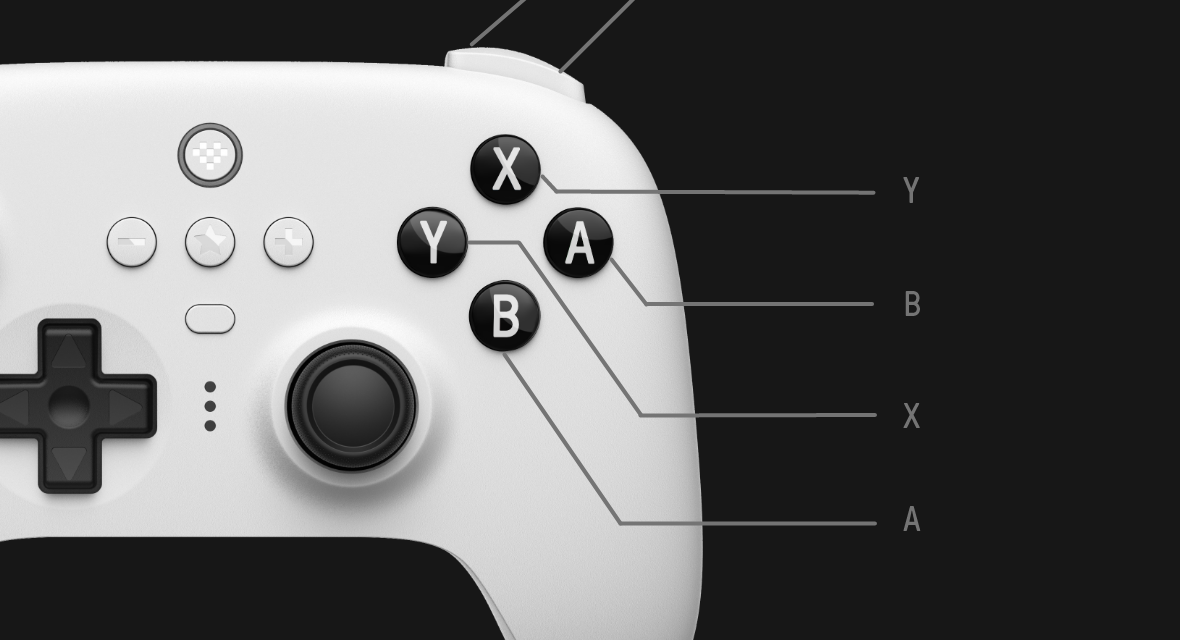
Step-by-step Solutions For Syncing Issues
1. Update Controller Firmware
Firmware is the “brain” inside your controller. It controls how the hardware works. If it’s outdated, it can cause many problems. Here’s how to update:
- Go to the official 8Bitdo support page.
- Download the latest firmware for your controller model.
- Connect your controller to your PC with a high-quality USB cable.
- Run the firmware update tool and follow the prompts.
- After updating, restart both the controller and your computer.
Tip: Some users forget to restart after updating firmware. This step is important—restart both devices to clear old settings.
2. Use The Correct Connection Mode
8Bitdo controllers often support three modes:
- Bluetooth
- 2.4G (with dongle)
- Wired (USB-C or micro USB)
The Ultimate Software usually requires a wired connection for syncing and configuration. Wireless modes may be for gameplay only. Check your controller’s manual for the correct mode.
To switch to wired mode:
- Turn off the controller.
- Connect the cable to your PC.
- Hold the correct button combo (often Start + X or Start + Y) for your model.
- Wait for your computer to detect the device.
If unsure, try both Bluetooth and wired to see which works with the software.
3. Check And Replace Your Usb Cable
A surprising number of syncing failures come from bad cables. Not all USB cables are the same. Some only charge and do not transfer data.
- Use the original cable that came with your controller.
- If you lost it, use a certified USB-C or micro USB data cable.
- Avoid cables from cheap brands—they can cause connection drops.
Pro tip: Test your cable by connecting it to another device (like a phone) and transferring a file. If it works, the cable supports data.
4. Install The Right Drivers
For Windows and sometimes macOS, missing drivers can block the syncing process. Here’s what to do:
- Open Device Manager (Windows) or System Information (macOS).
- Plug in the controller.
- Look for new devices or “Unknown Device.”
- Right-click and select “Update Driver.”
- If no drivers are found, download them from the 8Bitdo website.
Advanced insight: On Windows, the controller may appear as a “HID-compliant game controller.” If you see a yellow warning sign, the driver is missing or broken.
5. Update Or Reinstall Ultimate Software
Always use the latest version of the 8Bitdo Ultimate Software. Old versions may not support new controller firmware.
- Download the newest software from the 8Bitdo site.
- Uninstall the current version.
- Restart your PC.
- Install the new version.
Common mistake: Some users install the new version over the old one without uninstalling first. This can keep old files that cause bugs.
6. Check Computer’s Usb Port
Not all USB ports are equal. Some older USB 2. 0 ports may not supply enough power or speed for syncing.
- Try different USB ports (front and back).
- Prefer USB 3.0 ports (usually blue inside).
- Avoid USB hubs or splitters during syncing.
If your PC has only one type of port, try a different computer to rule out hardware problems.
7. Close Background Apps
Apps like Steam, controller remapping tools, or even antivirus programs can block the syncing process.
- Close Steam and similar apps before opening 8Bitdo Ultimate Software.
- Pause or temporarily disable antivirus software (remember to turn it back on later).
- If you use controller mapping software, exit those as well.
Advanced tip: Some RGB lighting apps for motherboards or mice can also interfere, so close them too.
8. Test On Another Computer Or Device
If none of the above works, try syncing your controller on another computer. This step helps you find out if the problem is with your PC or the controller itself.
If it works on another PC, your main device may have hidden issues. If it still fails, the controller or cable may be faulty.
Comparing Common Syncing Issues And Solutions
Here’s a quick look at how different causes match with their best solutions:
| Problem | Best Fix | Extra Notes |
|---|---|---|
| Outdated Firmware | Update via 8Bitdo tool | Restart after update |
| Bad Cable | Replace with data cable | Test with file transfer |
| Wrong Connection Mode | Switch to wired | Check manual for button combo |
| Driver Issue | Reinstall drivers | Look for yellow icon in Device Manager |
| Old Software | Install latest version | Uninstall old version first |
| OS Conflict | Try on another PC | Update operating system |
| Background Apps | Close interfering software | Don’t forget antivirus |
Platform-specific Fixes
Windows
Windows has the most users, but also the most issues. Here’s what to check:
- Run as Administrator: Right-click the 8Bitdo Ultimate Software and select “Run as administrator.” This gives it more access.
- Check Windows Update: Missing system updates can block devices.
- USB Power Settings: Go to Device Manager > Universal Serial Bus controllers > Right-click > Properties > Power Management. Uncheck “Allow the computer to turn off this device to save power.”
Macos
Mac users sometimes face extra challenges:
- Allow App Permissions: MacOS may block apps from unknown sources. Go to System Preferences > Security & Privacy > General. Click “Allow” for 8Bitdo.
- Try Different USB Ports: Some MacBook models have weak USB-C ports, especially with dongles.
- Update macOS: Make sure you have the latest system updates.
Ios And Android
Mobile syncing is only for some 8Bitdo controllers and features.
- Check Bluetooth Permissions: Apps must have Bluetooth access. Grant permission in settings.
- Reset Bluetooth Stack: Turn Bluetooth off and on again.
- Use Original App: Some controllers need the official 8Bitdo app from the App Store or Google Play.
Note: Not all features are available on mobile. For full customization, use a computer.
Advanced Troubleshooting Steps
Sometimes, the usual fixes are not enough. Here are deeper solutions for stubborn cases.
Reset Your Controller
Most 8Bitdo controllers have a reset button (often a small hole). Use a paperclip to press it for 5 seconds. This restores factory settings.
- After resetting, connect to your PC and try syncing again.
- You will lose any custom settings, but it often solves deep issues.
Reinstall Usb Controllers (windows)
USB controller drivers can become corrupted. Here’s how to reset them:
- Open Device Manager.
- Expand “Universal Serial Bus controllers.”
- Right-click each item and select “Uninstall device.”
- Restart your computer. Windows will reinstall them automatically.
Clean Software Leftovers
Sometimes, uninstalling the software leaves old files that cause problems. Use a tool like CCleaner or manually delete the 8Bitdo folder in Program Files (Windows) or Applications (macOS).
- After cleaning, reinstall the latest version.
Use A Powered Usb Hub
On older PCs, the USB port might not supply enough power. A powered USB hub (with its own power supply) can solve this, especially for wireless dongles.
Flash Firmware In Bootloader Mode
If normal firmware updates fail, use bootloader mode:
- Disconnect the controller.
- Hold a special button combo (check your manual) while plugging in.
- The controller should appear as a new device.
- Run the firmware tool again.
This method is riskier but often works when all else fails.
Real-world User Examples
Let’s look at two examples that show how these fixes help in practice.
Example 1: “My 8Bitdo SN30 Pro won’t sync with the Ultimate Software on Windows 11.”
- Checked cable: Using a phone charging-only cable. Swapped for a data cable.
- Updated firmware and software.
- Closed Steam and other apps.
- Success: Controller now detected and customizable.
Example 2: “MacBook Pro not recognizing 8Bitdo Pro 2 in Ultimate Software.”
- Tried different USB-C ports and a new cable.
- Gave 8Bitdo app permission in Security & Privacy.
- Restarted MacBook after firmware update.
- Success: All features now working.
Insight: Many beginners miss the importance of the cable type and permissions on Mac.
Preventing Future Sync Problems
After fixing the issue, you can avoid future headaches by following these habits:
- Always use the original or a quality data cable.
- Keep firmware and software updated.
- Avoid plugging into USB hubs during syncing.
- Give the app all necessary permissions.
- Restart your devices after major changes.
- Read update notes for new firmware or software.
When To Contact Support
If you have tried every step and the 8Bitdo Ultimate Software still does not sync, it might be time to contact 8Bitdo support.
- Prepare your controller’s model number and firmware version.
- Take screenshots of error messages.
- Explain all steps you have tried.
8Bitdo’s support team is active and can guide you through advanced diagnostics or warranty options.
Comparing Wired Vs Wireless Syncing
Some users want to know if wireless syncing is possible. Here’s a comparison:
| Feature | Wired | Wireless (Bluetooth/2.4G) |
|---|---|---|
| Firmware Updates | Supported | Not Supported |
| Button Remapping | Full Support | Limited/No Support |
| Connection Stability | High | Medium |
| Speed | Fastest | Slower |
| Recommended for Syncing | Yes | No |
Summary: For syncing and customization, always choose a wired connection.

Non-obvious Insights Most Beginners Miss
- Not all USB-C cables are equal: Many cables are “charge-only.” Always check for “data sync” capability.
- Firmware and software must match: If you update the controller’s firmware but not the software, they might not communicate. Always update both together.
- Operating system permissions matter: Especially on macOS and mobile, you must grant all necessary permissions. Otherwise, the controller stays invisible to the software.
- Background apps can block access: Even apps unrelated to gaming (like RGB lighting tools or antivirus) can block controller detection. Always close extra apps during setup.
Summary Of Key Steps To Fix Syncing
Here’s a quick checklist for solving 8Bitdo Ultimate Software not syncing:
- Update controller firmware from the official site.
- Use a high-quality data USB cable.
- Switch to wired mode for syncing.
- Update and reinstall the Ultimate Software.
- Install or update device drivers.
- Try different USB ports (avoid hubs).
- Close Steam, antivirus, and other background apps.
- Test on another computer if possible.
- Reset the controller if all else fails.
- Contact support with detailed information.
By following these steps, you solve most syncing issues and get the most from your 8Bitdo controller.
Frequently Asked Questions
Why Does My 8bitdo Controller Show As “unknown Device” In Device Manager?
This usually means missing or broken drivers. Update your drivers, try a different cable, and make sure you are in the correct connection mode. If the problem continues, uninstall the device from Device Manager and restart your PC.
Can I Sync My 8bitdo Controller With The Ultimate Software Over Bluetooth?
No, most syncing and customization features require a wired connection. Bluetooth is for gameplay, not for updating firmware or remapping buttons. Use the included USB cable for these tasks.
What Should I Do If The Firmware Update Fails?
If firmware updating fails, try entering bootloader mode (special button combo during plug-in). Use the official update tool and make sure no other apps are running. If the controller still won’t update, contact 8Bitdo support.
Does The Ultimate Software Work On All Operating Systems?
The Ultimate Software supports Windows, macOS, iOS, and Android, but some features are limited on mobile. For full control, use a PC or Mac. Always check the compatibility list on the official 8Bitdo website.
Why Is My Controller Still Not Syncing After Trying Everything?
If you have updated firmware, changed cables, switched ports, and closed all apps without success, the controller or cable may be defective. Test on another computer. If it still fails, contact support for repair or replacement options.
A little patience and careful troubleshooting can solve most 8Bitdo Ultimate Software not syncing problems. With the right approach, your controller will work perfectly, letting you focus on your games—not your setup. If you ever get stuck, the 8Bitdo community and support team can help you get back on track.