
If you’ve ever built a gaming PC or wanted to customize your setup with RGB lighting, you’ve likely come across MSI Mystic Light. This software lets you control and sync the lighting effects on your MSI motherboard, graphics card, RAM, fans, and other compatible devices. But what if Mystic Light suddenly stops working? You’re not alone—thousands of users have faced this problem and struggled to find solutions. Let’s explore why MSI Mystic Light might not work, how to fix it, and what you can do to avoid problems in the future.
Why Msi Mystic Light Matters
MSI Mystic Light has become one of the most popular lighting control tools for PC builders. It offers a simple interface to change RGB colors, select effects, and sync lighting across components. When it works, your PC can look stunning and unique. But when it stops working, your lights might freeze, turn off, or become stuck in one color. For many users, this is more than a small annoyance—it can signal deeper software or hardware issues.
Understanding why Mystic Light fails is the first step to bringing your RGB setup back to life. Let’s look at the common causes, solutions, and expert tips to get Mystic Light working again.
Common Reasons Msi Mystic Light Stops Working
Before diving into the fixes, it’s important to know what causes Mystic Light to fail. Here are the most typical reasons:
- Outdated Software: The most frequent cause. If Mystic Light or MSI Center is outdated, it may not recognize your hardware or work with Windows updates.
- Driver Conflicts: Graphics card or chipset drivers might clash with Mystic Light.
- Windows Updates: Major Windows updates sometimes break compatibility with Mystic Light.
- Corrupted Installation: Files can become corrupted after a crash or improper shutdown.
- Third-party RGB Software: Programs like Corsair iCUE or ASUS Aura can interfere.
- Unsupported Hardware: Not all RGB devices are compatible with Mystic Light.
- BIOS Settings: Wrong settings can disable RGB headers or features.
- USB/Hardware Issues: Physical connection problems or faulty hardware.
- Permissions Problems: Windows or antivirus blocking access to Mystic Light.
Some of these causes are easy to fix; others may take more effort. Let’s walk through the best solutions, step by step.
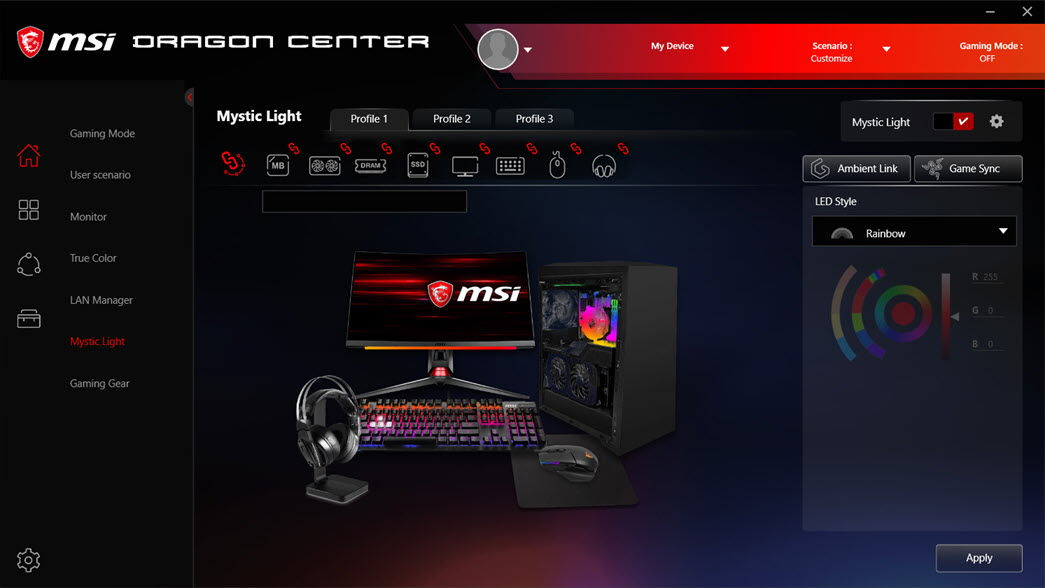
Credit: www.drivereasy.com
Step-by-step Fixes For Msi Mystic Light Not Working
1. Check Hardware Compatibility
First, verify that your hardware actually supports Mystic Light. Not all MSI motherboards or third-party components work with the software. Visit the official MSI Mystic Light compatibility page and compare your model numbers.
- Make sure your motherboard and GPU support Mystic Light.
- If you’re using RGB RAM, fans, or strips, check that they’re listed as compatible.
Non-obvious tip: Some cheaper RGB strips or fans only support static lighting or need their own controllers. Mystic Light can’t control devices that lack the proper headers or chips.
2. Update Msi Mystic Light And Msi Center
MSI has moved Mystic Light into a larger suite called MSI Center. If you’re still using the old Mystic Light app, switch to MSI Center for better support.
- Go to the official MSI website.
- Download the latest MSI Center.
- Use the built-in Mystic Light module.
After installing, restart your computer. Updating fixes many hidden bugs and ensures the latest device support.
Practical example: Many users found Mystic Light stopped working after upgrading to Windows 11, but updating MSI Center restored full function.
3. Update Motherboard Bios
Sometimes, the BIOS controls whether RGB headers and features are enabled. An outdated BIOS can block Mystic Light.
- Check your current BIOS version.
- Visit your motherboard’s support page.
- Download the latest BIOS and follow official instructions to update.
Caution: BIOS updates can be risky. Only update if you’re comfortable and follow MSI’s guide.
4. Update Drivers
Outdated or mismatched drivers often cause Mystic Light failures, especially after a Windows update.
- Update your graphics card drivers (NVIDIA or AMD).
- Update motherboard chipset drivers.
- Update any RGB device drivers.
You can use Device Manager or download the latest drivers from the MSI and GPU manufacturer websites.
Non-obvious insight: Some RGB RAM modules need their own drivers or firmware updates. Check your RAM manufacturer’s site.
5. Clean Install Mystic Light And Msi Center
If updating doesn’t help, do a clean installation:
- Uninstall MSI Mystic Light and MSI Center from Windows.
- Restart your PC.
- Delete any leftover folders in `C: Program Files (x86)MSI` and `C:ProgramDataMSI`.
- Install the latest MSI Center and Mystic Light module.
This removes corrupted files that can block Mystic Light.
6. Disable Other Rgb Control Software
Other lighting programs can take control of your RGB devices and block Mystic Light.
- Close or uninstall Corsair iCUE, ASUS Aura, Gigabyte RGB Fusion, etc.
- Restart your PC and try Mystic Light again.
Practical example: Users with both iCUE and Mystic Light installed often find that only one program can control their RAM or fans at a time.
7. Run As Administrator
Mystic Light sometimes needs admin rights to access hardware.
- Right-click the Mystic Light or MSI Center shortcut.
- Choose “Run as administrator.”
This is especially important if you see error messages about permissions.
8. Check Bios Rgb Settings
Some motherboards let you enable or disable RGB headers in the BIOS.
- Enter BIOS setup (usually by pressing DEL or F2 during boot).
- Look for settings like “LED Control,” “RGB LED,” or “Mystic Light.”
- Make sure they are enabled.
Non-obvious tip: Some MSI boards offer “stealth mode” to turn off all lighting—don’t activate this unless you want no lights.
9. Reconnect Physical Rgb Headers
Loose connections or bent pins can stop Mystic Light from detecting devices.
- Turn off your PC and unplug power.
- Open your case and check RGB header connections.
- Reseat RGB cables and check for damage.
Insight: If Mystic Light sees your motherboard but not your RAM or fans, it’s often a header or daisy-chain issue.
10. Check For Windows Update Issues
Major Windows updates can reset permissions or block Mystic Light.
- Go to Windows “Update History.”
- If Mystic Light stopped working after a big update, try rolling back the update.
- Pause updates temporarily if Mystic Light starts working again.
Practical example: Some users reported that Windows 11 22H2 update broke Mystic Light until MSI released a patch.
11. Check For Conflicting Background Processes
Some software or background processes can interfere.
- Open Task Manager (Ctrl + Shift + Esc).
- End any suspicious processes related to RGB, hardware monitors, or overclocking tools.
- Try Mystic Light again.
Tip: Close programs like “Dragon Center,” “Afterburner,” or third-party overclocking tools if you have issues.
12. Try A Different Usb Port Or Header
If you’re using a USB RGB controller, try plugging it into a different port. Some headers are not powered when the PC is off or in sleep mode.
- Move the controller to a different internal USB header.
- Try a different cable if available.
13. Scan For Malware
Malware and some antivirus programs can block hardware access.
- Run a full scan with Windows Defender or another trusted antivirus.
- Add MSI Center/Mystic Light to your antivirus whitelist if blocked.
14. Reset Windows Lighting Settings
Windows has its own lighting and color settings that can conflict with Mystic Light.
- Go to Settings > Personalization > Colors.
- Reset your color profile to default.
Comparison: Msi Mystic Light Vs. Other Rgb Control Software
To help you understand how Mystic Light compares with other popular RGB tools, here’s a quick overview:
| Feature | MSI Mystic Light | Corsair iCUE | ASUS Aura Sync | Gigabyte RGB Fusion |
|---|---|---|---|---|
| Device Support | MSI, select 3rd-party | Corsair only | ASUS only | Gigabyte only |
| Sync Multiple Brands | Limited | No | No | No |
| Ease of Use | Medium | Easy | Medium | Medium |
| Advanced Effects | Basic/Medium | Advanced | Basic | Basic |
| Frequent Issues | Yes | Sometimes | Yes | Yes |
Insight: Most RGB software works best with devices from the same brand. Mixing brands often causes conflicts.

Troubleshooting Examples: Real User Scenarios
Here are some practical examples based on real-world situations:
Scenario 1: Mystic Light Not Detecting Ram
- User has MSI motherboard and Corsair RGB RAM.
- RAM is not detected in Mystic Light.
- Fix: Corsair RAM requires Corsair iCUE for advanced effects. Mystic Light may only support basic on/off for third-party RAM.
Scenario 2: Mystic Light Freezes After Windows Update
- User updates to Windows 11.
- Mystic Light shows “No Devices Found.”
- Fix: Update MSI Center and all drivers. If that fails, roll back the Windows update or wait for a new Mystic Light patch.
Scenario 3: Rgb Fans Not Changing Color
- User installs new RGB fans but they only show one color.
- Fix: Check if fans are addressable (ARGB) or standard RGB. Mystic Light only controls compatible headers. Some fans need their own controller.
How To Avoid Mystic Light Problems In The Future
- Always keep MSI Center and drivers up to date.
- Avoid mixing different brands of RGB devices if you want full sync.
- Don’t run multiple RGB control programs at the same time.
- Read your motherboard manual for the correct header types (RGB vs. ARGB).
- Create system restore points before major updates.
Data Table: Common Mystic Light Error Messages And What They Mean
Here’s a quick reference for some frequent error messages:
| Error Message | Likely Cause | Recommended Action |
|---|---|---|
| No Devices Found | Hardware not detected | Check cables, compatibility, drivers |
| Device Not Supported | Unsupported hardware | Use compatible devices or update software |
| Access Denied | Permissions issue | Run as administrator |
| App Freezes/Crashes | Corrupt installation or conflict | Clean install, disable other RGB apps |
When All Else Fails: Contacting Msi Support
If you’ve tried everything and Mystic Light still doesn’t work, it’s time to reach out for help.
- Visit the MSI support page.
- Prepare your system information: Motherboard model, BIOS version, Mystic Light version, other hardware.
- List the steps you’ve already tried.
- Attach photos or screenshots of errors if possible.
Tip: Be patient—RGB issues are common, and support teams often have solutions for the latest bugs.

Credit: forum-en.msi.com
Alternative Solutions: Third-party Rgb Tools
If Mystic Light refuses to work and you have mixed hardware, you might consider third-party tools like OpenRGB. This open-source tool supports a wide range of devices from different brands. However, it can be more complex and may not support advanced effects.
- Visit OpenRGB for more information.
Warning: Using unofficial tools can void your warranty or cause unexpected issues. Only use if you’re comfortable troubleshooting.
Practical Tips For A Smooth Mystic Light Experience
- Label your RGB headers when building your PC.
- Use only one lighting control app at a time.
- Keep backup copies of your system and app settings.
- Check the MSI forums for the latest community advice.
- Don’t expect every RGB product to work perfectly—manufacturers sometimes update firmware that breaks compatibility.
Non-obvious insight: Some users find that unplugging their PC from the wall for 10 minutes resets RGB hardware and solves detection issues.
Frequently Asked Questions
What Is Msi Mystic Light Used For?
MSI Mystic Light lets you control and sync the RGB lighting on supported MSI motherboards, graphics cards, RAM, fans, and other devices. It’s used to customize colors, effects, and create a unified look for your PC.
Can I Use Mystic Light With Non-msi Components?
You can use Mystic Light with some non-MSI RGB devices, but compatibility is limited. Check the official compatibility list before buying. For full control, it’s best to use MSI-branded hardware.
Why Do My Rgb Lights Freeze Or Turn Off Randomly?
This usually happens due to software conflicts, outdated drivers, or loose hardware connections. Make sure you have the latest MSI Center, run only one RGB app at a time, and check all physical connections.
Is It Safe To Update The Motherboard Bios To Fix Mystic Light?
Updating your BIOS can help fix Mystic Light issues, but it’s risky if not done correctly. Always follow MSI’s official instructions and back up your data first. If you’re unsure, ask for help from someone experienced.
Where Can I Find More Help With Mystic Light Problems?
For the latest fixes and advice, visit the official MSI forums or support page. You can also check trusted tech sites like Tom’s Hardware for guides and troubleshooting tips.
Bringing your RGB system back to life can be frustrating, but with patience and the right steps, Mystic Light can shine again. Remember to keep your system updated, use compatible hardware, and ask for help when needed. With the right approach, you can enjoy a stunning, personalized setup without the headaches.